Are you unable to share your location with friends or family using the Find My app after updating to iOS 26? You’re not alone. Many iPhone users have reported that location sharing stops working after the update—even when Location Services are enabled.
In some cases, users can still see others’ locations, but cannot share their own. If you’re experiencing this issue, follow the solutions below to fix location sharing not working on iOS 26.
1. Turn On “Share My Location”
Enabling Location Services alone isn’t enough—you also need to turn on Share My Location. Follow these steps:
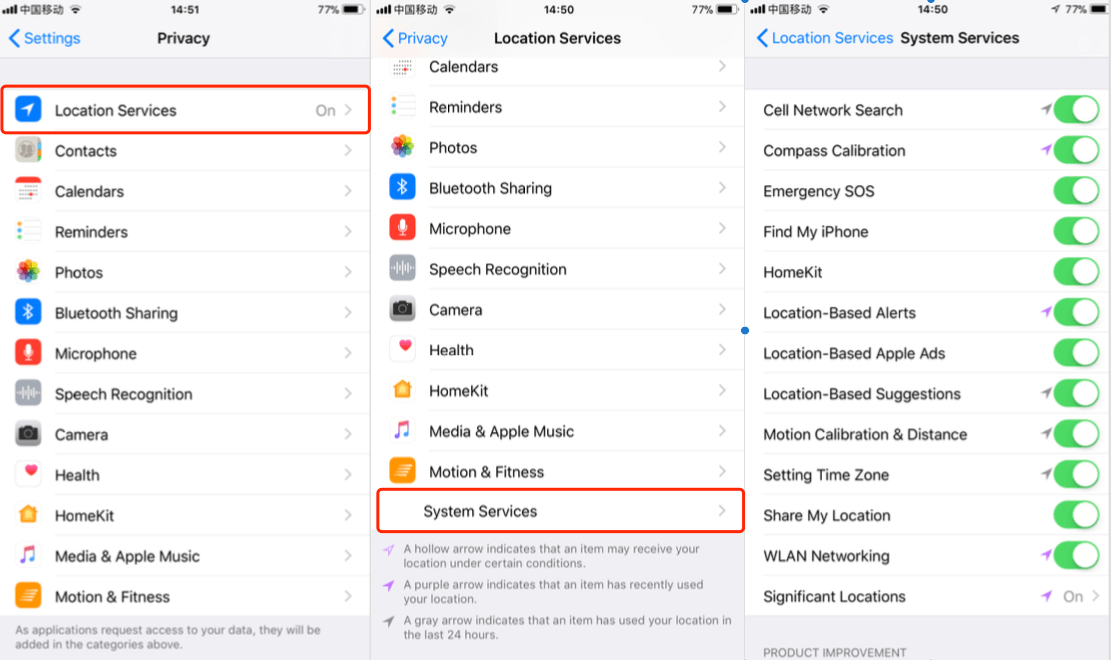
• Open Settings, go to Privacy & Security → Location Services
• Scroll down and tap System Services, turn on Share My Location. Make sure Find My iPhone is also enabled
This ensures your device is allowed to share its location with others.
2. Restart Your iPhone
Sometimes, system glitches after an iOS update can cause features like location sharing to malfunction. To restart your iPhone:
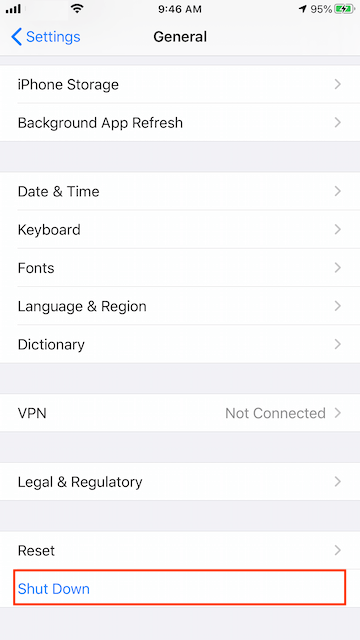
• Open Settings, go to General → Shut Down.
• Drag the slider to power off your device. Wait a few seconds, press and hold the Side button until the Apple logo appears
After restarting, check if location sharing works properly.
3. Check Screen Time Privacy Restrictions
If Screen Time is enabled (especially on family or child devices), it may restrict location sharing. Here’s how to check:
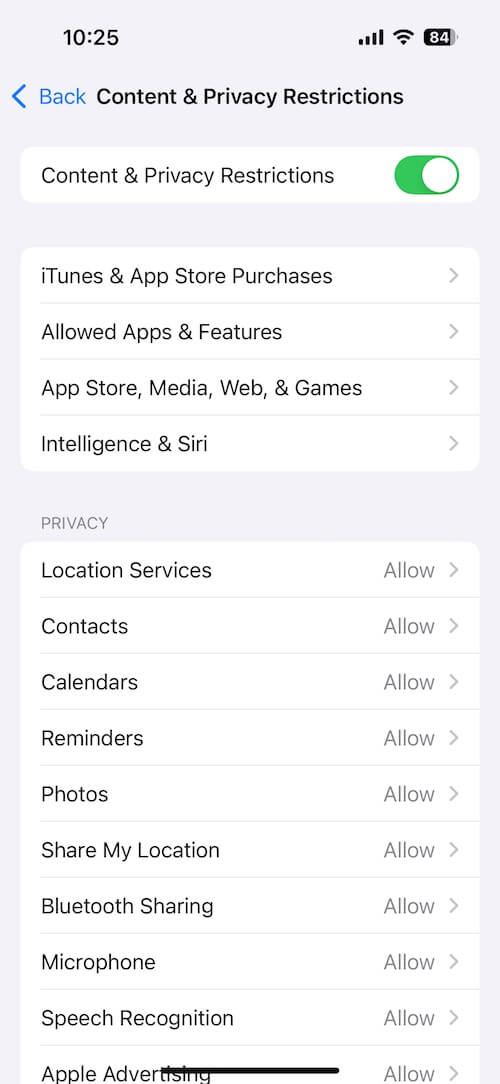
• Open Settings, tap Screen Time. Select Content & Privacy Restrictions
• Enter your Screen Time passcode (if prompted), tap Location Services. Make sure Share My Location is allowed
Disabling restrictions or adjusting settings can restore location sharing functionality.
4. Reset Network Settings
Network-related issues (such as VPN conflicts or incorrect settings) can prevent your iPhone from sending location data. To reset network settings:
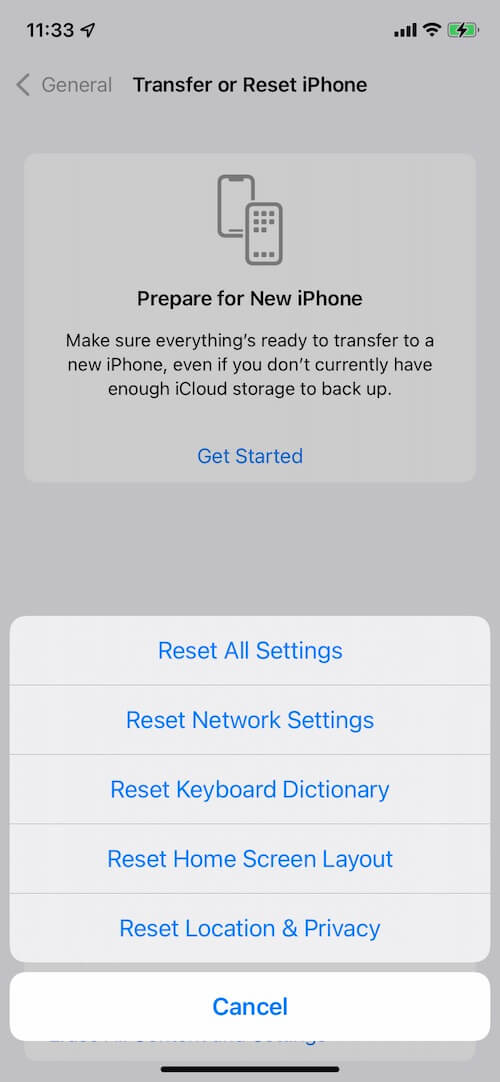
• Go to Settings → General, tap Transfer or Reset iPhone
• Select Reset → Tap Reset Network Settings
Note: This will remove saved Wi-Fi passwords, VPN configurations, and Bluetooth connections, but your personal data will remain intact.
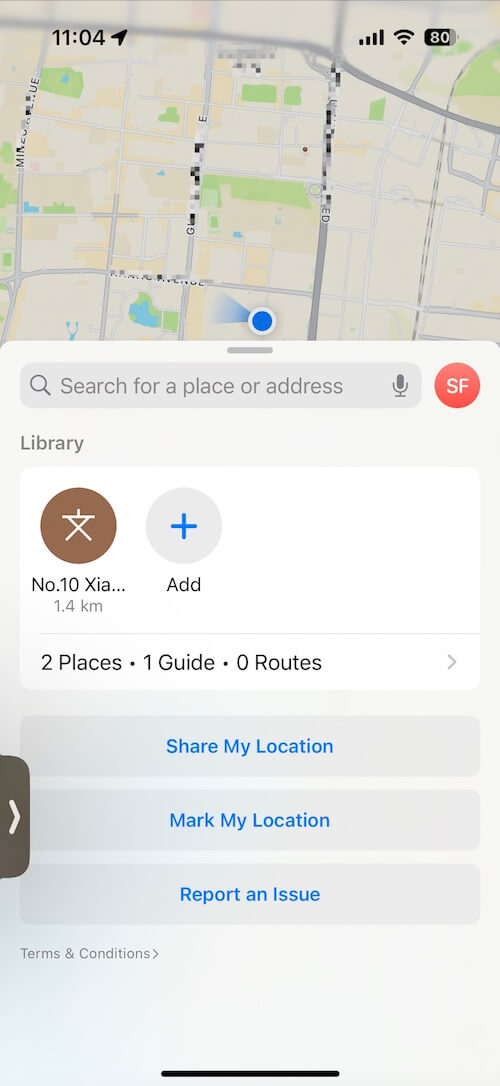
5. Share Your Location Using Apple Maps
If the Find My app still isn’t working, you can use Apple Maps as an alternative. Steps:
• Open Apple Maps, swipe up to access the menu
• Scroll down and tap Share My Location. Choose how you want to share (Messages, Mail, etc.)
This can be a quick workaround while troubleshooting Find My issues.
Final Thoughts
Location sharing issues after an iOS 26 update are usually caused by incorrect settings, restrictions, or temporary system glitches. By following the steps above, you should be able to restore the Share My Location feature on your iPhone.
If the problem persists, consider updating to the latest iOS version or contacting Apple Support for further assistance.
| More Related Articles | ||||
 |
1. How to View and Remove Video Metadata on iPhone? 2. How to Fix Photos Showing the Incorrect Date on iPhone? |
|||
About Fireebok Studio
Our article content is to provide solutions to solve the technical issue when we are using iPhone, macOS, WhatsApp and more. If you are interested in the content, you can subscribe to us. And We also develop some high quality applications to provide fully integrated solutions to handle more complex problems. They are free trials and you can access download center to download them at any time.
| Popular Articles & Tips You May Like | ||||
 |
 |
 |
||
| Five ways to recover lost iPhone data | How to reduce WhatsApp storage on iPhone | How to Clean up Your iOS and Boost Your Device's Performance | ||