After updating to iOS 26, some iPhone users have reported that the camera stops working properly. When opening the Camera app, the screen may turn black or gray, and the camera fails to take photos or videos. This issue can affect both the front and rear cameras, and it may also impact third-party apps such as Snapchat, WhatsApp, Instagram, and others that rely on camera access.
If your iPhone camera is not working after the iOS 26 update, don’t worry. In this guide, we’ll walk you through effective solutions to fix the iOS 26 camera glitch.
1. Restart Your iPhone
Many temporary camera glitches can be resolved with a simple restart.
How to restart your iPhone:
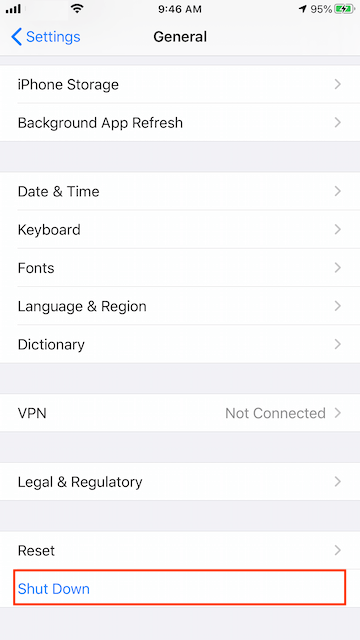
1. Open Settings → General → Shut Down
2. Drag the slider to turn off your iPhone
3. Press and hold the Side button until the Apple logo appears to turn it back on
If the camera issue returns after a day or two, try the additional fixes below.
2. Turn Off the New “Lock Screen Swipe to Open Camera” Setting
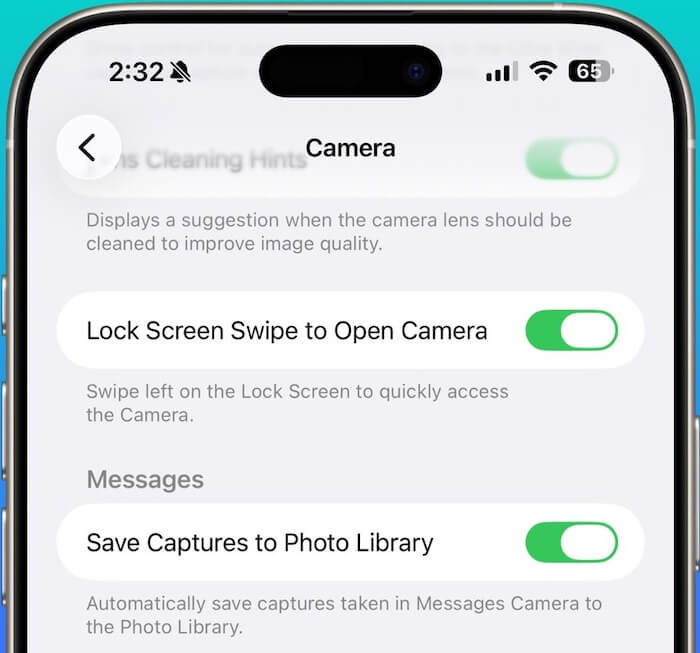
Some users have found that a new feature introduced in iOS 26.1, called Lock Screen Swipe to Open Camera, can cause camera malfunctions.
How to disable Lock Screen Swipe to Open Camera:
1. Open the Settings app, scroll down and tap Camera
2. Scroll to the bottom, turn off Lock Screen Swipe to Open Camera
After disabling this option, reopen the Camera app to check if the issue is fixed.
3. Clean Your iPhone Camera Lens
Dust, fingerprints, or moisture on the camera lens can interfere with camera performance.
How to clean the iPhone camera properly:
1. Use a clean, dry microfiber cloth
2. Gently wipe the lens in small circular motions
3. Clean all camera components, including: Rear cameras, Front (selfie) camera, LiDAR sensor (if available)
Avoid using liquids or abrasive materials.
4. Remove the iPhone Screen Protector
If you’re using a screen protector, it may interfere with the front camera. Some protectors can cause:
• Blurry images
• Reduced sharpness
• Glare or haze
• Reflections over the selfie camera area
Try removing the screen protector temporarily and test the camera again.
5. Free Up iPhone Storage Space
Low storage space can prevent the Camera app from working correctly.
How to check and free up storage:
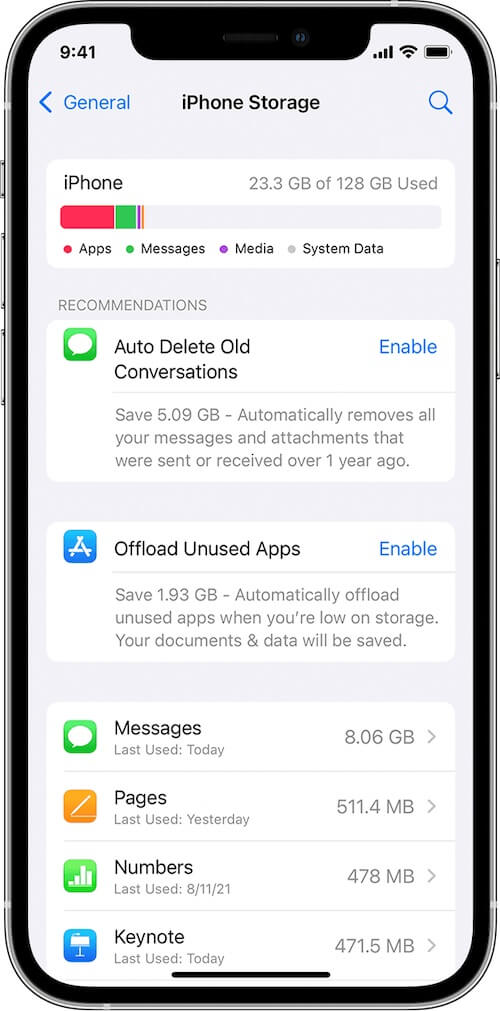
1. Go to Settings → General → iPhone Storage
2. Review your storage usage, Delete large videos, unused apps, or games
Once you free up enough space, reopen the Camera app and test it again.
6. Reset All iPhone Settings
If incorrect system or camera settings are causing the issue, resetting all settings may help. This will not erase your data but will reset system preferences.
How to reset all settings on iPhone:
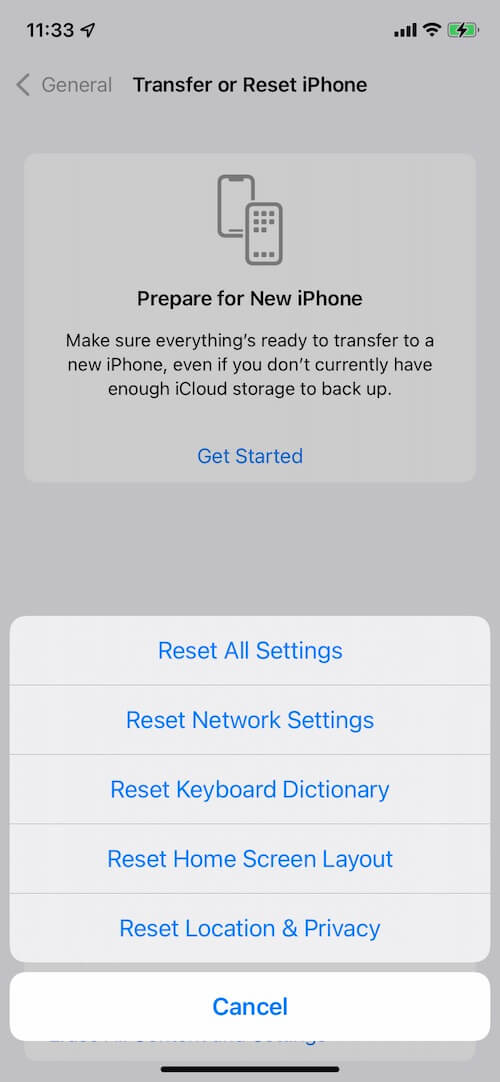
1. Go to Settings → General → Transfer or Reset iPhone
2. Select Reset → choose Reset All Settings
After the reset, set up your preferences again and check the camera.
Final Thoughts
Camera issues after an iOS update can be frustrating, but in most cases, they’re caused by software glitches or system settings. By following the steps above, you should be able to fix the iOS 26 camera not working issue and restore normal camera functionality.
If the problem persists, consider updating to the latest iOS version or contacting Apple Support for further assistance.
| More Related Articles | ||||
 |
1. How to View and Remove Video Metadata on iPhone? 2. How to Fix Photos Showing the Incorrect Date on iPhone? |
|||
About Fireebok Studio
Our article content is to provide solutions to solve the technical issue when we are using iPhone, macOS, WhatsApp and more. If you are interested in the content, you can subscribe to us. And We also develop some high quality applications to provide fully integrated solutions to handle more complex problems. They are free trials and you can access download center to download them at any time.
| Popular Articles & Tips You May Like | ||||
 |
 |
 |
||
| Five ways to recover lost iPhone data | How to reduce WhatsApp storage on iPhone | How to Clean up Your iOS and Boost Your Device's Performance | ||