After updating to iOS 26, some iPhone users have reported that cellular data is not working on their devices. This issue can be extremely frustrating—especially when you’re outside without Wi-Fi and can’t browse websites, send or receive messages on social media apps, stream videos, or log in to online games.
If your iPhone cellular data stopped working after the iOS 26 update, don’t worry. This guide covers 6 effective solutions to help you restore cellular connectivity quickly.
1. Restart Your iPhone
Temporary system cache errors or background exceptions after an iOS update can cause cellular issues. Restarting your iPhone is often the fastest fix.
How to restart your iPhone:
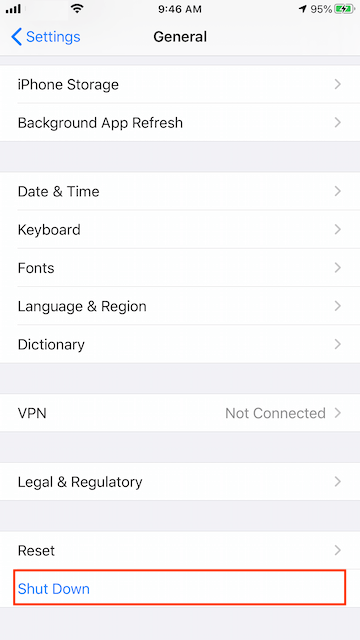
1. Go to Settings → General → Shut Down. Drag the slider to turn off your iPhone
2. Press and hold the Side button until the Apple logo appears to turn it back on
This refreshes system services and may restore cellular data access.
2. Check for Carrier Settings Updates
Outdated carrier settings may affect cellular connectivity after an iOS update.
Steps to check for a carrier update:
1. Open Settings → General → About. Wait a few seconds
2. If a carrier update is available, a prompt will appear to install it
Installing the latest carrier update can resolve compatibility issues with iOS 26.
3. Reinsert the SIM Card
A loose or improperly seated SIM card can cause cellular signal problems.
How to reinstall your SIM card:
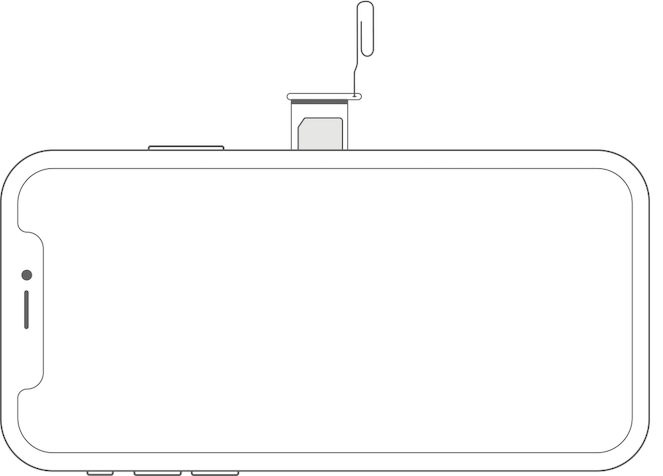
1. Use a SIM-eject tool or paper clip.
2. Insert it into the hole next to the SIM tray
3. Remove the SIM card
4. Reinsert it properly and push the tray back into the iPhone
After reinserting, wait a moment to see if the cellular signal returns.
4. Turn Off Lockdown Mode
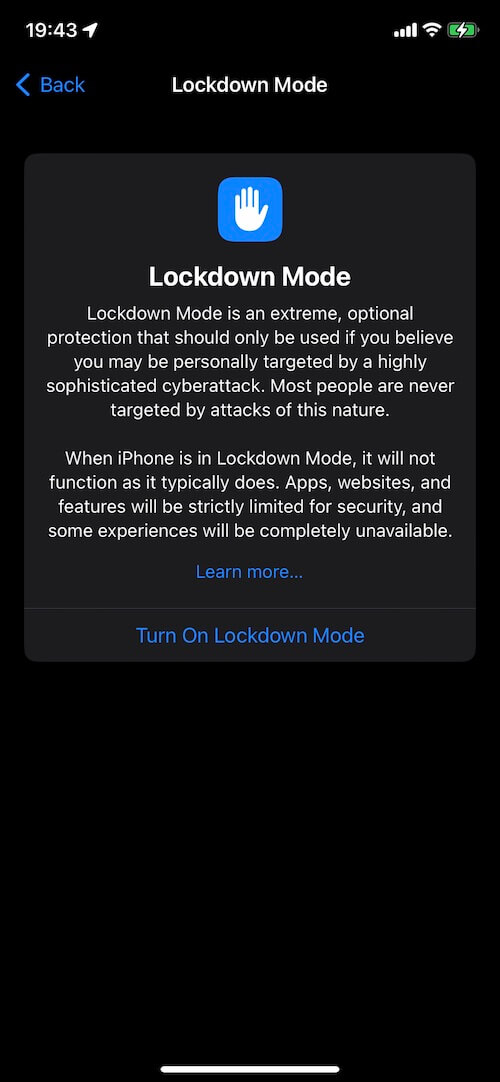
Lockdown Mode is designed for extreme security situations and can disable certain iPhone features, including cellular connectivity.
To turn off Lockdown Mode:
1. Go to Settings → Privacy & Security
2. Scroll down and tap Lockdown Mode. Turn it off
Only enable Lockdown Mode if you believe your iPhone is being targeted by advanced cyberattacks.
5. Toggle Airplane Mode and Cellular Data
Refreshing the cellular connection can sometimes fix network issues.
Steps:
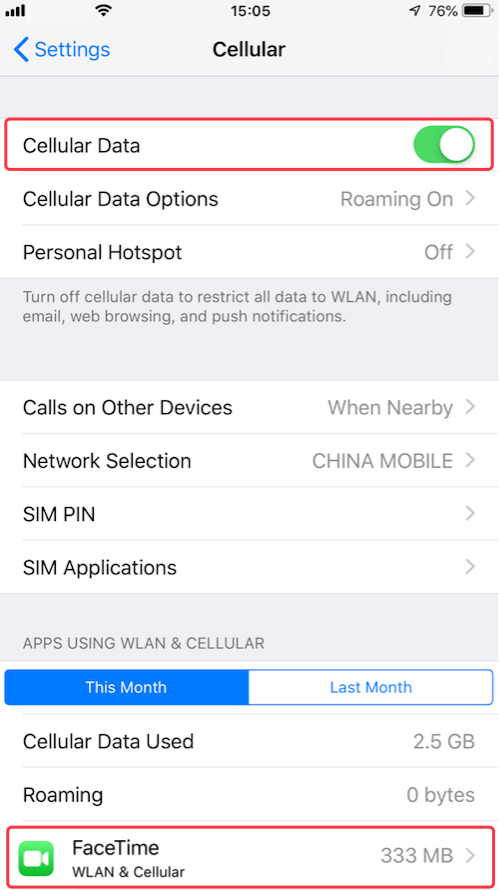
1. Go to Settings, turn on Airplane Mode, Wait 10–15 seconds
2. Turn off Airplane Mode, make sure Cellular Data is turned on
This forces your iPhone to reconnect to the carrier network.
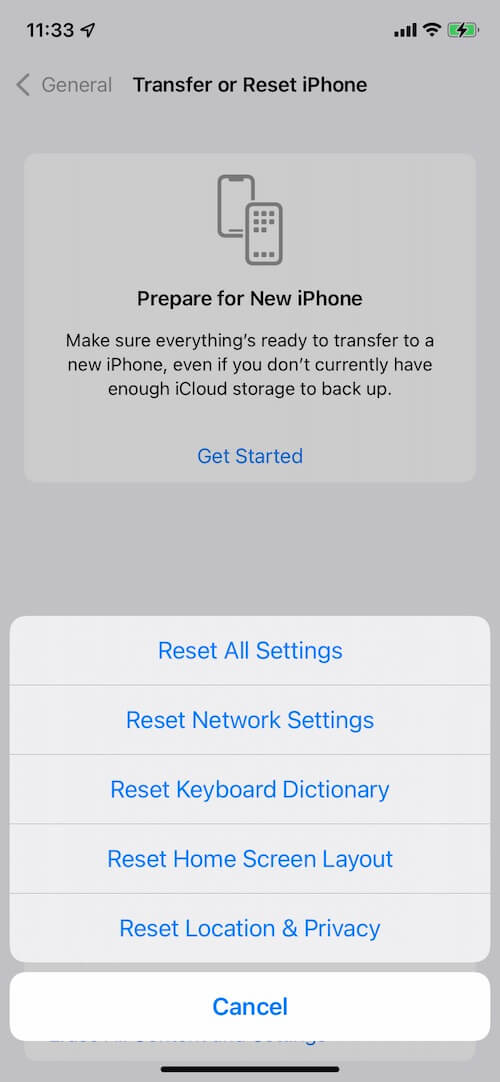
6. Reset Network Settings
If none of the above solutions work, resetting network settings may fix deeper network configuration issues.
How to reset network settings:
1. Go to Settings → General, tap Transfer or Reset iPhone
2. Select Reset, choose Reset Network Settings
This will erase saved Wi-Fi passwords, VPNs, and Bluetooth connections, but it will not delete your data.
Final Thoughts
Cellular issues after an iOS update are usually caused by software conflicts, carrier settings, or network misconfigurations. The methods above have helped many users fix iOS 26 cellular not working problems.
If your iPhone still has no cellular service after trying all solutions, contact your carrier support or Apple Support for further assistance.
| More Related Articles | ||||
 |
1. How to View and Remove Video Metadata on iPhone? 2. How to Fix Photos Showing the Incorrect Date on iPhone? |
|||
About Fireebok Studio
Our article content is to provide solutions to solve the technical issue when we are using iPhone, macOS, WhatsApp and more. If you are interested in the content, you can subscribe to us. And We also develop some high quality applications to provide fully integrated solutions to handle more complex problems. They are free trials and you can access download center to download them at any time.
| Popular Articles & Tips You May Like | ||||
 |
 |
 |
||
| Five ways to recover lost iPhone data | How to reduce WhatsApp storage on iPhone | How to Clean up Your iOS and Boost Your Device's Performance | ||