Have you ever noticed that some photos in Google Photos are not displayed in the correct chronological order? Instead of appearing based on when they were taken, they may appear mixed with photos captured at completely different times.
By default, Google Photos sorts images by the photo capture date. When photos appear out of order, it usually means the image contains incorrect metadata, such as the wrong time zone in the capture date, or the photo may not contain a capture date at all. In those cases, Google Photos may use the upload date and time as the creation date.
In this article, we will explain how to fix the issue of Google Photos not sorting in chronological order on Mac.
Check the Photo Capture Date in Google Photos
First, check the capture date of the photo that is not sorted correctly.
1. Open the photo in Google Photos. Click the Info button.
2. Google Photos will display the photo’s metadata, including: Capture date and time, Camera information, GPS location data, File details.
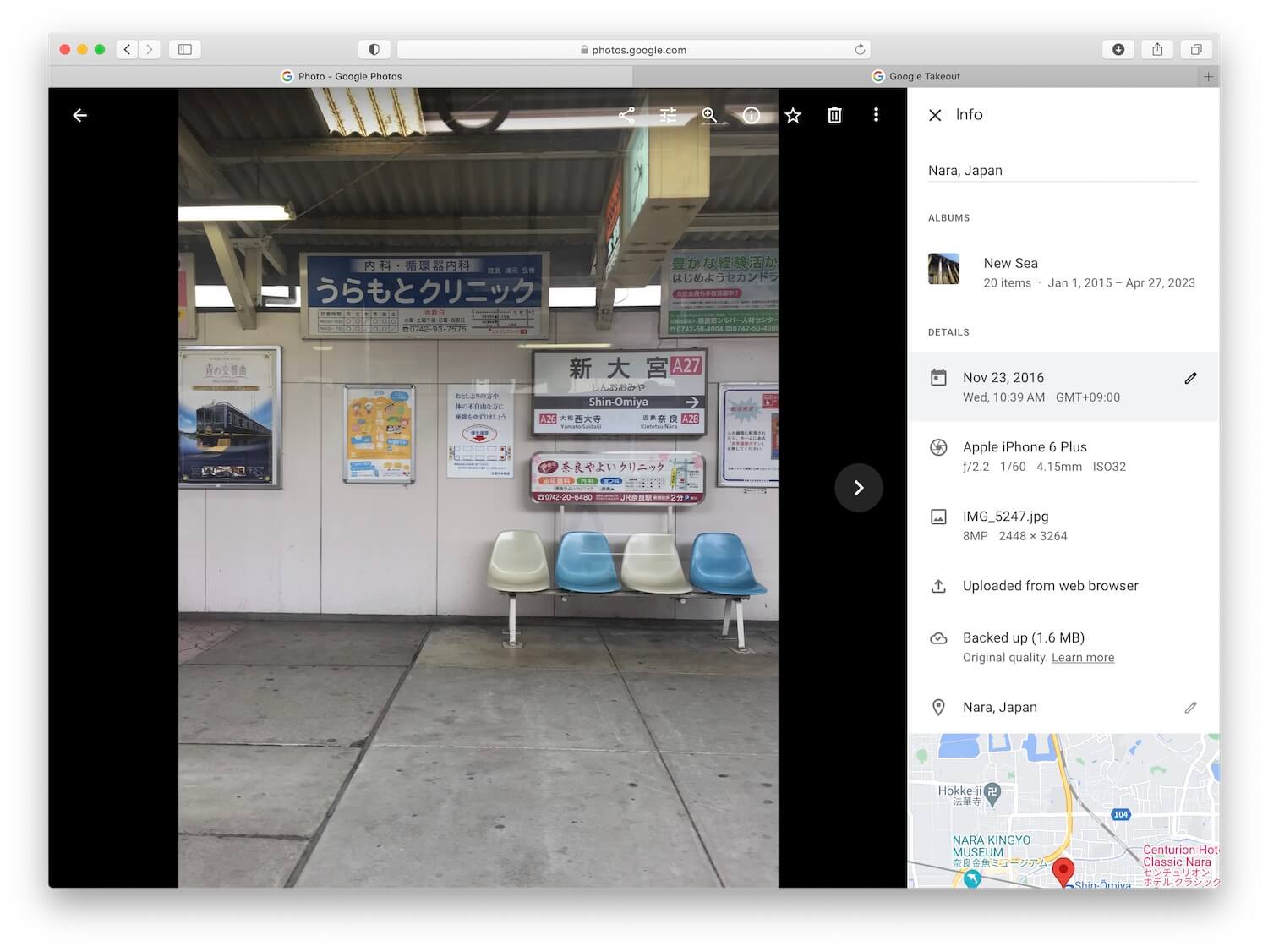
If the displayed date is not the actual shooting date, the photo may contain:
• An incorrect time zone in its capture date
• Missing EXIF capture date metadata
It is important to note that this issue is not caused by Google Photos. The problem usually occurs before the photo is uploaded, when the metadata stored in the photo file is incorrect.
The Limitations of Editing Dates Inside Google Photos
You can manually edit the date and time inside Google Photos:
1. Open the photo in Google Photos. Click the Info button.
2. Click the Edit date & time option. Adjust the Year, Month, Day, Time, and Time Zone.
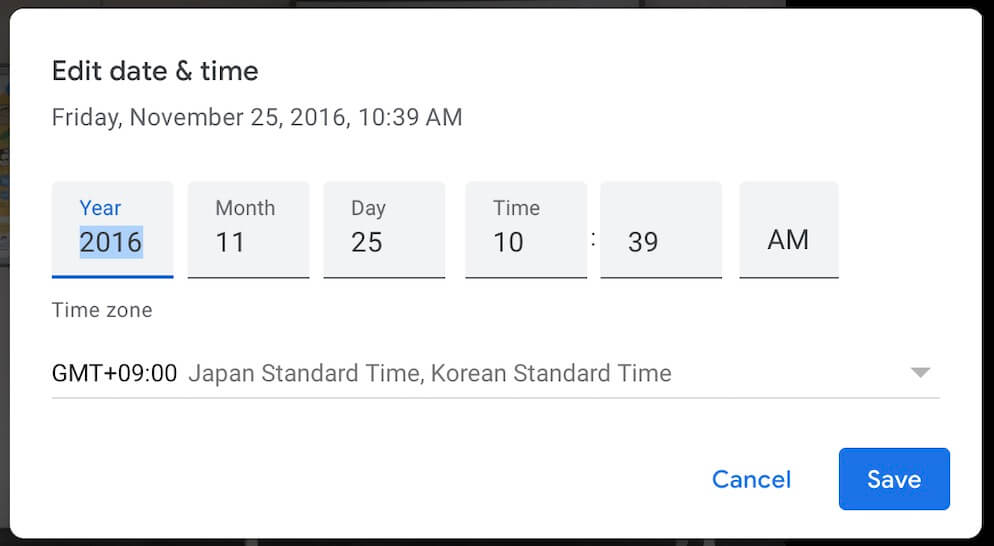
However, there are two limitations:
• The change only affects how the photo is displayed in Google Photos.
• When you download the photo, the original file may still contain the wrong or missing EXIF capture date.
Another limitation is that Google Photos does not support batch editing of photo dates. If you have many photos with incorrect timestamps, you must edit them one by one, which can be very time-consuming.
The Permanent Solution: Correcting EXIF Data on Mac
The most effective way to fix your timeline is to correct the photo EXIF metadata before the files are uploaded. By writing the correct date directly into the file header, you ensure the photo stays in the right order on any platform—Google Photos, iCloud, or your local hard drive.
To do this efficiently, we recommend using Photo Exifer, a professional metadata editor for macOS.
Step 1: Gather Your Original Photos
Locate the original photos before uploading them to Google Photos. They may still exist on your computer or external hard drive. If you cannot find them, you can download the original photos using Google Takeout from Google.
Step 2: Batch Edit with Photo Exifer
1. Download and Open: Launch Photo Exifer on your Mac.
2. Import Photos into Photo Exifer: Drag your photos into the app. The application will display detailed photo metadata, including the Camera Date (EXIF capture date). You will immediately see which files have a missing "Camera Date".
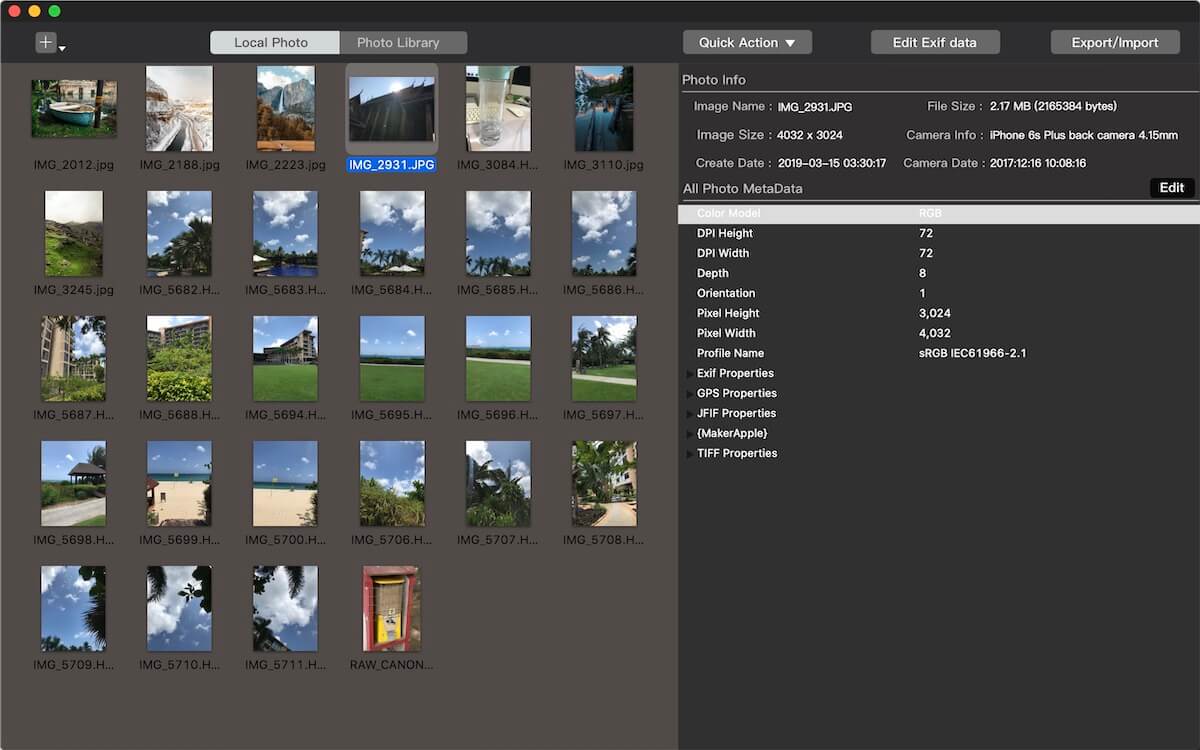
3. Edit the Photo EXIF Date: If the Camera Date (EXIF date) is incorrect or missing: Select the photos in Photo Exifer. Click Quick Actions → Edit Date Info. Adjust the Year, Month, Day, Time, or correct the time zone. Click Save Changes.
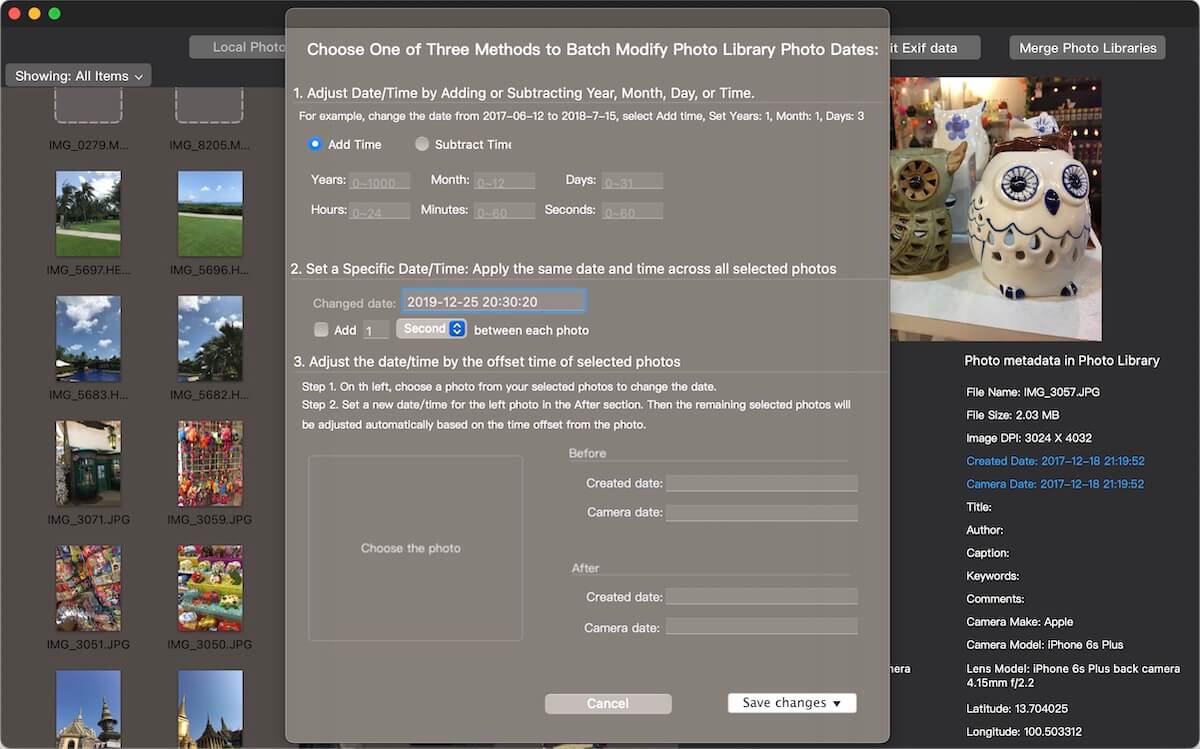
You can also add a missing EXIF capture date for photos that do not contain one.
Step 3: Re-Upload to Google Photos
Once your files are fixed, delete the "out-of-order" versions from Google Photos and upload your newly corrected files. Google will read the updated EXIF tags and place them exactly where they belong in your timeline.
Why Professional Metadata Management Matters
Beyond just fixing dates, Photo Exifer acts as a complete command center for your digital memories. You can:
Edit GPS Location: Add coordinates to old scans or remove them for privacy.
Batch Tagging: Add titles, descriptions, and keywords (IPTC/XMP) to make your library searchable.
Clean Up: Remove unnecessary tags to reduce file size or standardize your entire collection.
Final Thoughts
A chronological photo library is much more than an aesthetic choice—it's how we navigate our history. If your Google Photos sorting is broken, don't waste time with one-by-one edits. Use a dedicated metadata editor to fix the source files and enjoy a perfectly organized library forever.
| More Related Articles | ||||
 |
1. How to merge two photo libraries on Mac? 2. How to find and remove duplicate photos from Photos? |
|||
About Fireebok Studio
Our article content is to provide solutions to solve the technical issue when we are using iPhone, macOS, WhatsApp and more. If you are interested in the content, you can subscribe to us. And We also develop some high quality applications to provide fully integrated solutions to handle more complex problems. They are free trials and you can access download center to download them at any time.
| Popular Articles & Tips You May Like | ||||
 |
 |
 |
||
| Five ways to recover lost iPhone data | How to reduce WhatsApp storage on iPhone | How to Clean up Your iOS and Boost Your Device's Performance | ||