To save storage space on a Mac startup disk, many users choose to store thousands of photos and videos in an Apple Photos Library located on an external hard drive. However, one day when trying to open the library, they may see an error message such as: “Unsupported Library. Please upgrade Photos to open this library.”
Although the photos and videos still exist in the Photos Library, Apple Photos may no longer be able to access them. This can happen because of macOS compatibility issues, external hard drive problems, damaged file systems, or unsupported drive formats.
If you are experiencing the same issue, this guide will show you several effective ways to fix a Photos Library that cannot be accessed from an external hard drive on Mac.
Why Can’t Apple Photos Access the External Hard Drive?
Before jumping into the fixes, it helps to understand why your Mac Photos library is throwing an error. The most common culprits include:
• Connection Issues: Faulty USB cables, loose ports, or malfunctioning hubs.
• Unsupported Drive Formats: Formatting the drive as ExFAT instead of Apple-native formats.
• File System Corruption: Sudden disconnection or power loss damaging the drive's directory.
• Corrupted Photos Library Database: A glitch within the .photoslibrary file itself.
• Insufficient Permissions: macOS blocking access to the external drive’s files.
Below are the best 5 solutions to fix Can’t Access Photos on External Hard Drive on Mac.
1. Check the USB Cable and External Drive Connection
Sometimes the issue is caused by a faulty or incompatible USB cable. Try the following steps:
1. Eject the external hard drive safely. Disconnect and reconnect the drive.
2. Try another USB port on your Mac. Replace the USB cable with a different one.
Some older USB cables or adapters may not work properly with newer versions of macOS. A poor connection can prevent macOS from detecting the external hard drive correctly, which may also cause Time Machine backup failures or Photos Library access problems.
2. Access and Recover the Photos Library with Photo Exifer
If Apple Photos refuses to open the library due to an "Unsupported Library" error, you can bypass the native app using a specialized tool like Photo Exifer. This third-party utility can look directly inside a corrupted or incompatible Apple Photos Library to view, organize, and extract your original photos and metadata.
Features of Photo Exifer
• Open Apple Photos Libraries stored on external hard drives
• View original photos and videos
• Read and edit photo metadata and albums
• Export original and edited photos with metadata
• Organize exports by year, month, or album
• Merge multiple Photos Libraries into one library
Step-by-Step: How to Open and Export Photos with Photo Exifer
1. Download and install Photo Exifer on your Mac.
2. Launch the application and navigate to File → Open Photo Library..., select the Photos Library stored on the external hard drive.
3. Photo Exifer will scan and read all photos, videos, albums, and metadata from the library. After scanning, you can: Browse all photos and videos, Filter photos by album, Export original files from the library, Preserve album structures and metadata during export
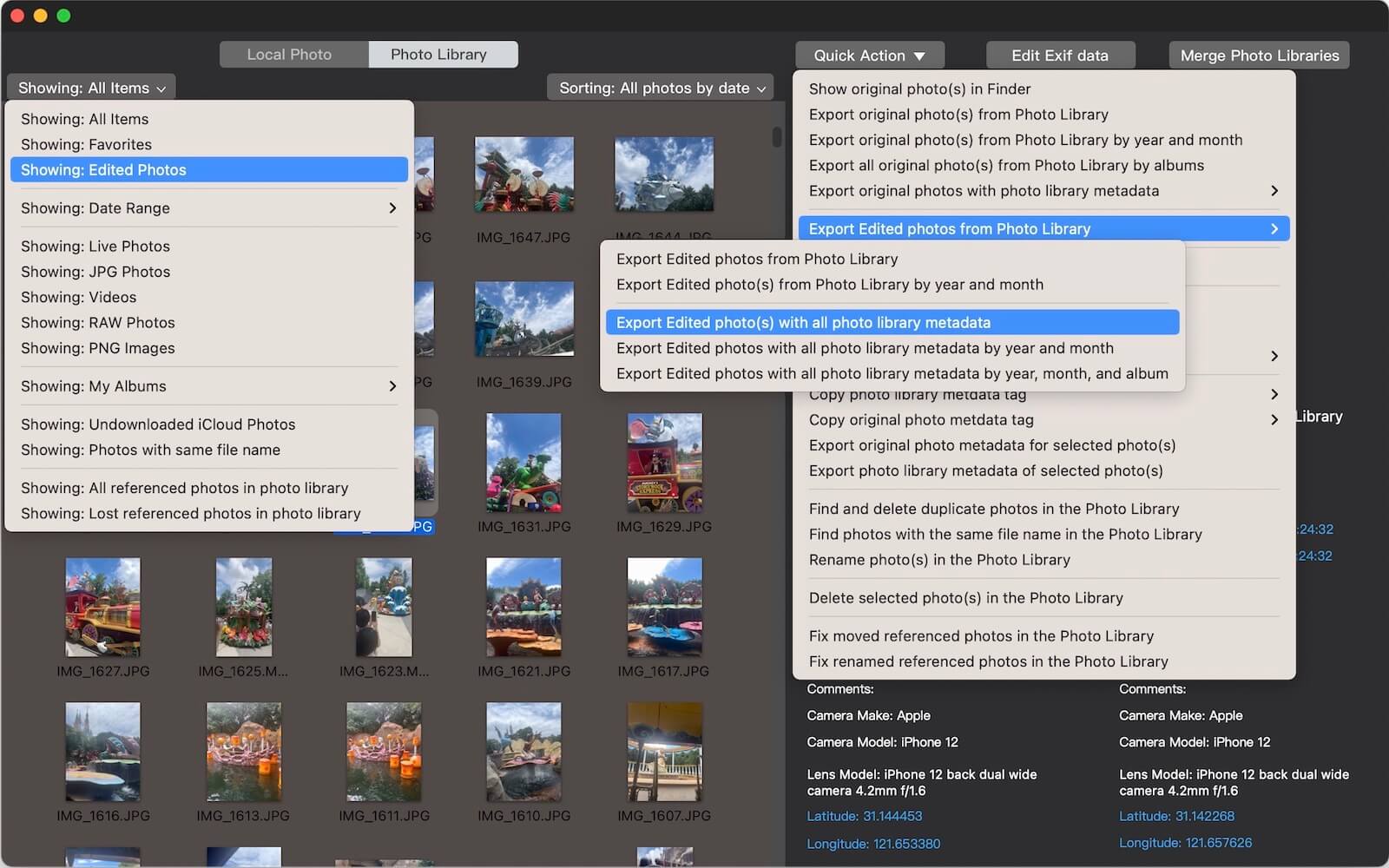
4. select the photos you want to rescue. Click Quick Action → Export Original Photos from Photo Library or Export Edited Photos from Photo Library. Choose Export original photos with all metadata by year, month, and album .This allows you to recover and reorganize your original photo files even if Apple Photos cannot open the library.
Merge Multiple Photos Libraries
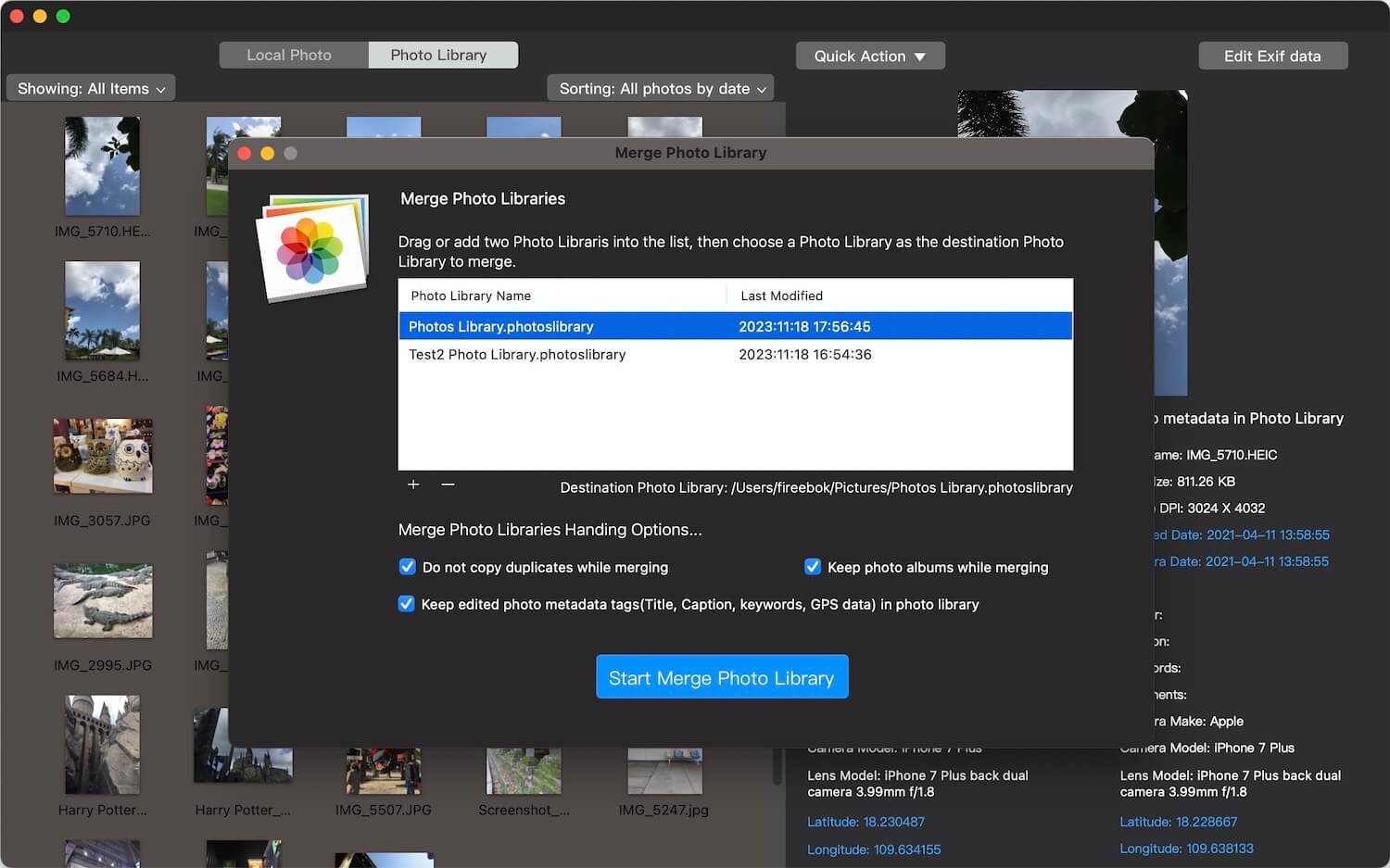
If you have another local Photos Library on your Mac, Photo Exifer can merge multiple libraries into one.
1. Open Photo Exifer. Go to File → Merge Photo Libraries…
2. Add the two Photos Libraries. Choose one library as the destination library.
3. Click Start Merge Photo Library. Wait for the merge process to complete.
3. Repair the Apple Photos Library Built-in Tool
If your Mac detects the external drive fine, but the library database itself is corrupted, Apple provides a built-in repair utility that can rebuild the database structure.
How to Repair a Photos Library
1. Hold down the Option + Command keys. Open the Photos app while holding the keys.
2. The Repair Library tool will appear. Click Repair and wait for the process to finish.

Note: Depending on the size of your photo library, this repair process can take anywhere from a few minutes to several hours.
4. Reformat the External Hard Drive
The file system format of the external hard drive is very important. If the drive is formatted as ExFAT, newer versions of macOS may experience compatibility or stability issues when storing Apple Photos Libraries on it.
Apple generally recommends using: APFS and Mac OS Extended (Journaled)
How to Check the Drive Format
1. Open Disk Utility on your Mac. Select the external hard drive. Check the file system format information.
Reformat the Drive
If the drive is using ExFAT:
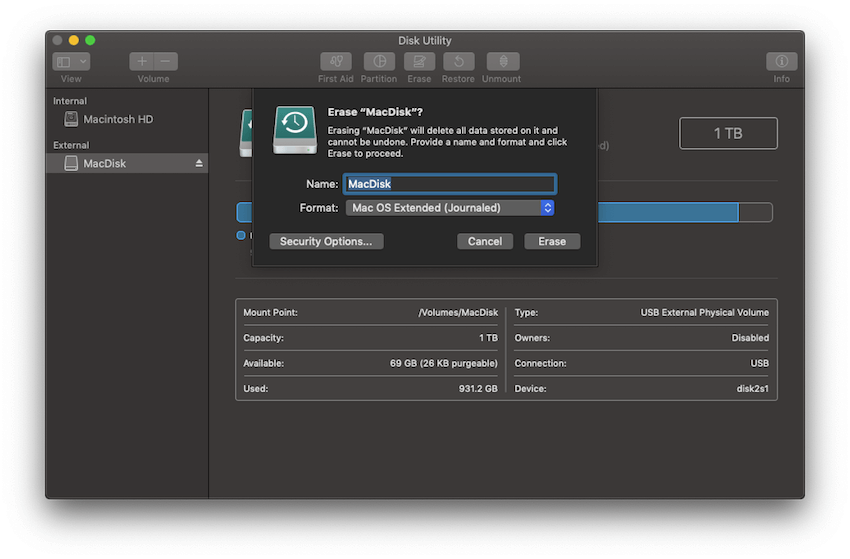
1. Open Disk Utility on your Mac. Select the external hard drive.
2. Click Erase. Choose: APFS for newer macOS versions. Mac OS Extended (Journaled) for older macOS versions.
3. Click Erase to reformat the drive.
5. Repair the External Hard Drive with Disk Utility
If the external hard drive already uses APFS or Mac OS Extended, the drive itself may contain file system errors. You can repair it using Disk Utility.
Steps to Repair the Drive
1. Open Disk Utility. Select the external hard drive.
2. Click First Aid. Click Run to begin repairing the drive.
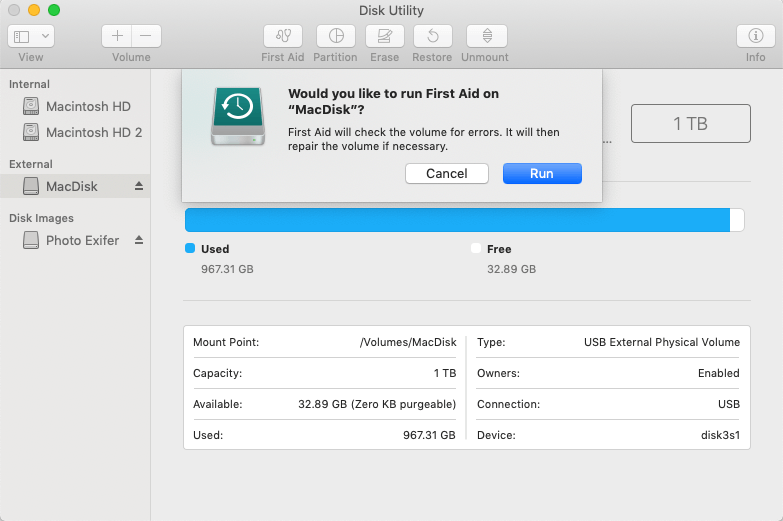
Disk Utility will scan and repair file system issues that may prevent the Photos Library from opening correctly.
Final Thoughts
Getting locked out of your photo library is stressful, but it's rarely a permanent data loss situation. By systematically checking your hardware connections, verifying your drive's format, running First Aid, or utilizing a rescue tool like Photo Exifer, you can safely recover access to your precious videos and photos.
To prevent this from happening in the future, always remember to safely eject your external drive before unplugging it, and ensure your drive is formatted to APFS right out of the box!
| More Related Articles | ||||
 |
1. How to merge two photo libraries on Mac? 2. How to find and remove duplicate photos from Photos? |
|||
About Fireebok Studio
Our article content is to provide solutions to solve the technical issue when we are using iPhone, macOS, WhatsApp and more. If you are interested in the content, you can subscribe to us. And We also develop some high quality applications to provide fully integrated solutions to handle more complex problems. They are free trials and you can access download center to download them at any time.
| Popular Articles & Tips You May Like | ||||
 |
 |
 |
||
| Five ways to recover lost iPhone data | How to reduce WhatsApp storage on iPhone | How to Clean up Your iOS and Boost Your Device's Performance | ||