Have you ever moved files to the Trash and then forgotten to empty it? Over time, Trash files can consume a significant amount of storage space on your Mac. In some cases, you may even encounter a "Trash can't be emptied" error when trying to permanently remove these files.
When you move a file to the Trash, macOS records the exact date and time when the file was discarded. While emptying the Trash is usually straightforward, some files may become difficult to delete due to permission issues, locked metadata, file corruption, or system restrictions that develop over time.
Another common cause involves files downloaded from the internet. These files may retain quarantine attributes assigned by macOS security features such as Gatekeeper. After macOS updates or security changes, some quarantined files stored in the Trash may be flagged as unverified, preventing Finder from deleting them normally.
In these situations, you may need to force empty the Trash to remove stubborn files. Regularly clearing the Trash is also a good habit, helping you reclaim storage space and avoid problems caused by keeping deleted files for extended periods.
In this article, we'll show you how to better manage, view, and empty Trash files on your Mac using Better Trash, a powerful Mac Trash management tool. Better Trash includes features such as Force Empty Trash, Auto Empty, Safe Delete, Source Path Viewer, and Trash Reports.
Download and install Better Trash on your Mac to get started.
1. Force Empty Trash
If you receive a "Trash can't be emptied" error message, the Force Empty Trash feature can help.
Simply launch Better Trash, select the Force Empty tab, and click the Force Empty Trash button. The application will remove locked or stubborn files that Finder cannot delete normally.
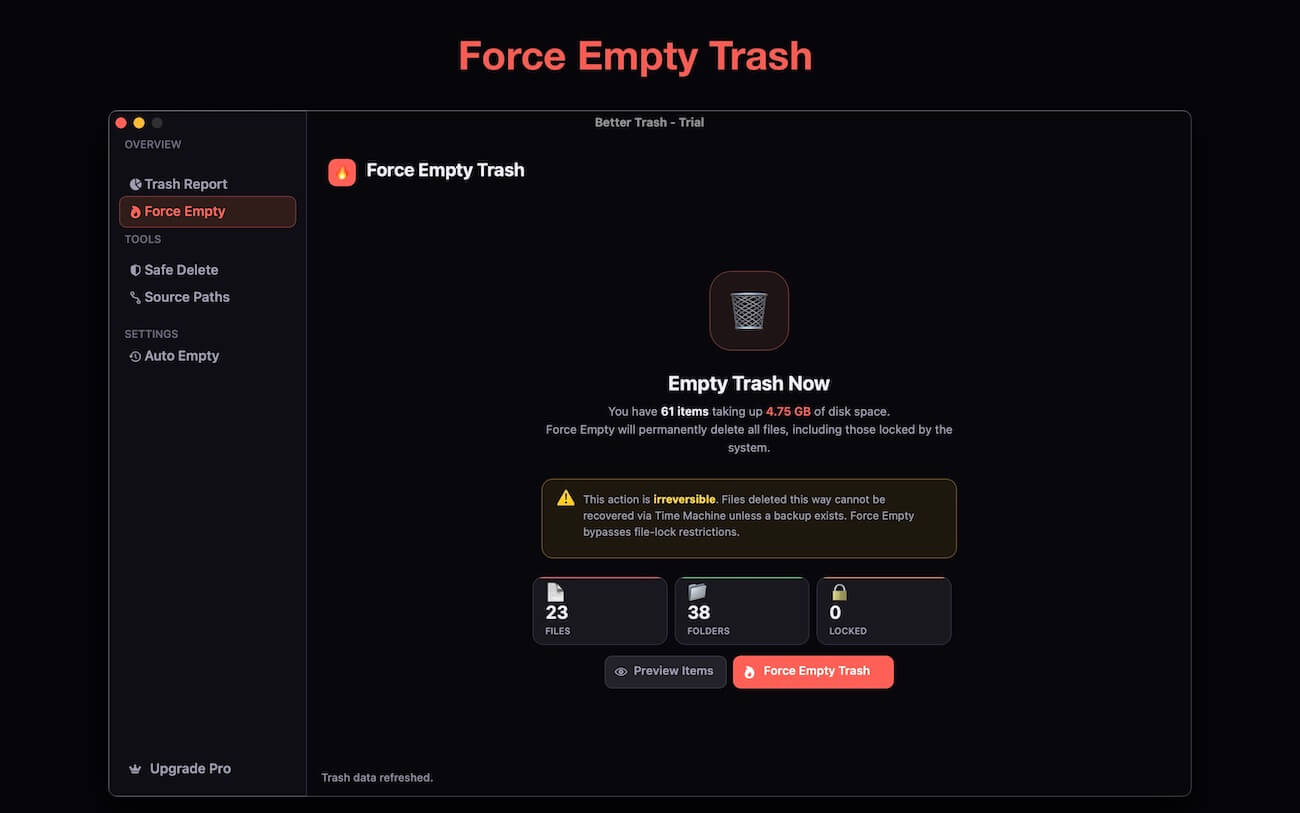
Key Benefits
• Remove files that refuse to delete
• Resolve "Trash can't be emptied" errors
• Delete locked or corrupted Trash items
• Quickly free up disk space
2. Auto Empty Trash
Manually emptying the Trash can be easy to forget. Better Trash provides several automatic cleanup rules to keep your Mac tidy.
Rule 1: Empty Trash When It Exceeds a Storage Limit
Set a custom storage threshold, and Better Trash will automatically empty the Trash when the specified limit is reached.
Rule 2: Delete Old Trash Files
Automatically remove files that have been in the Trash for more than 30 days, or choose your own retention period.
Rule 3: Schedule Automatic Cleanup
Configure Better Trash to empty the Trash automatically on a daily, weekly, or monthly schedule at a specific time.
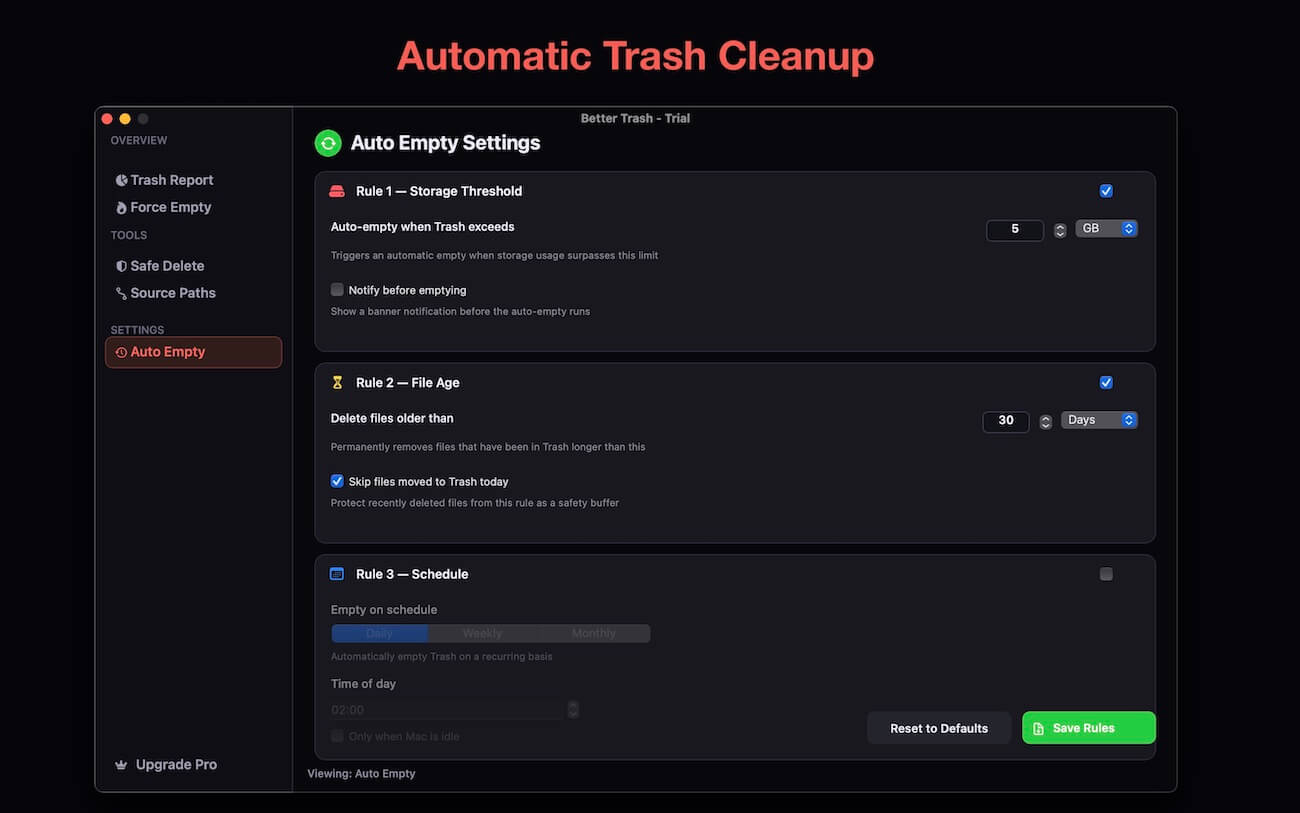
Benefits of Auto Empty
• Prevent Trash from consuming excessive storage
• Keep your Mac organized automatically
• Reduce the need for manual cleanup
• Customize cleanup schedules to suit your workflow
3. Securely Delete Trash Files
If you're concerned that deleted files could be recovered using data recovery software, Better Trash offers a Safe Delete feature.
Safe Delete securely overwrites files before removing them from your Mac, making recovery significantly more difficult. Available overwrite methods include:
• Quick Delete (1-Pass)
• DoD 3-Pass Secure Erase
• Gutmann 35-Pass Secure Erase
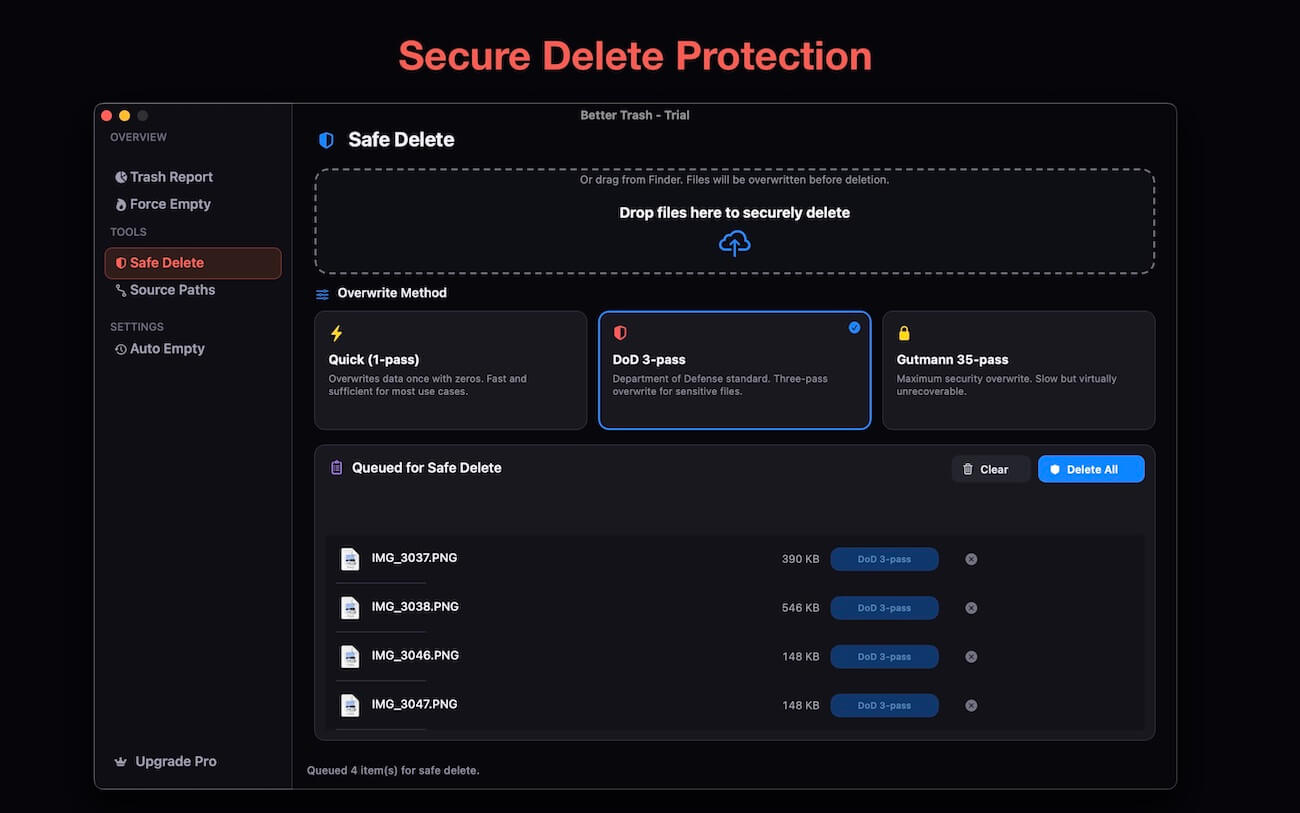
This feature is especially useful when deleting confidential documents, financial records, personal photos, or sensitive business data.
4. View Source Paths and Generate Trash Reports
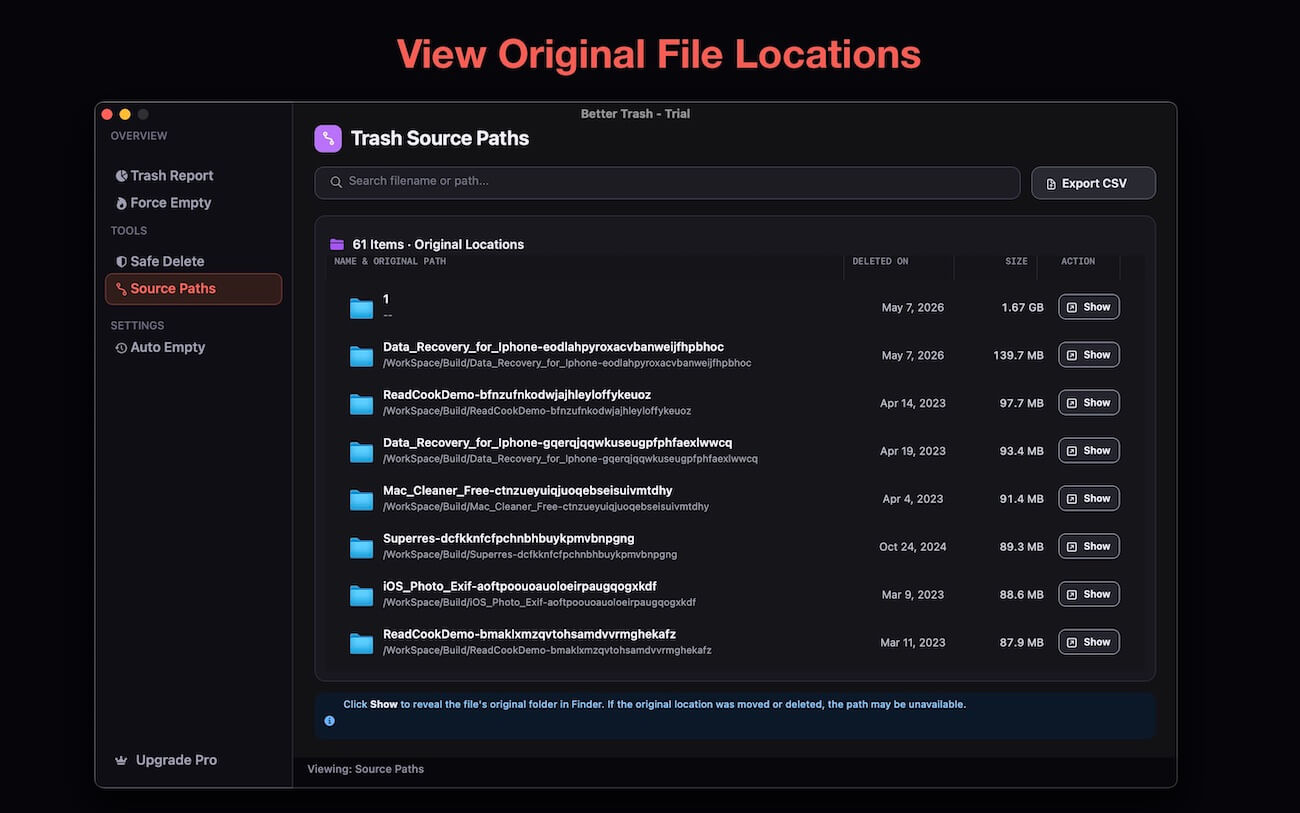
Better Trash does more than just empty the Trash. Using the Source Paths tab, you can view the original location of files before they were moved to the Trash. This makes it easier to identify where deleted files came from.
The Trash Report feature provides detailed information about your Trash contents, including: Total Trash storage usage, Number of files and folders, File types, Deletion dates, Age of deleted items, Largest files occupying space
These insights help you better understand and manage your Mac's Trash storage.
Final Thoughts
Keeping your Mac's Trash clean is an important part of maintaining system performance and freeing up valuable storage space. Whether you're dealing with files that won't delete, want to automate Trash cleanup, securely erase sensitive data, or analyze Trash usage, Better Trash provides the tools you need.
With features such as Force Empty Trash, Auto Empty, Safe Delete, Source Paths, and Trash Reports, Better Trash makes managing and emptying your Mac's Trash safer, easier, and more efficient.
| More Related Articles | ||||
 |
1. How to merge two photo libraries on Mac? 2. How to find and remove duplicate photos from Photos? |
|||
About Fireebok Studio
Our article content is to provide solutions to solve the technical issue when we are using iPhone, macOS, WhatsApp and more. If you are interested in the content, you can subscribe to us. And We also develop some high quality applications to provide fully integrated solutions to handle more complex problems. They are free trials and you can access download center to download them at any time.
| Popular Articles & Tips You May Like | ||||
 |
 |
 |
||
| Five ways to recover lost iPhone data | How to reduce WhatsApp storage on iPhone | How to Clean up Your iOS and Boost Your Device's Performance | ||