After syncing photos, videos, backups, and files from your iPhone or PC, many users notice that their MacBook Neo quickly runs low on storage space. Even after emptying the Trash and deleting files from the Downloads folder, the storage usage may still show a large amount of System Data in System Settings -> General -> Storage.
System Data can include:
• System cache files
• User cache files
• Application caches
• Temporary files
• System logs
• Old iOS backups
• Browser data
• Time Machine local snapshots
• Failed downloads
If your MacBook Neo storage is almost full, this guide will show you how to safely delete junk files and recover valuable disk space.
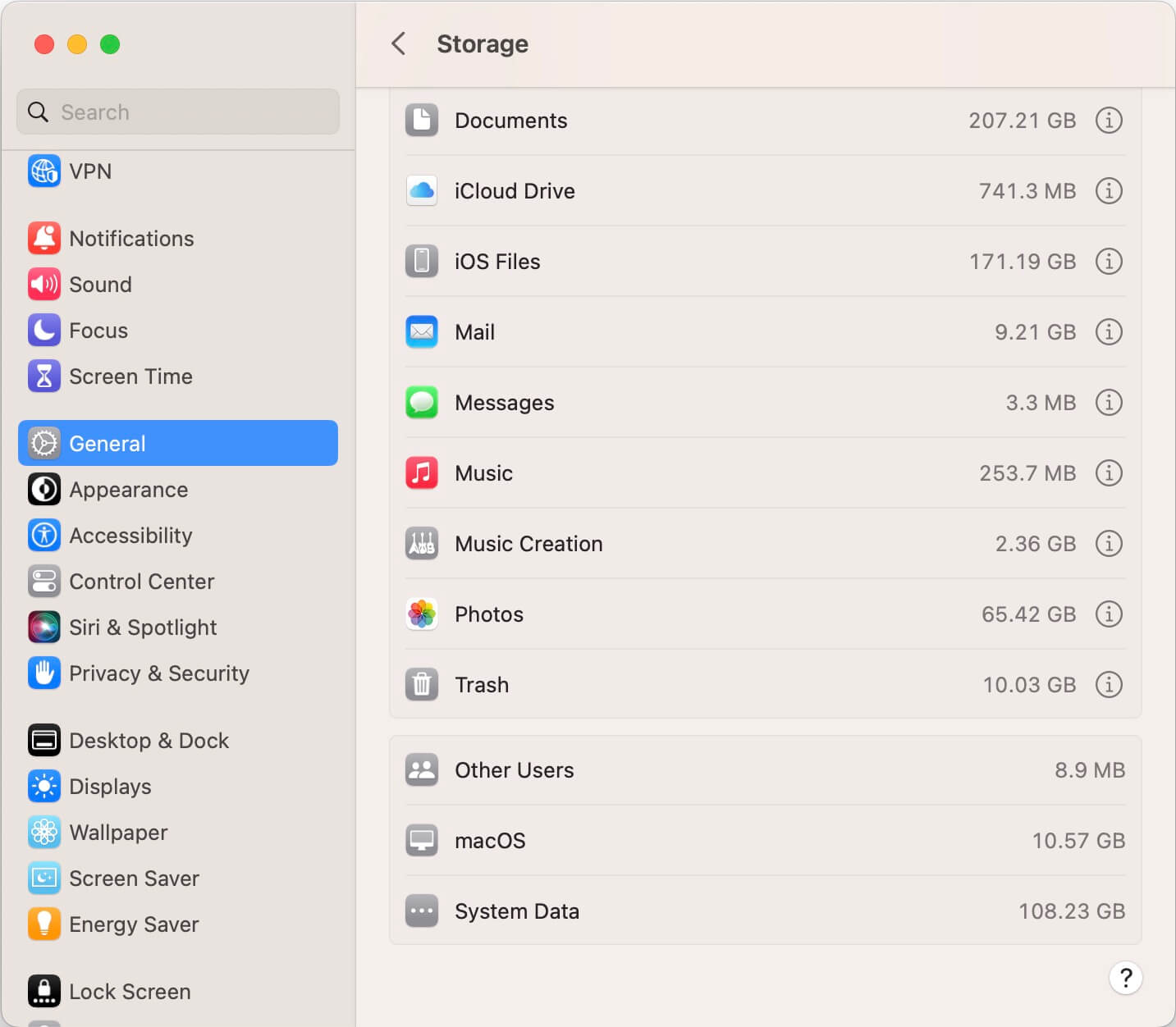
1. Enable macOS Storage Optimization Recommendations
macOS includes built-in storage optimization tools that can automatically help free up space on your MacBook Neo.
To access these recommendations: Open System Settings, go to General, click Storage. You will see several recommendations, including:
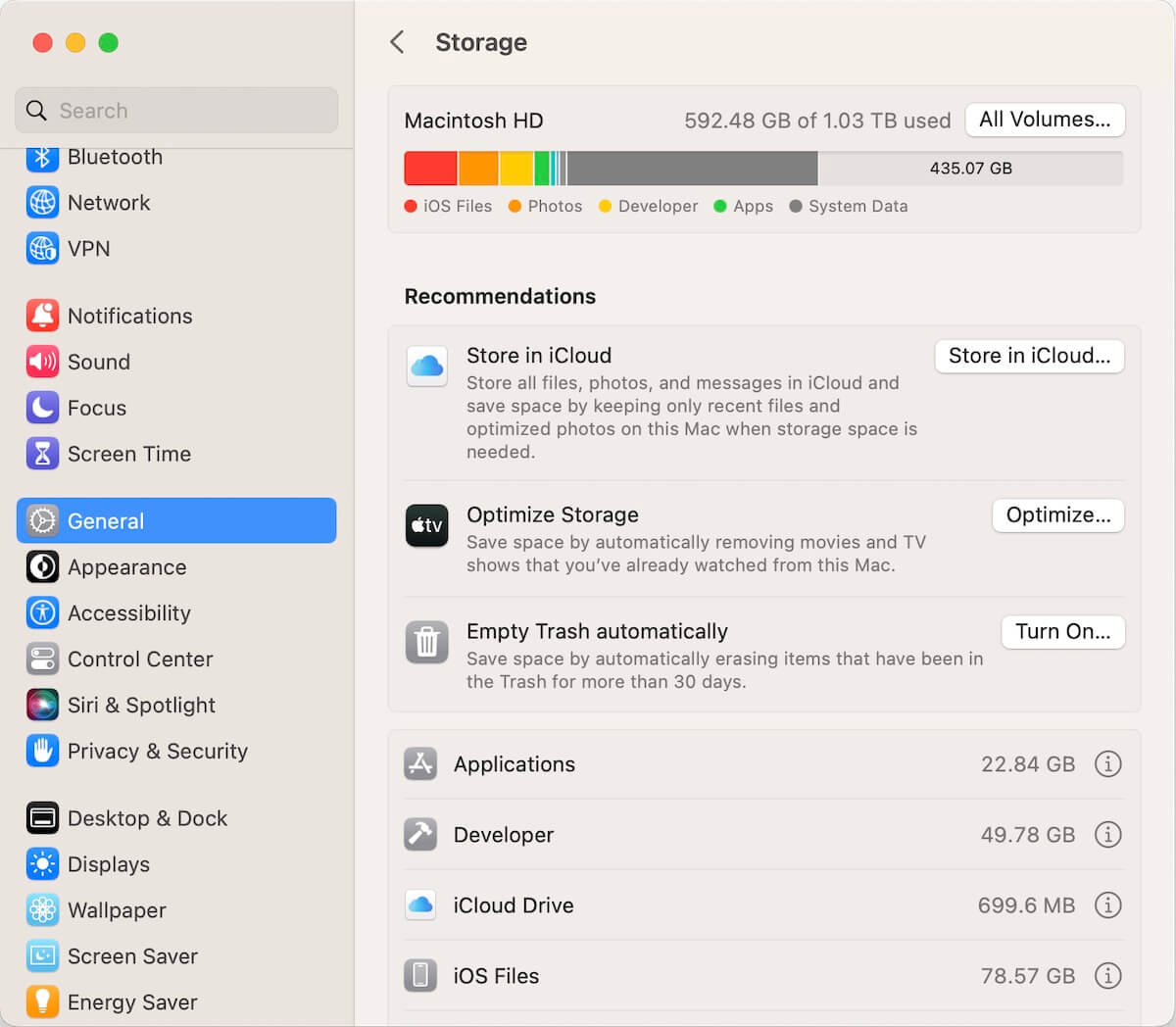
Store in iCloud
This option stores your Photos, Messages, Desktop, and Documents in iCloud to reduce local storage usage on your Mac.
Optimize Storage
Automatically removes watched Apple TV movies and TV shows from your Mac while keeping them available in the cloud for re-download.
Empty Trash Automatically
Deletes items in the Trash after 30 days to help keep storage clean.
These built-in tools are useful for managing storage before manually deleting junk files.
2. Move iPhone Backups and Photo Libraries to an External Drive
The MacBook Neo typically comes with limited SSD storage such as 256GB or 512GB. Local iPhone backups and photo libraries can consume a significant amount of space over time.
Move iPhone or iPad Backups
If you back up your iPhone or iPad to your Mac, the backup files may take up dozens or even hundreds of gigabytes. The default backup location is: ~/Library/Application Support/MobileSync/Backup
To free up storage:
Connect an external hard drive or SSD, copy the Backup folder to the external drive. Remove the original backup files from your Mac after confirming the copy is successful. You can copy the backups back to your Mac whenever you need to restore your device.
Move the Photos Library to an External Drive
If you store a large number of iPhone photos and videos in the Photos app, your Photos Library may become extremely large. Check the size of Photos Library.photoslibrary.
To save space: Connect an external hard drive, move the Photos Library to the external drive. Open the Photos app while holding the Option key, select the moved library
The macOS Photos app fully supports managing photo libraries from external storage devices.
3. Delete Junk Files with PowerSuite for Mac
Manually locating and deleting cache files, logs, and temporary data can be difficult and risky for inexperienced users. A Mac cleanup utility such as PowerSuite can help automate the process safely.
What PowerSuite Can Clean
PowerSuite can scan and remove:
• System cache files
• User cache files
• Application caches
• System logs
• Web browser cache and cookies
• Time Machine local snapshots
• Failed downloads
• Trash files
• Large unused files
• Temporary application data
How to Use PowerSuite
1. Download and install PowerSuite on your MacBook Neo
2. Open the app and click Cleanup tab, click the Start Scan button.
3. After scanning, the app will display all categories such as: System Junk, Trashed Files, Removable Data, Large Files and more.
4. Click Quick Access to review junk files from various locations, including application caches, system logs, web data, and support files. Select the files you want to remove, then click Remove to clean your Mac.

Additional Features
Besides junk file cleanup, PowerSuite also supports: Removing duplicate files, Uninstalling apps completely, Cleaning browser cookies, Securely erasing files and folders, Managing large files
Final Thoughts
System Data and junk files can quickly consume storage on a MacBook Neo, especially after syncing iPhone data, downloading files, and using the Mac regularly. By enabling macOS storage optimization, moving large backups and photo libraries to external storage, and cleaning unnecessary cache and system files, you can recover a large amount of disk space and improve Mac performance.
Regularly cleaning junk files can also help your MacBook Neo run faster and avoid low-storage warnings in the future.
| More Related Articles | ||||
 |
1. How to merge two photo libraries on Mac? 2. How to find and remove duplicate photos from Photos? |
|||
About Fireebok Studio
Our article content is to provide solutions to solve the technical issue when we are using iPhone, macOS, WhatsApp and more. If you are interested in the content, you can subscribe to us. And We also develop some high quality applications to provide fully integrated solutions to handle more complex problems. They are free trials and you can access download center to download them at any time.
| Popular Articles & Tips You May Like | ||||
 |
 |
 |
||
| Five ways to recover lost iPhone data | How to reduce WhatsApp storage on iPhone | How to Clean up Your iOS and Boost Your Device's Performance | ||