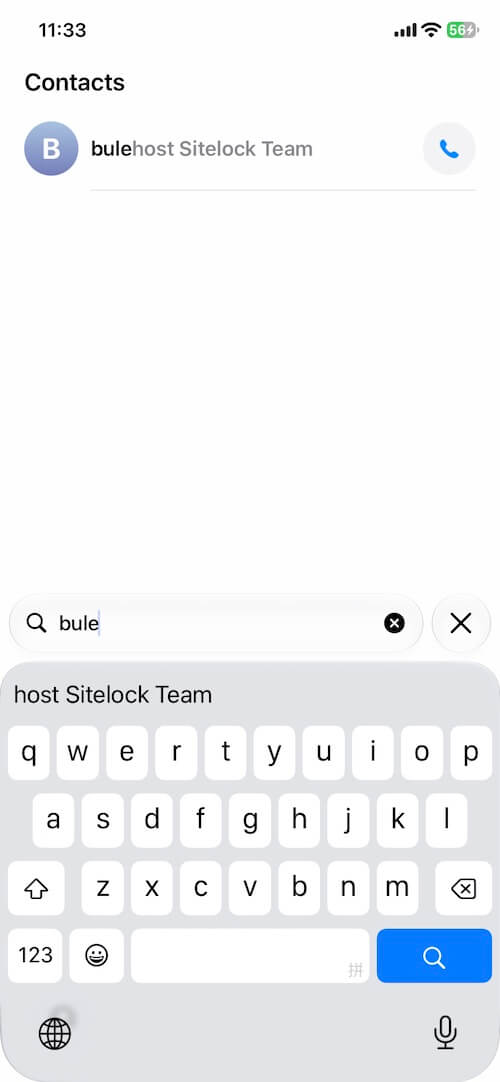
Some iPhone users find that Contacts stops behaving normally right after they install iOS 27. Search may return no results, and contacts that were on the phone yesterday may be missing from the list.
These problems are usually caused by a sync pause, a contact list filtered to one account, or a search index that has not finished rebuilding after the update. In most cases you can fix them without erasing your iPhone. If the contacts were actually removed, you can still recover them from an iCloud or computer backup.
Quick answer: Restart your iPhone first. If contacts are still missing, open the Contacts app, tap Lists, and turn on every account. If search still fails, turn iCloud Contacts off and back on, and choose Keep on My iPhone. If the names are gone from every account, recover them from a backup with Fone Rescue instead of restoring the whole device.
Common Contacts Issues After the iOS 27 Update
After updating to iOS 27, the problems users report most often are:
• Contacts search returns no results, or only some names
• Contacts disappear from the Contacts app
• A contact saved before the update no longer appears in the list
• Phone and Messages show a number instead of a saved name
You may still be able to call people from Recents. That usually means the number is still on the device, while the Contacts list or its search index is out of date. Work through the fixes below in order. Start with a restart, then check whether contacts are only hidden, and use recovery only if they are truly gone.
Why Contacts Break After an iOS Update
An iOS update does not normally delete your address book. Three causes are much more common:
• Search index rebuild. iOS rebuilds Spotlight and Contacts search after a major update. Until that finishes, search can look broken even though the contacts are still stored.
• Account filter. The Contacts app can show one account, such as iCloud, Google, Exchange, or On My iPhone, instead of all of them. After an update, that filter sometimes changes.
• Sync pause. iCloud or a third-party account may stop syncing until you sign in again or turn Contacts back on for that account.
Low free storage can also stop iCloud from finishing a sync. If your iPhone is nearly full, free a little space before you resync.
Solution 1: Restart Your iPhone
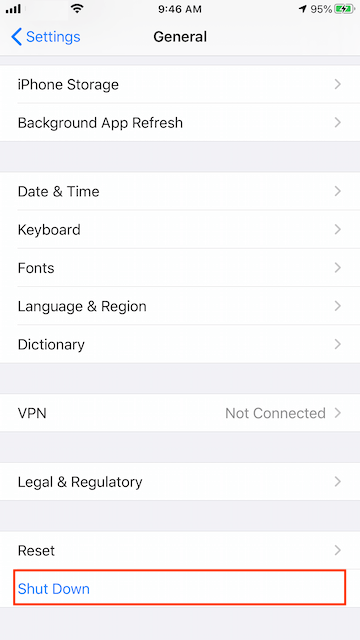
A restart clears temporary glitches and forces Contacts and Spotlight to reload. It will not restore contacts that were deleted, but it often fixes search that stopped working right after the update. Turn your iPhone off and wait about 30 seconds. Turn it back on and unlock it.
Wait a minute so iOS can finish loading your accounts. Open the Contacts app, search for a name you know is saved, and scroll the full list. If search works and the missing names are back, you can stop here. If the list or search is still wrong, continue with the next solution.
Solution 2: Show Every Contact List
Missing contacts are often still on the iPhone, hidden because only one list is selected. This is the most common reason a contact seems to vanish after an update.
1. Open the Contacts app. Tap Lists in the upper-left corner.
2. Select every account you use, including All Contacts, iCloud, Google, Outlook, Exchange, and On My iPhone. Return to the contact list and search again.
If a name appears only after you select another account, that contact was never deleted. Leave all of the lists you rely on selected so those contacts stay visible.
Solution 3: Turn iCloud Contacts Off and On
If your contacts are stored in iCloud, a fresh sync often restores both the list and search.
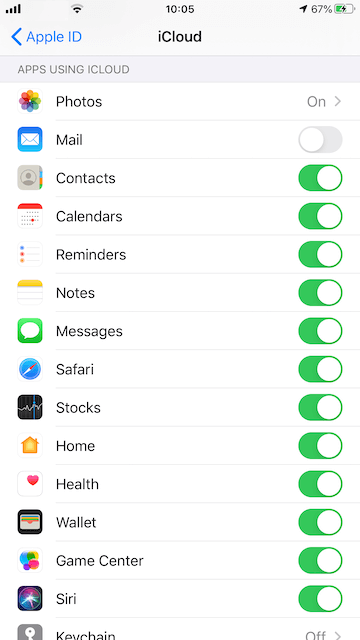
1. Open Settings and tap your name at the top. Tap iCloud -> Contacts. If you do not see it, tap Show All or See All under apps using iCloud.
2. Turn Contacts off. When iOS asks what to do with contacts already on this iPhone, tap Keep on My iPhone. Wait a few seconds, then turn Contacts back on.
Open the Contacts app and allow a minute or two for sync to finish. Keep on My iPhone leaves a local copy while iCloud turns off. Delete from My iPhone removes that copy from the device. Choose Keep unless you already have another complete copy you trust.
Solution 4: Check Google, Outlook, and Exchange Accounts
Contacts saved in Gmail, Outlook, or a work Exchange account disappear from the iPhone list when that account stops syncing. The records are often still available when you sign in on the web.
1. Open Settings > Apps > Contacts. On some iOS layouts the path is Settings > Contacts.
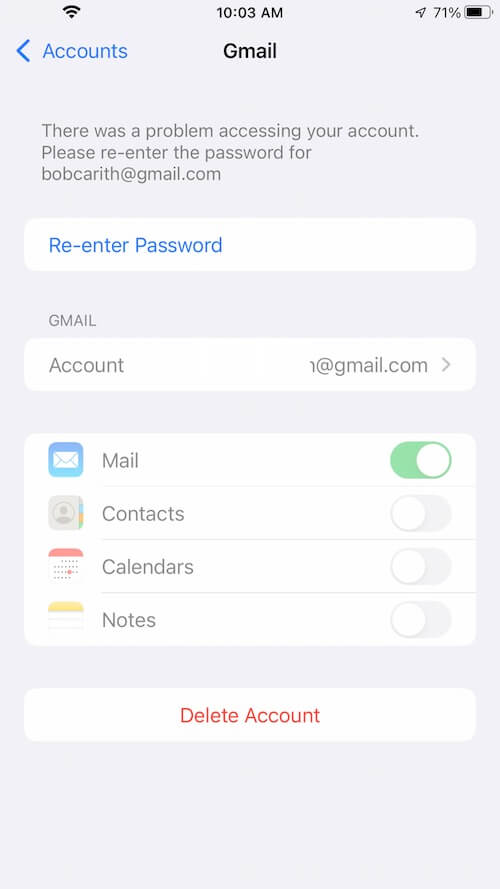
2. Tap Accounts. You can also reach accounts from Settings > Mail > Accounts. Open each account you use for contacts.
3. Turn the Contacts switch on. If an account asks you to sign in, enter the password, then confirm Contacts is enabled. Return to the Contacts app and check Lists again.
4. Then confirm where new contacts are saved: Open Settings > Apps > Contacts. Tap Default Account. Choose the account you want for new contacts, usually iCloud.
A wrong default account sends newly saved contacts into an account you might not be viewing. If a new contact seems to be missing, check Lists for that account.
Solution 5: Refresh Contacts Search
If you can scroll to people in the list but the search field returns nothing, the search index is the problem, not the address book itself. Force quit Contacts. Swipe up from the bottom of the screen, or double-click the Home button, then swipe the Contacts app away.
1. Open Settings > Siri & Search, or Settings > Apps > Contacts, and find Contacts.
2. Turn Contacts content in Search off, wait a few seconds, then turn it back on. Restart the iPhone once more. Open Contacts and run the same search again.
After a major update, indexing can continue in the background. If the full list is visible when you scroll, keep the iPhone charged and on Wi-Fi for a few hours, then test search again before you treat the contacts as lost.
Also install the latest iOS 27 update. Go to Settings > General > Software Update. When a later iOS 27 release is available, install it. Point releases are the usual place Apple corrects Contacts behavior that shows up on the first version of a major update.
Solution 6: Recover Missing Contacts with Fone Rescue
Move on to recovery when the names are missing from every list on the iPhone and from iCloud.com, Google Contacts, or Outlook on the web. A restart cannot recreate contacts that were removed. If the iPhone was backed up to iCloud or a computer before the update, that backup can still hold them.
Fone Rescue recovers contacts, photos, and other iPhone data from the device or from an iCloud or iTunes backup. You preview the scan and restore the contacts you select. You do not have to erase the iPhone and roll the entire device back to an older backup.
1. Download and install Fone Rescue on your computer.
2. Connect your iPhone with a cable, or choose the iCloud backup or the iTunes or Finder backup that still contains your contacts. Choose recovery from the iPhone, an iCloud backup, or an iTunes backup.
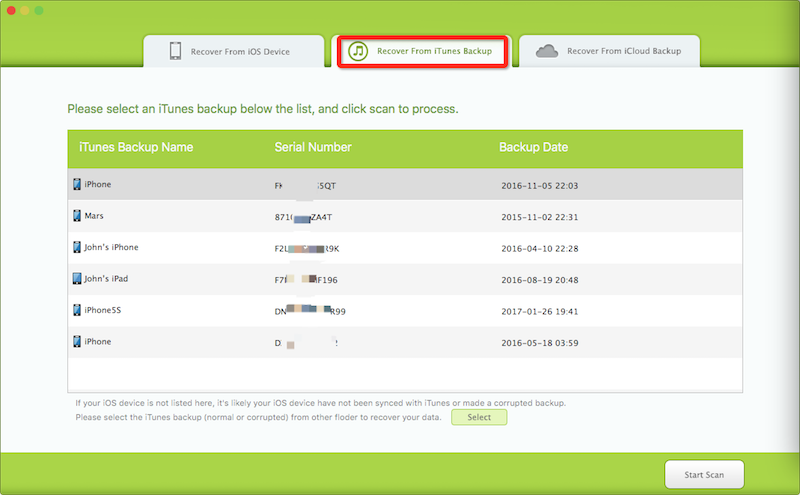
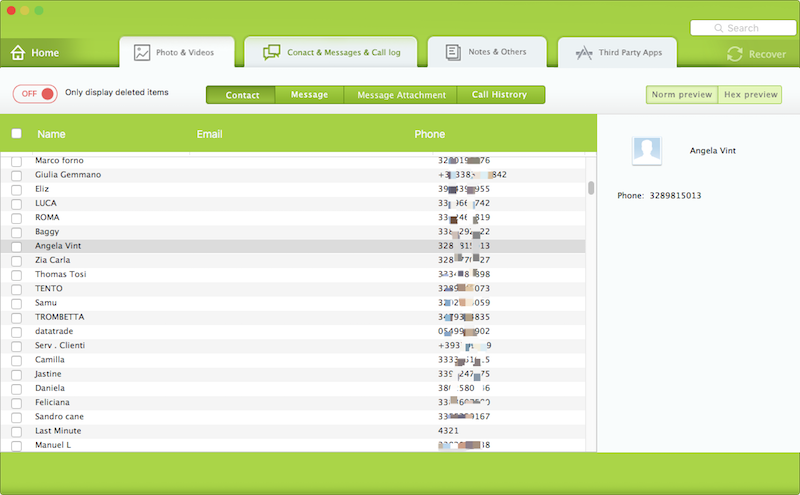
3. Scan for recoverable contacts. Preview the results and select the contacts you want to keep. Recover the selected contacts to your computer, or back to your iPhone.
Preview the list before you recover anything. Restore only the contacts you recognize so you do not replace current entries with older duplicates. If you have more than one backup, start with the one made just before you installed iOS 27.
Hidden Contact or Deleted Contact?
• The name appears after you change Lists or turn an account back on. It was hidden or waiting on sync. No recovery is required.
• Search fails, but you can scroll to the person. The record is still stored. Refresh Contacts search and let indexing finish.
• The name is missing on the iPhone and on the web for iCloud, Google, or Outlook. Treat it as deleted and recover it from a backup.
Conclusion
Contacts issues after an iOS 27 update usually mean search has stopped returning results or contacts are missing from the list. Restart the iPhone, show every contact list, and resync iCloud or your other accounts before you assume anything was deleted. If the contacts are gone from the device and from your accounts on the web, recover them from the backup made before the update. Fone Rescue can scan that backup or the iPhone and restore the contacts you select without restoring the entire device.
| More Related Articles | ||||
 |
1. How to Edit Video and MP4 Metadata on iPhone and iPad? 2. How to Rename Photos on iPhone Without a Computer? |
|||
About Fireebok Studio
Our article content is to provide solutions to solve the technical issue when we are using iPhone, macOS, WhatsApp and more. If you are interested in the content, you can subscribe to us. And We also develop some high quality applications to provide fully integrated solutions to handle more complex problems. They are free trials and you can access download center to download them at any time.
| Popular Articles & Tips You May Like | ||||
 |
 |
 |
||
| Five ways to recover lost iPhone data | How to reduce WhatsApp storage on iPhone | How to Clean up Your iOS and Boost Your Device's Performance | ||