If you've ever needed to compare two folders on a Mac, you know how difficult it can be to identify every difference manually. Whether you're checking a backup against the original, comparing two versions of a project, or verifying files copied to an external drive, searching through folders in Finder can be time-consuming and error-prone. Hidden files, renamed files, and differences in file contents can make the process even more complicated.
macOS includes built-in command-line tools that can help you compare folders, but they may not be convenient if you prefer a visual interface. Fortunately, dedicated folder comparison apps make it easier to identify missing files, detect changes, and understand how two folders differ.
In this guide, we'll explain how to compare two folders on a Mac using Terminal, discuss the limitations of Finder, and show how a dedicated comparison tool like WhatsDiff can simplify folder comparison, file management, and duplicate detection.
1. How to Compare Two Folders on Mac Using Terminal
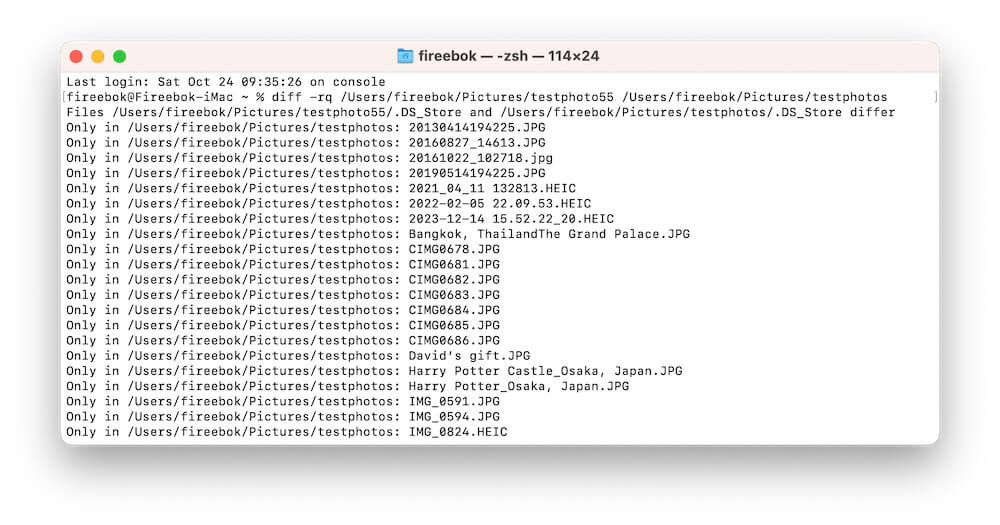
macOS includes a Unix command-line utility called diff, which can compare files and directories. It's a useful option if you're comfortable using Terminal and want a free way to check folder contents.
Open Finder, navigate to Applications > Utilities, and launch Terminal. Enter the following command, replacing the example paths with the actual locations of your folders:
• diff -rq "/path/to/Folder A" "/path/to/Folder B"
Here's what the options mean: -r (recursive): Compares files in the selected folders and their subfolders. -q (brief): Reports whether files differ without displaying their full content differences.
Terminal displays text indicating which files differ and which files exist in only one folder.
Advantages and Limitations of Terminal
The diff command is fast, free, and useful for technical users who need to compare directory structures. However, it has several limitations:
• Text-based results: You must interpret command-line output rather than browse differences in a visual interface.
• Limited content inspection in brief mode: The -q option tells you which files differ, but not exactly what changed inside them.
• No automatic move or rename matching: A renamed or moved file may appear as a missing file on one side and a new file on the other.
• Potentially overwhelming output: Comparing large folders with hundreds or thousands of files can produce lengthy results.
• Limited file management: The command reports differences but doesn't provide a convenient graphical workflow for copying files, merging folders, or organizing comparison results.
2. Can You Compare Two Folders Using Finder?
Mac’s native file manager, Finder, allows you to open two windows side-by-side to compare file lists manually. While Finder works for a quick, 5-file sanity check, it falls short for complete directory comparisons:
• Nested Subfolder Blind Spots: You cannot view or match nested directory structures simultaneously without opening dozens of subfolders.
• Metadata Limits: File size and modification timestamps don't always reflect actual content differences.
• Hidden Files: System files (.DS_Store, .gitignore, hidden assets) are hidden by default (Cmd + Shift + . toggles them, but adds clutter).
• High Risk of Human Error: Missing a single outdated file in a complex backup can lead to data loss.
3. Use a Visual Folder Comparison App for macOS
Visual diff tools parse complex directory trees and display matches, mismatches, and unique files in a side-by-side graphical interface.
• Categorized Results: Instantly filter files by status (Modified, Identical, Left Only, Right Only).
• Inline Content Inspection: Inspect differences in text, images, or media files before overwriting data.
• Safe Folder Merging: Selectively copy missing or updated files between folders to sync backups.
• Exportable Audit Logs: Generate comparison reports for documentation, auditing, or team sharing.
How WhatsDiff Simplifies Mac Folder Comparison
WhatsDiff is a Mac app designed to compare files and folders, identify differences, and help you manage comparison results. It can be useful when working with documents, photos, videos, audio files, project directories, backups, and other collections of files. And here are steps to use WhatsDiff to compare two folders on Mac:
1. Download and Install WhatsDiff
Download and install WhatsDiff on your Mac, then launch the application.
2. Select the Folders You Want to Compare
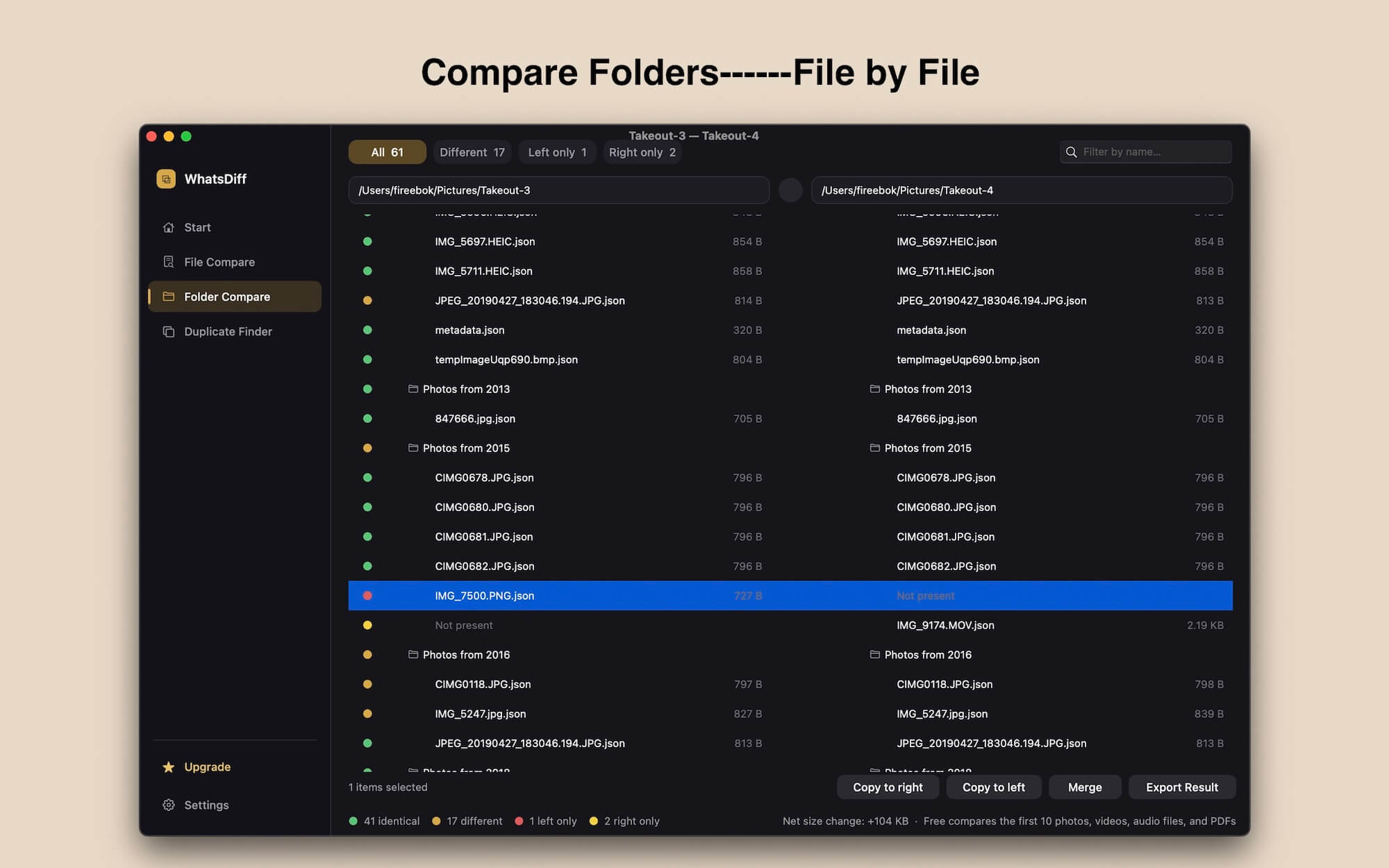
Open the Folder Compare feature in WhatsDiff and select the folders you want to compare.
3. View comparison differences in compared folders
WhatsDiff organizes comparison results into four categories:
• Different: Files exist in both folders but differ in content or supported metadata.
• Same: Files match according to the comparison criteria.
• Left Only: Files exist only in the left folder.
• Right Only: Files exist only in the right folder.
These categories help you quickly identify missing files, changed content, and matching files without manually opening every item.
4. Copy Files and Merge Folder Contents
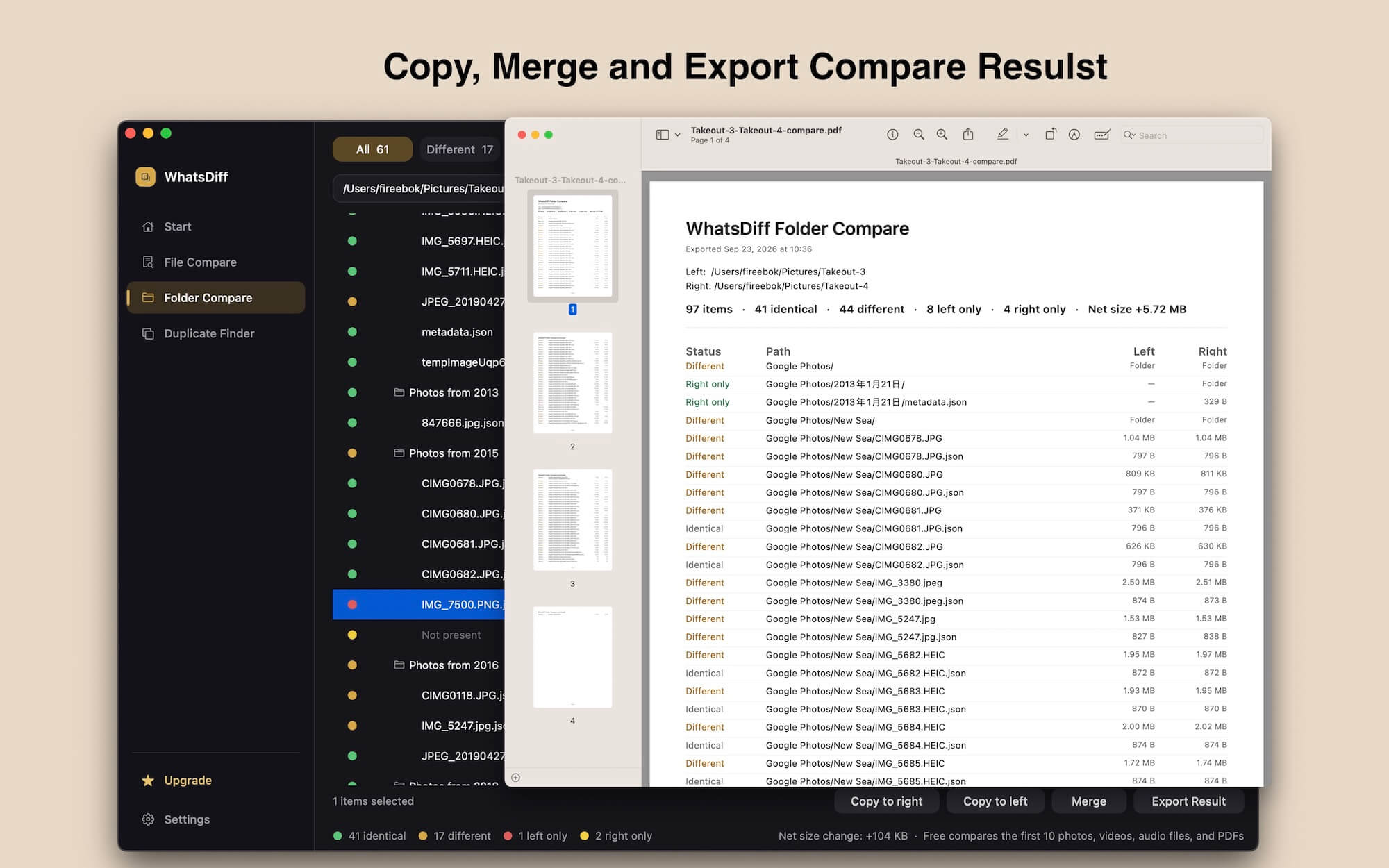
After identifying differences, you may want to update a backup, combine files from multiple locations, or make two folder structures more consistent. WhatsDiff lets you copy files, merge folder contents, and export comparison results. These capabilities can help simplify routine file organization and backup maintenance.
5. Built-in Duplicate File Finder
When organizing folders, duplicate files waste valuable Mac storage. WhatsDiff includes a built-in duplicate finder that scans selected directories for duplicate images, documents, and video files, allowing you to reclaim disk space effortlessly.
Conclusion: What's the Best Way to Compare Two Folders on Mac?
The best way to compare two folders on a Mac depends on the size of your folders and the level of detail you need.
For occasional checks, Finder may be enough when you're comparing only a few files. If you're comfortable with the command line, macOS's diff -rq command provides a free way to identify differences between directory trees.
However, if you regularly compare backups, manage project versions, verify copied files, or organize large collections of documents and media, a visual comparison app can make the process easier to understand and manage.
WhatsDiff brings folder comparison, difference categorization, file copying, folder merging, comparison report export, and duplicate detection into one workflow. Instead of searching through folders manually, you can identify differences, review matching files, and manage your data more efficiently.
If you need a more convenient way to compare folders on your Mac, WhatsDiff is worth considering.
| More Related Articles | ||||
 |
1. How to find and remove duplicate photos from Photos? 2. How to batch rename photos within the Photos app on Mac? |
|||
About Fireebok Studio
Our article content is to provide solutions to solve the technical issue when we are using iPhone, macOS, WhatsApp and more. If you are interested in the content, you can subscribe to us. And We also develop some high quality applications to provide fully integrated solutions to handle more complex problems. They are free trials and you can access download center to download them at any time.
| Popular Articles & Tips You May Like | ||||
 |
 |
 |
||
| Five ways to recover lost iPhone data | How to reduce WhatsApp storage on iPhone | How to Clean up Your iOS and Boost Your Device's Performance | ||