Many iPhone users regularly back up their entire iPhone to a Mac, including photos, videos, messages, contacts, and other important data. After creating a backup, some users delete photos from their iPhone to free up storage space.
However, years later, they may need to recover those old photos from the backup. If the backup is encrypted, restoring it directly to the iPhone can be inconvenient because it will replace the current iPhone data with the old backup data. Even if you remember the encrypted backup password, Apple does not provide a built-in way to browse and extract individual photos from an encrypted iPhone backup on a Mac.
In this article, we will show you how to extract photos from an encrypted iPhone backup on a Mac using the backup password, without restoring the entire backup to your iPhone.
Extract Photos from an Encrypted iPhone Backup Without Restoring iPhone
To access photos stored in an encrypted iPhone backup, you need an iPhone backup extraction tool. We recommend using Fone Rescue, an iPhone data recovery and backup management application that can scan iPhone backups, decrypt encrypted backups with the correct password, and extract individual files such as photos, videos, messages, and contacts.
Follow the steps below to extract photos from an encrypted iPhone backup on your Mac.
Step 1: Download and Install Fone Rescue on Your Mac
Download and install Fone Rescue on your Mac.
Because iPhone backups are stored in protected system folders, macOS may require additional permissions to allow the application to access the backup files.
Go to: System Settings → Privacy & Security → Full Disk Access. Then add Fone Rescue to the Full Disk Access list and enable permission. This allows Fone Rescue to read and analyze iPhone backup data stored on your Mac.
Step 2: Select the Encrypted iPhone Backup
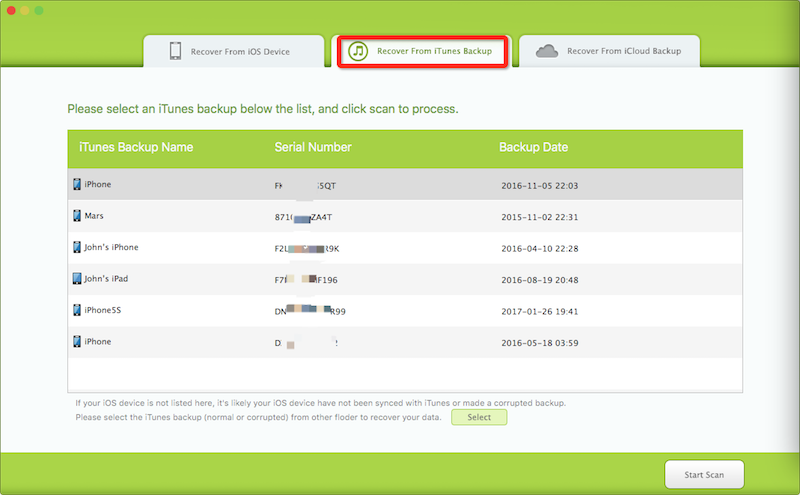
Launch Fone Rescue on your Mac and select the Recover From iTunes Backup option.
The app will automatically detect and display available iPhone and iPad backups stored on your computer. Select the encrypted iPhone backup that contains the photos you want to recover, then click the Start Scan button.
Step 3: Enter the iPhone Backup Encryption Password
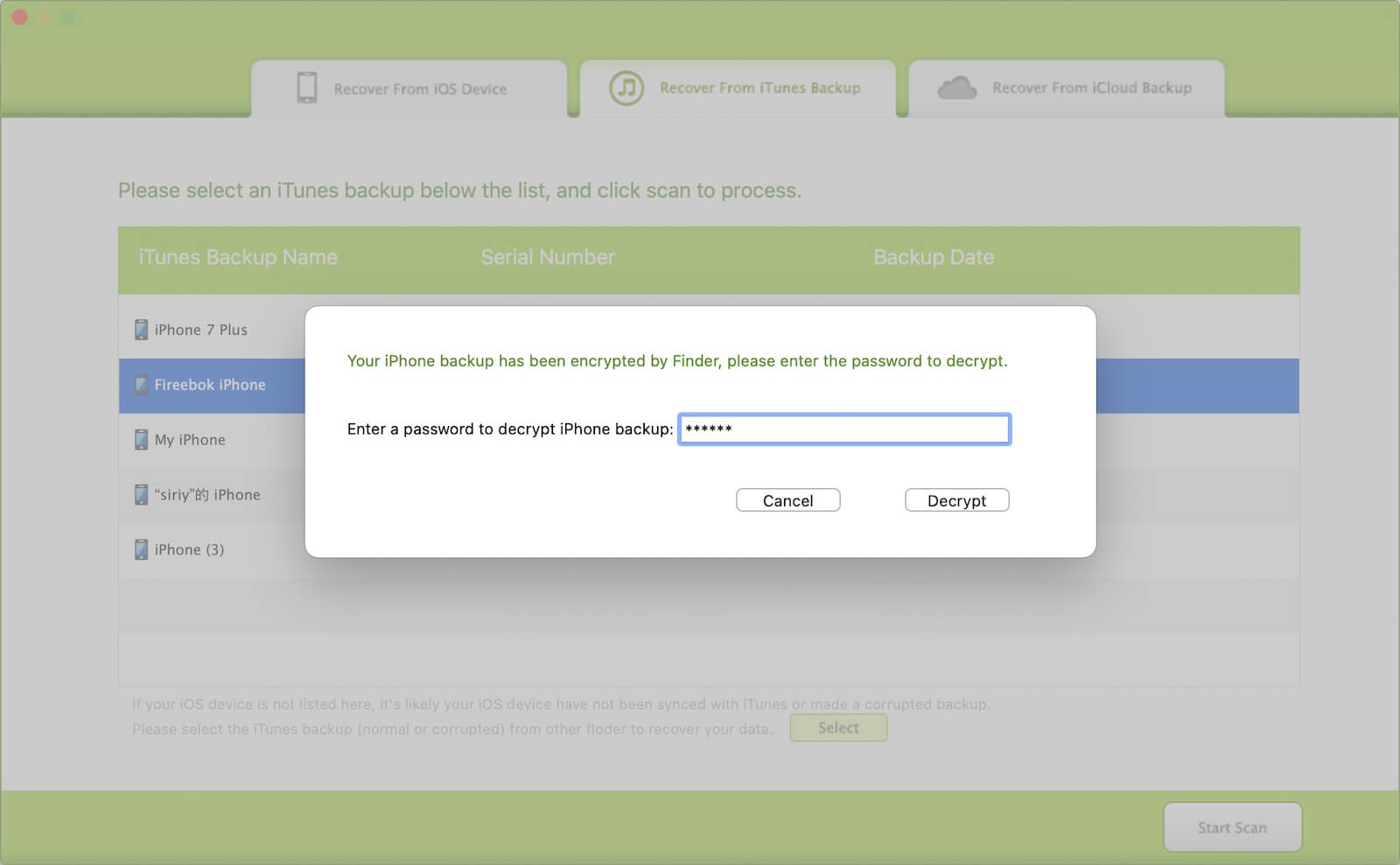
If the selected backup is encrypted, Fone Rescue will ask you to enter the encrypted backup password.
Enter the correct password to decrypt the backup. After successful decryption, the app will scan the backup and analyze the stored iPhone data, including photos, videos, contacts, messages, and other files.
Step 4: Preview and Extract Photos from the iPhone Backup
After the scan is complete, open the Photos & Videos category to view all photos and videos found in the encrypted iPhone backup.
Select the photos you want to recover, click the Export button, and choose a location on your Mac to save them. The selected photos will be extracted from the encrypted iPhone backup without restoring the entire backup to your iPhone.

Why Extract Photos Instead of Restoring an iPhone Backup?
Restoring an encrypted iPhone backup is useful when setting up a new iPhone or recovering an entire device. However, it is not always the best solution when you only need specific files.
Extracting photos directly from an iPhone backup allows you to:
• Recover old photos without deleting current iPhone data
• Access photos from an old encrypted backup
• Preview backup contents before recovery
• Export only the files you need
• Keep your current iPhone setup unchanged
Conclusion
Encrypted iPhone backups provide better security for your personal data, but they also make it difficult to access individual files without restoring the entire backup. If you need to recover photos from an encrypted iPhone backup on a Mac, a backup extraction tool like Fone Rescue can help you decrypt the backup with your password and export photos directly.
This method is especially useful for recovering old photos stored in previous iPhone backups while keeping your current iPhone data safe.
| More Related Articles | ||||
 |
1. How to merge two photo libraries on Mac? 2. How to find and remove duplicate photos from Photos? |
|||
About Fireebok Studio
Our article content is to provide solutions to solve the technical issue when we are using iPhone, macOS, WhatsApp and more. If you are interested in the content, you can subscribe to us. And We also develop some high quality applications to provide fully integrated solutions to handle more complex problems. They are free trials and you can access download center to download them at any time.
| Popular Articles & Tips You May Like | ||||
 |
 |
 |
||
| Five ways to recover lost iPhone data | How to reduce WhatsApp storage on iPhone | How to Clean up Your iOS and Boost Your Device's Performance | ||