If you are a YouTube content creator or video editor, adding proper metadata to your videos is essential. Video metadata helps viewers, media players, and file managers understand who created the video, what the video is about, and when it was produced.
Similarly, if you download YouTube videos to your Mac, editing metadata makes it much easier to organize, search, and manage your video library locally.
So, how can you edit YouTube video metadata on Mac easily and efficiently? This guide will walk you through everything you need to know.
What Is Video Metadata?
Video metadata is embedded information that describes the video file. Common video metadata tags include:
• Production Info: Title, artist, director, and actors.
• Camera Data: Shooting date, GPS location, and device settings.
• Copyright: Owner information and licensing terms.
• Technical Data: Codecs, resolution, Frame rate and audio streams.
Metadata plays an important role in video organization, media library management, and content identification.
How to View Video Metadata on Mac
Before editing metadata, you may want to view the existing metadata stored in your YouTube video files.
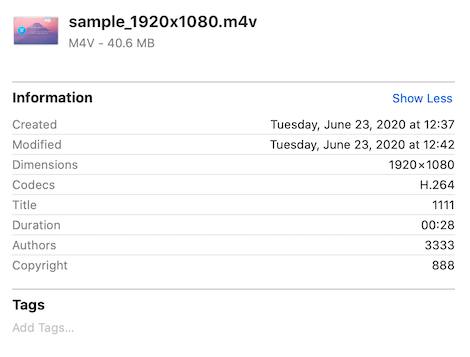
Method 1: View Video Metadata in Finder
1. Open Finder, select your video file, switch to Gallery View
2. Look at the information panel on the right
Finder shows basic metadata such as duration, resolution, and creation date.
Method 2: View Detailed Video Metadata Using Terminal
For more advanced metadata details, you can use Terminal:
1. Open Terminal (/Applications/Utilities/Terminal.app)
2. Type or paste the following command: mdls /path/to/your/video.mp4
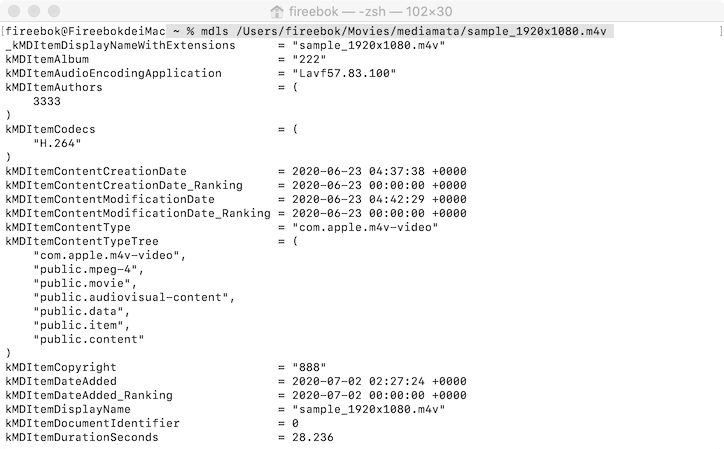
3. Press Return. This command displays extended metadata stored in the video file.
How to Edit YouTube Video Metadata on Mac
macOS does not provide a built-in way to edit all video metadata tags. To fully edit YouTube video metadata on Mac, a dedicated video metadata editor is recommended.
Use Media Meta to Edit YouTube Video Metadata on Mac
Media Meta is a professional video metadata editor for Mac that allows you to edit metadata for YouTube videos on macOS quickly and efficiently. With Media Meta, you can modify titles and description, Created date and shooting date, artists, Copyright information, artwork, and even GPS location data across hundreds of files simultaneously. It supports popular formats like MP4, MOV, and AVI, as well as audio files.
Steps to Edit YouTube Video Metadata with Media Meta
1. Download and Install: Download and install Media Meta on your Mac
2. Import Files: Open Media Meta, drag and drop your YouTube videos into the app.
3. Batch Edit: Select multiple videos in Media Meta, update the tags (like Author or Shoot Date), and add custom artwork.
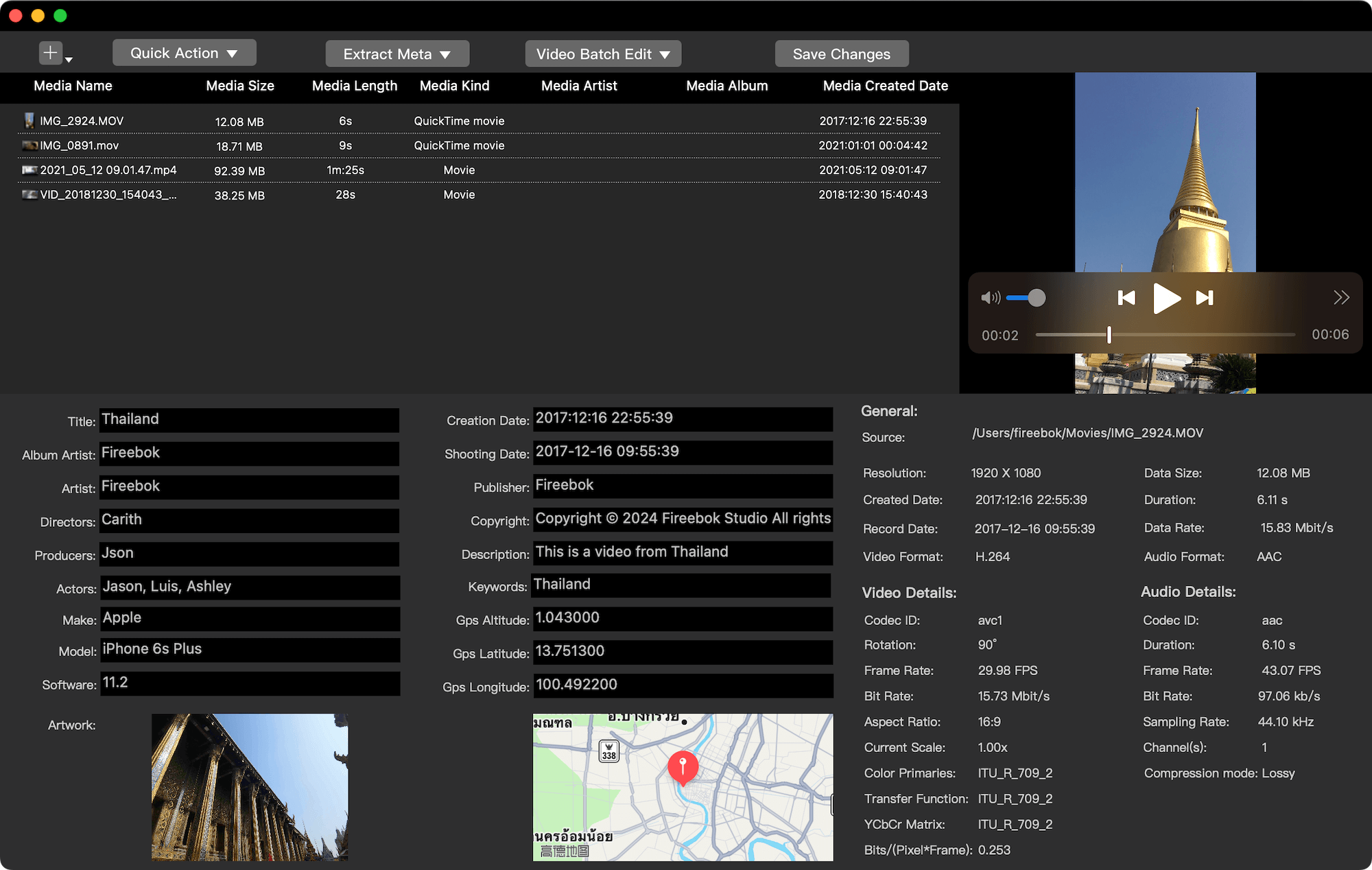
3. Save:Click Save Changes button.
Tip: Original Files Are Always Safe
Media Meta does not overwrite your original video files. Edited videos are saved to a separate output folder, which you can customize in Preferences, ensuring your original YouTube downloads remain untouched.
Final Thoughts
Editing metadata for YouTube videos on Mac is essential for better organization and professional media management. While macOS only allows limited metadata viewing, using a dedicated YouTube video metadata editor for Mac gives you full control over video information.
If you frequently download or manage YouTube videos on macOS, Media Meta is a reliable and efficient solution for editing video metadata on Mac.
| More Related Articles | ||||
 |
1. How to View and Remove Video Metadata on iPhone? 2. How to Fix Photos Showing the Incorrect Date on iPhone? |
|||
About Fireebok Studio
Our article content is to provide solutions to solve the technical issue when we are using iPhone, macOS, WhatsApp and more. If you are interested in the content, you can subscribe to us. And We also develop some high quality applications to provide fully integrated solutions to handle more complex problems. They are free trials and you can access download center to download them at any time.
| Popular Articles & Tips You May Like | ||||
 |
 |
 |
||
| Five ways to recover lost iPhone data | How to reduce WhatsApp storage on iPhone | How to Clean up Your iOS and Boost Your Device's Performance | ||