Photo captions and titles are important photo metadata tags used to store short descriptions, keywords, and contextual information about your images. On a Mac, it’s easy to batch edit photo captions and titles. However, on an iPhone, editing photo metadata—especially for multiple photos — can be frustrating and limited.
Even if you add photo titles on Mac, after syncing with iCloud Photos, the iPhone Photos app still doesn’t display photo titles, and only supports editing captions one photo at a time.
If you’re looking for a way to edit Caption and Title for multiple photos on iPhone, this guide will show you the limitations of Apple Photos and the easiest solution to batch edit photo metadata at once.
Why Is It Hard to Edit Caption and Title for Multiple Photos on iPhone?
Apple’s built-in Photos app on iPhone has very limited batch editing features. When you select multiple photos, you can only perform basic actions such as: Copy, Share, Delete, Add to album.
Unfortunately, editing photo metadata is not supported in batch mode. To edit a caption, you must open each photo individually, access its details view, and manually enter the caption. Additionally:
• Apple Photos on iPhone does not support viewing or editing photo titles at all
• Photo titles added on Mac are not visible on iPhone
Because of these limitations, batch editing captions and titles directly on iPhone is not possible using Apple Photos.
How to Edit a Photo Caption in Apple Photos (Single Photo)
You can edit a photo caption for one photo at a time using Apple Photos:
1. Open the Photos app on your iPhone. Tap a photo to open it
2. Tap the ⓘ (Info) button at the bottom.
3. Tap Add a Caption (or edit the existing caption). Enter your text and close the view

This works—but only for individual photos, not multiple photos.
Edit Caption and Title for Multiple Photos on iPhone with Photos Exifer
To batch edit photo captions and titles on iPhone, we recommend using Photos Exifer. It’s a powerful photo metadata editor that supports batch editing multiple photos at once, which Apple Photos does not offer.
Photos Exifer supports batch editing of:
• Photo Title
• Photo Caption
• Keywords
• Shooting Date & Time
• Copyright
• GPS / Location data
• And more
Steps to Batch Edit Photo Caption and Title on iPhone:
1. Download and install Photos Exifer on your iPhone
2. Open the app and allow access to your photo library.
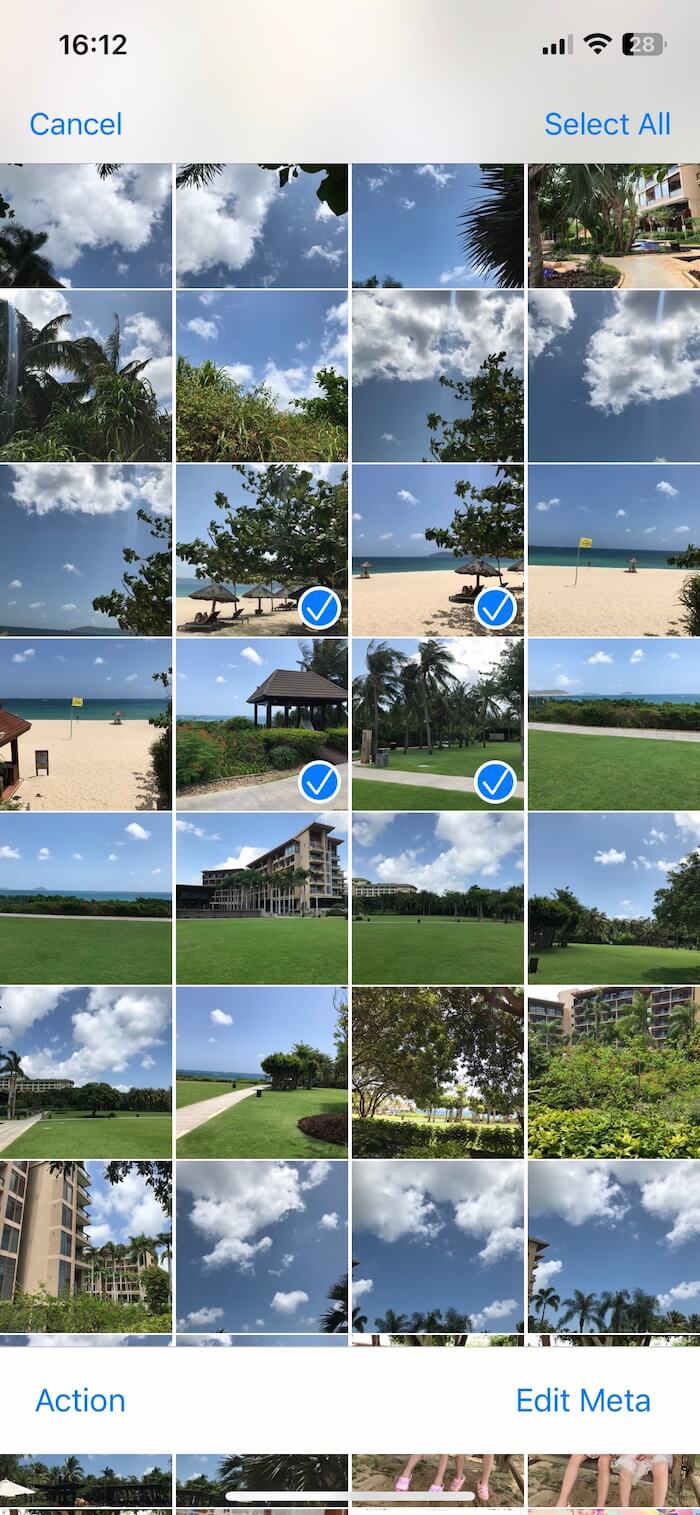
3. Tap Select and choose multiple photos. Tap Edit Meta
4. Batch edit the Title, Caption, or other metadata fields, tap Save to apply the changes
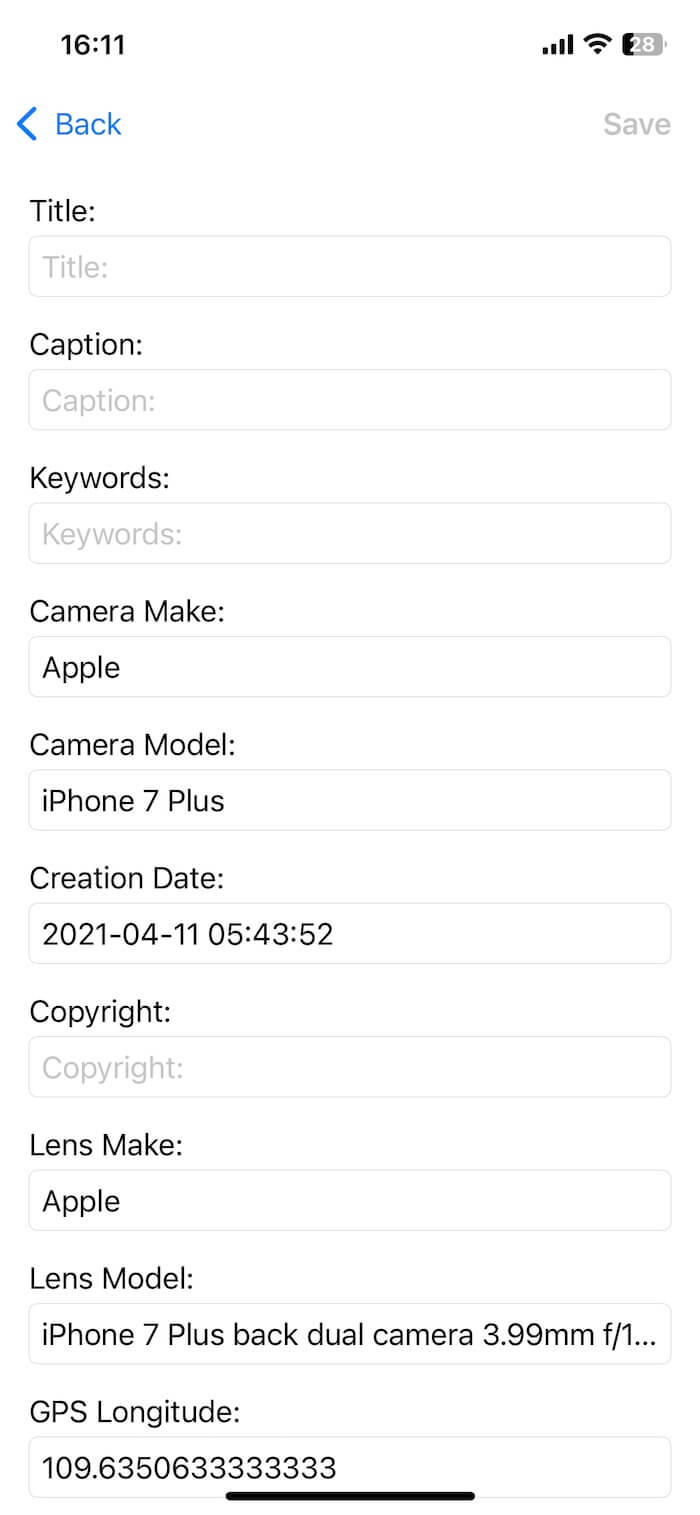
Your photo captions and titles will be updated instantly.
More Batch Photo Editing Features with Photos Exifer
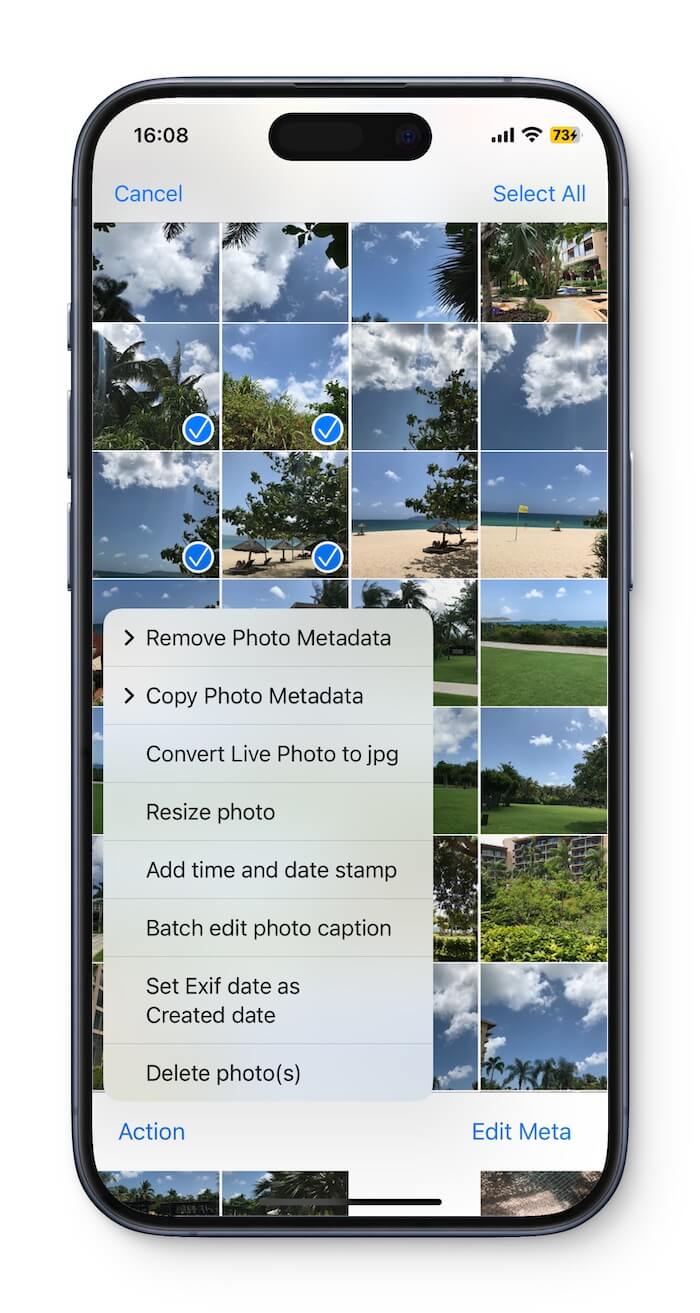
In addition to editing captions and titles, Photos Exifer allows you to batch:
• Remove photo metadata
• Copy metadata between photos
• Resize photos
• Convert Live Photos to JPG
• Add date and time stamps
• Modify EXIF, IPTC, and GPS metadata
All directly on your iPhone—quickly and efficiently.
Final Thoughts
If you only need to edit a caption for one photo, Apple Photos can do the job. But if you want to edit Caption and Title for multiple photos on iPhone, Apple’s tools fall short.
Photos Exifer is the easiest and most effective solution for batch photo metadata editing on iPhone, saving you time and effort while giving you full control over your photo information.
| More Related Articles | ||||
 |
1. How to View and Remove Video Metadata on iPhone? 2. How to Fix Photos Showing the Incorrect Date on iPhone? |
|||
About Fireebok Studio
Our article content is to provide solutions to solve the technical issue when we are using iPhone, macOS, WhatsApp and more. If you are interested in the content, you can subscribe to us. And We also develop some high quality applications to provide fully integrated solutions to handle more complex problems. They are free trials and you can access download center to download them at any time.
| Popular Articles & Tips You May Like | ||||
 |
 |
 |
||
| Five ways to recover lost iPhone data | How to reduce WhatsApp storage on iPhone | How to Clean up Your iOS and Boost Your Device's Performance | ||