Some Mac users report issues when trying to download full-resolution photos from iCloud to their Mac hard drive. Common problems include download errors when selecting multiple photos on the iCloud website, uncertainty about whether full-resolution photos are stored locally when Optimize Mac Storage is enabled, and insufficient local storage to download all originals.
If you’re planning to download full-resolution iCloud photos to your Mac hard drive or an external USB drive, this guide explains the common issues and provides effective solutions.
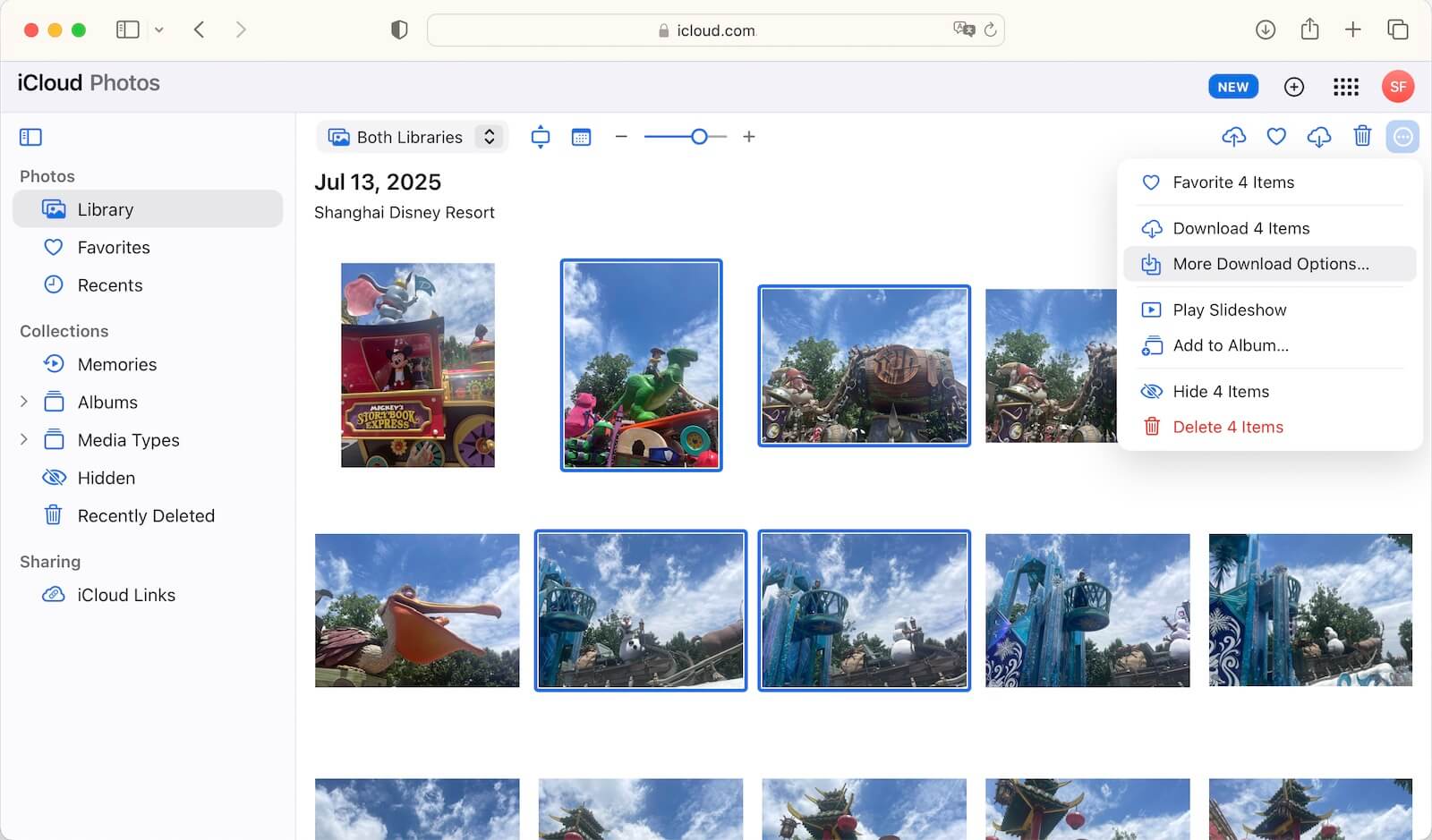
Downloading iCloud Photos from iCloud.com (Common Errors)
When downloading photos from www.icloud.com, there is a selection limit:
• You can select up to 1,000 photos at a time
• Selecting more than 1,000 photos may cause a download error
• The Select All option is not supported for large libraries
If you have a large iCloud Photo Library, repeatedly selecting photos in batches can be time-consuming and inefficient.
Downloading Full-Resolution iCloud Photos with “Optimize Mac Storage” Enabled
When Optimize Mac Storage is enabled in the Photos app, macOS stores only low-resolution thumbnails locally, while the full-resolution originals remain in iCloud. In this case:
• Full-resolution photos are downloaded only when needed
• After use, macOS may automatically remove the originals again
• When exporting photos, you may accidentally export thumbnails instead of full-resolution originals
• Limited local storage increases the risk of incomplete downloads
This makes it difficult to reliably export full-resolution photos from the Photos app.
Downloading Full-Resolution iCloud Photos with Low Local Storage
When exporting originals from the Photos app, macOS first downloads the full-resolution photos to local storage and then removes them after export. If your Mac has:
• Low available disk space
• Or storage is nearly full
The download process may fail, preventing successful export of full-resolution photos.
Recommended Solution: Download Full-Resolution iCloud Photos with Photo Exifer 3
To avoid these limitations, we recommend using Photo Exifer 3, a third-party macOS app designed to download full-resolution iCloud photos directly to a custom location or external hard drive.
Benefits of Photo Exifer 3:
• Downloads full-resolution originals directly from iCloud
• Supports saving to external USB or hard drives
• Bypasses Optimize Mac Storage limitations
• Avoids iCloud.com download limits
How to Download Full-Resolution iCloud Photos Using Photo Exifer 3
1. Download and install Photo Exifer 3 on your Mac.
2. Go to System Settings → Privacy & Security → Full Disk Access, and add Photo Exifer 3 to grant read and write access to your Photo Library.
3. Open Photo Exifer 3 and click the Photo Library tab to load all photos and videos. After scanning completes, click Showing Filter and select Showing: Undownloaded iCloud Photos.
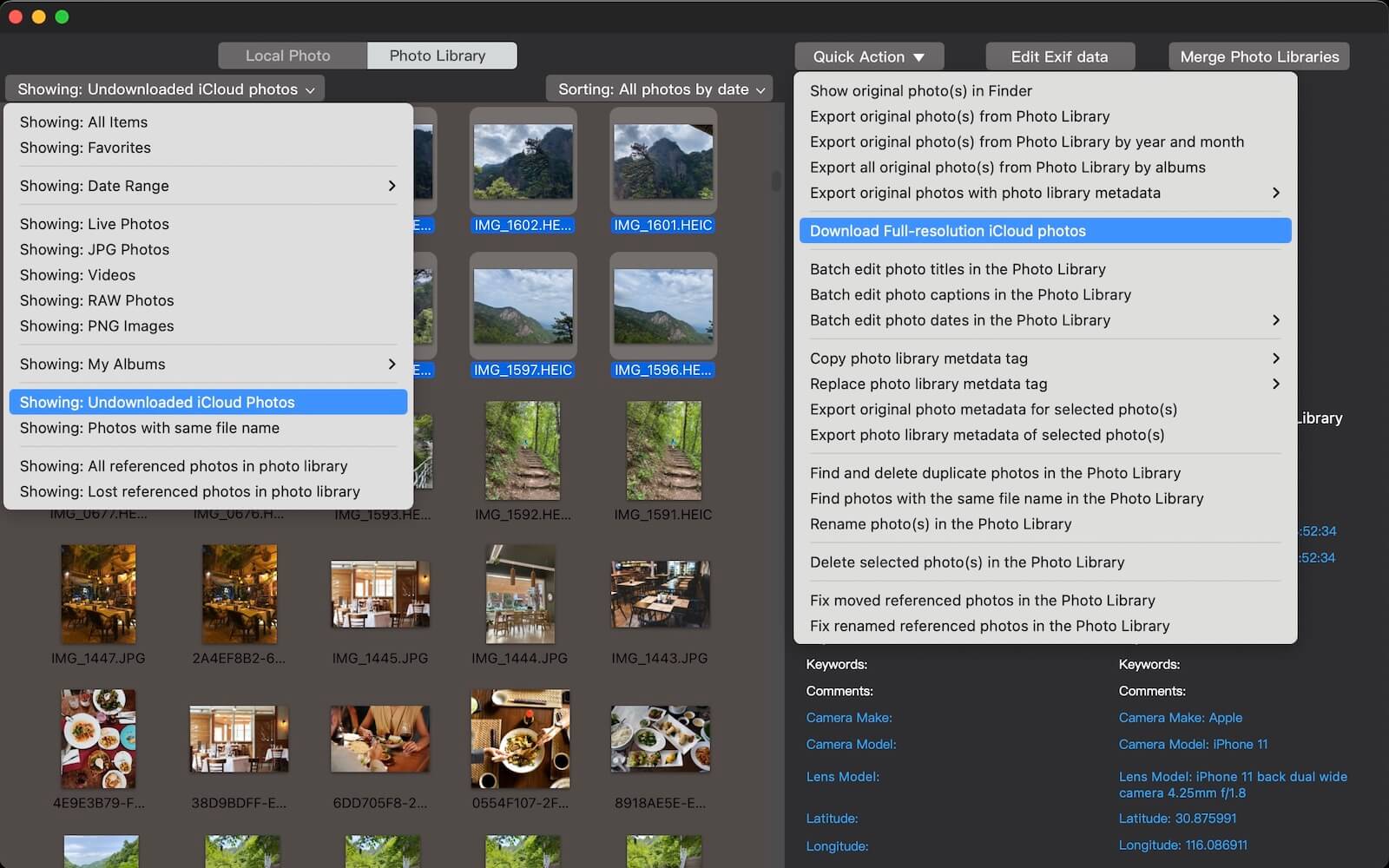
4. Select the photos you want to download. Click Quick Action → Download Full-Resolution iCloud Photos. The originals will be downloaded directly to your selected folder or external hard drive.
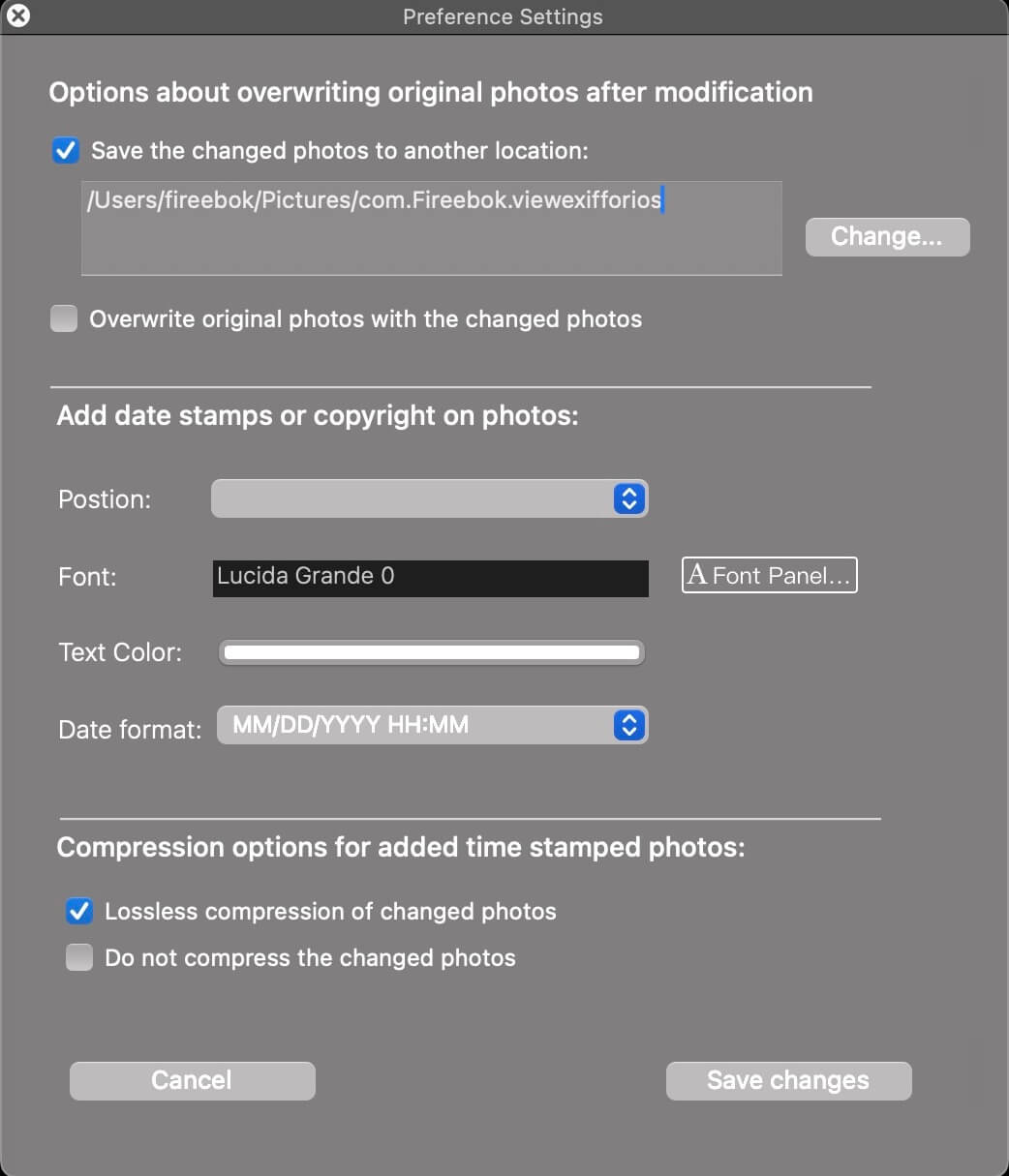
Optional: Change Download Location
• Go to Photo Exifer → Settings → Preferences. Set the storage location to a folder on your external hard drive. Click Save Changes to apply
Final Notes
If you have a large iCloud Photo Library, limited local storage, or frequently encounter download errors, using Photo Exifer 3 provides a faster, more reliable way to download full-resolution iCloud photos to your Mac or external drive.
| More Related Articles | ||||
 |
1. How to merge two photo libraries on Mac? 2. How to find and remove duplicate photos from Photos? |
|||
About Fireebok Studio
Our article content is to provide solutions to solve the technical issue when we are using iPhone, macOS, WhatsApp and more. If you are interested in the content, you can subscribe to us. And We also develop some high quality applications to provide fully integrated solutions to handle more complex problems. They are free trials and you can access download center to download them at any time.
| Popular Articles & Tips You May Like | ||||
 |
 |
 |
||
| Five ways to recover lost iPhone data | How to reduce WhatsApp storage on iPhone | How to Clean up Your iOS and Boost Your Device's Performance | ||