Many Mac users find that their Mac is running out of local storage even after enabling Optimize Storage, deleting unused apps, and removing photos or videos. Yet, free space still doesn’t seem to increase much. After checking their folders, they often discover a large number of duplicate files scattered across the system.
So why does this happen? And more importantly, is there a way to find and delete duplicate files on Mac without doing it manually?
If you’re looking for an effective solution, this article explains why duplicate files appear on macOS, whether they take up storage, and how to quickly remove duplicate files on Mac.
Why Are There So Many Duplicate Files on Mac?
Duplicate files are very common on macOS, and in most cases, they’re created without users realizing it. Common causes include:
• Importing photos multiple times from an iPhone, camera, or external hard drive
• Downloading the same file more than once from a web browser
• Copying files instead of moving them, leaving originals behind
• Email and Messages attachments saved automatically by macOS
• Backups or synced files from third-party apps and cloud services
Over time, these actions create multiple copies of the same files in different folders.
Do Duplicate Files Take Up Mac Storage?
Yes. Each duplicate file takes up real disk space on your Mac.
Large file types such as photos, videos, audio files, documents, and applications can quickly consume valuable storage when duplicated multiple times. As the number of duplicate files grows, they can:
• Take up significant disk space
• Slow down Spotlight indexing
• Make file organization and searching more confusing
Removing duplicate files is one of the most effective ways to free up storage and improve Mac performance.
How to Delete Duplicate Files on Mac Quickly
To completely remove duplicate files on Mac, we recommend using PowerSuite 3 – Find Duplicate Files, which can detect and delete duplicates across multiple file types, including images, documents, videos, and audio files.
Steps to Delete Duplicate Files Using PowerSuite:
1. Download and install PowerSuite 3 on your Mac.
2. Open PowerSuite and go to the Find Duplicate Files tab.
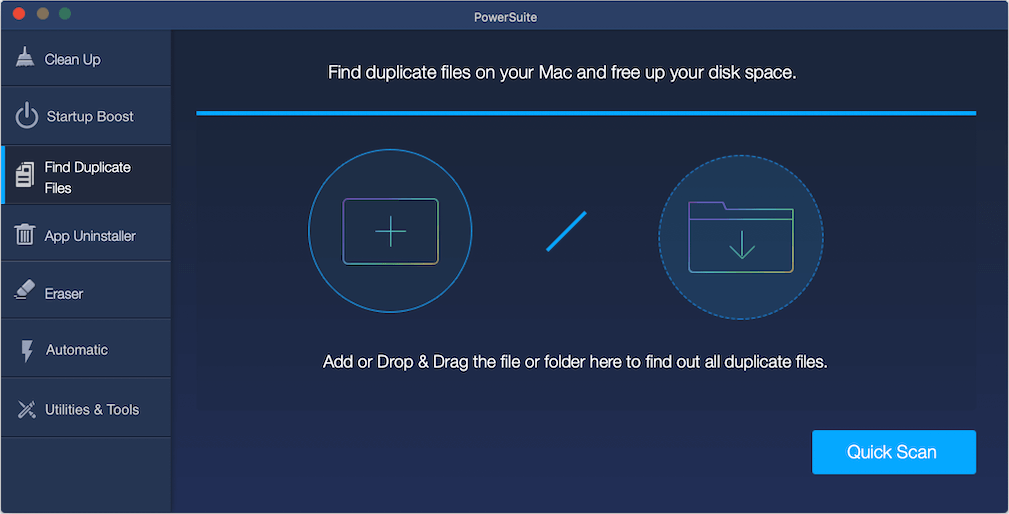
3. Click the “+” button and add your user folder (for example, /Users/YourUserName). Click Quick Scan to start scanning for duplicate files.
4. Once the scan is complete, all duplicate files will be listed in the results view. Use Group By to filter duplicates or Sort by File Size to find large duplicates first.
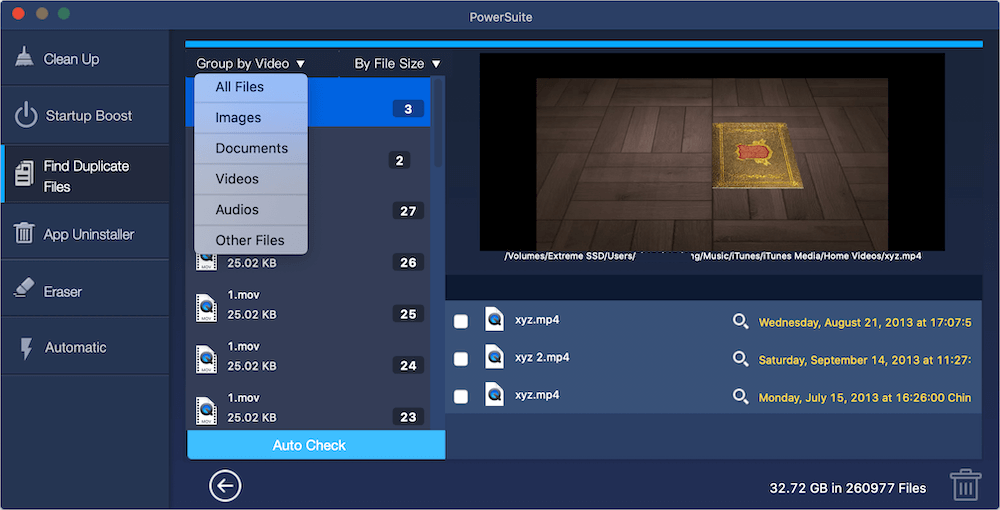
5. Select duplicate files manually by checking their file name, size, and location, or click Auto Check to let the app automatically select safe duplicates.
6. Click Remove to delete the selected duplicate files.
Final Thoughts
Duplicate files can quietly waste storage and slow down your Mac over time. By regularly scanning for and removing duplicates, you can free up disk space, improve performance, and keep your files organized.
If you’re tired of searching for duplicate files manually, using a dedicated duplicate file finder like PowerSuite makes the process fast, safe, and effortless.
| More Related Articles | ||||
 |
1. How to merge two photo libraries on Mac? 2. How to find and remove duplicate photos from Photos? |
|||
About Fireebok Studio
Our article content is to provide solutions to solve the technical issue when we are using iPhone, macOS, WhatsApp and more. If you are interested in the content, you can subscribe to us. And We also develop some high quality applications to provide fully integrated solutions to handle more complex problems. They are free trials and you can access download center to download them at any time.
| Popular Articles & Tips You May Like | ||||
 |
 |
 |
||
| Five ways to recover lost iPhone data | How to reduce WhatsApp storage on iPhone | How to Clean up Your iOS and Boost Your Device's Performance | ||