Many Mac users store their Photos Library.photoslibrary on an external hard drive to save startup disk space. Moving the Photos library to an external drive is a common way to free up storage on your Mac.
But what if your Photos library on an external drive won’t open, especially after updating to a new macOS version?
If you’re worried that your photos, videos, and metadata might be lost, don’t panic. In this guide, we’ll walk you through several effective solutions to fix the issue when your Photos library on an external hard drive can’t open.
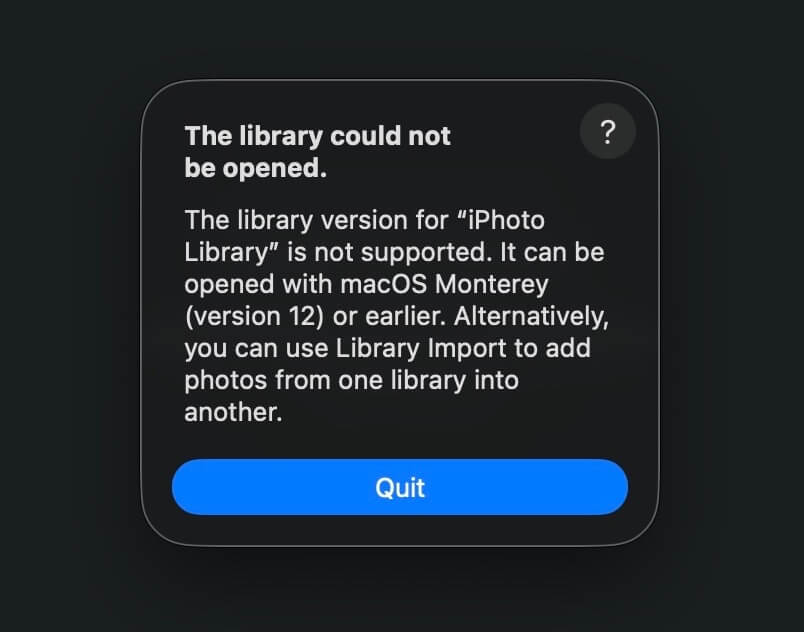
1. Old iPhoto Library Can’t Open on New macOS
If you are trying to open an old iPhoto Library, it may not be supported in macOS Ventura (macOS 13) or later versions.
Older iPhoto libraries may require macOS Monterey (macOS 12) or earlier to open properly in Apple Photos.
Solution: Export Data from Old iPhoto Library
If you cannot open the iPhoto library directly, you can use Photo Exifer, a third-party tool that supports: Exporting all photos and videos. Preserving photo metadata. Maintaining album structure
Steps:
1. Download and install Photo Exifer on your Mac. Add Photo Exifer to System Settings → Privacy & Security → Full Disk Access
2. Launch Photo Exifer. Go to File → Open Photo Library… and select your old iPhoto Library
3. Select all photos, Click Quick Action → Export Original Photos from Photo Library → Export original photos from Photo Library by year, month and album.
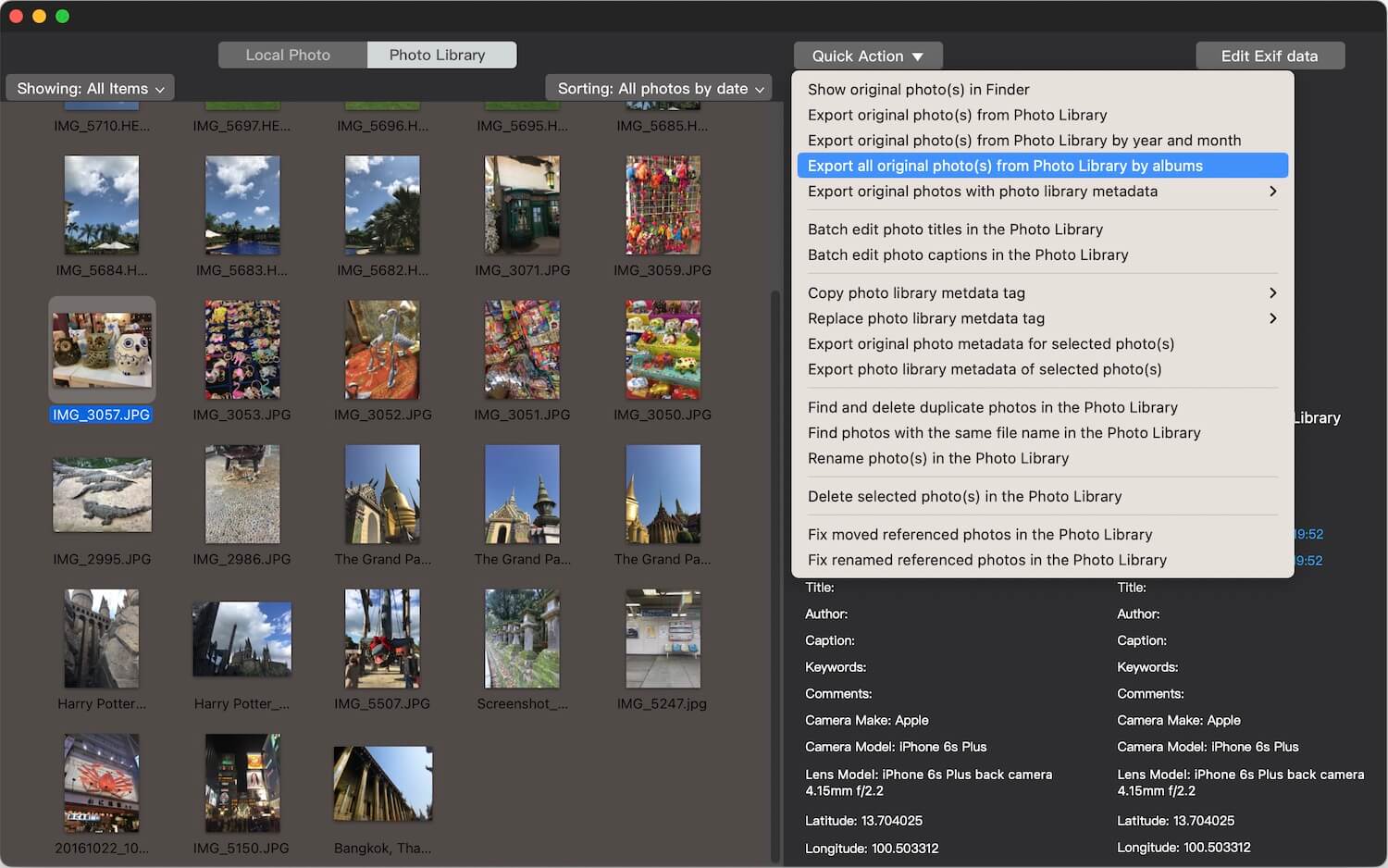
After exporting, you can re-import the photos into the Apple Photos app.
2. Check the External Drive File Format
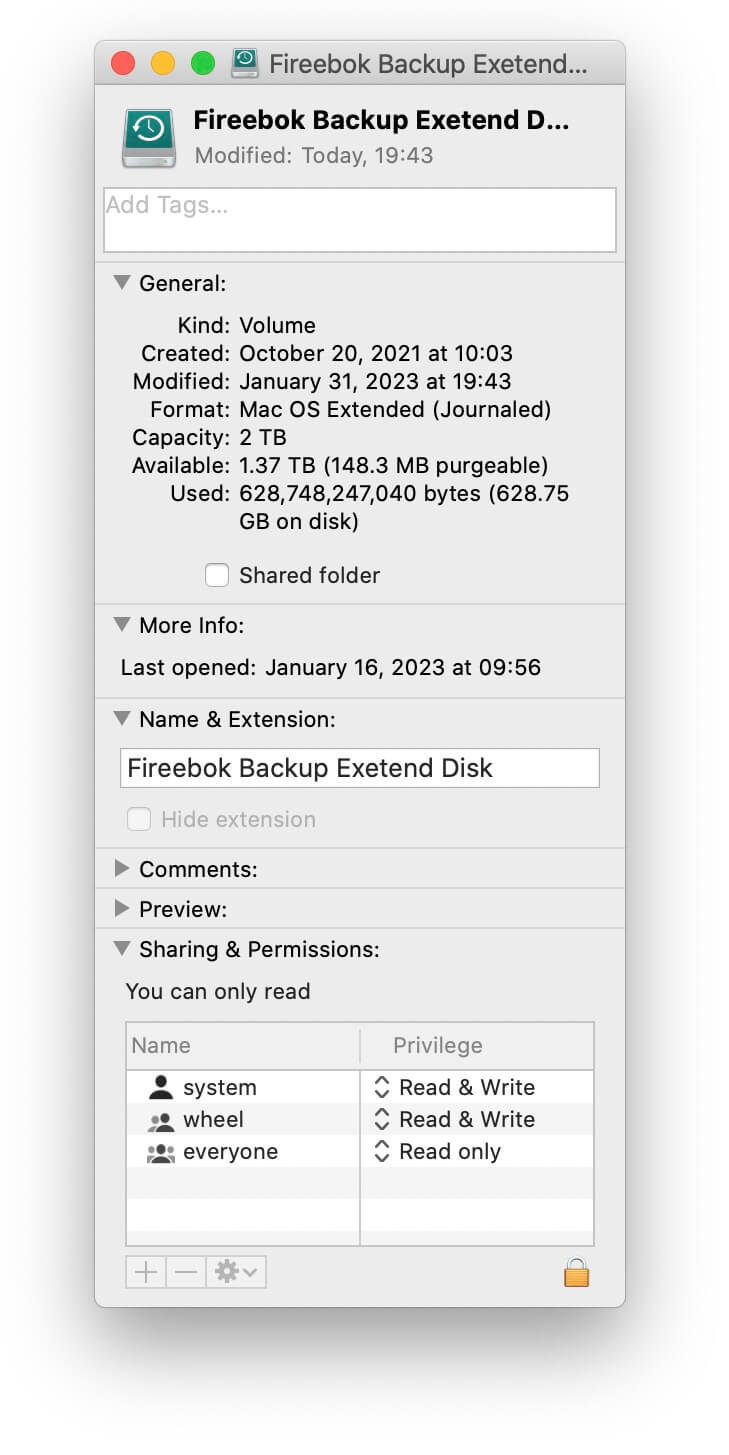
Apple officially recommends storing your Photos library on a drive formatted as: APFS and Mac OS Extended (Journaled)
However, many users format their external drives as exFAT because it is compatible with both macOS and Windows.
The problem: exFAT is less stable for large databases like Photos libraries. It is more prone to corruption, especially if the drive is not properly ejected.
How to Check Your Drive Format:
1. Right-click the external drive in Finder. Select Get Info, check the Format field
If your drive is formatted as exFAT, consider backing up your data and reformatting it to APFS or Mac OS Extended (Journaled) for better stability.
3. Check External Drive Connection
Sometimes the issue is simply a hardware connection problem. Try the following:
1. Replace the USB cable (use a high-quality USB 3.x cable)
2. Try a different USB port
3. Avoid using USB hubs temporarily
4. Connect the drive directly to your Mac
An unstable connection can prevent the Photos library database from loading properly.
4. Repair a Damaged Photos Library
If the Photos library database becomes corrupted due to unexpected disconnection, power failure, or other software interference, you can use Apple’s built-in repair tool.
Steps to Repair Photos Library:
1. Hold down Option + Command
2. Double-click the Photos app icon. When the Repair Photo Library window appears, click Repair
The Photos app will rebuild the library database. This process may take time depending on the library size.

5. Update macOS to the Latest Version
Sometimes the issue is caused by a macOS bug. Apple often fixes Photos app problems in system updates.
Check for macOS Updates:
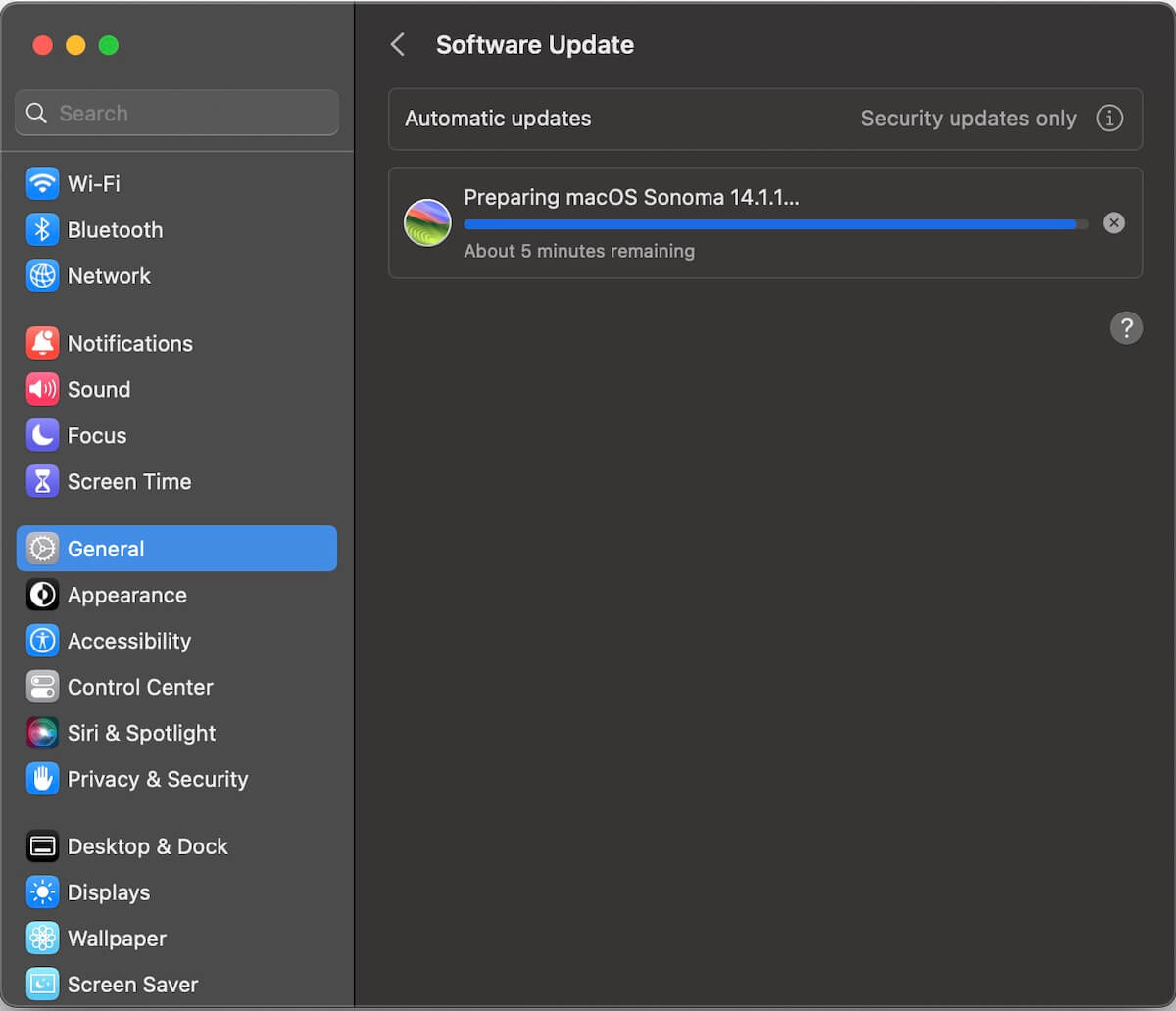
1. Go to System Settings → General → Software Update
2. Install any available macOS updates
After updating, reconnect your external drive and try opening the Photos library again.
Final Thoughts
If your Photos library on an external hard drive won’t open, the issue is usually related to:
• Old iPhoto library incompatibility
• Unsupported drive format (exFAT)
• Unstable USB connection
• Corrupted library database
• macOS system bugs
By checking these factors one by one, you can usually recover access to your Photos library without losing your precious photos and videos.
| More Related Articles | ||||
 |
1. How to find and remove duplicate photos from Photos? 2. How to batch rename photos within the Photos app on Mac? |
|||
About Fireebok Studio
Our article content is to provide solutions to solve the technical issue when we are using iPhone, macOS, WhatsApp and more. If you are interested in the content, you can subscribe to us. And We also develop some high quality applications to provide fully integrated solutions to handle more complex problems. They are free trials and you can access download center to download them at any time.
| Popular Articles & Tips You May Like | ||||
 |
 |
 |
||
| Five ways to recover lost iPhone data | How to reduce WhatsApp storage on iPhone | How to Clean up Your iOS and Boost Your Device's Performance | ||