Have you ever run into the problem where photos won’t transfer from iPhone to Mac? You’re not alone. Many iPhone users report that after updating to iOS 26, they can’t import photos or videos to their Mac. The most common issue is that the Photos app on Mac gets stuck on “Preparing to import from…” for a long time with no response.
Others say that when they try to transfer a large number of photos and videos, the process freezes, hangs, or even crashes. If you’re dealing with any of these problems, don’t worry—this guide will walk you through the most effective ways to fix iPhone photos not transferring to Mac.
Common Ways to Transfer Photos from iPhone to Mac
Before troubleshooting, let’s quickly review the most popular ways to move photos from iPhone to Mac:
1. iCloud Photos
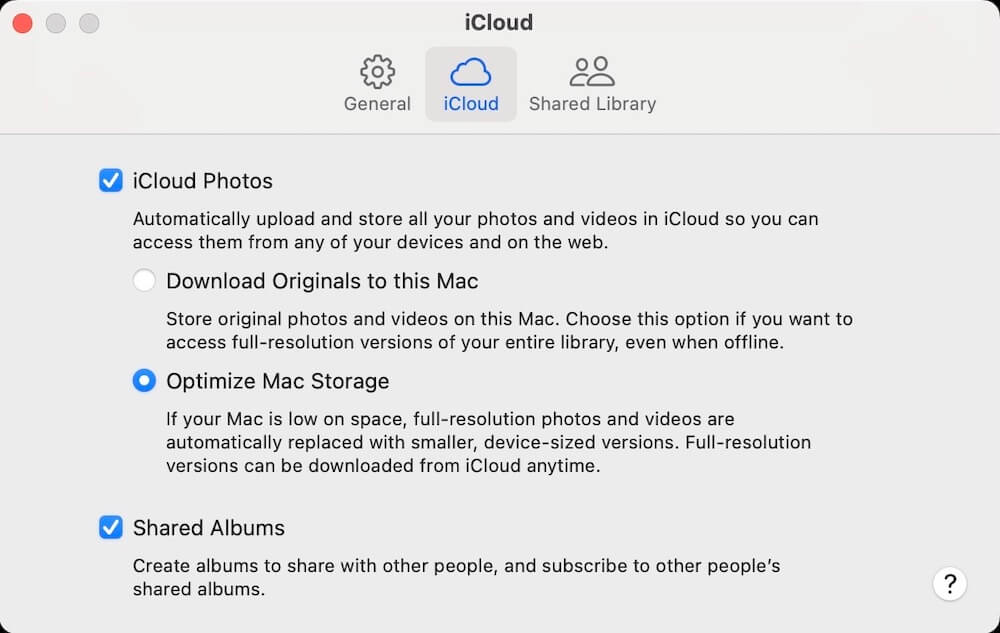
If you turn on iCloud Photos on both your iPhone and Mac using the same Apple ID, your photos and videos will automatically upload to iCloud and sync across devices—as long as you have enough iCloud storage.
2. Apple Photos App
Connect your iPhone to your Mac with a USB cable, open the Photos app, and import new photos and videos directly from your iPhone.

3. Image Capture
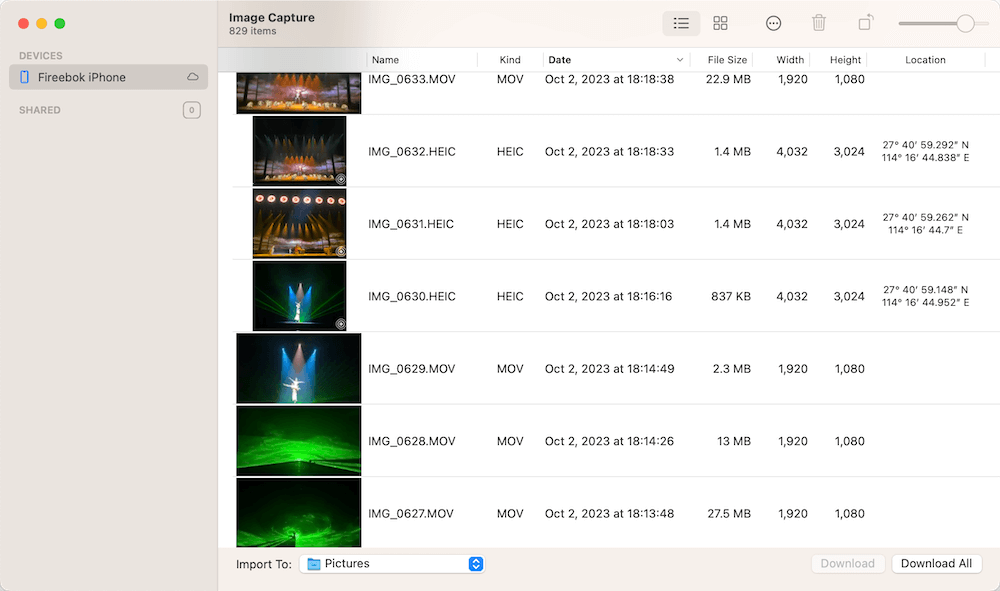
Plug your iPhone into your Mac, open Image Capture, select the photos and videos you want, and download them to a Finder folder.
4. AirDrop
Turn on AirDrop on both devices, place your iPhone near your Mac, and wirelessly send photos and videos.

Why You Can’t Transfer Photos from iPhone to Mac (And How to Fix It)
1. Not Enough Storage Space
Check iCloud Storage:
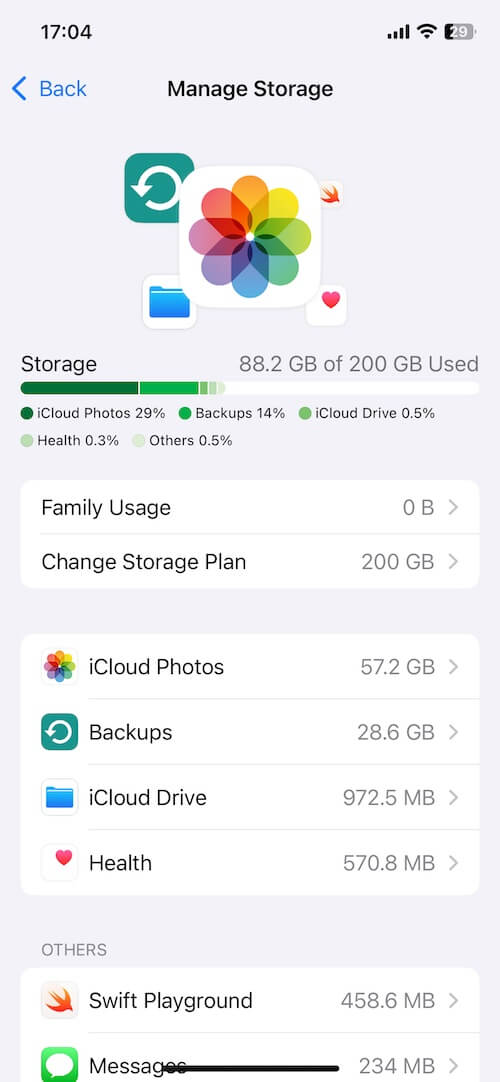
If iCloud Photos isn’t syncing, your iCloud storage might be full. iCloud stores not only photos and videos, but also device backups, iCloud Drive files, and more. Go to: iPhone Settings → Apple ID → iCloud → iCloud Storage and check your available space.
Check Mac Storage:
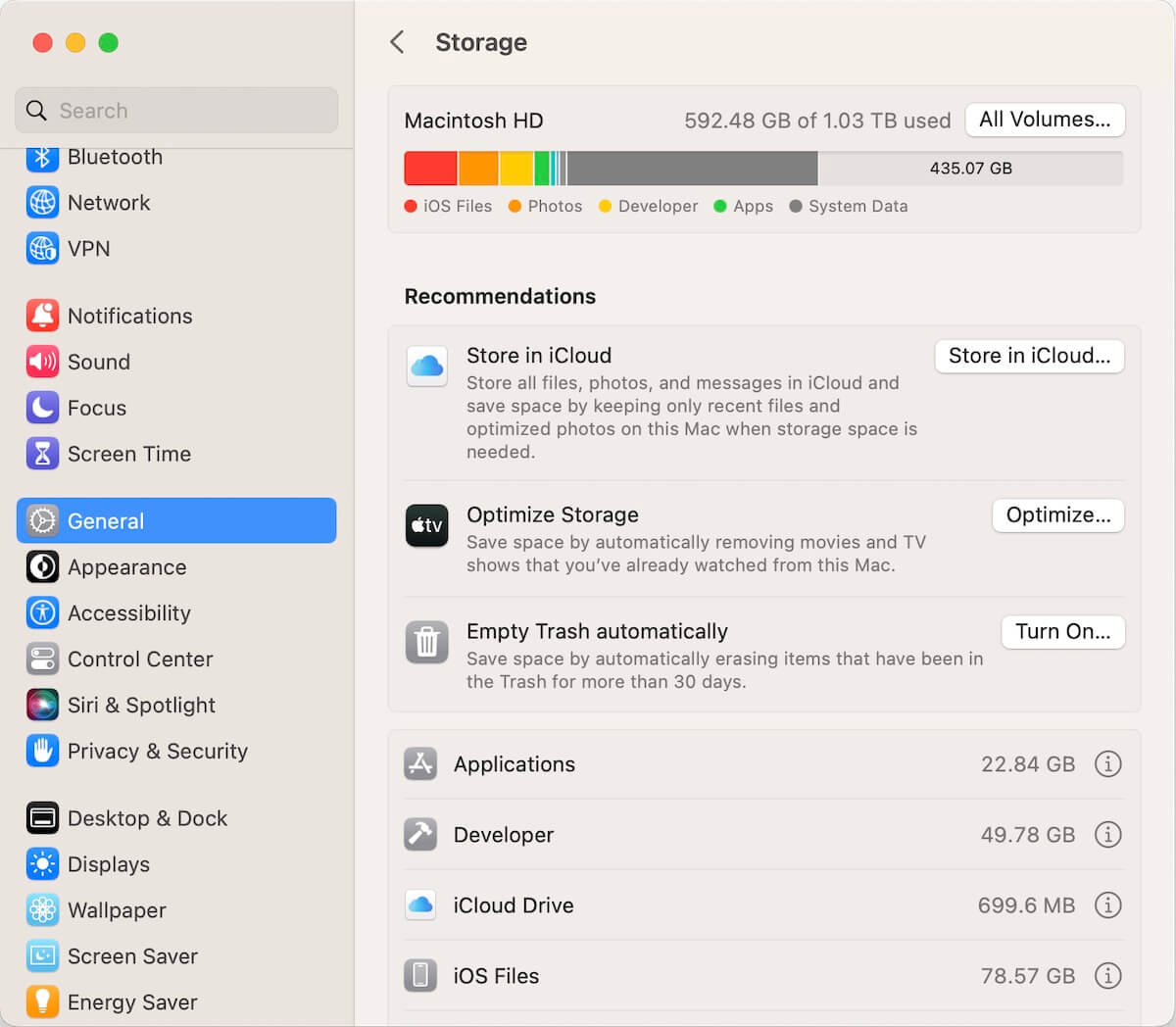
No matter which transfer method you use, your Mac must have enough free storage to receive the photos and videos. Go to: Mac System Settings → General → Storage and check your available disk space.
2. USB Connection Issues
If you’re using a USB cable, a bad or unstable cable can cause the import process to fail. Try these fixes:
• Replace the old USB cable with a new or certified one
• Unlock your iPhone and tap “Trust This Computer” when prompted
A poor connection is one of the most common reasons why iPhone photos won’t import to Mac.
3. Damaged Photos or Videos
If one photo or video is corrupted, it can cause the entire transfer process to hang or crash.
Solution: Use Image Capture to import photos in small batches. If one batch fails, you can narrow it down and skip the damaged file, then continue transferring the rest.
4. AirDrop Limits (Too Many or Too Large Files)
AirDrop works best for small to medium transfers (for example, 1–500 photos and under ~10GB). If you try to send too many photos or very large videos at once, AirDrop may fail or get stuck.
Tip: For large photo libraries, use Photos, Image Capture, or iCloud Photos instead of AirDrop.
5. System Cache or Unknown iOS/macOS Issues
Sometimes, temporary system bugs, cache issues, or background glitches can block photo transfers.
Quick fix:
• Restart your iPhone and Mac
This simple step often clears temporary issues and fixes the “Photos stuck on preparing to import” problem.
Transferred iPhone Photos Are Out of Order or Missing Metadata?
Another common complaint is that after transferring, iPhone photos are not sorted by capture date, or important metadata is missing, such as: Shooting date, GPS location, Camera information.
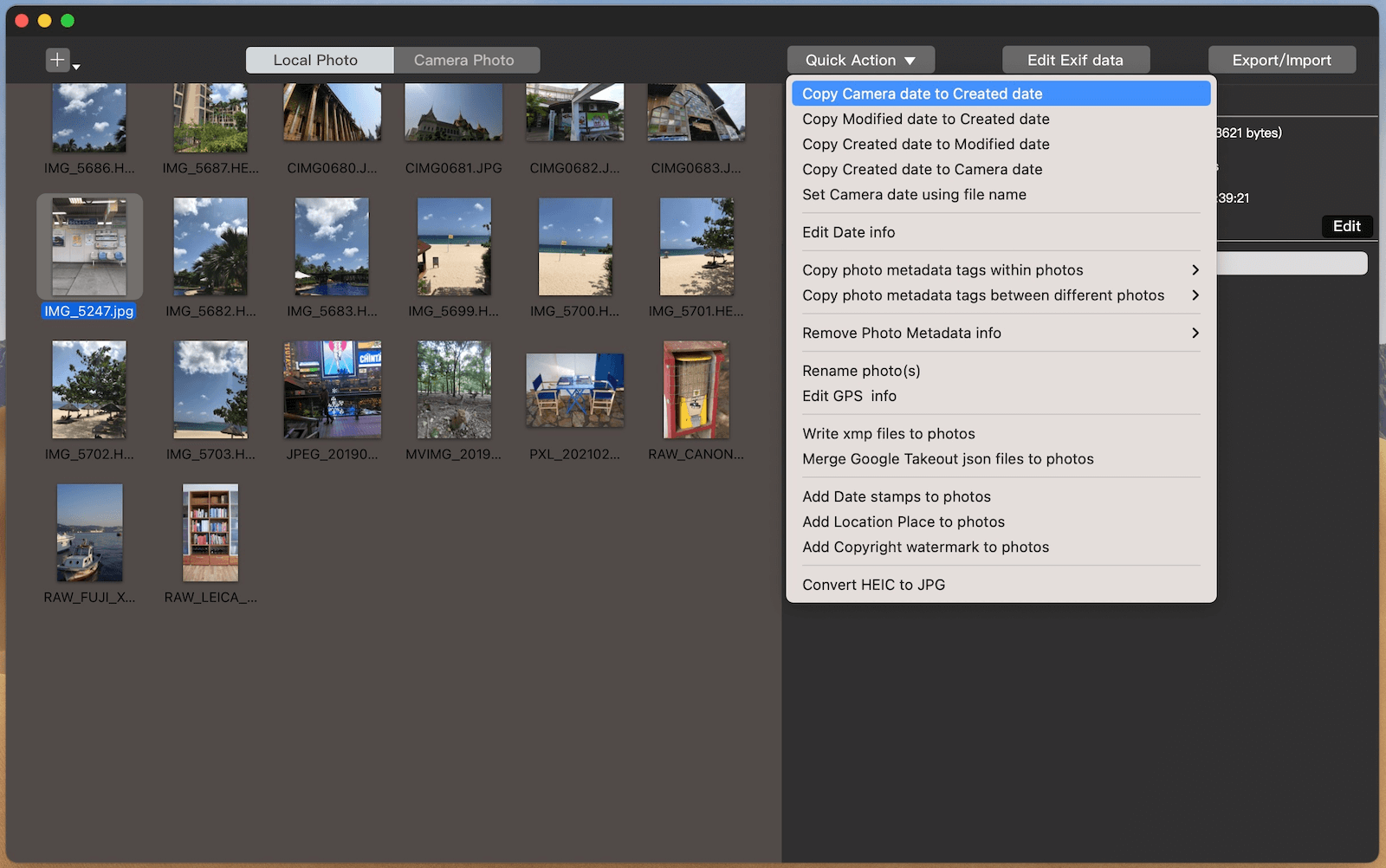
To fix these issues, you can use Photo Exifer, which offers powerful photo metadata tools with just a few clicks, such as:
• Batch copy capture date to creation date
• Batch edit and copy metadata between photos
• Support for both Finder folders and Photos library photos
This is especially useful if you want your transferred photos to stay properly organized and searchable on your Mac.
Final Thoughts
If photos won’t transfer from iPhone to Mac, the problem is usually caused by storage issues, USB connection problems, damaged files, AirDrop limits, or temporary system glitches—especially after an iOS update like iOS 26. Try the fixes above one by one, and you should be able to get your photos moving again smoothly.
| More Related Articles | ||||
 |
1. How to find and remove duplicate photos from Photos? 2. How to batch rename photos within the Photos app on Mac? |
|||
About Fireebok Studio
Our article content is to provide solutions to solve the technical issue when we are using iPhone, macOS, WhatsApp and more. If you are interested in the content, you can subscribe to us. And We also develop some high quality applications to provide fully integrated solutions to handle more complex problems. They are free trials and you can access download center to download them at any time.
| Popular Articles & Tips You May Like | ||||
 |
 |
 |
||
| Five ways to recover lost iPhone data | How to reduce WhatsApp storage on iPhone | How to Clean up Your iOS and Boost Your Device's Performance | ||