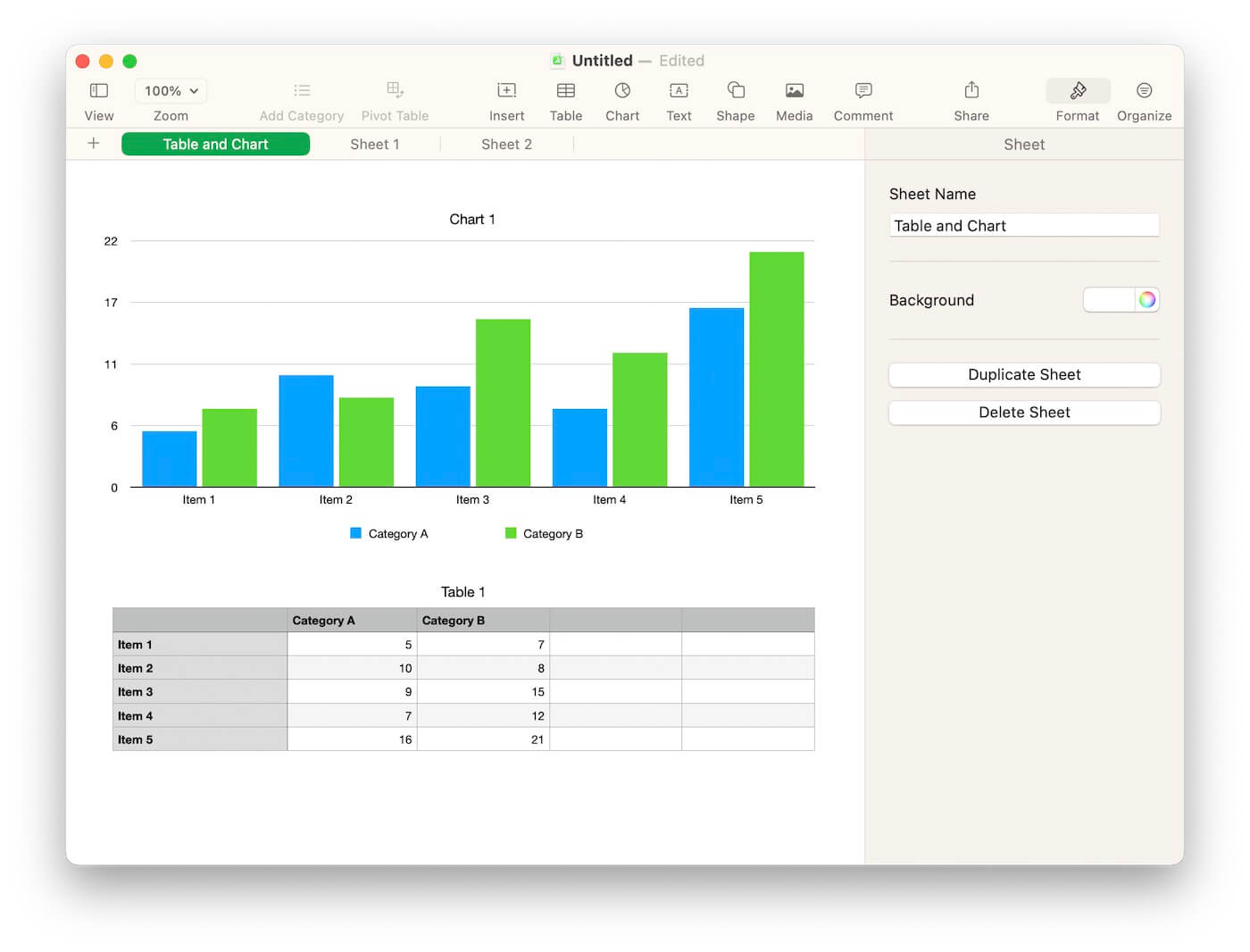
Apple Numbers provides a wide range of templates to help you quickly handle digital number tasks. Many Mac users rely on it for family finances, budgets, calculations, data analysis, and more. These Numbers spreadsheets often store important and valuable data.
But what if your Apple Numbers file is suddenly lost, deleted, or missing data? Have you ever opened a spreadsheet and found that some sheets or weeks of data disappeared? And if there’s no backup, how can you recover your Apple Numbers data on Mac?
If you’re struggling with this problem, this guide will show you how to recover lost Apple Numbers files and how to find missing or disappeared data in a Numbers spreadsheet on macOS.
How to Recover Lost Apple Numbers Files Without Backup
If your Apple Numbers files were lost due to a macOS update, accidental deletion, or system issue—and you don’t have a Time Machine or other backup—you may still be able to recover them from your Mac’s disk.
You can use Fireebok Data Recovery, which supports recovering lost Apple Numbers files and other document types on Mac, including the latest macOS Tahoe.
Steps to Recover Deleted or Lost Numbers Files on Mac
1. Download and install Fireebok Data Recovery on your Mac.
2. Add the app to Full Disk Access: Go to System Settings → Privacy & Security → Full Disk Access, and enable Fireebok Data Recovery. This allows the app to scan your disk properly.
3. Launch Fireebok Data Recovery and select your Startup Disk. Choose Deleted Recovery mode and click Start Scan. Wait for the scan to complete. Preview the found documents, including .numbers files and other files you want.
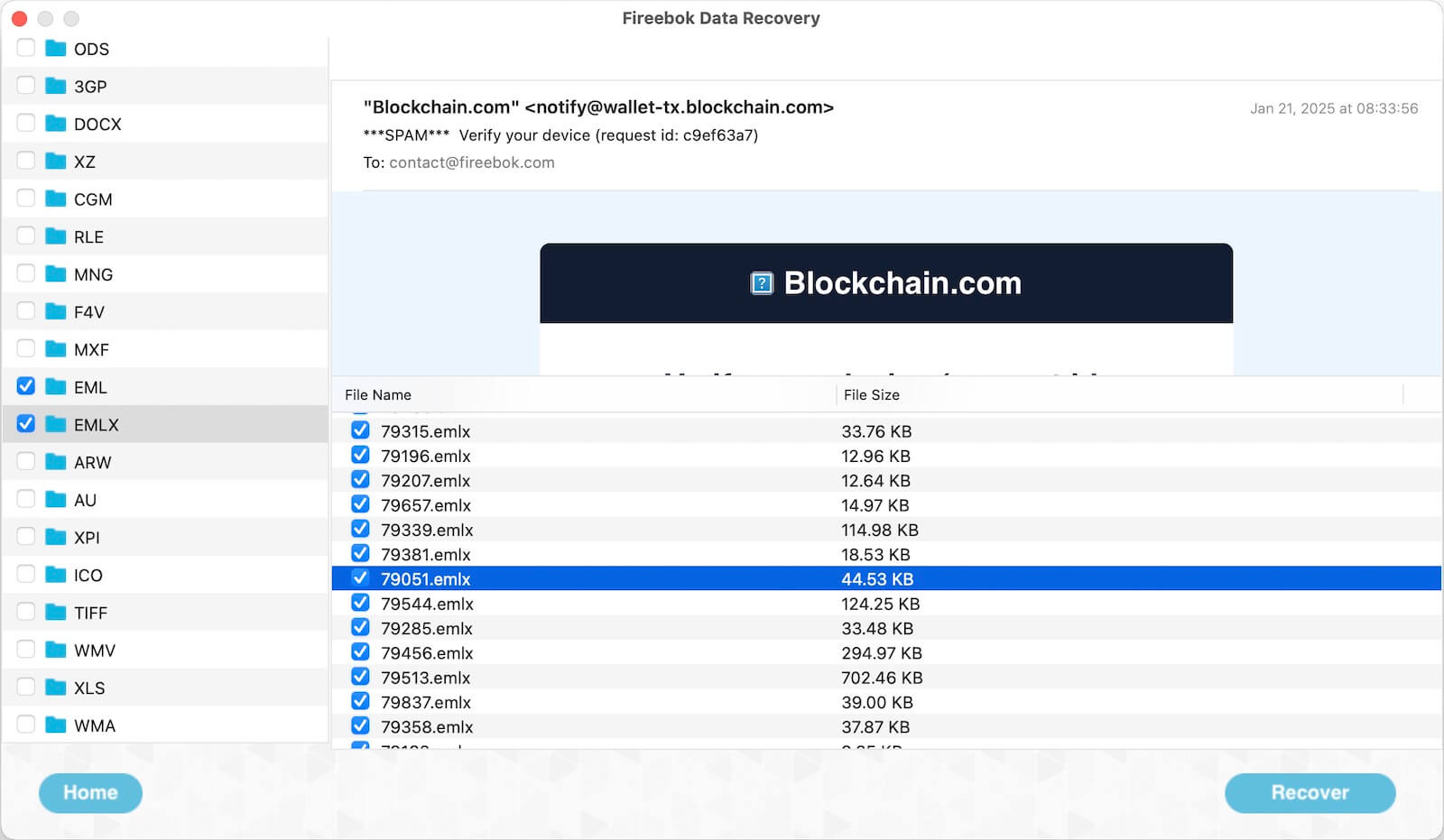
4. Select the files you need and click Recover to save them to a safe location.
This method is useful when your Apple Numbers file was deleted, lost, or disappeared and you don’t have any backup available.
How to Find Disappeared Data in an Apple Numbers Spreadsheet
Sometimes the file itself is still there, but some sheets or data are missing when you open it. This can happen for several reasons. Try the following solutions one by one.
1. Check If the Numbers Sheet Is Hidden
The missing sheet may simply be hidden.
• Open the spreadsheet in Numbers. Look at the sheet tabs at the top
• Click the ▼ or ••• menu next to the sheet tabs (or right-click a tab)
• See if there is a Show All Sheets or a hidden sheet listed
• If you find it, choose Unhide / Show. You can also try: View → Show Sheet List
2. Check Apple Numbers Version Compatibility
If the Numbers file was downloaded from iCloud or transferred from another Mac, there may be a version compatibility issue.
• Open the App Store
• Update Apple Numbers to the latest version
• Reopen the file and check whether the missing sheets or data appear
3. Search Inside the Spreadsheet
Sometimes the data is still there, just not where you expect. Press ⌘ + F in Numbers. Search for:
• A value you remember. A date from the missing period. A unique word from the missing sheet
If Numbers finds a result, it will jump directly to the cell or table where that data is located.
4. Check If You Opened the Wrong File or a Duplicate
It’s common to accidentally open the wrong copy of a file. Open Finder and search for the file name
Look for files like: filename (1).numbers. filename copy.numbers
Older versions in Desktop, Documents, or iCloud Drive. Open each one and check whether one of them contains the missing sheets or data
Final Thoughts
Losing Apple Numbers data can be stressful—especially when it contains financial records, budgets, or important work data. If your Numbers file was deleted or lost, data recovery software like Fireebok Data Recovery can help. If your file opens but some data or sheets are missing, checking hidden sheets, version compatibility, search, and duplicate files can often solve the problem.
| More Related Articles | ||||
 |
1. How to find and remove duplicate photos from Photos? 2. How to batch rename photos within the Photos app on Mac? |
|||
About Fireebok Studio
Our article content is to provide solutions to solve the technical issue when we are using iPhone, macOS, WhatsApp and more. If you are interested in the content, you can subscribe to us. And We also develop some high quality applications to provide fully integrated solutions to handle more complex problems. They are free trials and you can access download center to download them at any time.
| Popular Articles & Tips You May Like | ||||
 |
 |
 |
||
| Five ways to recover lost iPhone data | How to reduce WhatsApp storage on iPhone | How to Clean up Your iOS and Boost Your Device's Performance | ||