Many iPhone users have reported that they can’t block caller numbers after upgrading to iOS 26. After the update, the Info (ⓘ) button and the “Block Caller” option no longer appear in the Phone app’s Recents list. This makes it difficult to quickly block spam, robocalls, or unknown numbers.
At first glance, it may seem like iOS 26 removed the block caller feature, but that’s not true. Apple redesigned the Phone app UI in iOS 26, and the option is now hidden in a different place or affected by system glitches.
In this guide, we’ll show you several effective ways to fix the problem and block caller numbers on iPhone in iOS 26.
1. Change the Phone Recents View (Classic vs Unified)
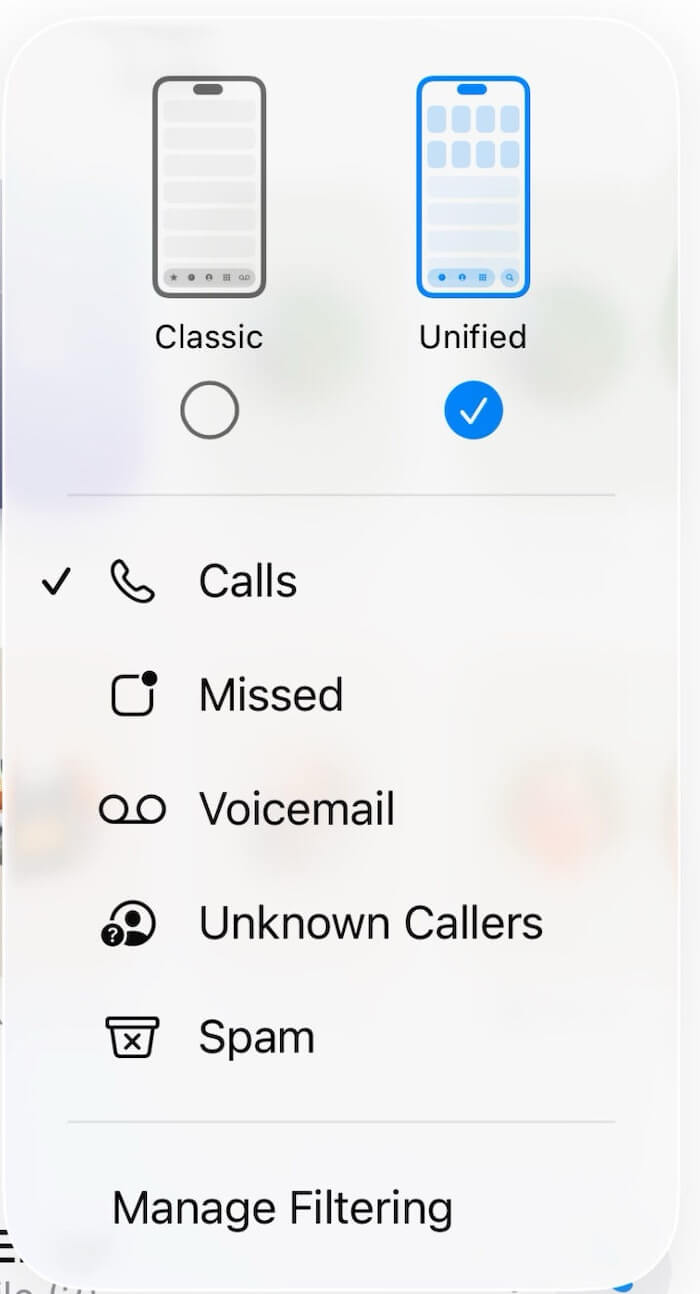
Apple redesigned the Phone app in iOS 26 and introduced two view modes: Unified and Classic. These modes display different layouts, and the Block Contact option is easier to find in Classic view. Steps:
1. Open the Phone app, go to the Recents tab.
2. Tap the menu button in the top-right corner, Switch the view mode to Classic.
After switching to Classic view, the Info (ⓘ) button should appear next to each recent call.
2. Block a Caller from the Recents Info Page
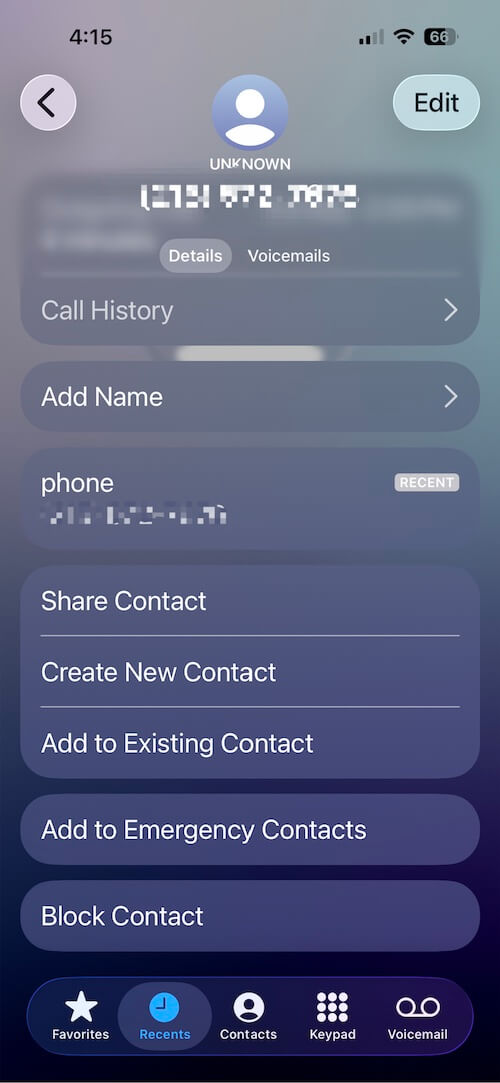
Once you’re in Classic view, you can block a number directly from the call details page. Steps:
1. Open Phone → Recents.
2. Tap the ⓘ Info button next to the number you want to block
3. Scroll down, and tap Block Contact (this replaces the old “Block Caller” option)
You’ll also see options like Share Contact, Create New Contact, Add to Existing Contact, and Add to Emergency Contacts on this page.
3. Block a Number Using the Blocked Contacts List
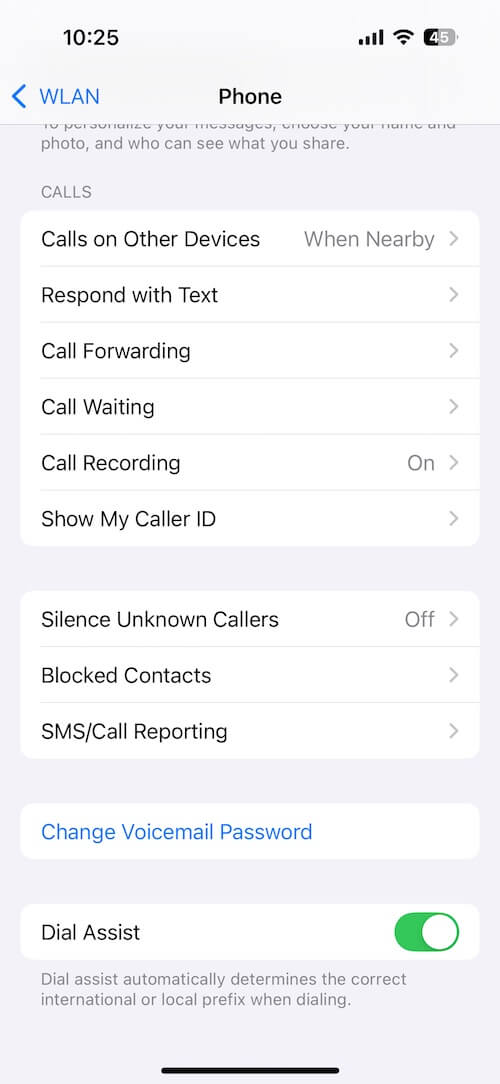
Another reliable method is to use the Blocked Contacts list in Settings. This works on both older iOS versions and iOS 26. Steps:
1. First, save the caller number as a contact (if it isn’t already)
2. Go to Settings → Apps → Phone → Blocked Contacts
3. Scroll down and tap Add New…, select the contact you want to block
Once added, this number will no longer be able to call, message, or FaceTime you.
4. Restart Your iPhone
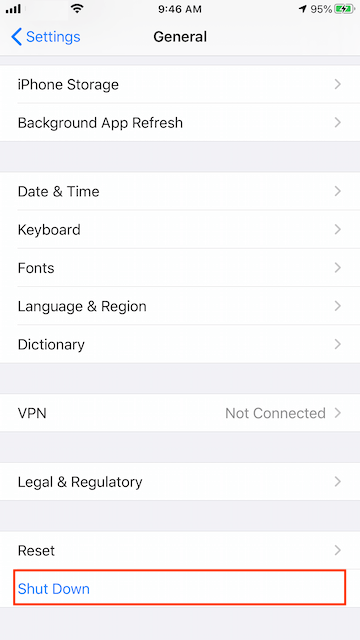
If the Block Contact option still doesn’t appear after changing views and checking settings, it may be a temporary system glitch. Steps:
1. Go to Settings → General → Shut Down
2. Drag the slider to turn off your iPhone. Press and hold the Side button until the Apple logo appears to turn it back on
A restart often fixes UI bugs and missing options in iOS.
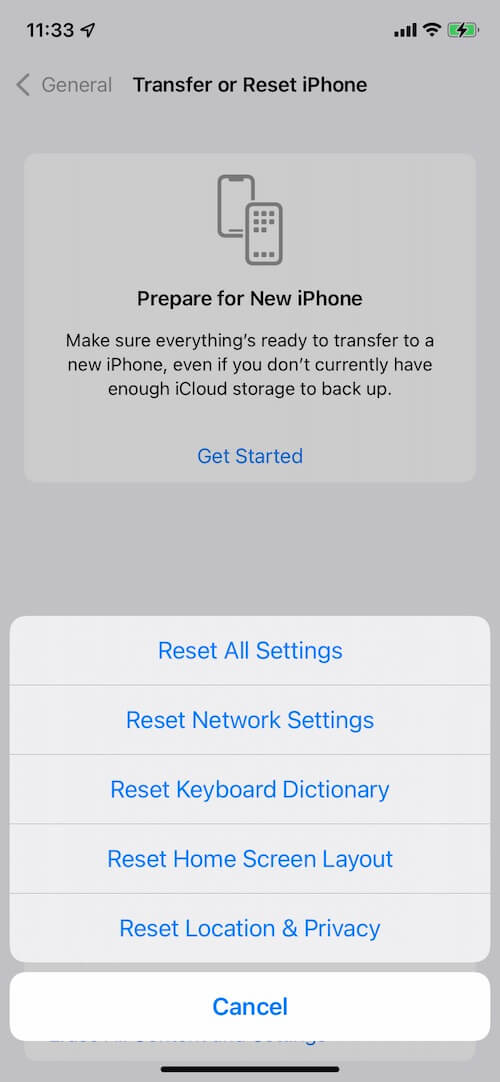
5. Reset All iPhone Settings
If none of the above methods work, resetting system settings may fix the issue (this won’t delete your data, but it will reset Wi-Fi, Bluetooth, and system preferences). Steps:
1. Go to Settings → General → Transfer or Reset iPhone
2. Tap Reset. Choose Reset All Settings. Enter your passcode and confirm
After this, check the Phone app again to see if Block Contact is back.
6. Update to the Latest iOS Version
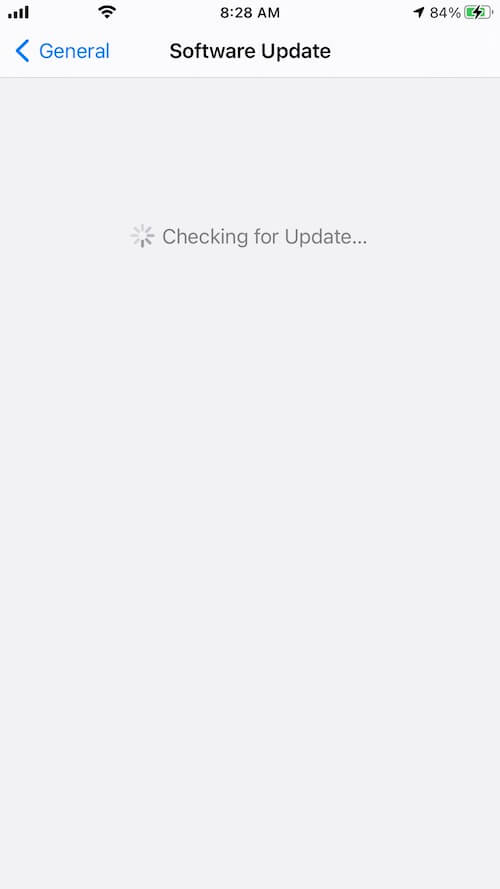
Apple often fixes bugs and UI issues in minor updates. If you’re running an early version of iOS 26, there may already be a patch available. Steps:
1. Go to Settings → General → Software Update
2. Download and install any available update
After updating, reopen the Phone app and try blocking the number again.
Final Thoughts
If you can’t block caller numbers on iPhone after updating to iOS 26, it’s usually due to the new Phone app UI, a temporary system bug, or a settings issue. Switching to Classic view, using Blocked Contacts, restarting your iPhone, or updating iOS will fix the problem in most cases.
Once everything is working, you’ll be able to block spam calls, robocalls, and unwanted numbers on your iPhone just like before—only with Apple’s new iOS 26 interface.
| More Related Articles | ||||
 |
1. How to View and Remove Video Metadata on iPhone? 2. How to Fix Photos Showing the Incorrect Date on iPhone? |
|||
About Fireebok Studio
Our article content is to provide solutions to solve the technical issue when we are using iPhone, macOS, WhatsApp and more. If you are interested in the content, you can subscribe to us. And We also develop some high quality applications to provide fully integrated solutions to handle more complex problems. They are free trials and you can access download center to download them at any time.
| Popular Articles & Tips You May Like | ||||
 |
 |
 |
||
| Five ways to recover lost iPhone data | How to reduce WhatsApp storage on iPhone | How to Clean up Your iOS and Boost Your Device's Performance | ||