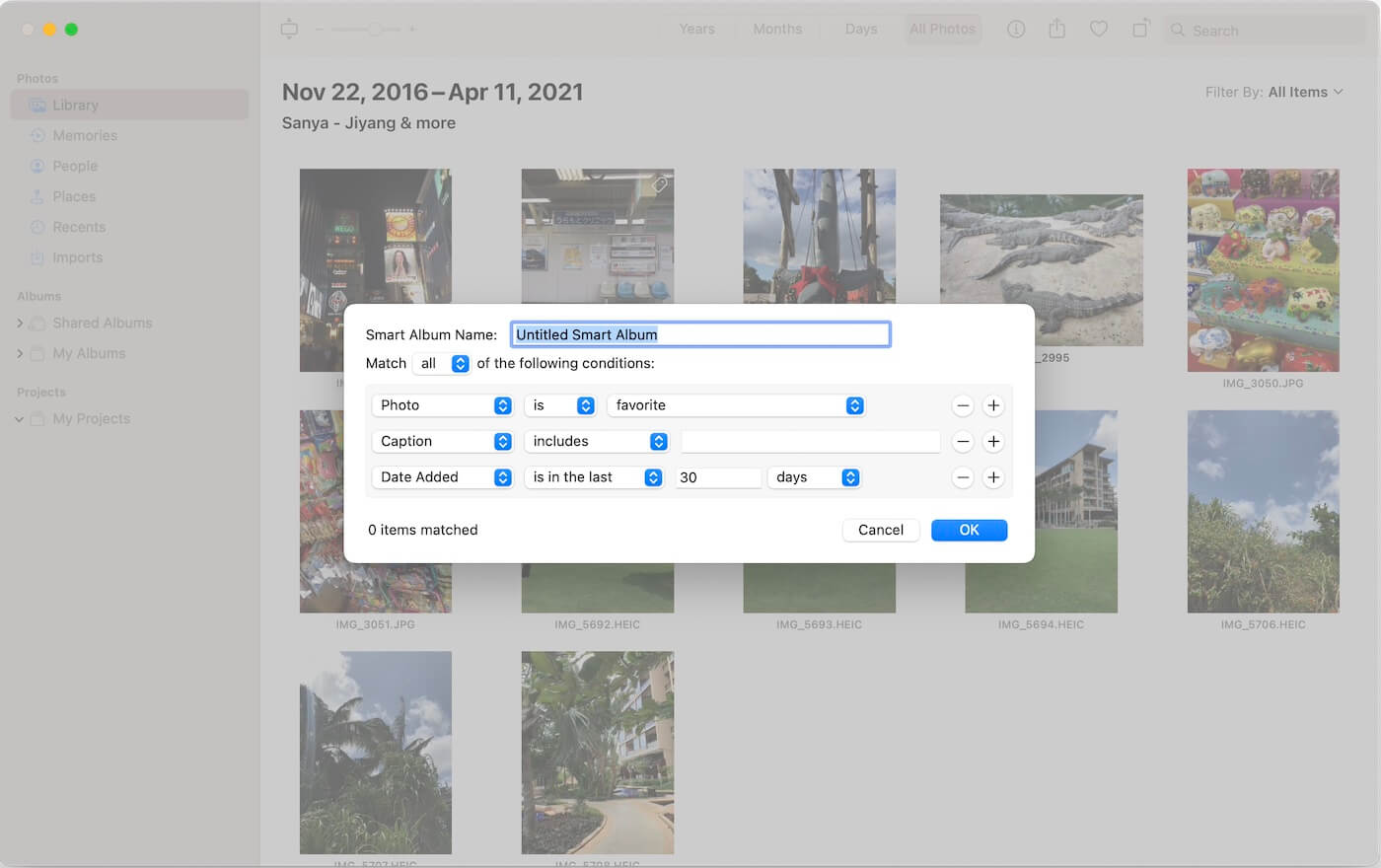
Have you ever tried creating a Smart Album in Apple Photos on Mac? This powerful feature helps you automatically organize and filter photos using multiple conditions—such as date ranges, favorites, file types, and metadata.
With Smart Albums, you can quickly collect photos that match specific criteria without manually selecting them.
However, the iPhone and iPad versions of Apple Photos do not offer the same Smart Album feature. On iOS, you can only create standard albums and manually add photos to them. Even worse, Smart Albums created on Mac do not sync to iCloud Photos or appear on iPhone and iPad.
So, how can you create a Smart Album on iPhone or iPad? In this guide, we will show you how to easily create Smart Albums on iPhone and iPad using a powerful alternative.
Why You Need Smart Albums on iPhone
Smart Albums make photo management much easier by allowing you to:
• Automatically group photos based on rules
• Filter images by favorites, edits, or media type
• Find photos within a specific date range
• Search using metadata like filename, caption, or keywords
• Avoid manual sorting and save time
If you have thousands of photos, Smart Albums are essential for staying organized.
Best Way to Create Smart Albums on iPhone and iPad
Since Apple Photos lacks this functionality, the most effective solution is to use SmartAlbum Pro. This app brings desktop-class filtering to your iPhone, allowing you to build complex rules to organize your photos and videos.
Key Features of SmartAlbum Pro
• Multiple Logic Filters: Combine rules (e.g., "Favorite" + "Screenshot" + "Taken in July").
• Deep Metadata Support: Filter by File Name, Caption, Title, or Keywords.
• Media Type Sorting: Isolate Live Photos, Panoramas, HDR, or specific formats like JPG and RAW.
How to Create a Smart Album on iPhone and iPad
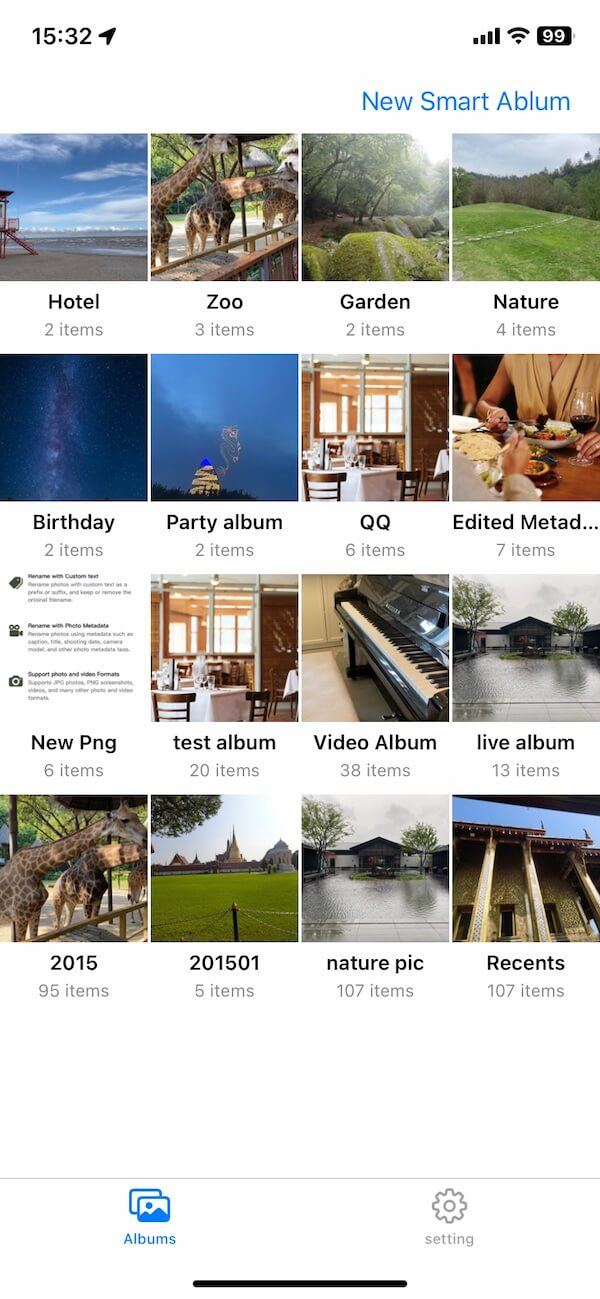
1. Install and Connect. Download SmartAlbum Pro from the App Store. When you launch the app, grant it permission to access your photo library.
2. Define Your Rules. Tap “New Smart Album” and give it a name (e.g., "Summer 2025 Favorites").
3. Configure Filters. Enable Filter 1 and select your primary criteria. You can set conditions like:
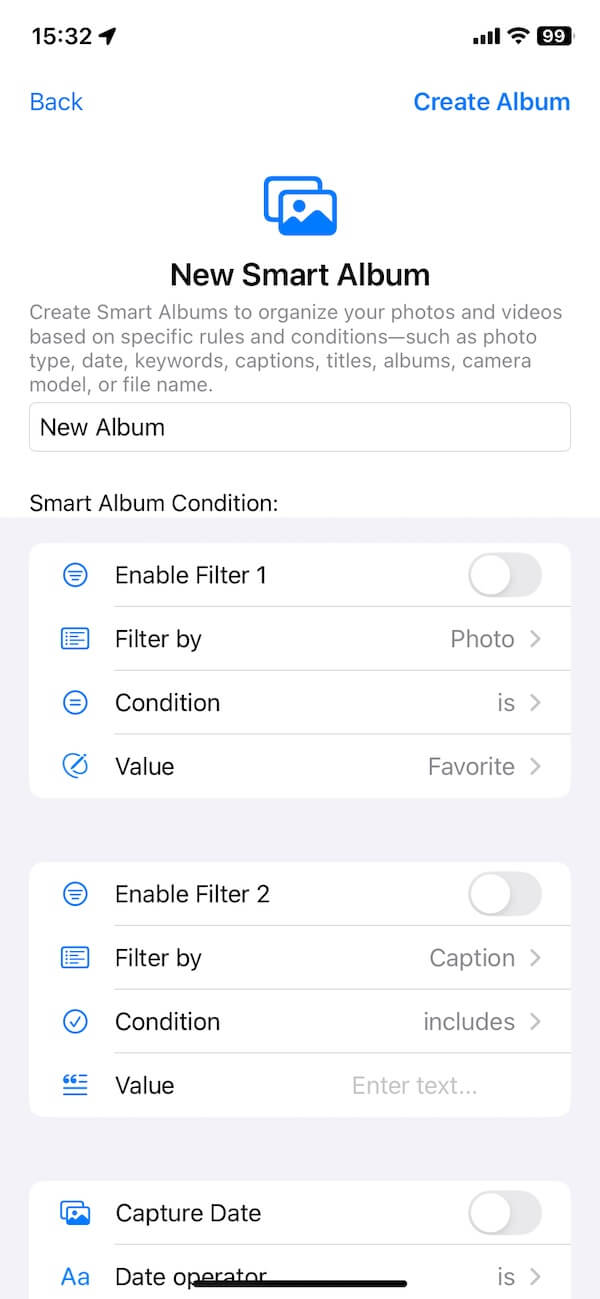
• Filter by: Photo type, Album, File Name, Caption, Title, or Keyword
• Set conditions: is / is not, includes / excludes
• Select values such as Favorites, Edited, Live Photos, etc., or enter metadata
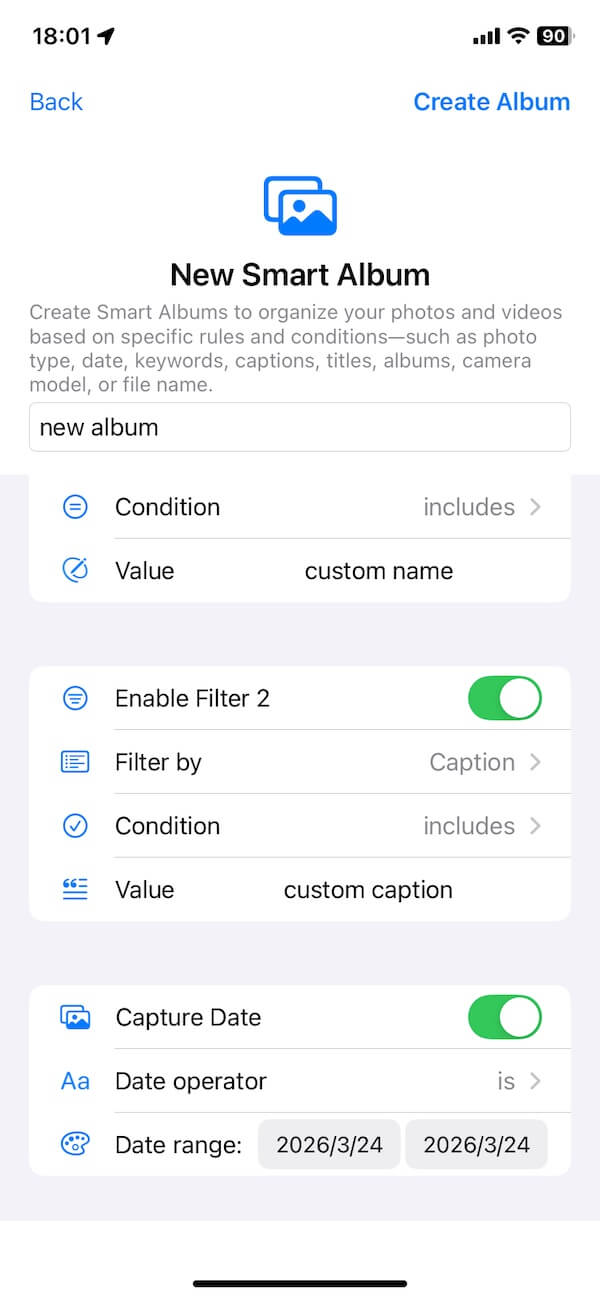
4. Refine with Multiple Conditions. To get specific, enable Filter 2. For example, you could set Filter 1 to "Favorites" and Filter 2 to "Videos." The app will then only show you your favorite videos.
5. Set the Timeline. Enable the Capture Date toggle. You can select a specific start and end date to narrow the album down to a specific trip or event.
6. Generate and View. Tap “Create Album.” The app will instantly scan your library and populate the album with every photo that matches your rules.
Final Thoughts
While Apple Photos on iPhone and iPad doesn’t currently support Smart Albums, tools like SmartAlbum Pro make it easy to bring this powerful feature to iOS. If you frequently search, filter, and organize large photo libraries, using Smart Albums can dramatically improve your workflow and save you hours of manual work.
| More Related Articles | ||||
 |
1. How to View and Remove Video Metadata on iPhone? 2. How to Fix Photos Showing the Incorrect Date on iPhone? |
|||
About Fireebok Studio
Our article content is to provide solutions to solve the technical issue when we are using iPhone, macOS, WhatsApp and more. If you are interested in the content, you can subscribe to us. And We also develop some high quality applications to provide fully integrated solutions to handle more complex problems. They are free trials and you can access download center to download them at any time.
| Popular Articles & Tips You May Like | ||||
 |
 |
 |
||
| Five ways to recover lost iPhone data | How to reduce WhatsApp storage on iPhone | How to Clean up Your iOS and Boost Your Device's Performance | ||