When it comes to safeguarding a lifetime of memories, many users ask: "Should I use iCloud or an external hard drive?" The professional answer is both.
Using iCloud Photos in tandem with a physical external drive allows you to:
• Save Space: Offload massive files from your iPhone and Mac internal SSD.
• Redundancy: Protect against data loss if your Apple ID is ever compromised or locked.
• Offline Access: Edit and view your 4K videos and high-res RAW photos without needing an internet connection.
However, moving a 2TB iCloud library—which often contains hundreds of thousands of files—is a massive technical challenge. Standard drag-and-drop methods often fail or result in lost metadata. In this guide, we will show you the most reliable way to perform a full-scale migration.
Why Standard Methods Fail for 2TB Libraries
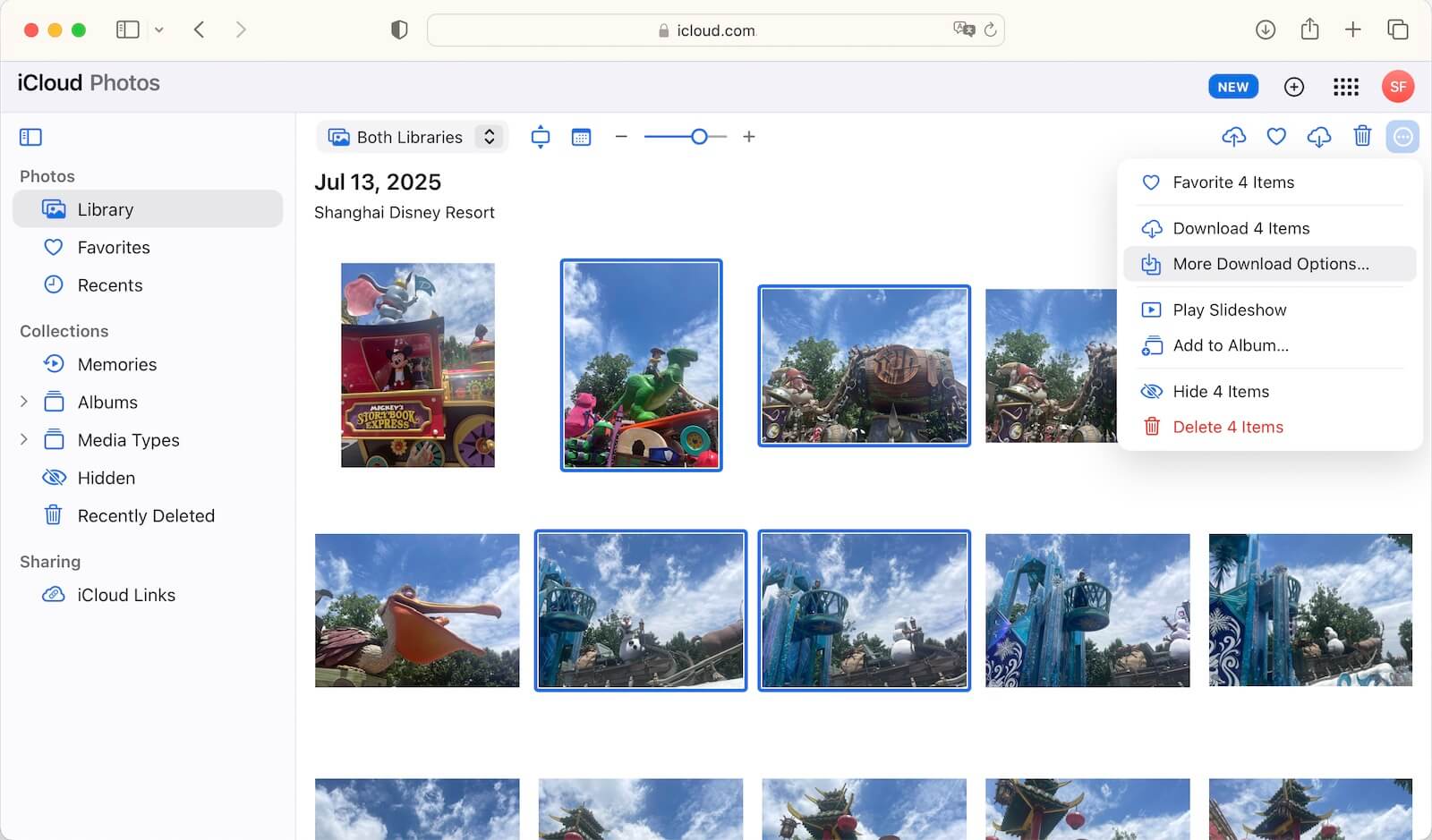
1. The iCloud.com "1,000 File" Limit
If you try to download your library via a web browser, Apple limits you to selecting 1,000 photos at a time. For a 2TB library, you would have to repeat this manual process hundreds of times, making it nearly impossible to ensure you haven't missed a single file.
2. The "Optimize Mac Storage" Trap
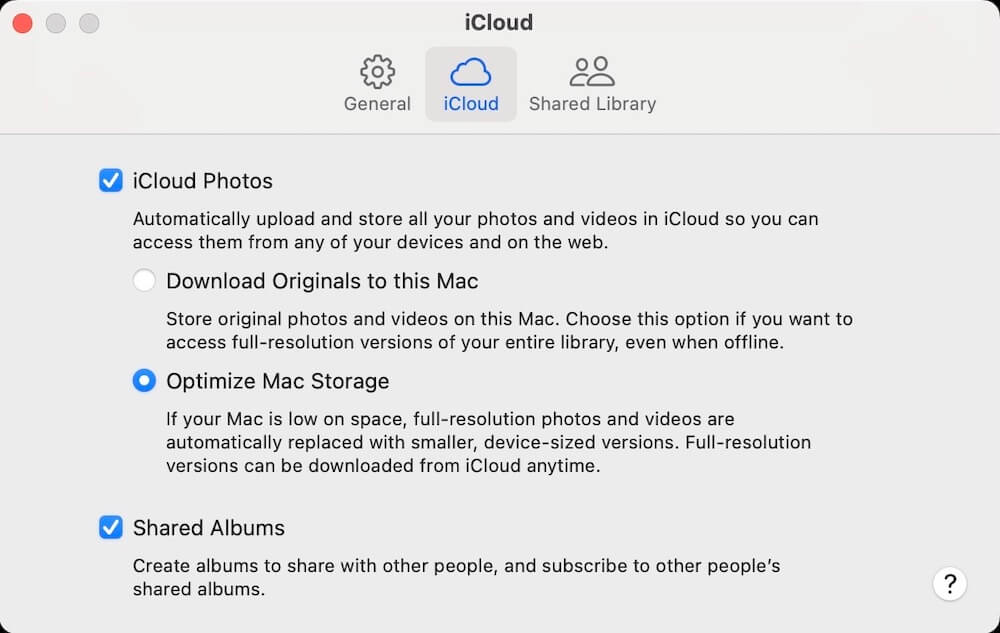
Most Mac users have "Optimize Mac Storage" turned on to save disk space. This means your Mac only stores tiny, low-resolution thumbnails. If you simply copy your Photos Library.photoslibrary file to an external drive, you are only copying those thumbnails—not the actual high-resolution originals stored in the cloud.
The Professional Solution: Exporting via Photo Exifer
To bypass these limitations and handle a 2TB+ migration, you need a tool that can communicate directly with iCloud's servers and manage the local file system simultaneously.
We recommend using Photo Exifer. It is a specialized macOS utility designed to manage massive photo databases, ensuring that every byte of data and metadata is preserved during the transfer.
Why Use Photo Exifer for 2TB Transfers?
• Bulk Downloading: It can trigger the download of your entire iCloud library in one go.
• Metadata Integrity: It preserves EXIF, GPS, and IPTC tags, so your photos stay organized by date and location on your hard drive.
• Direct Pathing: It saves files directly to your external drive, preventing your Mac's internal SSD from filling up during the process.
Step-by-Step Migration Guide
1. Setup and Permissions
Download and install Photo Exifer on your Mac.
• Go to System Settings → Privacy & Security → Full Disk Access. Add Photo Exifer to the list to allow Photo Exifer to grant full access to your photo library.
2. Prepare the Destination
Connect your external hard drive. Ensure it is formatted as APFS or Mac OS Extended (Journaled) for the best performance. Verify that you have at least 2.2TB of free space to account for the 2TB library plus overhead.
3. Scan Your Cloud Library
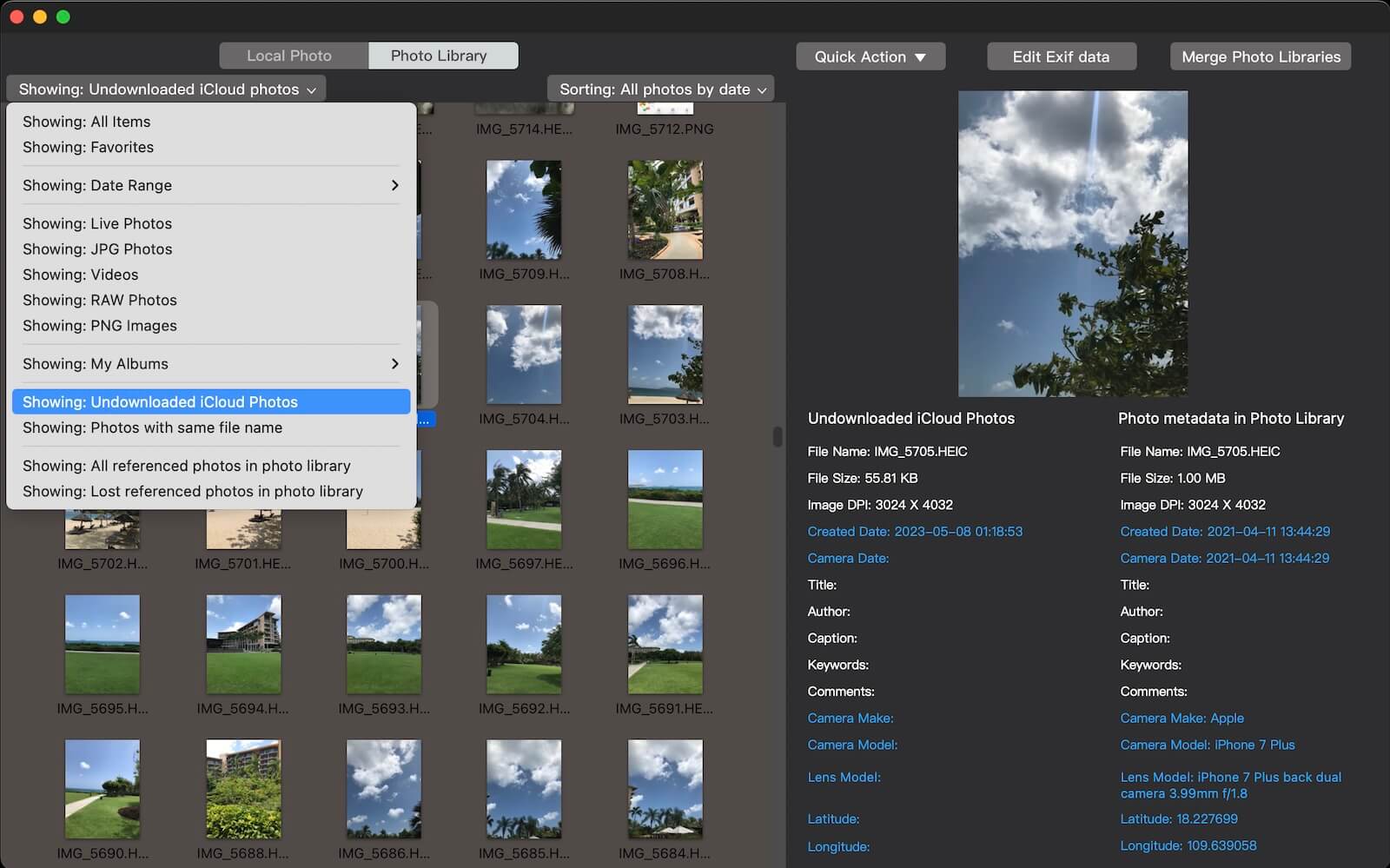
• Open Photo Exifer and click the Photo Library tab.
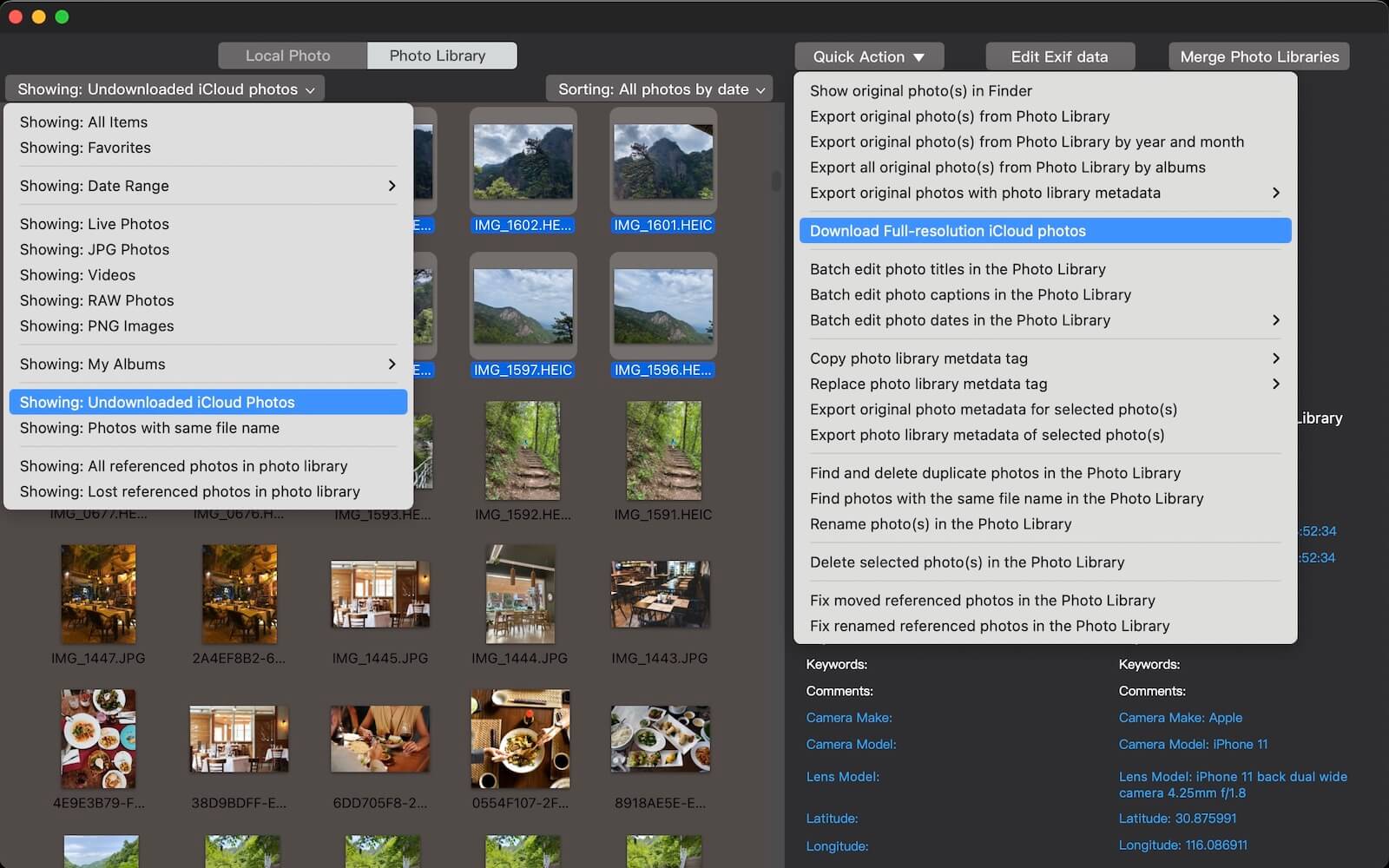
Use the Filter menu and select Showing: Undownloaded iCloud Photos. This will display all iCloud-only items (thumbnails)
4. Configure the Export Path
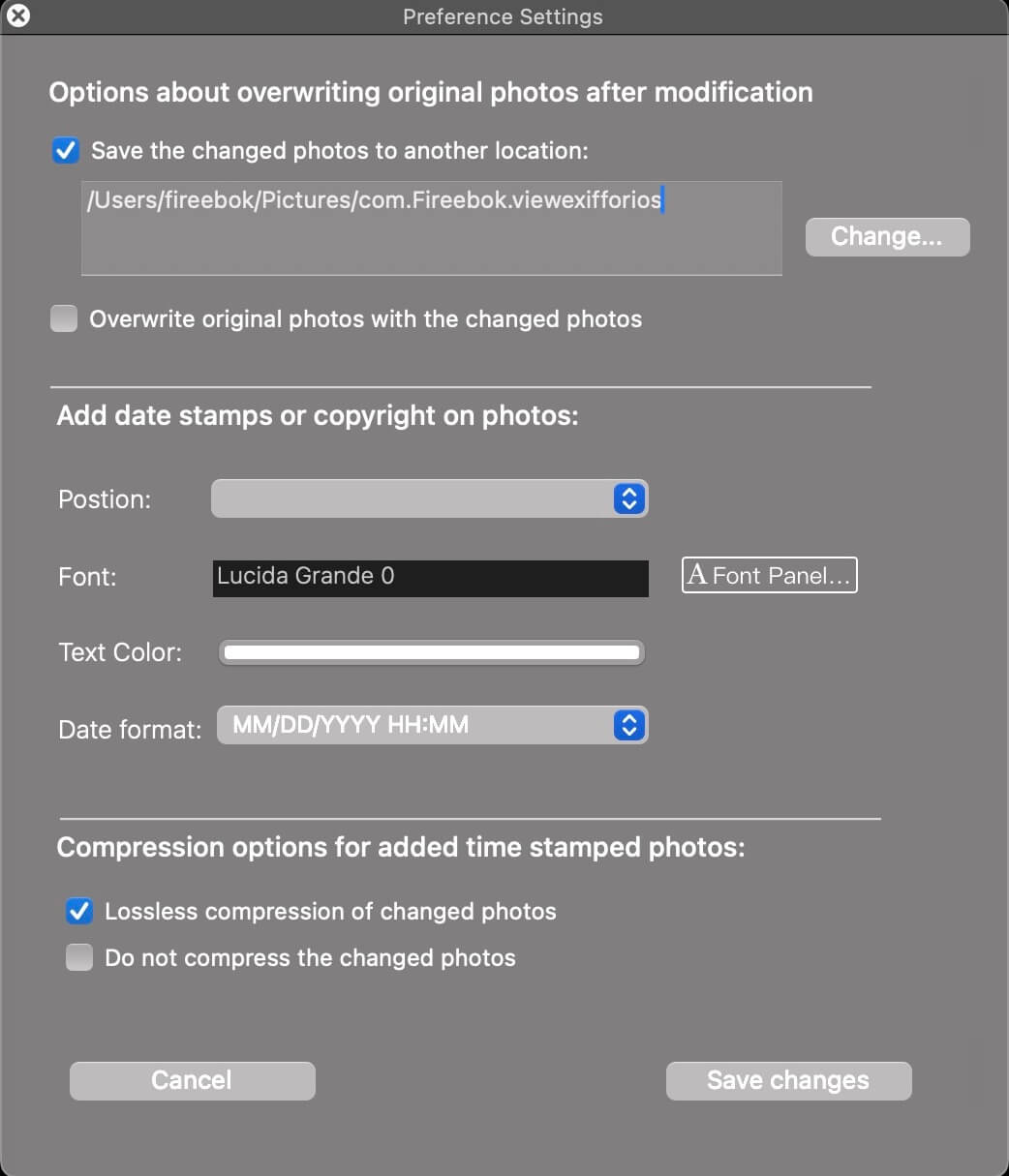
Go to the app's Settings, click Change…, and select your external hard drive as the destination folder. This ensures the 2TB of data goes straight to the drive.
5. Execute the Full-Resolution Download
• Press Command (⌘) + A to select all unloaded iCloud photosin Photo Exifer, Click Quick Action → Download Full-resolution iCloud Photos.
Photo Exifer will now begin the heavy lifting: downloading the original files from Apple's servers and writing them directly to your external drive while maintaining the original folder structure and metadata.
Final Thoughts
Moving 2TB of iCloud Photos isn't just about moving files; it's about preserving the integrity of your digital life. By using a dedicated tool like Photo Exifer, you avoid the common pitfalls of partial downloads and corrupted metadata. You get a complete, high-resolution backup that is ready for long-term storage or professional editing.
| More Related Articles | ||||
 |
1. How to merge two photo libraries on Mac? 2. How to find and remove duplicate photos from Photos? |
|||
About Fireebok Studio
Our article content is to provide solutions to solve the technical issue when we are using iPhone, macOS, WhatsApp and more. If you are interested in the content, you can subscribe to us. And We also develop some high quality applications to provide fully integrated solutions to handle more complex problems. They are free trials and you can access download center to download them at any time.
| Popular Articles & Tips You May Like | ||||
 |
 |
 |
||
| Five ways to recover lost iPhone data | How to reduce WhatsApp storage on iPhone | How to Clean up Your iOS and Boost Your Device's Performance | ||