Comparing photos and files is a useful way to detect differences, find duplicates, and verify edits. On a computer, you can easily open files side by side and analyze both content and metadata. However, doing this on an iPhone or iPad is not as straightforward.
In this guide, you’ll learn how to compare two photos and files on iPhone and iPad, including both manual methods and a faster solution using a comparison app.
Why Compare Photos and Files?
Even when two files look identical, they may still be different. For example:
• File size may vary
• Creation or modification dates may differ
• Metadata (such as EXIF or GPS location in photos) may not match
• File content may have subtle changes
Comparing files helps you:
• Find duplicate or similar photos
• Track edits or changes
• Verify file authenticity
• Save storage space
1. Manual Comparison on iPhone and iPad
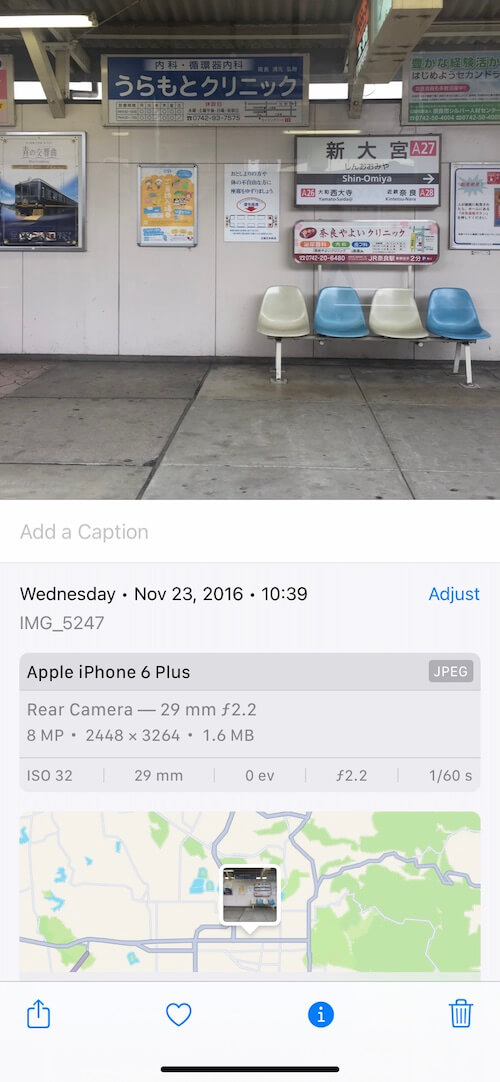
Compare Photos in the Photos App
You can use the built-in Apple Photos app to compare images:
• Open one photo and examine details (zoom in if needed)
• Switch to another photo and compare manually
• Look for differences in color, objects, or sharpness.
• However, iOS does not support viewing two photos side by side, so this method can be slow and less accurate.
Compare Files in the Files App
Using the Files app:
• Open documents one by one, manually check for added, removed, or changed content
• Review file info such as size and date
This approach works, but it is time-consuming—especially for large files.
2. Compare Photos and Files with WhatDiff
If you want a faster and more accurate method, you can use a third-party app like WhatDiff. WhatDiff is designed to compare both file content and metadata directly on iPhone and iPad.
Key Features of WhatDiff
• Compare photos, videos, PDFs, and documents
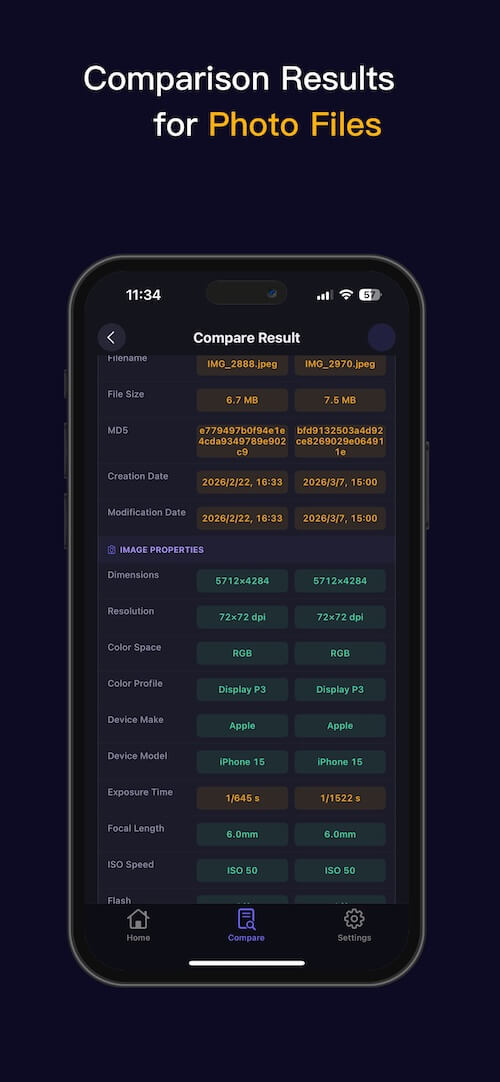
• Detect differences in file content, compare MD5 values to verify file integrity
• Analyze metadata such as:File size, Creation date, Image dimensions, EXIF data (ISO, exposure time, etc.)
• Show content similarity for documents
How to Compare Photos with WhatDiff
1. Download and install WhatDiff on your iPhone or iPad
2. Tap Select A and choose a photo from your Photo Library, tap Select B and choose another photo
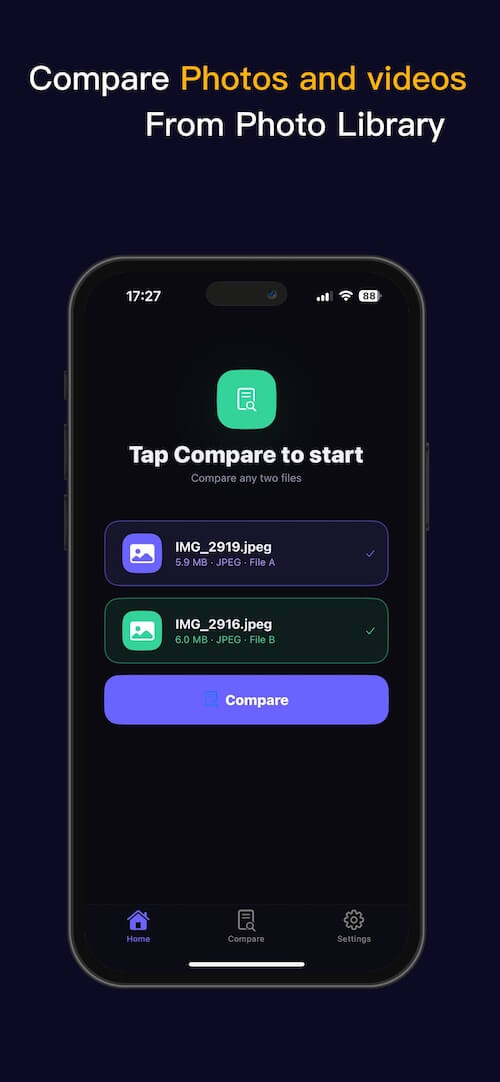
3. The app will automatically analyze: Image content, MD5 hash value, photo metadata (EXIF, GPS, size, etc.)
How to Compare Documents and Files with WhatDiff
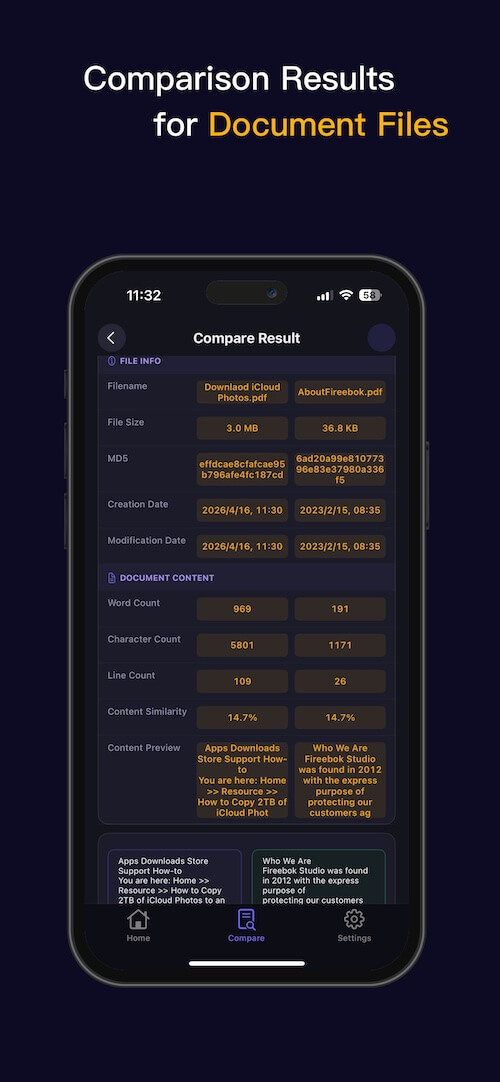
1. Tap Select A and choose a file from the Files app, tap Select B and select another file
2. WhatDiff will analyze: File content, MD5 value. File attributes such as: File size, Creation date, Word and character count, Content similarity, File preview
Final Thoughts
Comparing photos and files on iPhone and iPad can be challenging using built-in apps alone. While manual comparison in Photos and Files is possible, it’s not efficient for detecting subtle differences or analyzing metadata.
Using a dedicated tool like WhatDiff makes the process much faster and more accurate. You can instantly compare content, metadata, and file integrity—all in one place.
If you frequently work with photos, documents, or external storage, a comparison app can save you time and help you manage your files more effectively.
| More Related Articles | ||||
 |
1. How to View and Remove Video Metadata on iPhone? 2. How to Fix Photos Showing the Incorrect Date on iPhone? |
|||
About Fireebok Studio
Our article content is to provide solutions to solve the technical issue when we are using iPhone, macOS, WhatsApp and more. If you are interested in the content, you can subscribe to us. And We also develop some high quality applications to provide fully integrated solutions to handle more complex problems. They are free trials and you can access download center to download them at any time.
| Popular Articles & Tips You May Like | ||||
 |
 |
 |
||
| Five ways to recover lost iPhone data | How to reduce WhatsApp storage on iPhone | How to Clean up Your iOS and Boost Your Device's Performance | ||