Your iPhone is a great device for listening to music, but how do you know whether your audio files are actually high quality? A song labeled "Lossless" or "Hi-Res" may be a low-quality MP3 converted into a larger file. Other recordings may contain clipping, excessive compression, or unwanted noise.
To understand what you're really listening to, you need to examine the technical properties of your audio files.
In this guide, we'll explain how to check audio quality on iPhone by analyzing bitrate, sample rate, bit depth, clipping, dynamic range, and loudness. We'll also show you how to detect potentially fake lossless audio using AudioInfo, a powerful audio analysis tool for iPhone.
1. Understanding the Key Audio Quality Metrics
Audio quality depends on several factors, not just one number. Here are the most important metrics to check.
Bitrate: How Much Audio Data Is Used?
Bitrate, measured in kbps, indicates how much data is used to represent each second of audio.
• 128 kbps MP3: Relatively low-quality lossy compression.
• 256 kbps AAC: Generally offers good audio quality.
• 320 kbps MP3: High-bitrate MP3 encoding.
• FLAC and ALAC: Lossless formats that preserve the original audio data.
A higher bitrate generally means better quality for lossy formats, but converting a low-bitrate MP3 into FLAC does not restore lost audio information.
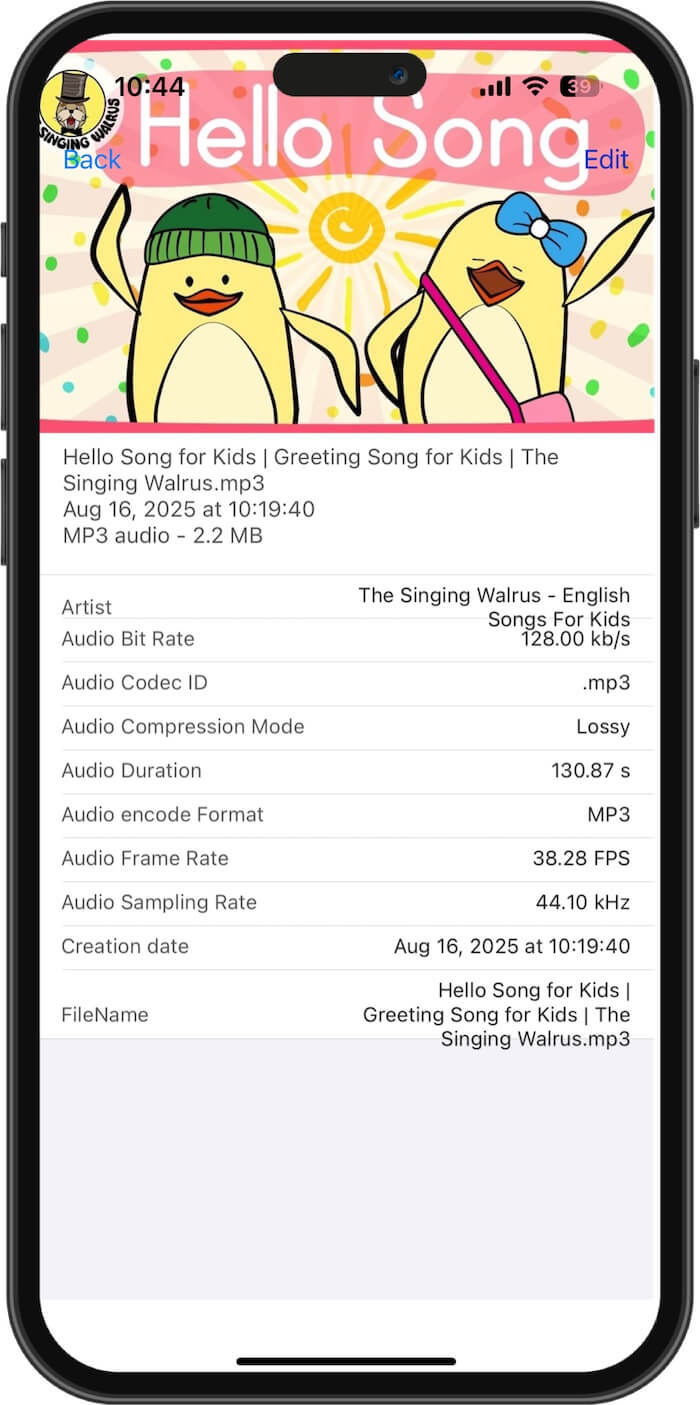
AudioInfo displays the file's bitrate and estimated original bitrate, helping you identify potentially re-encoded audio files.
Sample Rate and Bit Depth
Sample rate, measured in kHz, determines how frequently an audio signal is sampled. Common values include 44.1 kHz for CD audio, 48 kHz for video production, and 96 kHz or higher for high-resolution audio.
Bit depth determines the precision used to represent each audio sample. CD audio uses 16-bit depth, while professional recordings commonly use 24-bit.
Higher values do not automatically guarantee better sound. Upsampling or increasing bit depth cannot restore information missing from the original recording.
AudioInfo displays sample rate and bit depth and evaluates them as part of its overall Quality Score.
Clipping and Dynamic Range
Clipping occurs when an audio signal exceeds the maximum digital level (0 dBFS), causing waveform peaks to be cut off and potentially producing distortion.
Dynamic range describes the difference between the quietest and loudest parts of a recording. Excessive compression and limiting can reduce dynamic range, making music sound flat and less expressive.
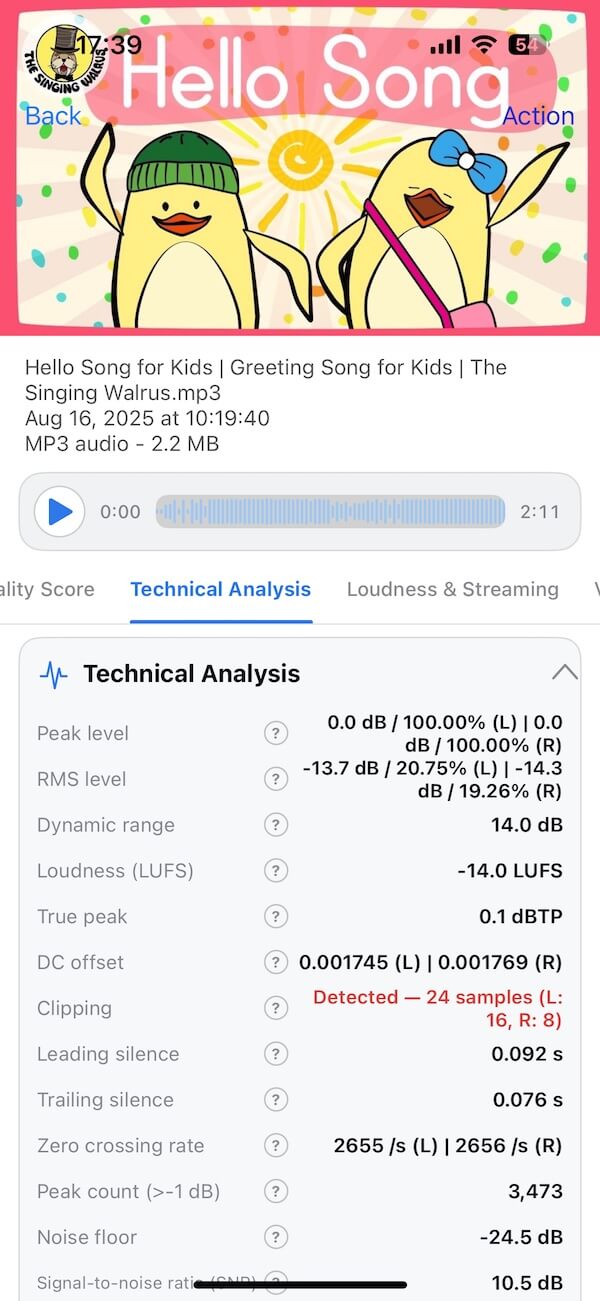
AudioInfo detects clipping, measures peak and RMS levels, and analyzes dynamic range. Its amplitude histogram provides another way to inspect the signal.
2. Advanced Audio Analysis: LUFS, True Peak & Fake Lossless
Beyond basic audio specifications, additional measurements can reveal problems that bitrate and sample rate cannot.
LUFS and True Peak
LUFS (Loudness Units relative to Full Scale) measures perceived audio loudness. Streaming services such as Spotify, Apple Music, and YouTube use loudness normalization to make playback volumes more consistent.
True Peak estimates the maximum level of the reconstructed audio signal, including peaks that may occur between digital samples. It helps identify potential distortion during playback or encoding.
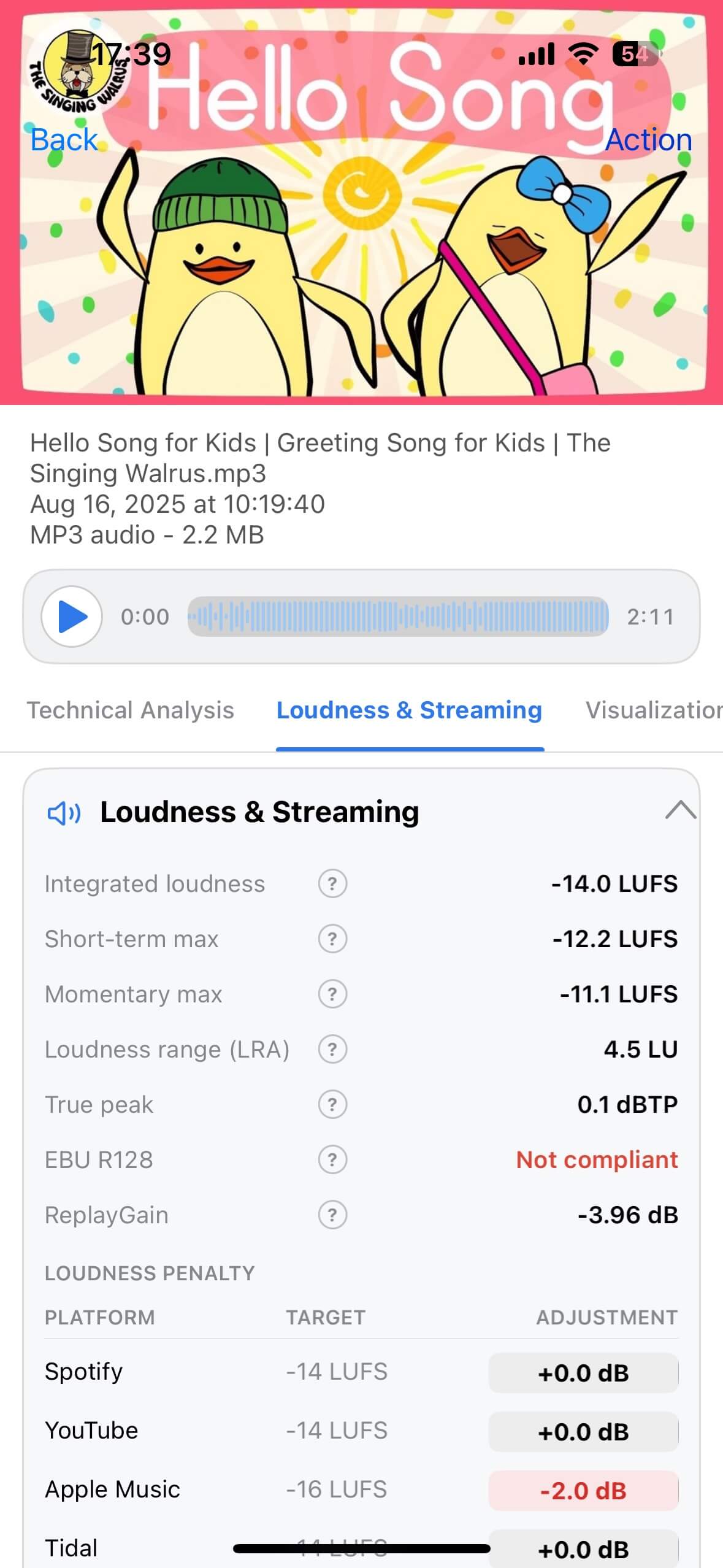
AudioInfo's Loudness & Streaming section displays integrated, short-term, and momentary LUFS, loudness range (LRA), true peak, EBU R128 measurements, and ReplayGain values. It also provides estimated loudness adjustments for Spotify, YouTube, Apple Music, Tidal, and Amazon Music.
Fake Lossless Detection: Is Your FLAC Really Lossless?
A FLAC or ALAC file is not necessarily sourced from genuine lossless audio. Someone can convert a low-bitrate MP3 into FLAC, creating a larger file without restoring the information previously lost.
One way to identify suspicious files is to examine their frequency spectrum. Lossy compression often produces a noticeable high-frequency cutoff. For example, some 128 kbps MP3 files show a cutoff around 16 kHz.
Although this pattern is not definitive proof, it can be a useful warning sign.
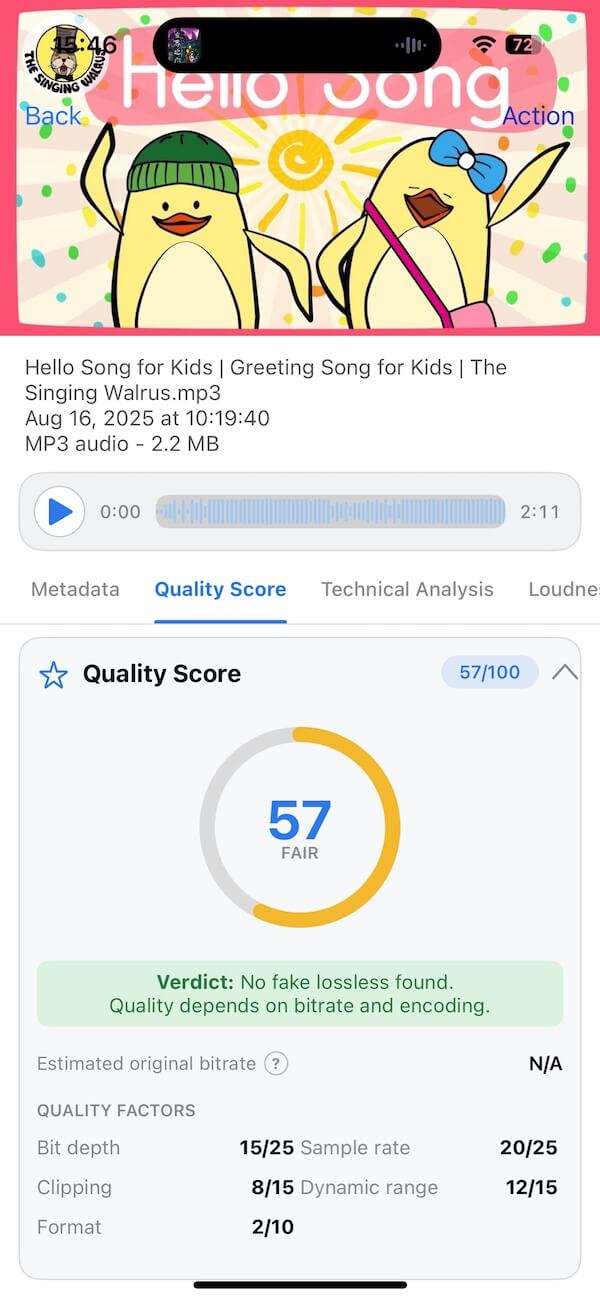
AudioInfo includes fake-lossless detection in its Quality Score. By analyzing the audio data rather than relying only on the file extension, it helps identify files that may have originated from lossy sources.
3. How to Check Audio Quality on iPhone with AudioInfo
You don't need a computer or complicated command-line tools to analyze your music. Follow these simple steps:
1. Import an audio file: Open AudioInfo and select a file from the Files app or your music library. Supported formats include MP3, M4A, WAV, FLAC, AAC, AIFF, CAF, and more.
2. Check the Quality Score: View the 0–100 score and overall verdict, including suspected fake-lossless detection.
3. Examine Technical Analysis: Review bitrate, sample rate, bit depth, peak/RMS levels, clipping, dynamic range, noise floor, SNR, and other measurements.
4. Analyze Loudness: Check LUFS, true peak, LRA, EBU R128, ReplayGain, and estimated streaming platform loudness adjustments.
5. Export a PDF report: Save or share a detailed report containing the displayed audio information.
4. More Than an Audio Quality Checker
AudioInfo is more than a basic audio file inspector. It combines several useful tools for analyzing and managing audio files:
• Metadata Editor: View, edit, or remove tags such as title, artist, album, artwork, lyrics, copyright, and year.
• Quality Score: Evaluate audio quality with a 0–100 score and fake-lossless detection.
• Technical Analysis: Inspect clipping, dynamic range, noise floor, SNR, and signal levels.
• Loudness Analysis: Measure LUFS, true peak, LRA, and streaming loudness adjustments.
• Audio Visualization: View stereo waveforms, loudness over time, and an eight-band frequency heatmap covering 20 Hz to 20 kHz.
• PDF Reports: Export detailed audio information for future reference or sharing.
Conclusion
Checking audio quality involves more than looking at a file's format or bitrate. Bitrate, sample rate, and bit depth describe audio specifications, while clipping, dynamic range, LUFS, and true peak reveal important details about recording quality and playback behavior. Fake-lossless detection can also help uncover files that appear high quality but originated from lossy sources.
With AudioInfo, you can check these metrics directly on your iPhone without using desktop software or complicated tools.
Whether you're an audiophile checking downloaded music, a musician analyzing recordings, or a podcaster preparing audio for publication, AudioInfo makes audio inspection easier.
Download AudioInfo from the App Store and discover what's really inside your audio files.
| More Related Articles | ||||
 |
1. How to Edit Video and MP4 Metadata on iPhone and iPad? 2. How to Rename Photos on iPhone Without a Computer? |
|||
About Fireebok Studio
Our article content is to provide solutions to solve the technical issue when we are using iPhone, macOS, WhatsApp and more. If you are interested in the content, you can subscribe to us. And We also develop some high quality applications to provide fully integrated solutions to handle more complex problems. They are free trials and you can access download center to download them at any time.
| Popular Articles & Tips You May Like | ||||
 |
 |
 |
||
| Five ways to recover lost iPhone data | How to reduce WhatsApp storage on iPhone | How to Clean up Your iOS and Boost Your Device's Performance | ||