If you've recorded multiple short videos at different times and in different locations, you may want to combine them into a single video. Alternatively, if you have a long video, you might want to cut it into several shorter clips for easier sharing, editing, or organization.
Editing videos one at a time can be time-consuming, especially when you have dozens or even hundreds of files to process. Rather than using complicated professional video editing software, you can use a dedicated batch video editor for Mac to merge, trim, and split multiple videos more efficiently.
VideoBulk is an all-in-one Mac video utility designed to simplify batch video processing. It lets you merge multiple video clips, trim videos, split long recordings into smaller segments, resize videos, add watermarks, convert video formats, rename files, and adjust video colors—all within one application.
In this guide, we'll show you how to batch merge and cut multiple videos on Mac using VideoBulk.
Why Use a Batch Video Editor on Mac?
When you need to edit multiple video files, processing them individually can take a considerable amount of time. A batch video editor allows you to import multiple videos and apply editing operations more efficiently.
Batch video editing is particularly useful for:
• Content creators: Combine recorded clips into longer videos or prepare multiple clips for social media.
• Marketers: Process large collections of promotional videos and marketing assets.
• Teachers and trainers: Merge lesson recordings or divide long educational videos into smaller sections.
• Travelers: Combine video clips recorded at different destinations into one travel video.
• Video enthusiasts: Trim, split, resize, and convert multiple video files without opening each one separately.
Whether you want to combine several videos into one file or split a long recording into multiple clips, a batch video processing tool can make the workflow much faster and simpler.
Key Features of VideoBulk for Batch Video Editing
VideoBulk provides several practical tools for managing and processing multiple video files on Mac.
• Merge Videos: Combine multiple video clips into a single video file.
• Interactive Timeline: Visually trim videos using draggable start and end handles.
• Batch Trimming: Apply the same trimming settings to multiple videos in one operation.
• Flexible Video Splitting: Split videos at specific markers, at regular time intervals, or into a specified number of equal parts.
• Video Resizing: Change video dimensions to meet different resolution or aspect ratio requirements.
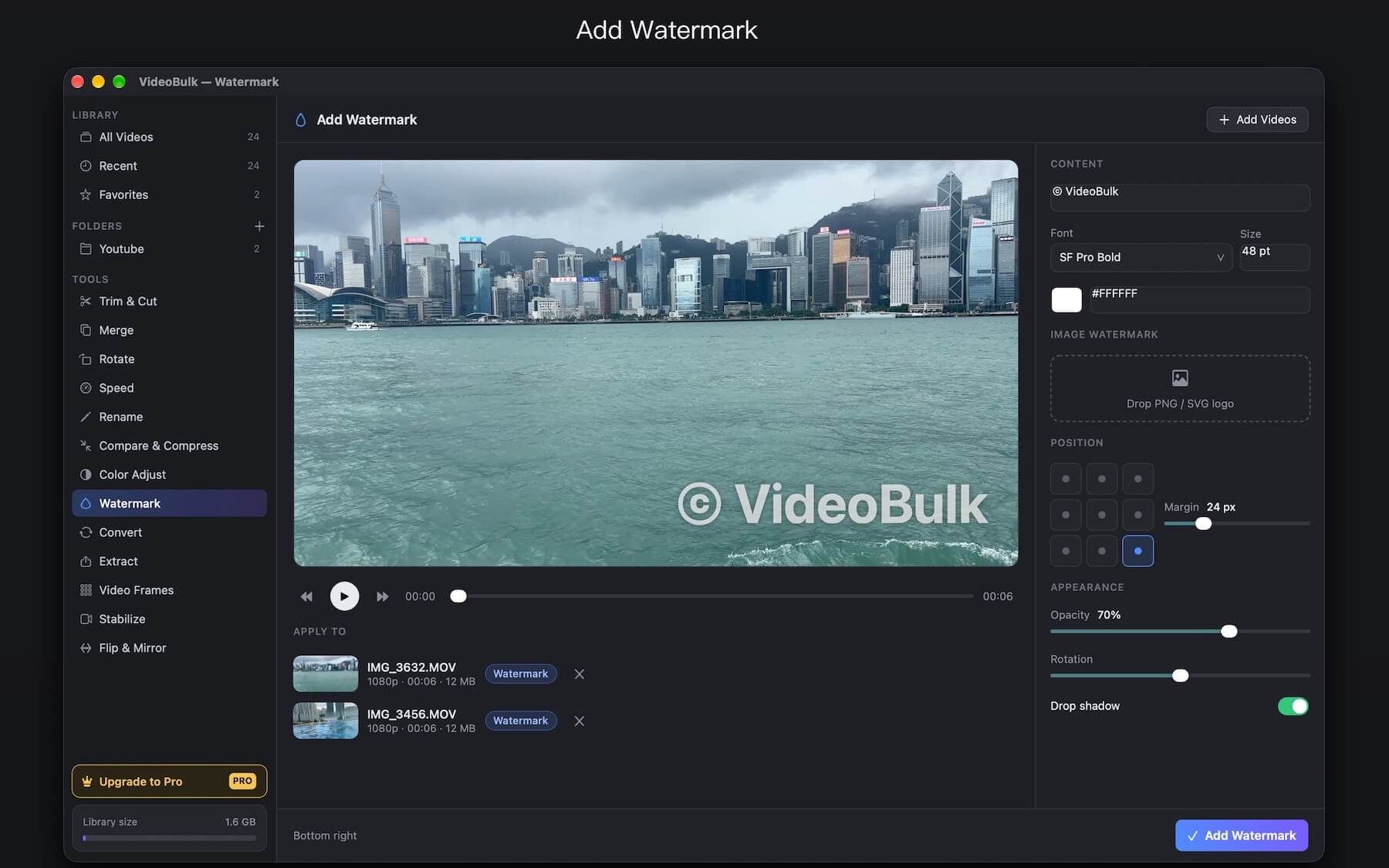
• Video Watermarking: Add watermarks to protect your video content or identify your brand.
• Video Conversion: Convert videos into different supported formats.
• Batch Renaming: Rename multiple video files to keep your video collection organized.
• Color Adjustment: Adjust video colors to improve the appearance of your footage.
These features make VideoBulk more than just a video merger or cutter. It provides a collection of useful tools for everyday video processing.
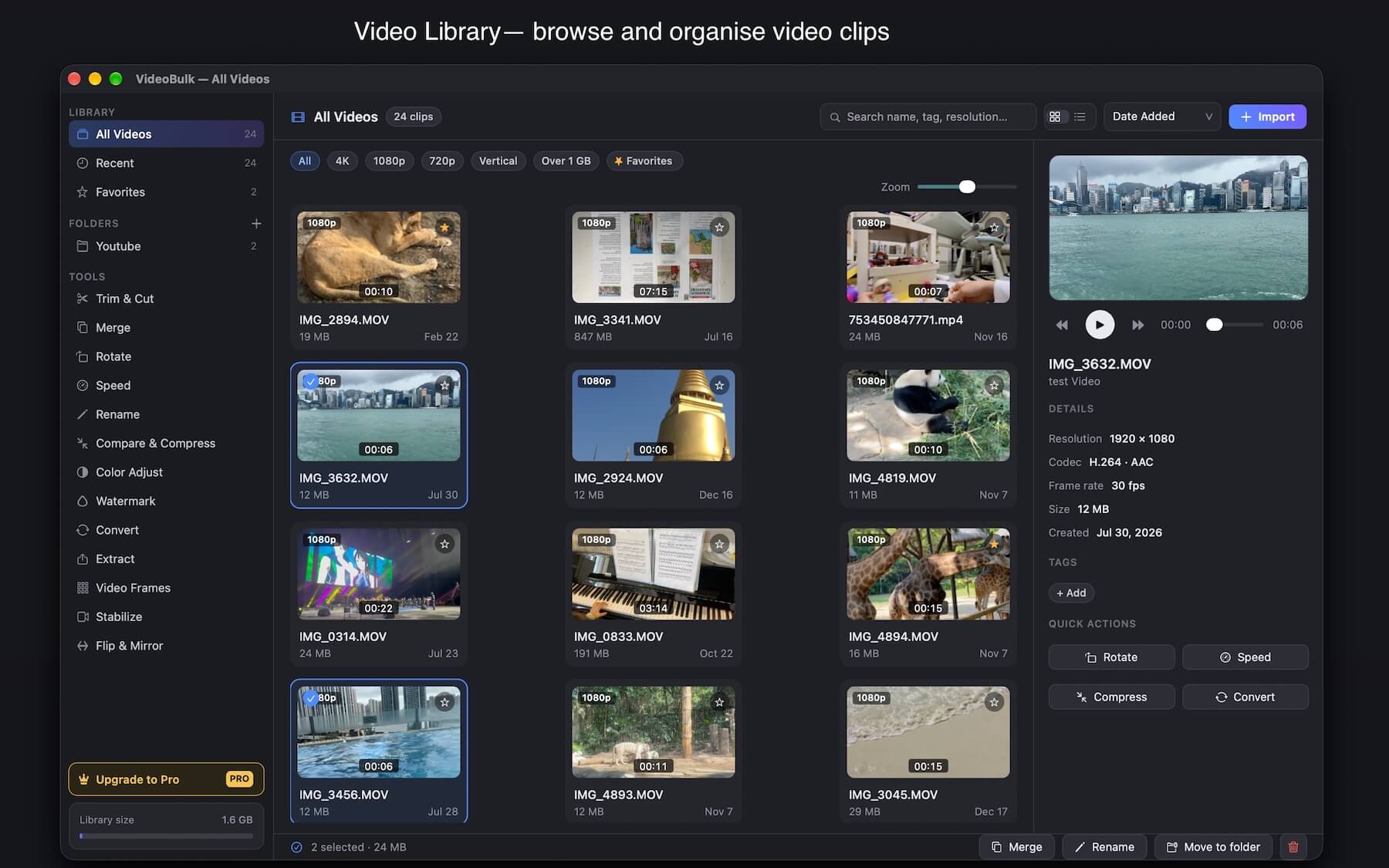
How to Batch Merge Multiple Videos into One on Mac
If you have recorded several video clips and want to combine them into one continuous video, VideoBulk makes the process straightforward.
Follow these steps to merge multiple videos on Mac:
1. Import your video files: Open VideoBulk and add the video clips you want to combine.
2. Arrange the video clips: Organize the clips in your preferred playback order.
3. Trim unwanted sections: If necessary, use the interactive timeline to remove unwanted beginnings or endings from individual clips.
4. Split clips if needed: Use the splitting tools to divide longer recordings into smaller sections before merging.
5. Merge the videos: Select the Merge feature to combine your selected video clips into a single video file.
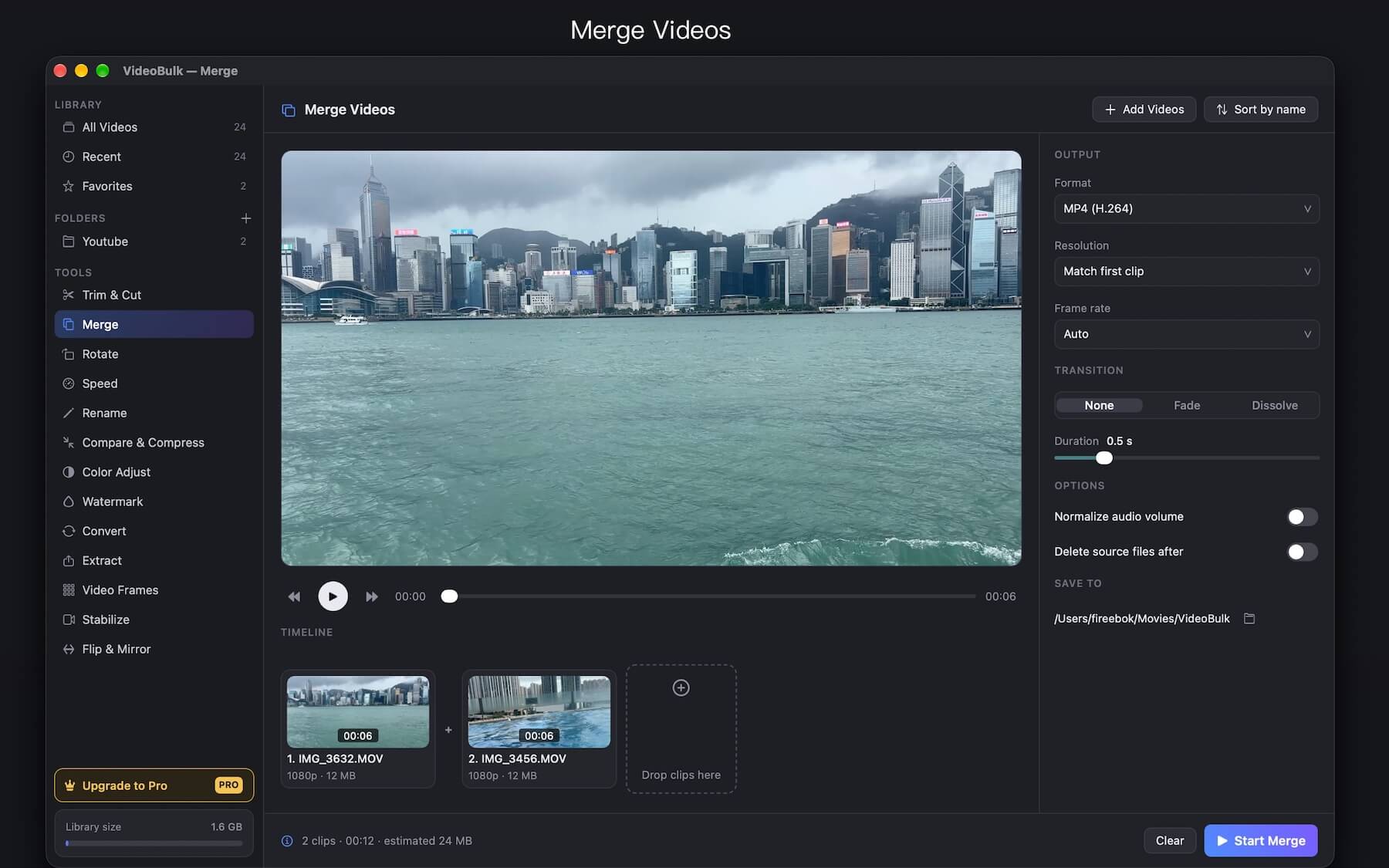
6. Export the merged video: Review your settings and export the final video to your Mac.
This workflow is especially useful when you have many short recordings and want to create a single travel video, presentation, tutorial, or compilation without using a complicated professional video editor.
How to Batch Cut Multiple Videos on Mac
Cutting videos generally involves two operations: trimming and splitting. VideoBulk provides both options, allowing you to remove unwanted sections or divide videos into smaller clips.
1. Batch Trim Multiple Videos on Mac
Trimming removes unwanted portions from the beginning or end of a video. For example, you might want to remove the first few seconds of several recordings or shorten multiple videos to the same duration.
Here's how to batch trim videos with VideoBulk:
1. Launch VideoBulk and import the videos you want to trim.
2. Open the interactive timeline to view the video and its duration.
3. Drag the start and end handles to define the section you want to keep.
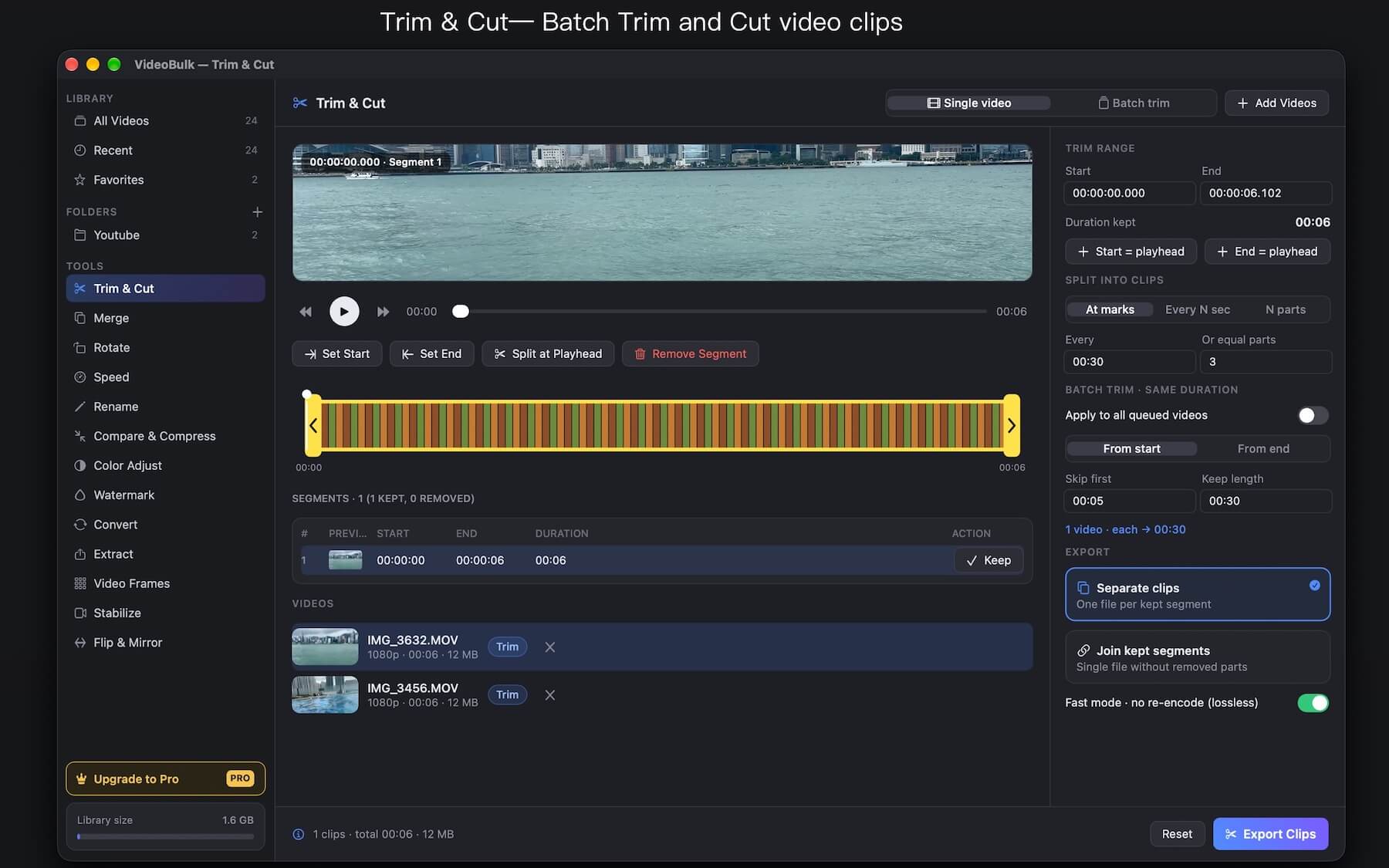
4. Use the batch trimming option to apply the same trimming settings to multiple videos.
5. Preview the trimmed results to make sure the selected sections are correct.
6. Export the trimmed videos.
The batch trimming feature is particularly helpful when processing multiple recordings that require the same trimming adjustments.
2. Split Multiple Videos into Smaller Clips on Mac
Sometimes, trimming isn't enough. You may want to divide a long video into several independent clips. For example, you might have a 60-minute recording and want to create shorter segments for sharing or archiving.
VideoBulk provides several flexible video splitting methods:
• Split at Markers: Choose specific positions on the timeline to determine where the video should be divided.
• Split Every N Seconds: Automatically divide a video into clips of a specified duration, such as 30 seconds, 1 minute, or 5 minutes.
• Split into N Equal Parts: Divide a video into a specified number of segments with approximately equal durations.
To split videos in batch:
1. Open VideoBulk and import the video files you want to split.
2. Select the video splitting feature.
3. Choose your preferred splitting method.
4. Set the markers, time interval, or number of output segments.
5. Apply the splitting settings to the selected videos.
6. Preview the resulting clips and export them.
These options make it easy to divide long recordings into smaller videos for social media, online courses, presentations, or personal video collections.
Tips for Batch Merging and Cutting Videos on Mac
To make your video editing workflow more efficient, consider the following tips:
• Organize your source videos: Arrange your video clips in the desired order before merging them.
• Choose the right trimming method: Use the interactive timeline for precise individual adjustments and batch trimming when multiple videos need the same settings.
• Use markers for precise splitting: If you need to divide a video at specific scenes or timestamps, splitting at markers provides greater control.
• Select suitable splitting intervals: For regularly sized clips, splitting every N seconds can save considerable time.
• Preview before exporting: Check your trimmed, split, or merged videos to avoid unnecessary reprocessing.
• Keep your video files organized: Use batch renaming to make exported clips easier to identify and manage.
• Adjust videos after editing: Take advantage of VideoBulk's resizing, watermarking, conversion, and color adjustment tools to prepare your videos for different purposes.
More Than a Video Merger and Cutter: Additional VideoBulk Tools
Besides merging, trimming, and splitting videos, VideoBulk offers additional tools that help you process video files in one convenient workflow.
For example:
• Resize videos for different devices, platforms, or publishing requirements.
• Add text or image watermarks to protect your video content.
• Convert videos into other supported formats for better compatibility.
• Rename multiple videos using consistent naming rules.
• Adjust video colors to achieve your preferred appearance.
Instead of switching between several applications for different editing tasks, you can use VideoBulk as a centralized Mac utility for everyday batch video processing.
Conclusion
Batch merging and cutting multiple videos on Mac doesn't have to be complicated. Whether you want to combine several short recordings into one video, trim unwanted sections from multiple files, or split long videos into smaller clips, using a dedicated batch video editor can save time and simplify the entire process.
VideoBulk brings video merging, batch trimming, flexible splitting, resizing, watermarking, conversion, renaming, and color adjustment together in one Mac application.
If you're looking for a convenient way to batch merge, trim, and split multiple videos on Mac, give VideoBulk a try and make your video editing workflow more efficient.
| More Related Articles | ||||
 |
1. How to find and remove duplicate photos from Photos? 2. How to batch rename photos within the Photos app on Mac? |
|||
About Fireebok Studio
Our article content is to provide solutions to solve the technical issue when we are using iPhone, macOS, WhatsApp and more. If you are interested in the content, you can subscribe to us. And We also develop some high quality applications to provide fully integrated solutions to handle more complex problems. They are free trials and you can access download center to download them at any time.
| Popular Articles & Tips You May Like | ||||
 |
 |
 |
||
| Five ways to recover lost iPhone data | How to reduce WhatsApp storage on iPhone | How to Clean up Your iOS and Boost Your Device's Performance | ||