Renaming photos on a computer is simple, but doing the same on an iPhone and iPad isn’t as straightforward. The default Apple Photos app does not allow you to change photo file names directly on your device.
If you only view photos within your iPhone, file names may not seem important. However, when you export or share hundreds of photos to platforms like Windows Explorer, external drives, cloud storage, or websites, meaningful file names become essential. Clear names make your photos easier to organize, search, and identify. For example, renaming a file to 2025-03-15-Singapore-MarinaBay.jpg is far more useful than the default IMG_1234.JPG.
In this guide, we’ll show you how to bypass Apple's limitations and batch rename photos on iPhone and iPad with ease.
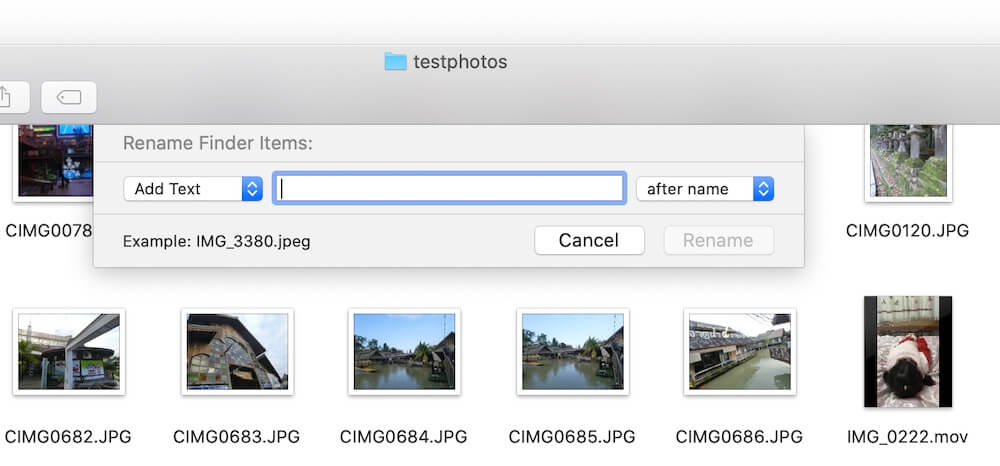
Why You Should Batch Rename Your iPhone Photos
Taking a few seconds to rename your files can save you hours of frustration later. Structured naming helps you:
• Streamline Workflow: Instantly identify the content of a file without opening it.
• Professional Exporting: Ensure your photos are properly labeled before sending them to clients or uploading to a website.
• Contextual Sorting: Use dates and locations so your files sort chronologically in Windows Explorer or Mac Finder.
• Avoid Duplicates: Prevent filename conflicts when merging multiple photo libraries.
Can You Rename Photos in Apple Photos?
Unfortunately, Apple Photos does not support renaming photo file names directly on iPhone or iPad.

How to Batch Rename Photos on iPhone and iPad
Since Apple Photos doesn't support this feature natively, to batch rename photos, we recommend Photos Renamer, a powerful app designed to handle hundreds of images simultaneously using custom text and metadata. And follow these simple steps to rename multiple photos directly on your iPhone and iPad:
Step 1: Install and Set Up
1. Download Photos Renamer on your iPhone and iPad from the App Store. When you first open the app, you will need to grant it permission to access your Photo Library so it can read and modify file attributes.
Step 2: Select Your Media
1. The app will display the file names of your photos without requiring you to open each image individually.
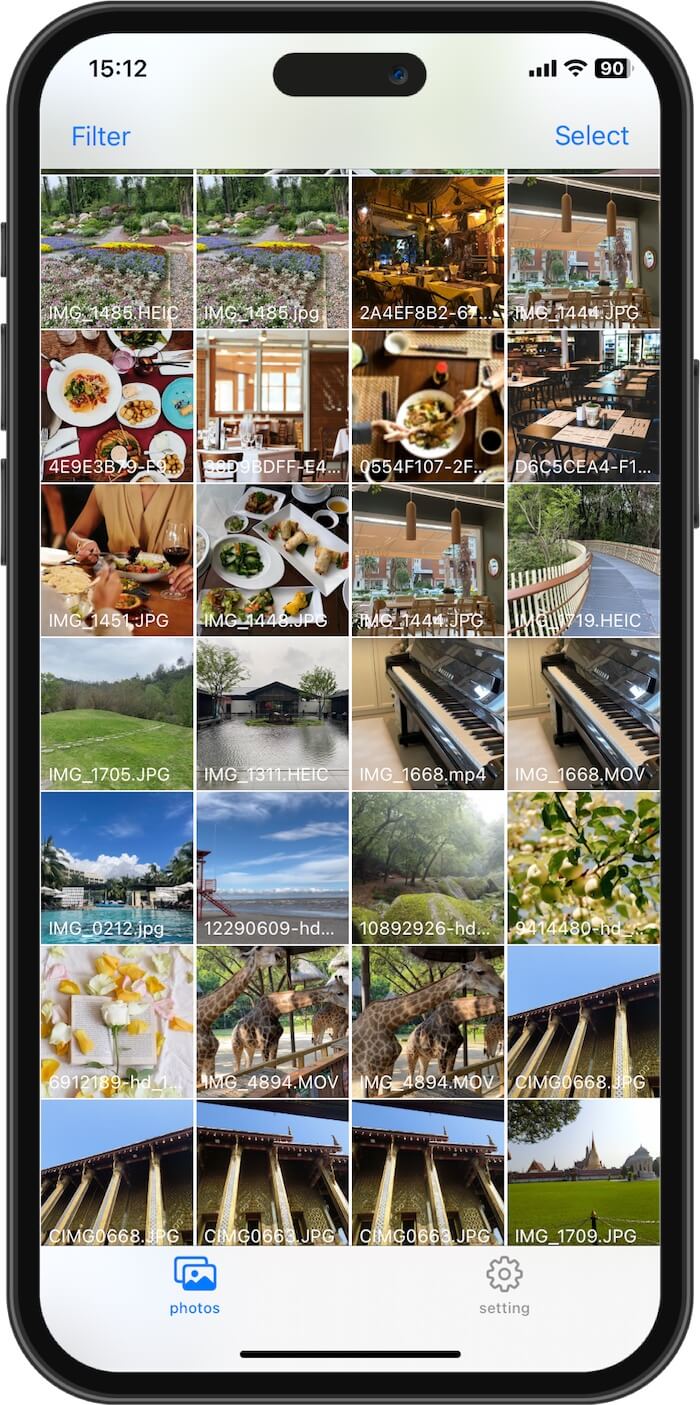
2. Tap Select at the top. Choose the specific photos you want to rename, or use the Filter tool to find photos from a specific date or album.
Step 3: Choose Your Renaming Strategy
This is where the power of Photos Renamer shines. You have two main options:
• Option A: Custom Text + Filename (Custom Text & Auto-Numbering)
• Create a sequence like Summer_Trip_001.jpg, Summer_Trip_002.jpg. This is perfect for event-based organization.
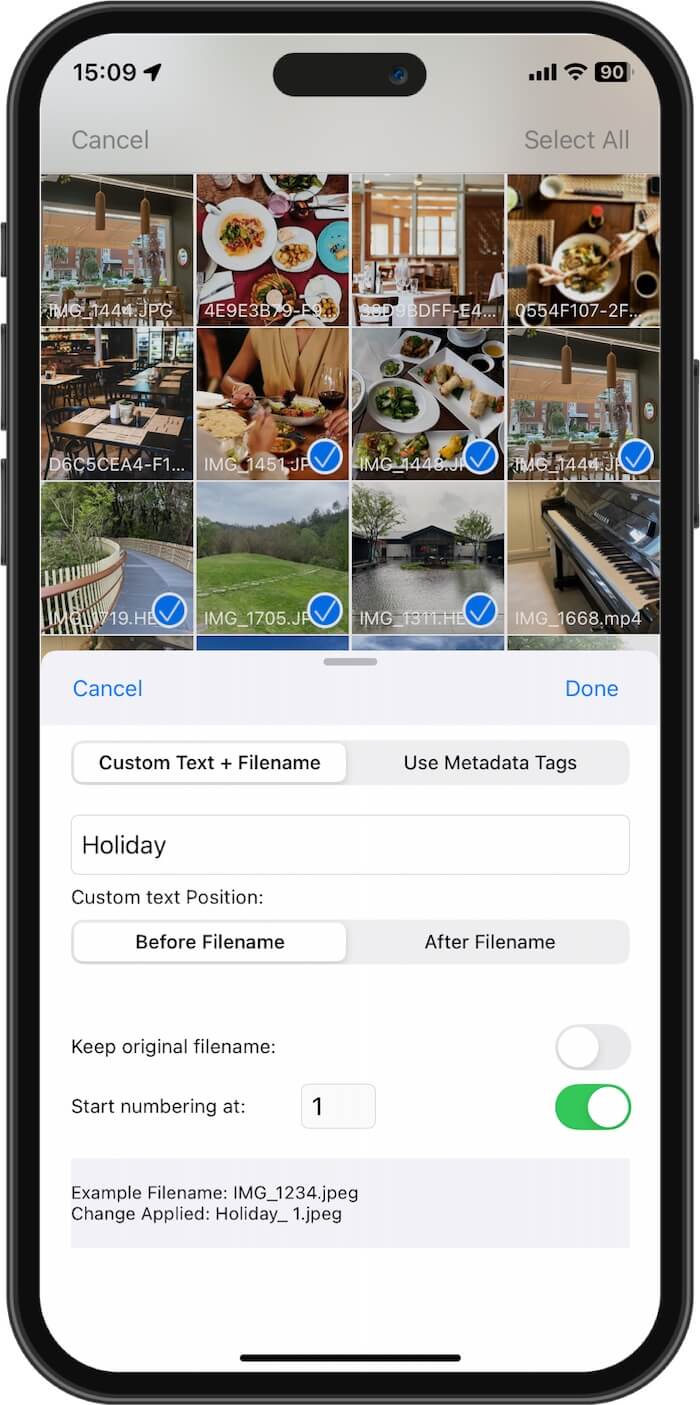
• Option B: Use Metadata Tags (Smart Metadata Tags)
• Use the "Insert Photo Metadata Tag" feature to pull real data from the image itself. You can automatically include the Caption, Title, Creation Date, Camera Model, Dimensions, or even Keywords. Example: 2026-03-15_iPhone17_Singapore.jpg
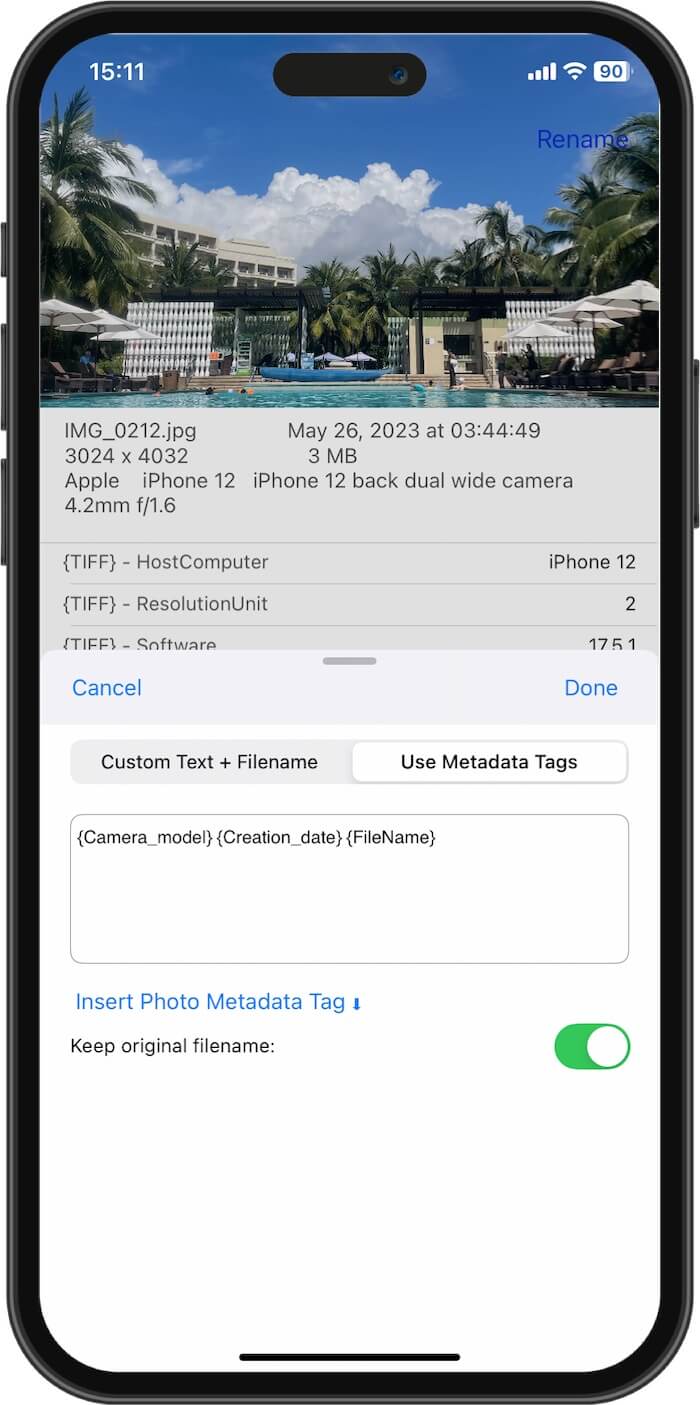
Step 4: Apply and Verify
Review your new naming structure in the preview. Once you’re satisfied, tap Done. The app will batch process the changes instantly across your entire selection.
Why Use a Dedicated Renamer App?
Using a specialized tool like Photos Renamer offers several advantages:
• Speed: Rename 500+ photos in seconds.
• Metadata Accuracy: Use metadata for smarter file naming
• Flexibility: Combine your own text with dynamic tags for a truly professional filing system.
Final Thoughts
A clean photo library starts with clear filenames. While Apple hasn't made this a native feature yet, Photos Renamer fills the gap perfectly, making it an essential tool for anyone who takes their mobile photography seriously.
| More Related Articles | ||||
 |
1. How to View and Remove Video Metadata on iPhone? 2. How to Fix Photos Showing the Incorrect Date on iPhone? |
|||
About Fireebok Studio
Our article content is to provide solutions to solve the technical issue when we are using iPhone, macOS, WhatsApp and more. If you are interested in the content, you can subscribe to us. And We also develop some high quality applications to provide fully integrated solutions to handle more complex problems. They are free trials and you can access download center to download them at any time.
| Popular Articles & Tips You May Like | ||||
 |
 |
 |
||
| Five ways to recover lost iPhone data | How to reduce WhatsApp storage on iPhone | How to Clean up Your iOS and Boost Your Device's Performance | ||