Managing photo metadata on macOS is the secret to a perfectly organized digital library. If you use Apple Photos, you are likely familiar with its impressive People (facial recognition) feature. However, a common issue arises when you share those photos: the "People" tags created by Apple often don't show up in other apps or on Windows PCs.
To ensure your organization stays intact across all platforms, the best practice is to convert the “Person Shown” metadata into Keywords. In this guide, we’ll show you how to batch-process this change quickly and efficiently.
What is the “Person Shown” Tag?
Apple Photos uses advanced machine learning to scan your library and identify faces. When you assign a name to a face, Apple stores this in a specific metadata field:
• Face Metadata: Used internally by Apple Photos to group your friends and family.
• IPTC "Person Shown": When you export a photo, Apple typically writes the name into this specific IPTC tag.
• The Problem: While "Person Shown" is a standard tag, many web platforms, older database software, and Windows-based photo viewers don't prioritize it. Keywords, however, are universally recognized by almost every piece of software on the planet.
How to Label Faces in Apple Photos?
Before you can copy the data, you must ensure the faces are correctly identified within the Apple Photos:
1, Open Apple Photos on your Mac. Select a photo containing a recognizable face, and click the Info (ⓘ) button.
2, Click “Add Faces”, select the face and click “Click to Name”, enter the person’s name.
Apple Photos will automatically scan and group matching faces under the People album.

How to Verify the Metadata via Preview
To ensure the "Person Shown" tag is actually embedded in your files before you start batching:
1, Export the photo from Apple Photos, open the image in Preview
2, Go to: Tools → Show Inspector → IPTC, Check the “Person Shown” field
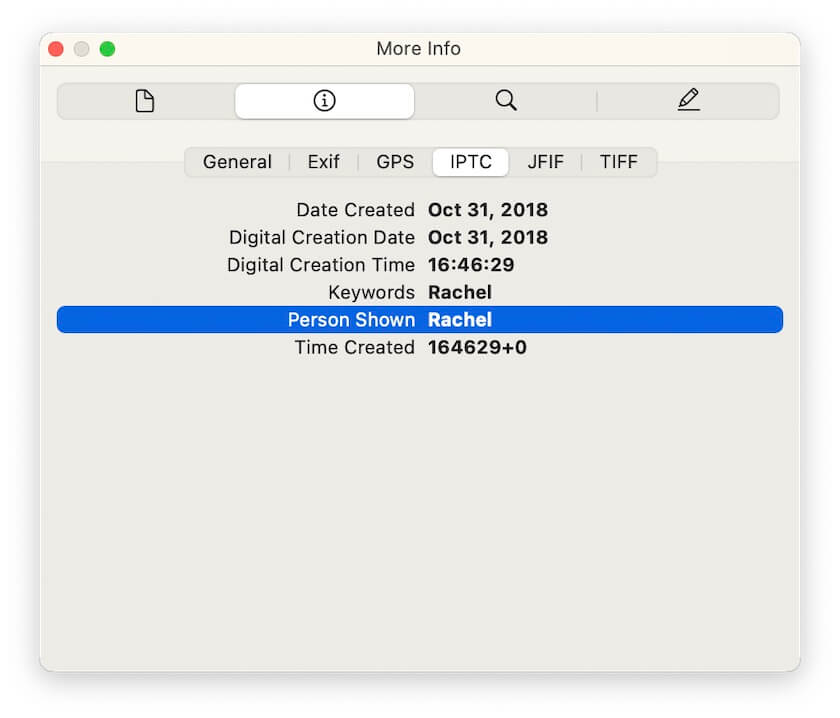
This ensures your photos contain the correct face metadata before batch processing.
How to Batch Copy “Person Shown” to Keywords
Manually re-typing these names as keywords for thousands of photos is impossible. To automate this, you need a specialized tool that can read the "Person Shown" tag and write it into the "Keywords" field for the entire file.
We recommend using Photo Exifer, a professional-grade metadata editor for Mac that specializes in these types of internal data migrations. How to Automate the Process:
1, Download and Open: Launch Photo Exifer on your Mac.
2, Launch the app and import your photos into Photo Exifer.
3, Select the photos you want to process in Photo Exifer, click Quick Action → Copy Photo Metadata Tags Within Photos -> Copy photo person shown to photo keywords.
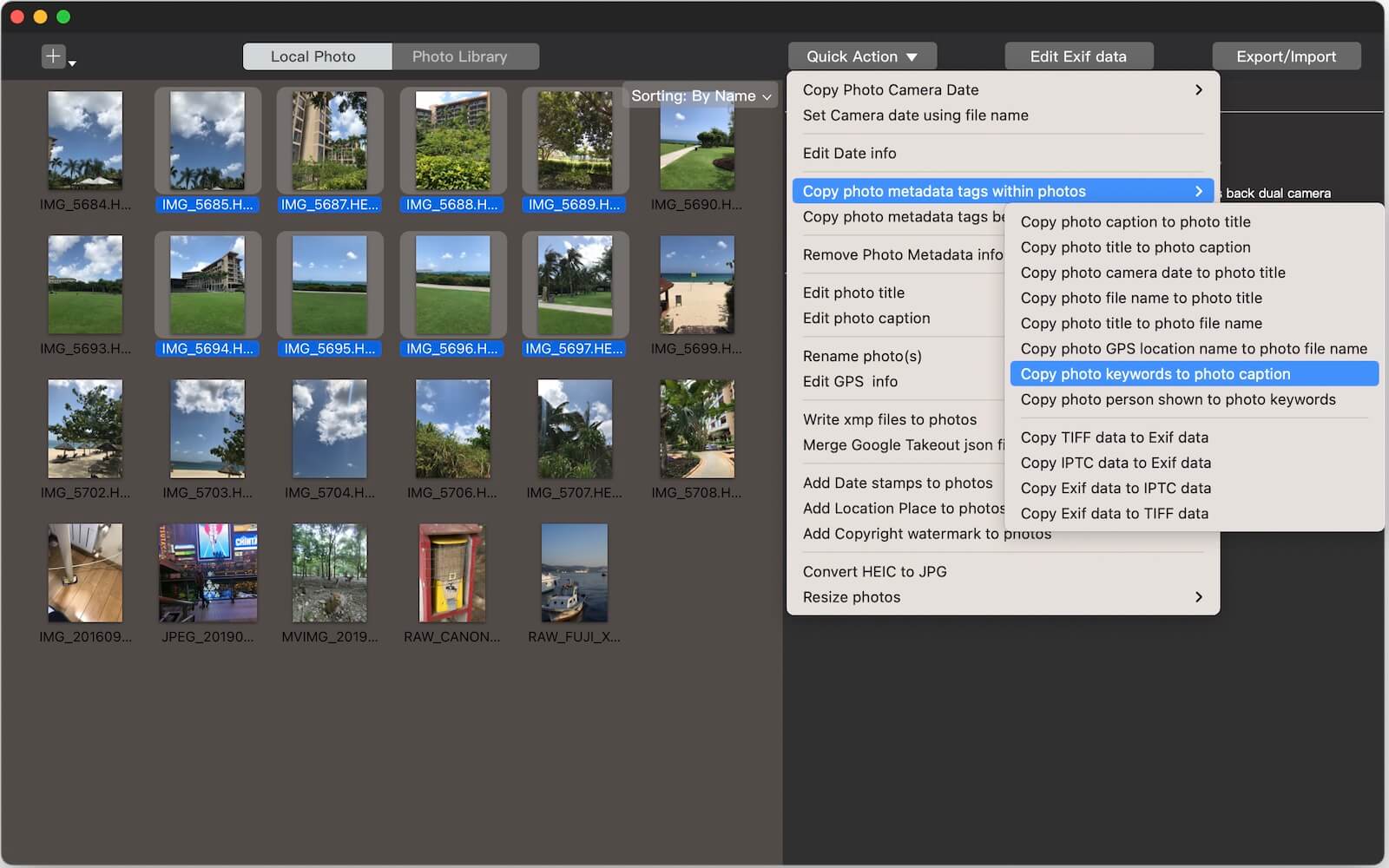
The app will batch process all selected images in one click. It will instantly bridge the gap, making those names searchable as standard keywords across macOS, Windows, and cloud services like Google Photos or Dropbox.
Why Use Keywords Instead?
• Universal Search: Keywords are indexed by almost every Digital Asset Management (DAM) system.
• Platform Independence: Your organization survives even if you move your library from Mac to a PC or NAS.
• Metadata Compatibility: Ensures metadata compatibility outside Apple Photos and Makes photo organization easier in third-party apps
• SEO Benefits: If you upload photos to a website or portfolio, keywords help search engines understand who is in the image.
Final Thoughts
While Apple’s facial recognition is excellent for internal browsing, it can be "invisible" to the rest of the world. By using Photo Exifer to mirror those names into your Keywords, you ensure your library remains perfectly organized no matter where your photos go.
| More Related Articles | ||||
 |
1. How to View and Remove Video Metadata on iPhone? 2. How to Fix Photos Showing the Incorrect Date on iPhone? |
|||
About Fireebok Studio
Our article content is to provide solutions to solve the technical issue when we are using iPhone, macOS, WhatsApp and more. If you are interested in the content, you can subscribe to us. And We also develop some high quality applications to provide fully integrated solutions to handle more complex problems. They are free trials and you can access download center to download them at any time.
| Popular Articles & Tips You May Like | ||||
 |
 |
 |
||
| Five ways to recover lost iPhone data | How to reduce WhatsApp storage on iPhone | How to Clean up Your iOS and Boost Your Device's Performance | ||