Photo keywords are an important part of IPTC metadata, helping users identify, search, and organize photos more efficiently. By adding keywords to images, you can quickly locate specific photos in large photo collections.
However, manually entering keywords for every single shot is a grueling task. Whether you are a professional photographer or a dedicated hobbyist, there are many scenarios where you need to batch copy image keywords on Mac:
• Applying consistent tags to a newly imported batch of photos.
• Syncing metadata across different file versions (e.g., from a RAW file to a JPEG).
• Repurposing keywords into other metadata fields, such as the photo title or caption, for better compatibility with different platforms.
In this article, we will show you how to batch copy keywords from one image to other images, and how to copy keywords to captions within the same photo metadata on Mac.
Batch Copy Keywords from One Image to Multiple Images
If you have previously added keywords to some photos, you can reuse those keywords for newly imported photos. This can save a lot of time when managing large photo collections.
The most effective tool for this is recommend Photo Exifer. It is a professional-grade metadata editor that works seamlessly with both standalone Finder folders and the integrated Apple Photos Library. It supports editing and copying IPTC metadata, EXIF metadata, GPS metadata, and other photo information.
Steps to Batch Copy Photo Keywords:
1. Download and install Photo Exifer on your Mac.
Get it on the App Store – Secure Apple-verified download. Download Direct (DMG) – Fastest installation.
2. Import both your existing photos (with keywords) and new photos into the application.
3. Select the photo that already contains the keywords. Click Quick Action -> Copy photo metadata tags between different photos -> Copy IPCT from a selected photo.
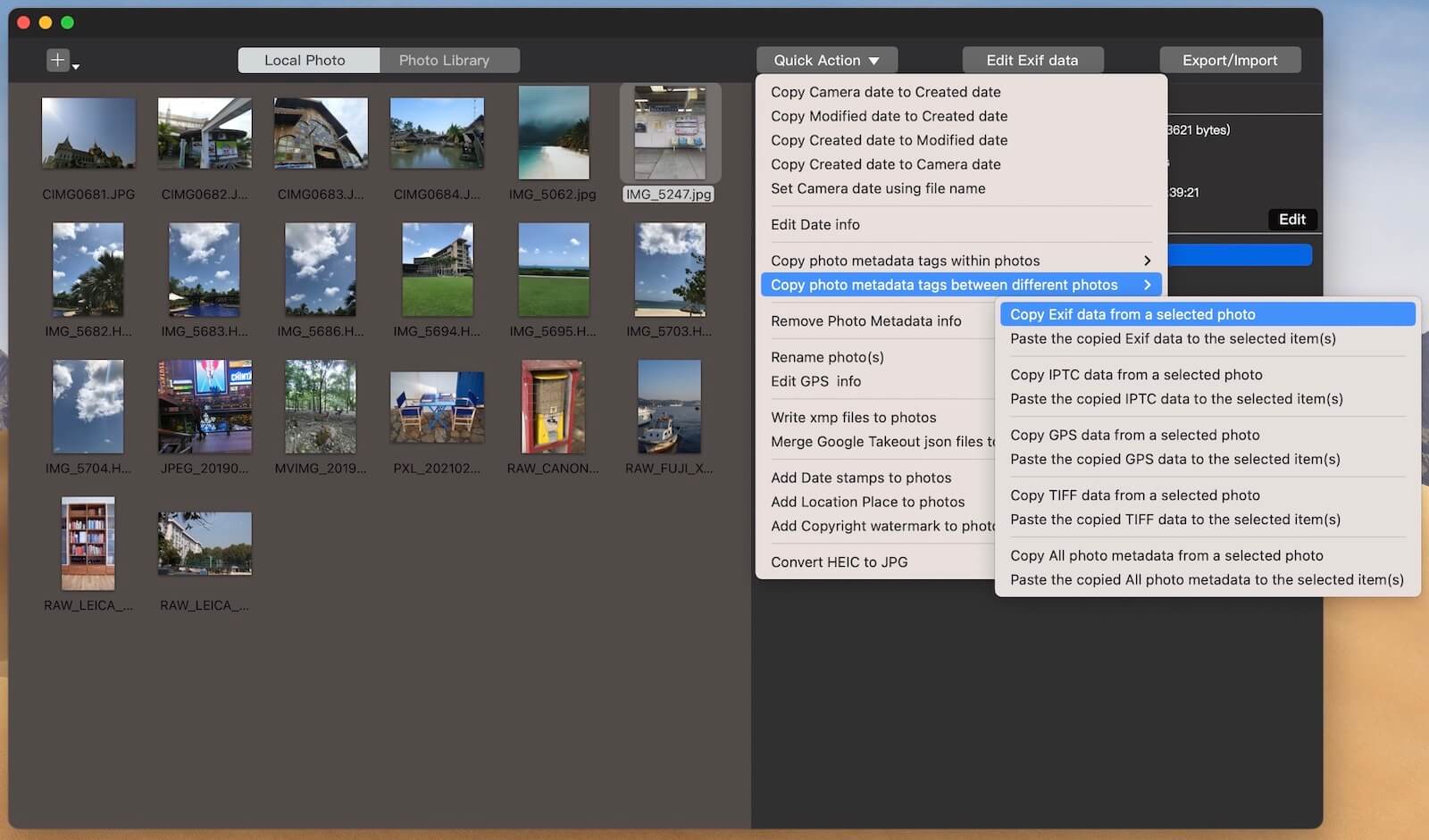
4. Select the new photos that do not yet have keywords. Click Quick Action -> Copy photo metadata tags between different photos -> Pasted the copied IPCT data to the selected items.
The selected photos will now contain the same keywords and IPTC metadata.
Batch Copy Keywords to Photo Caption Within the Same Photo
In addition to copying metadata between photos, Photo Exifer also allows you to copy metadata within the same photo file.
For example, you can copy photo keywords directly to the photo caption field, which can be useful if you want the keywords to appear in other apps or platforms that display captions.
Steps to Copy Keywords to Caption
1. Import the photos that contain keywords into Photo Exifer.
2. Select the photos you want to modify.
3. Click Quick Action → Copy Photo Metadata Within Photos → Copy Keywords to Photo Caption.
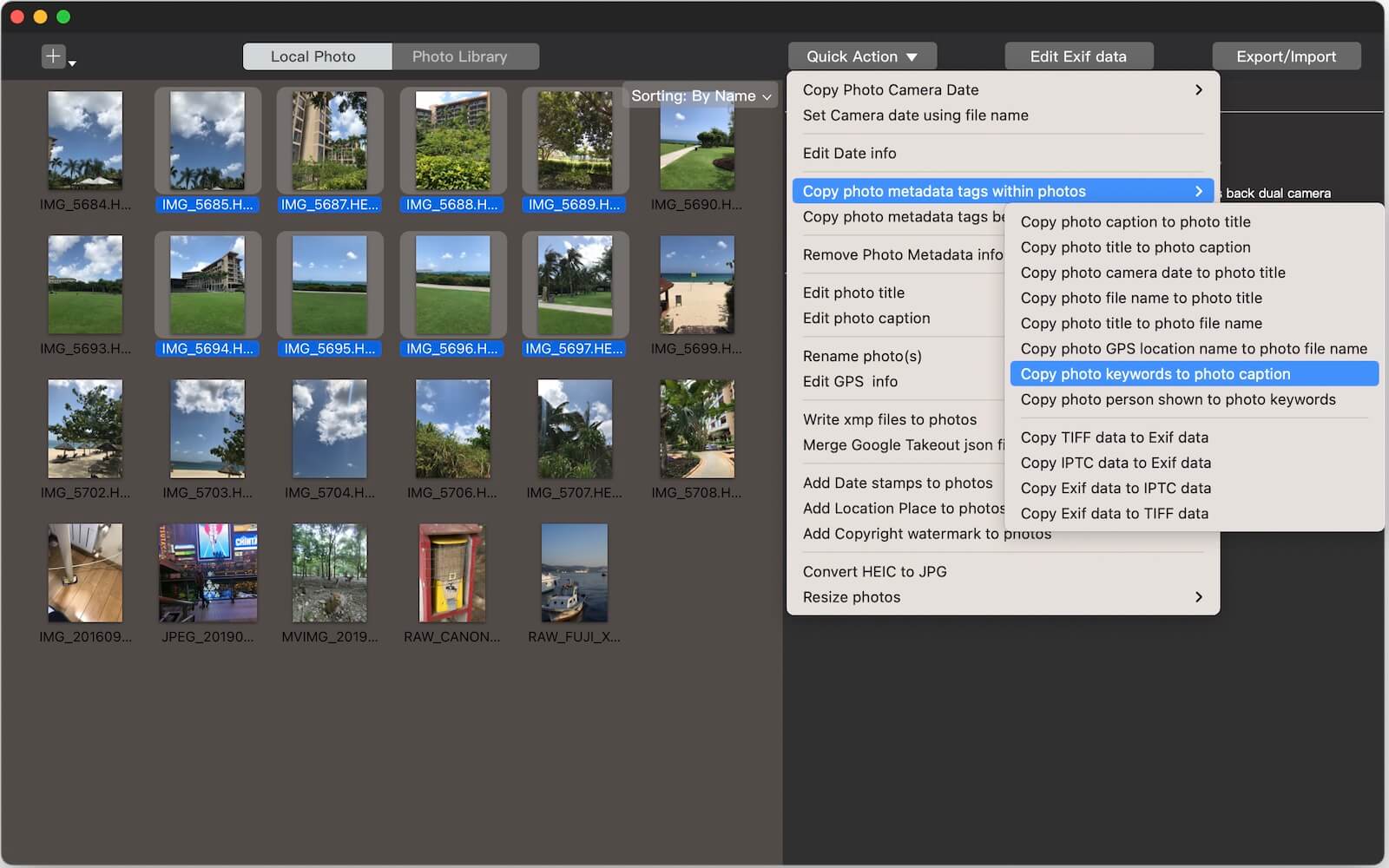
The keywords will automatically be copied into the caption field for the selected photos.
Other Useful Metadata Copy Options
Beyond simple keyword management, Photo Exifer offers several automation "Quick Actions" that every Mac user should know:
• File Name to Title: Batch convert "IMG_5432.jpg" into a readable title based on the filename.
• Camera Date to Title: Automatically name your photos based on the exact second they were taken.
• Cross-Tag Syncing: Move data between EXIF, IPTC, and XMP layers to ensure maximum compatibility with professional software like Adobe Lightroom or Capture One.
Final Thoughts
Manually managing a photo library is a relic of the past. By leveraging Photo Exifer, you can ensure your images are perfectly tagged, searchable, and professional with just a few clicks. Whether you are fixing a single album or an entire decade of memories, automated metadata editing is the only way to stay organized.

About Fireebok Studio
Our article content is to provide solutions to solve the technical issue when we are using iPhone, macOS, WhatsApp and more. If you are interested in the content, you can subscribe to us. And We also develop some high quality applications to provide fully integrated solutions to handle more complex problems. They are free trials and you can access download center to download them at any time.
| Popular Articles & Tips You May Like | ||||
 |
 |
 |
||
| Five ways to recover lost iPhone data | How to reduce WhatsApp storage on iPhone | How to Clean up Your iOS and Boost Your Device's Performance | ||