After enabling iCloud Photos on your iPhone, iPad, or Mac, all photos and videos are automatically uploaded to iCloud. Over time, your iCloud Photo Library can grow very large and take up most of your iCloud storage.
It’s important to note that iCloud Photos is a sync service, not a backup service. When you delete a photo on one device, it is deleted from iCloud and all other connected devices. This makes having a separate backup especially important.
If you’re looking for a safe and reliable way to back up iCloud Photos to an external hard drive, this guide will walk you through the best solutions on Mac, iPhone, and Windows PC, including their advantages and limitations.
1. Back Up iCloud Photos on a Mac
If you use a Mac with iCloud Photos enabled, you have the most flexible backup options.
Method 1: Time Machine Backup
If Time Machine is enabled, your Photos Library (.photoslibrary) is backed up automatically along with other Mac data.
Advantages
• Automatic and regular backups
• No manual operation required
Disadvantages
• If “Optimize Mac Storage” is enabled, only thumbnails may be stored locally
• Even with “Download Originals to this Mac”, Photos may take a long time to download all originals
• Your Mac may not have enough free storage for all original photos and videos
Method 2: Copy the Photos Library File
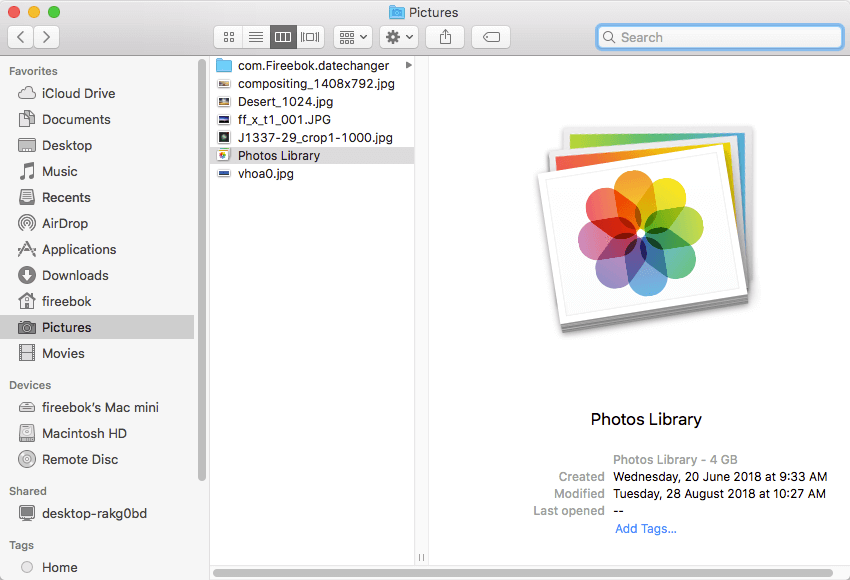
You can manually copy the Photos Library.photoslibrary file to an external hard drive.
Disadvantages
• Same limitations as Time Machine
• You may only back up thumbnails instead of full-resolution originals
Method 3: Export Original iCloud Photos (Recommended)
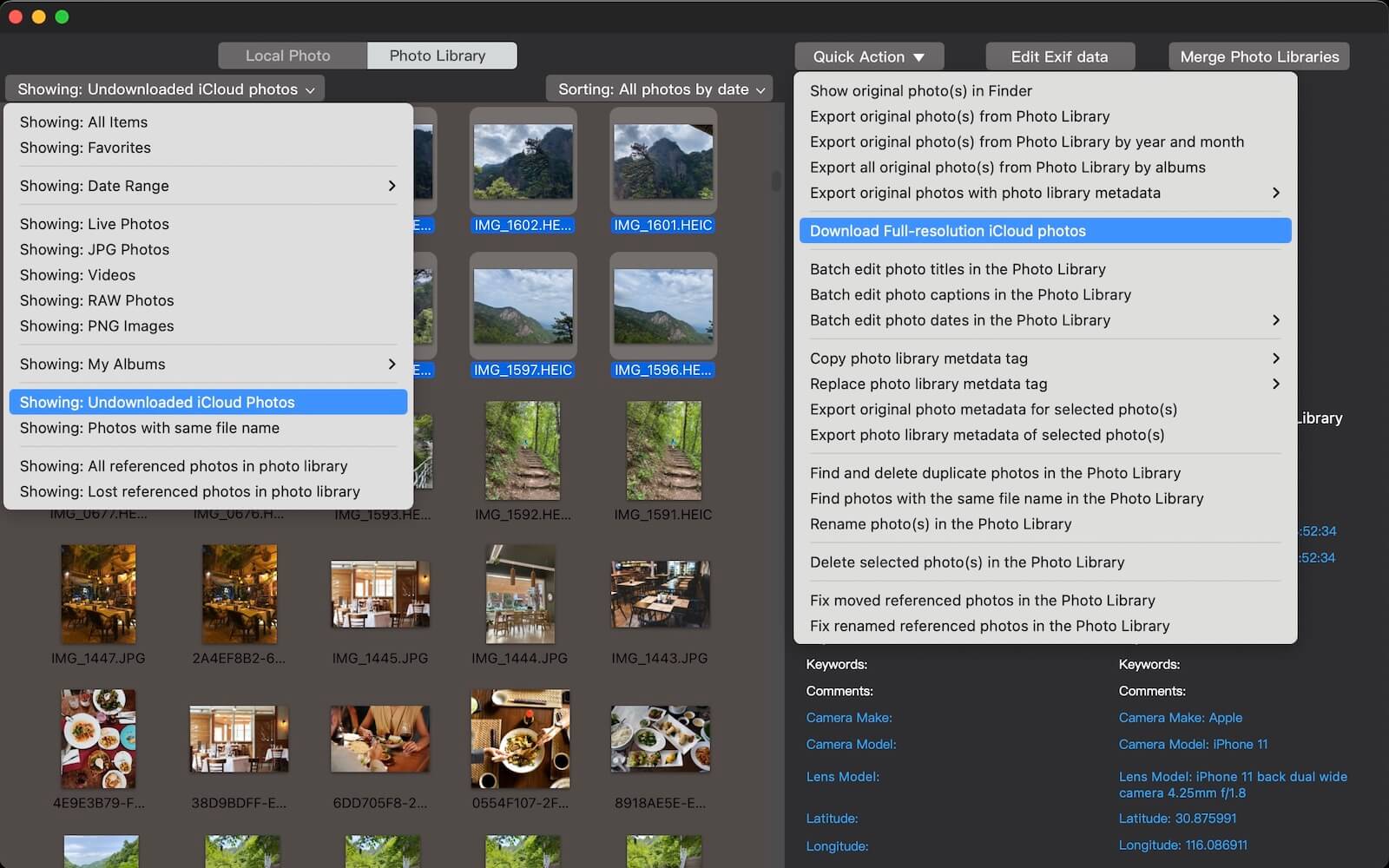
You can use a third-party app like Photo Exifer 3 to download and export full-resolution iCloud photos and videos directly to an external hard drive.
Advantages
• Ensures original photos and videos are backed up
• Preserves albums and folder structure
• Avoids missing files or thumbnails
Disadvantages
• Does not support automatic scheduled backups
Recommendation
Use Time Machine + Photo Exifer together. This ensures you have a complete Photos library backup and a separate copy of all original iCloud photos and videos.
2. Back Up iCloud Photos on an iPhone
You can back up iCloud Photos directly from your iPhone to an external hard drive or USB flash drive.
Requirements
• Lightning flash drive (for older iPhones)
• USB-C flash drive or external hard drive (for newer iPhones)
Best Method
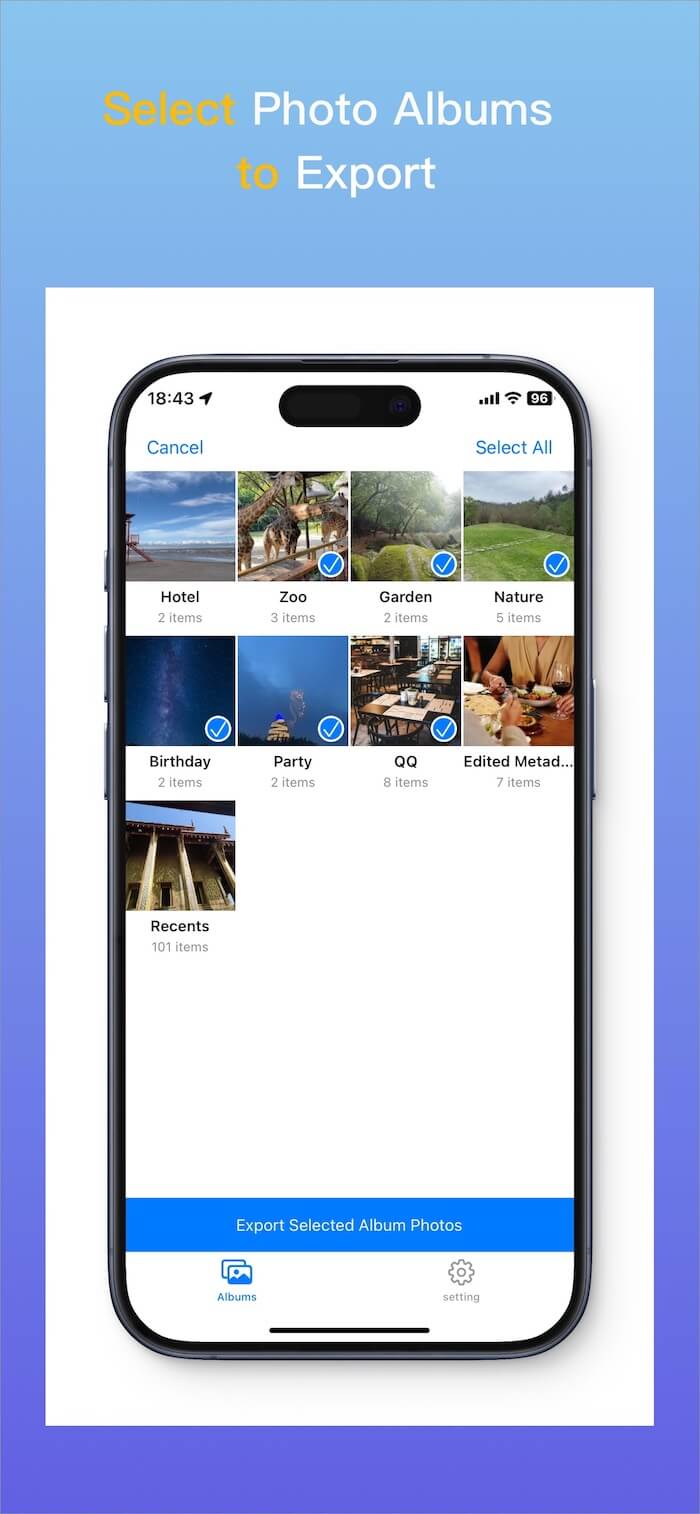
To avoid exporting photos one by one, use a third-party app like PhotosDrive, which allows you to:
• Export entire photo albums
• Keep original quality and metadata
• Transfer photos directly to external storage
Alternative Option
You can also back up iCloud Photos to another cloud service (such as Google Drive), but this depends on available cloud storage space.
3. Back Up iCloud Photos on a Windows PC
If you prefer to back up iCloud Photos on a PC, here are your options:
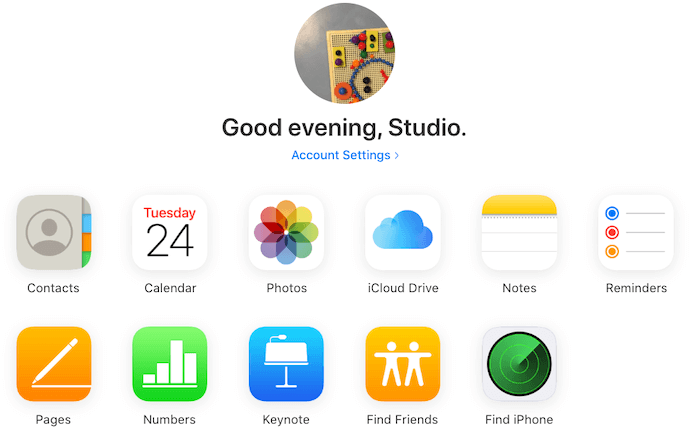
Method 1: Download from iCloud.com
• Visit icloud.com/photos
• Manually select photos and download them
Limitations
• Maximum of 1,000 photos per download
• Manual and time-consuming
Method 2: Request iCloud Data from Apple
• Visit privacy.apple.com
• Request a copy of your iCloud Photos
Limitations
• Apple prepares the data manually
• Photos are split into multiple download files
• You must wait for Apple to send download links
Final Thoughts: Choose the Best Backup Method
There is no one-size-fits-all solution for backing up iCloud Photos. The best method depends on:
• Your device (Mac, iPhone, or PC)
• Storage capacity
• How often you want to back up your photos
By choosing the right approach, you can safely back up iCloud Photos to an external hard drive and protect your memories from accidental deletion or data loss.
| More Related Articles | ||||
 |
1. How to merge two photo libraries on Mac? 2. How to find and remove duplicate photos from Photos? |
|||
About Fireebok Studio
Our article content is to provide solutions to solve the technical issue when we are using iPhone, macOS, WhatsApp and more. If you are interested in the content, you can subscribe to us. And We also develop some high quality applications to provide fully integrated solutions to handle more complex problems. They are free trials and you can access download center to download them at any time.
| Popular Articles & Tips You May Like | ||||
 |
 |
 |
||
| Five ways to recover lost iPhone data | How to reduce WhatsApp storage on iPhone | How to Clean up Your iOS and Boost Your Device's Performance | ||