Video Title and Artwork are important metadata labels that help identify video content in apps like iMovie, Final Cut Pro, QuickTime Player, Apple Photos, and Apple TV.
By default, some macOS apps display the filename as the video title. If no artwork is embedded, QuickTime Player automatically uses the first video frame as the thumbnail. However, this approach has limitations. The filename is not true metadata, and if the first frame is black or blank, the video will not have a visually meaningful cover image.
In reality, the video title is part of the embedded video metadata, not just the filename. The same applies to artwork. When properly embedded, both the title and artwork stay with the video file and appear consistently across compatible apps and devices.
If you want to custom add a title and artwork to videos on Mac, this guide will show you how to embed custom text titles and custom cover images directly into your video files.
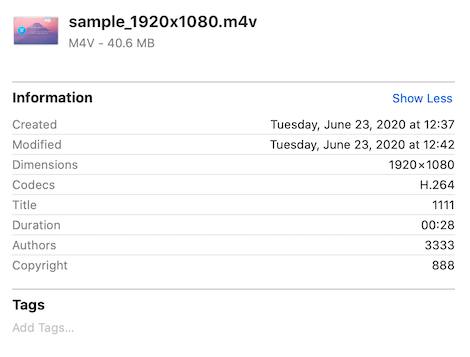
What Are Video Title & Artwork Metadata?
Video Title and Artwork are metadata fields stored inside the video file itself. They are supported by common formats such as MP4, MOV, and M4V.
These metadata fields are different from:
• YouTube or Vimeo upload titles
• Finder filenames
Embedded metadata travels with the video file, ensuring consistent display on macOS, iOS, and media library apps.
Best Tool to Edit Video Title & Artwork on Mac
To add or edit video title and artwork, you need a dedicated metadata editor. Media Meta is a professional video and audio metadata editor for Mac that supports editing a wide range of tags, including:
• Video title
• Artwork (cover image / thumbnail)
• Artist, director, and copyright
• Shooting date and creation time
• Keywords and descriptions
• GPS location metadata
• And more video metadata fields
How to Add Title & Artwork to Videos Using Media Meta
Step 1: Download and Install Media Meta -- Download and install Media Meta on your Mac.
Step 2: Import Video Files. Launch Media Meta and import your video files into the app. Select a video to view its existing metadata.
Step 3: Edit Title and Artwork-- Select one or multiple video files, change the Title field to your custom text. Drag and drop an image from your Mac into the Artwork area, click Save Changes to apply the edits.
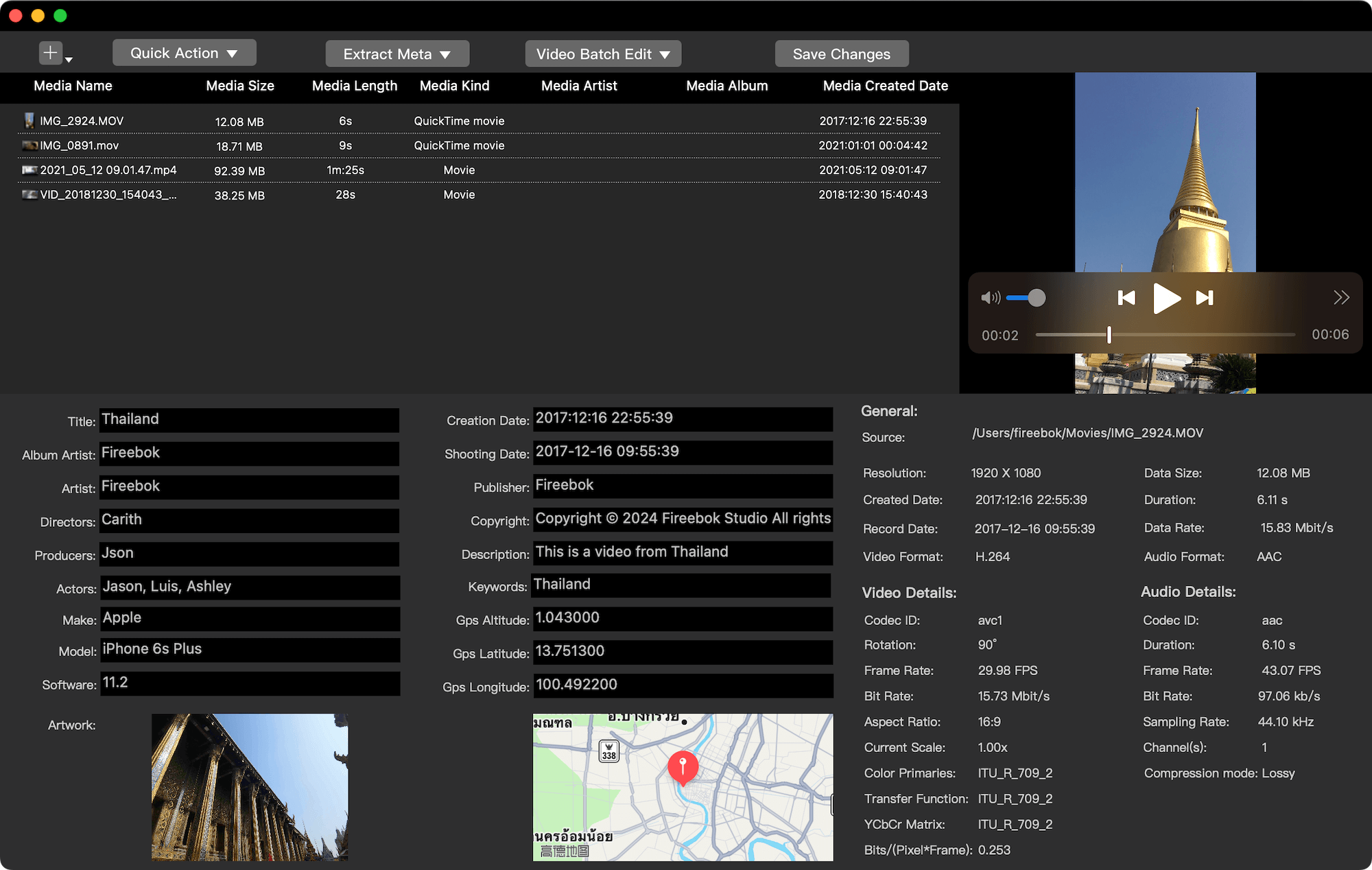
Save Without Damaging Original Videos: Media Meta does not overwrite your original videos. Edited files are saved to a separate output location, which you can customize in Settings. This ensures your original files remain untouched and safe.
Step 4: Verify Metadata-- You can re-import the edited videos into Media Meta to confirm that the new title and artwork were successfully embedded.
Why Add Title & Artwork to Videos on Mac?
• Improve video organization in media libraries
• Make videos easier to recognize visually
• Ensure consistent display across Apple apps and devices
• Create a professional video collection with proper metadata
Embedding video title and artwork is the best way to manage and present your videos on macOS.
| More Related Articles | ||||
 |
1. How to View and Remove Video Metadata on iPhone? 2. How to Fix Photos Showing the Incorrect Date on iPhone? |
|||
About Fireebok Studio
Our article content is to provide solutions to solve the technical issue when we are using iPhone, macOS, WhatsApp and more. If you are interested in the content, you can subscribe to us. And We also develop some high quality applications to provide fully integrated solutions to handle more complex problems. They are free trials and you can access download center to download them at any time.
| Popular Articles & Tips You May Like | ||||
 |
 |
 |
||
| Five ways to recover lost iPhone data | How to reduce WhatsApp storage on iPhone | How to Clean up Your iOS and Boost Your Device's Performance | ||