When a video or movie file is edited using iMovie or other video editing applications, it often loses important video metadata, such as the shooting date, title, artist, copyright, and description. This happens because many editors re-encode the video during export, stripping original metadata in the process.
Video metadata acts as the digital identity of a video file and plays a critical role in video organization, searching, archiving, and distribution. While macOS does not provide a perfect built-in solution to preserve metadata after editing, there are reliable ways to add metadata back to edited videos on Mac.
In this article, we’ll show you how to add and edit video metadata on Mac using both iMovie and a professional metadata editor.
Add Video Metadata Using iMovie on Mac
iMovie provides limited support for adding metadata when exporting an edited video.
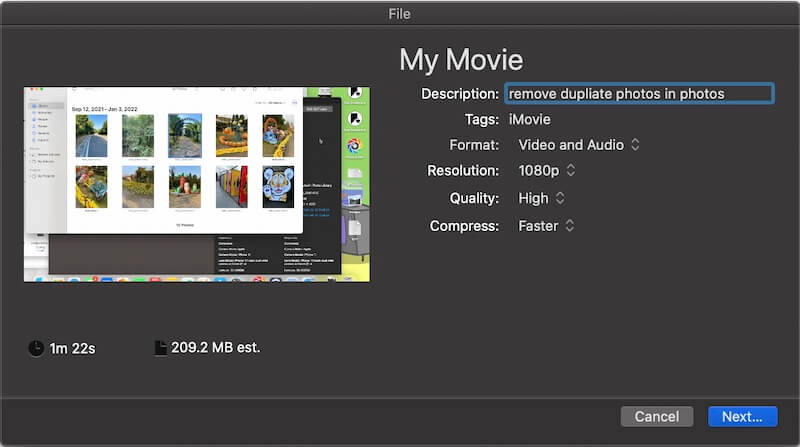
After editing video and click the Share button -> Export File, it will pop-up a window to display the Description, Tags, Format, Resolution, Quality, Compress properties of the edited video file. The description and tag properties are editable here as part of the video metadata, and you can add or edit their values. And then click the Next button to save the video.
Add and Edit All Video Metadata Using Media Meta
For complete metadata editing, We recommend Media Meta – Video Metadata Editor for Mac.
Media Meta is a professional audio and video metadata editor that allows you to add, edit, and remove nearly all video metadata tags.
How to Add Metadata to Edited Videos with Media Meta
1. Download and Install: Download Media Meta – Video Metadata Editor for Mac, or get it from the Mac App Store.
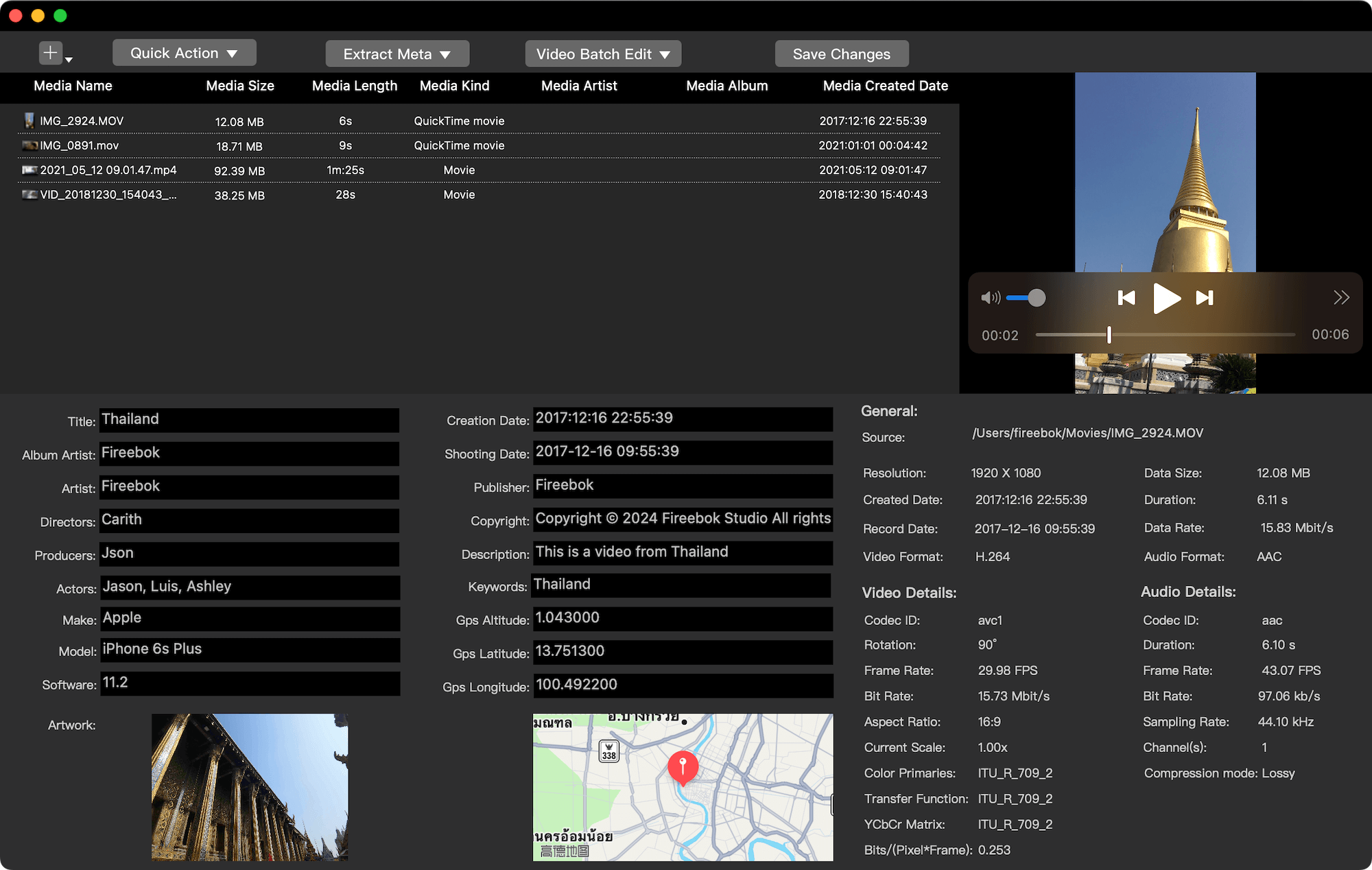
2. And then import videos files you want to add video metadata into Media Meta application, and select videos, change value of the corresponding video metadata tag, and then click the Save change button.
Use Quick Actions to Modify Video Metadata Faster
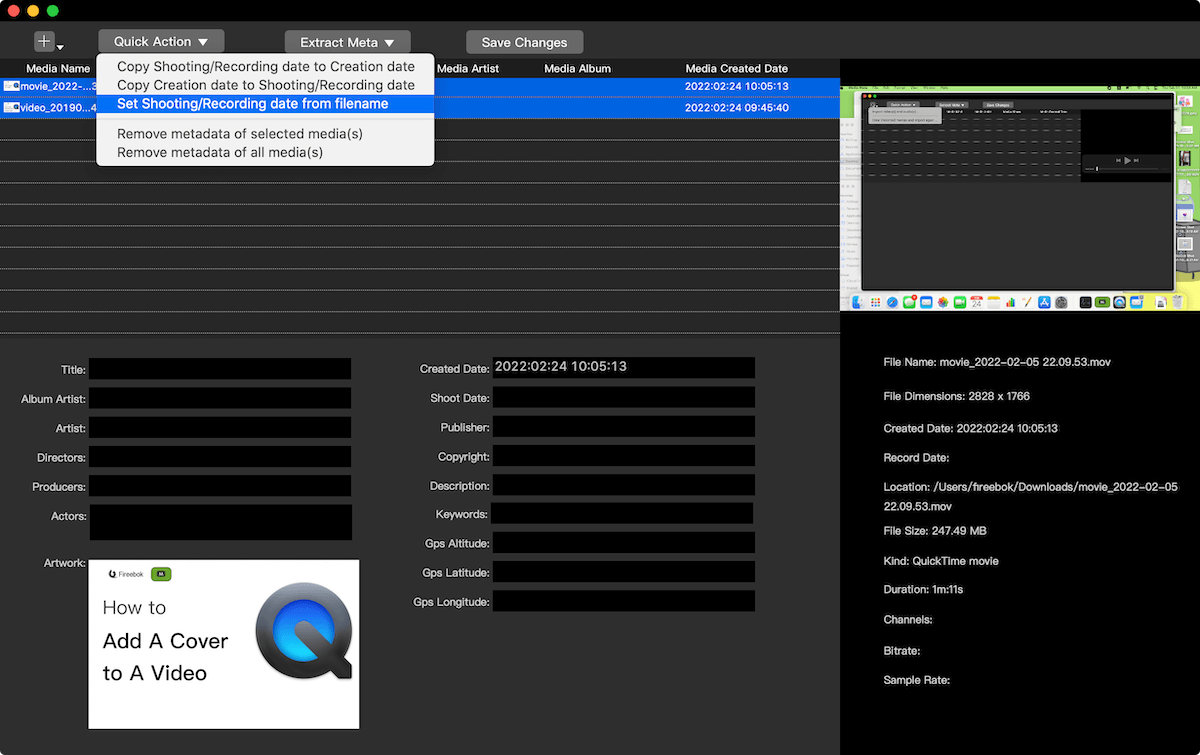
Media Meta also includes Quick Actions that help you process metadata in seconds, such as:
• Change video shooting date in bulk
• Remove video metadata for privacy protection
• Export video metadata to files
• Copy and paste metadata between videos
Related article: How to remove video metadata on Mac
Final Thoughts
Adding metadata back to edited videos on Mac is essential for proper file management, copyright protection, and content organization. While iMovie allows basic metadata input during export, tools like Media Meta provide full control over video metadata, making them ideal for professionals and power users.
If you frequently edit videos and need accurate metadata, using a dedicated video metadata editor for Mac is the most reliable solution.
| More Related Articles | ||||
 |
1. How to find and remove duplicate photos from Photos? 2. How to batch rename photos within the Photos app on Mac? |
|||
About Fireebok Studio
Our article content is to provide solutions to solve the technical issue when we are using iPhone, macOS, WhatsApp and more. If you are interested in the content, you can subscribe to us. And We also develop some high quality applications to provide fully integrated solutions to handle more complex problems. They are free trials and you can access download center to download them at any time.
| Popular Articles & Tips You May Like | ||||
 |
 |
 |
||
| Five ways to recover lost iPhone data | How to reduce WhatsApp storage on iPhone | How to Clean up Your iOS and Boost Your Device's Performance | ||