Some iPhone and Mac users reported issues with Safari bookmarks after syncing from iCloud bookmarks. Some bookmarks are then created twice and three times and the order is messed up. How to fix this issue? If you are experiencing the same and similar issues, the following solutions can help.
1. Turn off Mac iCloud Bookmarks and turn it back on
Quit Safari. Choose Apple menu > System Preferences. If you're using macOS Catalina and later, click Apple ID. Click iCloud. Deselect Safari. And then close System Preferences and wait about a minute. Open System Preferences and click iCloud. Select Safari.
2. Check If a bookmark folder contains more than 500 bookmarks
According to Apple's official documentation, the maximum number of bookmarks in a single bookmarks folder is 500. If your bookmarks don't display in the same order across all of your devices, check how many bookmarks are in the folder. If the folder contains more than 500 bookmarks, the order of bookmarks might not be the same on all devices.
3. Resort all Safari bookmarks and bookmark folders
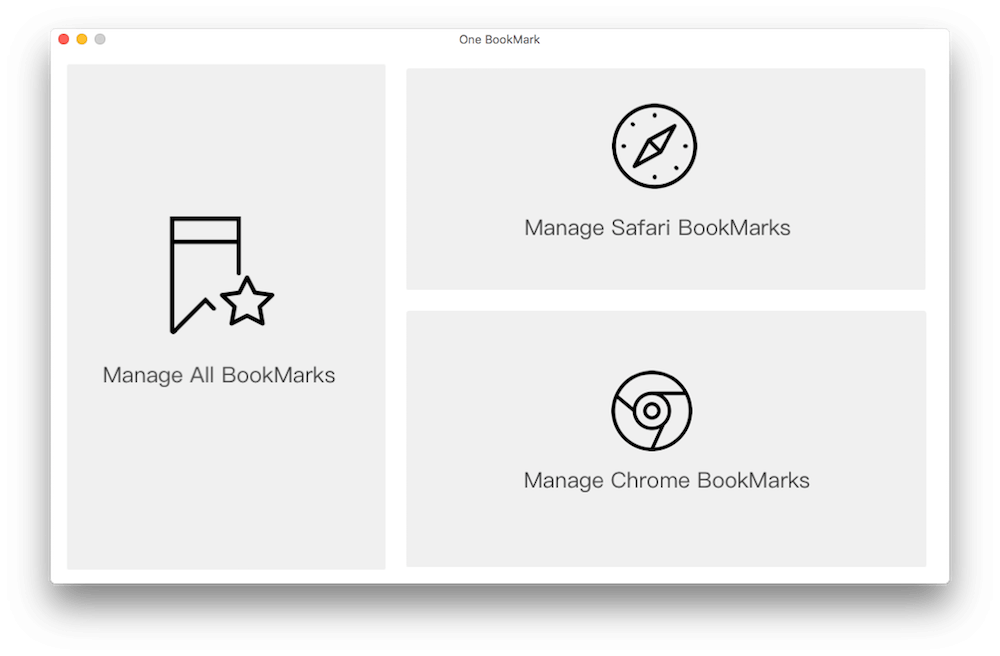
Safari does not support sorting all bookmarks, it only provides sorting for individual bookmark folders. Here we recommend using One Bookmarks to sort all Safari bookmarks and bookmark folders. Download and install One Bookmark application on your Mac. Run One Bookmark application, and then click Safari sidebar.
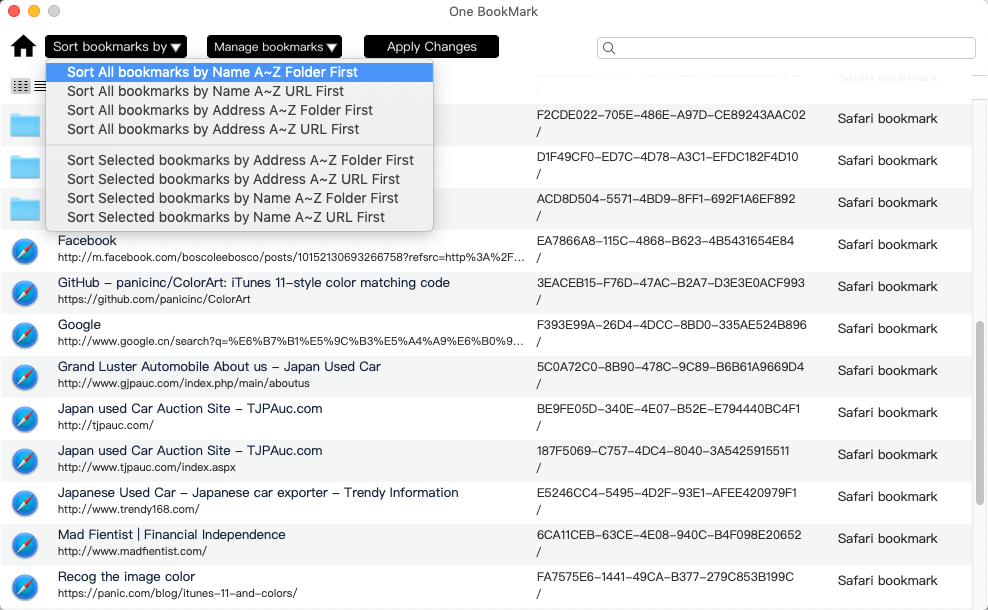
It will list all Safari bookmarks and bookmark folders, then you can sort all bookmarks and bookmark folders, or just select bookmarks and bookmark folders to sort. Click the Sort toolbar button and choose the sorting option you want.
4. Remove duplicate Safari bookmarks
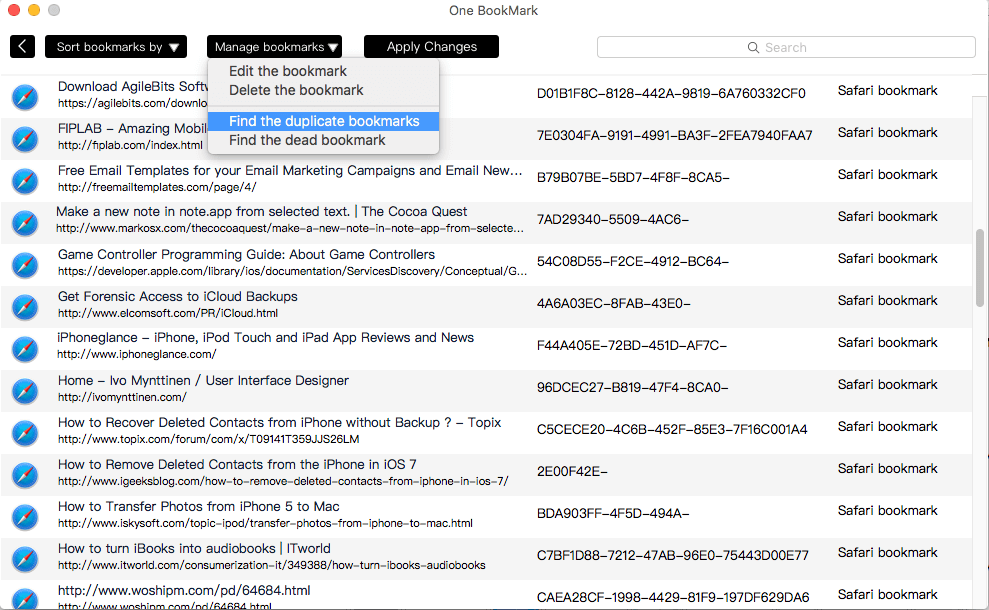
Next we need to clean up those duplicate bookmarks that were recreated two or three times. Access Duplicate bookmarks sidebar.
Click the Remove toolbar button to remove, and then click Delete button to confirm the deletion.
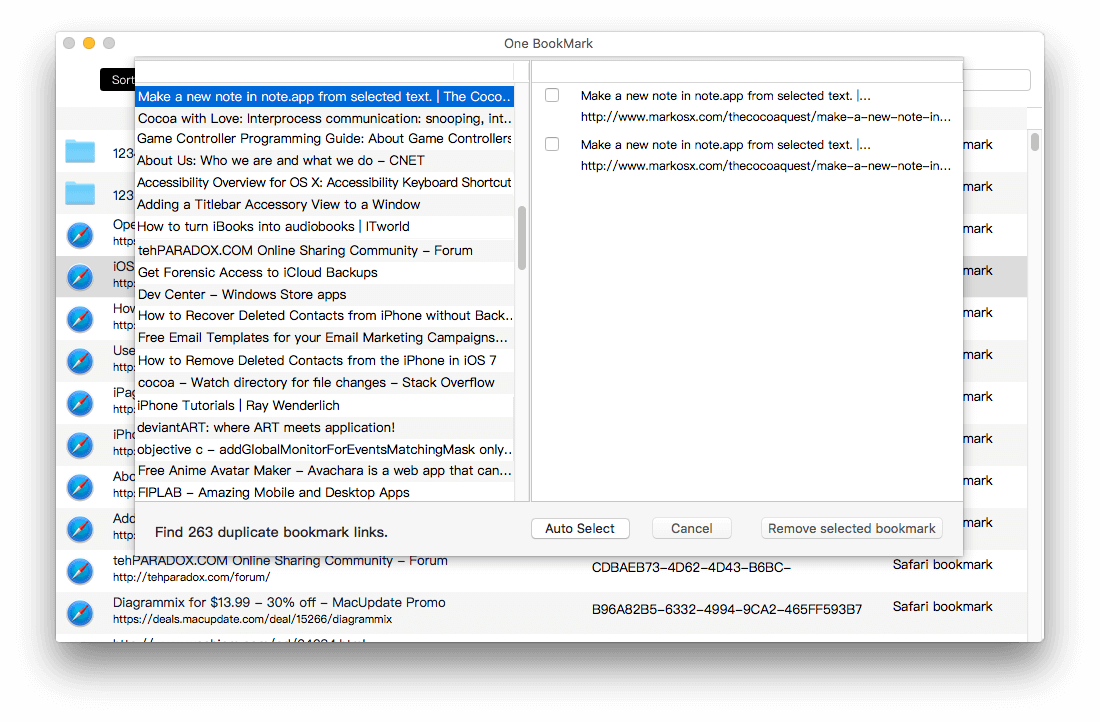
Run the Safari app again and all bookmarks and bookmark folders will remain in order, all duplicate bookmarks have been removed.
| More Related Articles | ||||
 |
1. How to find and remove duplicate photos from Photos? 2. How to batch rename photos within the Photos app on Mac? |
|||
About Fireebok Studio
Our article content is to provide solutions to solve the technical issue when we are using iPhone, macOS, WhatsApp and more. If you are interested in the content, you can subscribe to us. And We also develop some high quality applications to provide fully integrated solutions to handle more complex problems. They are free trials and you can access download center to download them at any time.
| Popular Articles & Tips You May Like | ||||
 |
 |
 |
||
| Five ways to recover lost iPhone data | How to reduce WhatsApp storage on iPhone | How to Clean up Your iOS and Boost Your Device's Performance | ||