Some Mac users have reported issues when trying to download or install the latest macOS Tahoe 26.4 update. In many cases, the download gets stuck on “Preparing” for several minutes without starting, progresses extremely slowly, or freezes completely for hours—or even days—without finishing.
If you’ve tried multiple times without success, you’re not alone. This guide walks you through proven solutions to fix macOS Tahoe 26.4 download and installation problems.
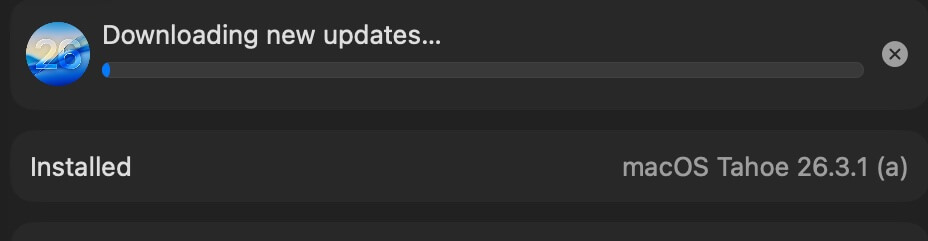
1. Check Your Internet Connection
A stable internet connection is essential for downloading macOS updates.
• Try opening a website in your browser to confirm your network is working.
• Switch to a faster or more stable Wi-Fi network if available.
• Avoid interruptions during the entire download process.
Unstable or slow connections are one of the most common reasons macOS updates fail.
2. Disable VPN and Security Apps
VPNs and third-party security tools can interfere with macOS updates.
• Disconnect any VPN service before starting the download.
• Quit antivirus or security apps temporarily.
macOS already includes built-in protection like Gatekeeper and system integrity features, so additional security tools may cause conflicts with Apple’s update servers.
3. Restart Your Mac
A simple restart can resolve temporary system glitches.
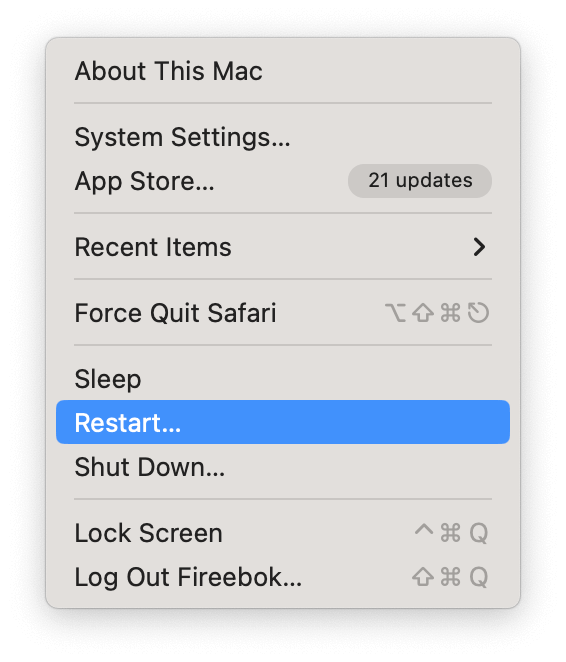
• Click the Apple menu and choose Restart.
• After rebooting, try downloading and installing the update again.
This step often fixes unknown background issues affecting the update process.
4. Check Available Storage Space
macOS updates require sufficient free disk space to download and install properly.
• Go to System Settings → General → Storage
• Ensure you have enough free space (at least 20–30 GB recommended)
If storage is low:
• Empty the Trash
• Delete large or unused files
• Remove unnecessary apps
5. Clear Mac Cache Files
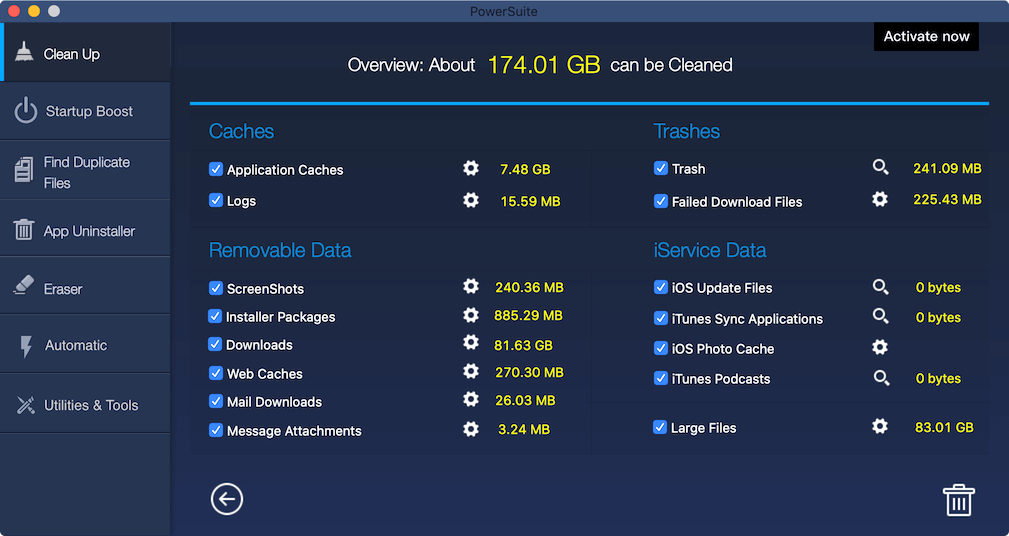
Corrupted cache files can prevent updates from downloading or installing correctly. To manually clear cache:
• Open Finder, click Go → Go to Folder. Enter: ~/Library/Caches, delete unnecessary cache files
After clearing cache, restart your Mac and try updating again.
You can also use third-party tools like PowerSuite to quickly remove caches, logs, duplicate files, and other junk data in one click.
6. Install macOS in Safe Mode
If the issue persists, try installing the update in Safe Mode. How to start Safe Mode on Mac:
• Restart your Mac
• Immediately press and hold the Shift key. Release the key when the login window appears
Once in Safe Mode:
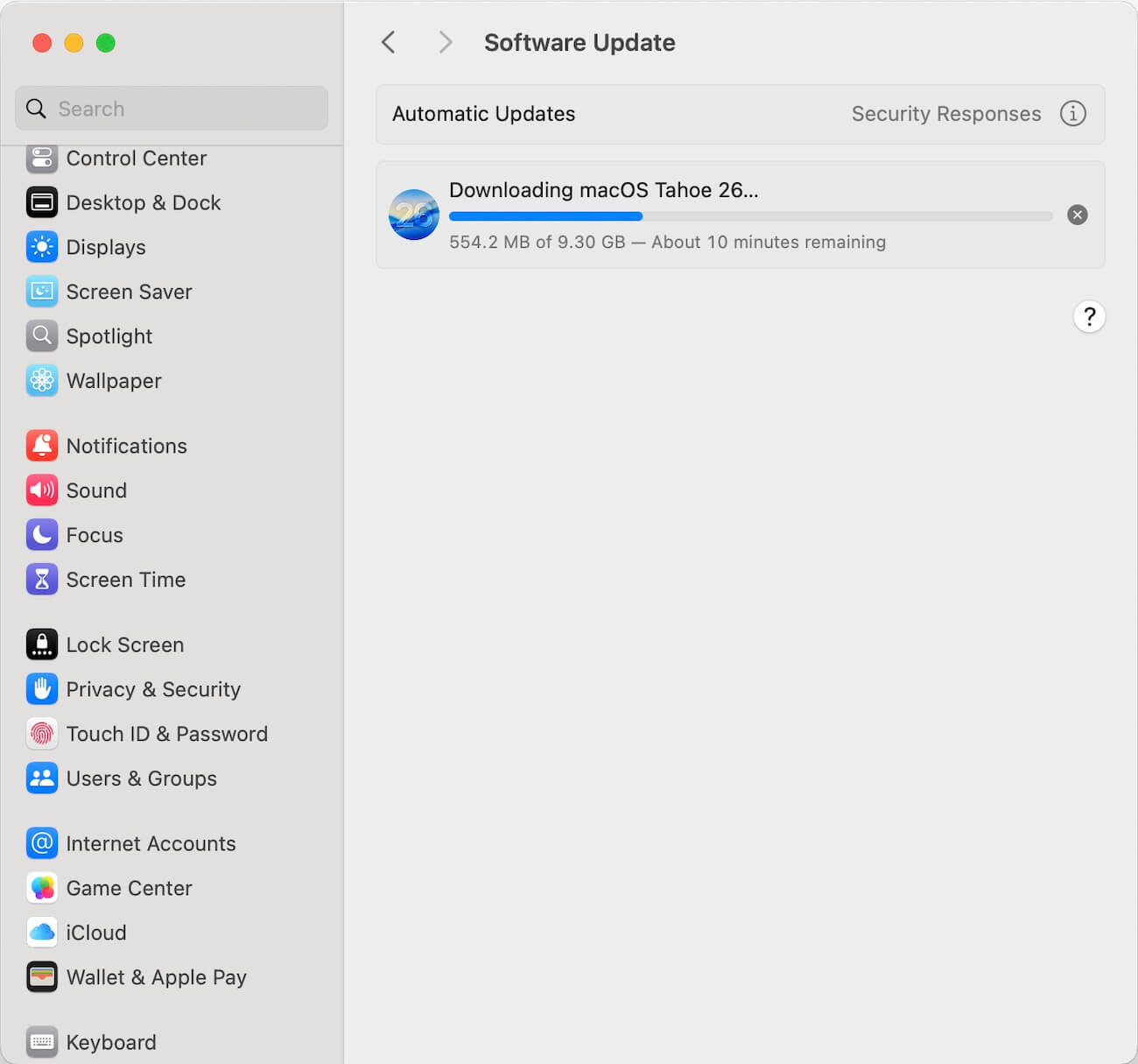
• Go to System Settings → Software Update
• Try downloading and installing macOS Tahoe 26.4 again
• Safe Mode disables unnecessary startup items and can help bypass software conflicts.
Final Thoughts
If macOS Tahoe 26.4 won’t download or install, the problem is usually related to network issues, insufficient storage, system cache, or software conflicts. By following the steps above, you should be able to resolve the issue and successfully update your Mac.
If the problem continues, you may consider reinstalling macOS using Recovery Mode or contacting Apple Support for further assistance.
| More Related Articles | ||||
 |
1. How to find and remove duplicate photos from Photos? 2. How to batch rename photos within the Photos app on Mac? |
|||
About Fireebok Studio
Our article content is to provide solutions to solve the technical issue when we are using iPhone, macOS, WhatsApp and more. If you are interested in the content, you can subscribe to us. And We also develop some high quality applications to provide fully integrated solutions to handle more complex problems. They are free trials and you can access download center to download them at any time.
| Popular Articles & Tips You May Like | ||||
 |
 |
 |
||
| Five ways to recover lost iPhone data | How to reduce WhatsApp storage on iPhone | How to Clean up Your iOS and Boost Your Device's Performance | ||