The MP4 file format is one of the most widely used video formats today. Many cameras, smartphones, drones, and screen recorders use MP4 as the default recording format. Like other media files, MP4 videos contain both file attributes and metadata, which store important information about the video.
File attributes describe technical details such as video size, resolution, frame rate, encoding format, and audio bitrate. MP4 metadata, on the other hand, contains descriptive information about the video content itself—including the title, artist, shooting date, GPS location, copyright, description, composer, and genre.
Editing MP4 metadata on Mac makes it easier to organize videos, manage large video libraries, and ensure correct information is displayed in media players. This article explains how to view and edit MP4 metadata on Mac step by step.
View MP4 Metadata on Mac
Before editing MP4 metadata, it’s important to check which metadata tags already exist and determine what information needs to be added or modified.
View MP4 Metadata Using Terminal
One simple way to view MP4 metadata on Mac is by using the built-in mdls command.
• Open Terminal (/Applications/Utilities/Terminal.app). Enter the following command: mdls /path/to/your/video.mp4
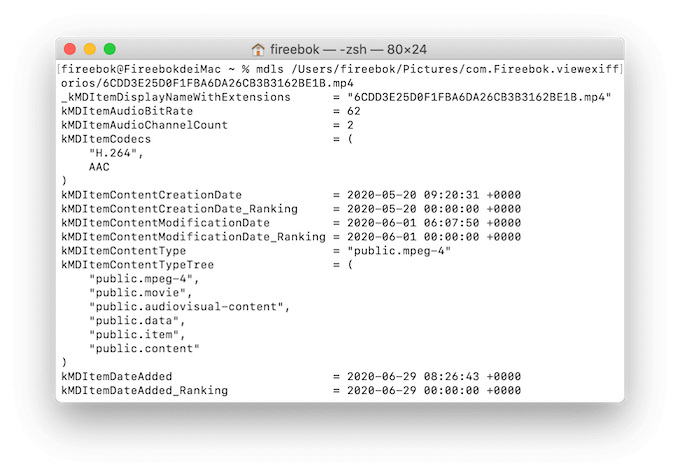
This command displays all available metadata associated with the MP4 file, including creation date, content type, duration, and other system-indexed metadata values.
While this method is useful for viewing metadata, it is not ideal for editing or batch modification, especially for non-technical users.
How to Edit MP4 Metadata on Mac
To add, edit, or modify MP4 metadata on Mac, the most efficient approach is to use a dedicated video metadata editor for Mac.
Edit MP4 Metadata with Media Meta
Media Meta is a professional video and audio metadata editor for macOS. It supports MP4 and many other video and audio formats, making it ideal for managing metadata in bulk.
Steps to Edit MP4 Metadata
1. Download and Install: Get Media Meta for Mac.
2. Launch the application and import your MP4 video files, select an MP4 file to view all available metadata tags.
3. Edit metadata fields such as: Title, Artist, Shooting date, Copyright, Description, GPS data.
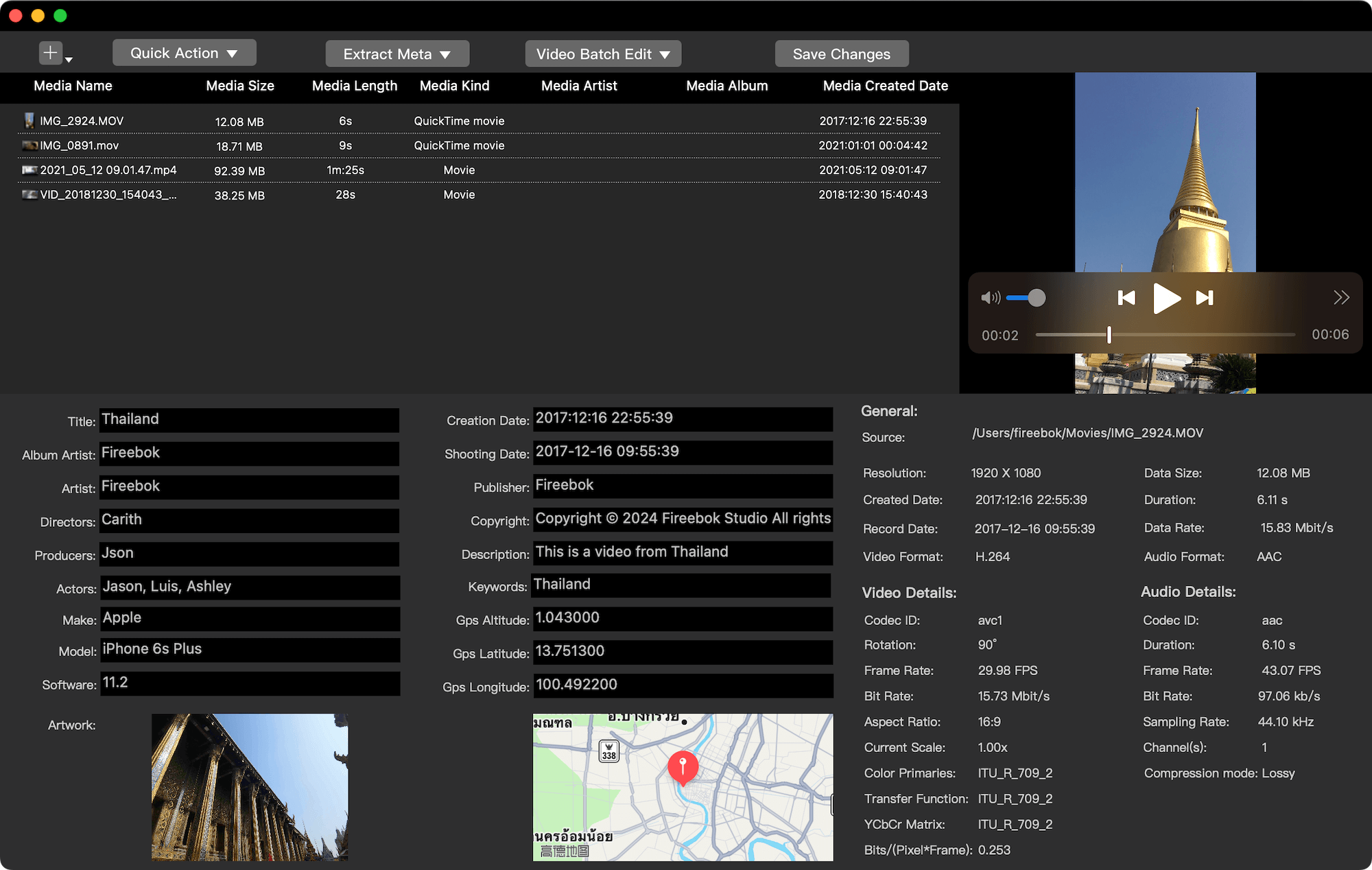
4. Click Save Changes to write the updated metadata back to the MP4 file.
Additional MP4 Metadata Editing Features
Media Meta also offers convenient tools to improve workflow, including:
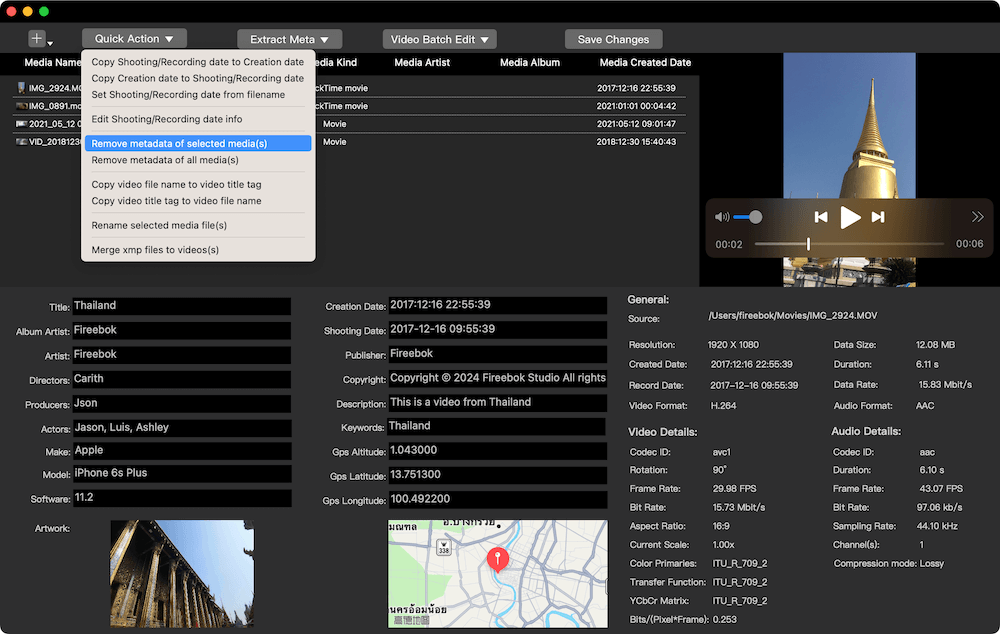
• Batch Editing: Select 100 videos and update the "Artist" or "Copyright" field for all of them at once.
• Date Syncing: Automatically copy the "Shooting Date" to the file’s "Creation Date" so your files sort correctly in Finder.
• Metadata Stripping: Easily remove unwanted tags or GPS info to protect your privacy before sharing videos online.
These features make it easy to manage large collections of MP4 videos on macOS without manually editing each file.
Final Thoughts
If you frequently work with MP4 videos on Mac, editing metadata can significantly improve organization, searchability, and compatibility across media players and platforms. Using a dedicated MP4 metadata editor is the fastest and most reliable solution.
| More Related Articles | ||||
 |
1. How to merge two photo libraries on Mac? 2. How to find and remove duplicate photos from Photos? |
|||
About Fireebok Studio
Our article content is to provide solutions to solve the technical issue when we are using iPhone, macOS, WhatsApp and more. If you are interested in the content, you can subscribe to us. And We also develop some high quality applications to provide fully integrated solutions to handle more complex problems. They are free trials and you can access download center to download them at any time.
| Popular Articles & Tips You May Like | ||||
 |
 |
 |
||
| Five ways to recover lost iPhone data | How to reduce WhatsApp storage on iPhone | How to Clean up Your iOS and Boost Your Device's Performance | ||