Have you ever restored your iPhone from a backup, only to realize it replaced all your current data with the old backup? This can be frustrating, especially if you only want to recover a few deleted photos without overwriting your existing iPhone data. Unfortunately, Apple’s official iPhone restore feature does not allow selective recovery—you either restore the entire backup or nothing.
Moreover, backing up your current iPhone data before restoring can overwrite your old backup, making it even more complicated. So, what if you just want to restore specific photos from an old iPhone backup while keeping your current data intact?
In this guide, we’ll show you how to restore only selective photos from an iPhone backup safely, without risking your current data or encountering storage issues.
Why You Can’t Restore Selective Photos with Apple’s Official Backup
Apple’s iTunes or iCloud restore process replaces all current iPhone data with the backup data. There is no option to choose which data to restore. If you try to back up your current iPhone before restoring, it could overwrite your old backup, making recovery more difficult.
This is why selective photo restoration is not possible with Apple’s default tools.
How to Restore Selective Photos Using Fone Rescue
To restore only the photos you need, you can use a reliable third-party app like Fone Rescue. This app allows you to read your iPhone backup and extract only the specific photos you want, without restoring the entire backup. It works with both older and the latest iOS versions.
Step 1: Download and Install Fone Rescue
Download and install Fone Rescue on your Mac or PC.
Mac users: Add Fone Rescue to Full Disk Access (System Settings → Privacy & Security → Full Disk Access) This ensures the app can read and write your local iPhone backups.
Step 2: Select Your iPhone Backup
1. Open Fone Rescue. Choose Recover from iTunes Backup or iCloud Backup.
2. Select the backup that contains the photos you want to restore. Click Start Scan.
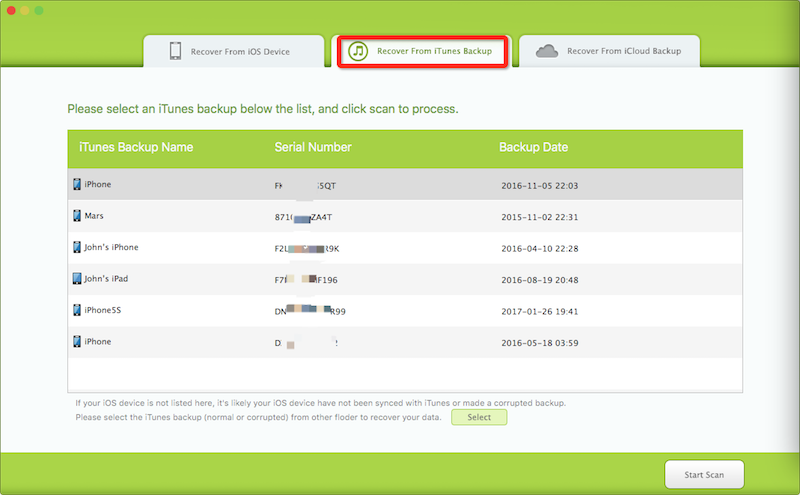
The app will read and load all iPhone data from the backup, including photos, contacts, messages, and more.
Step 3: Filter and Select Photos
Use the Filter option: Filter by All Items → Showing My Albums → select your album name. Or use other filter options to locate the specific photos you want.
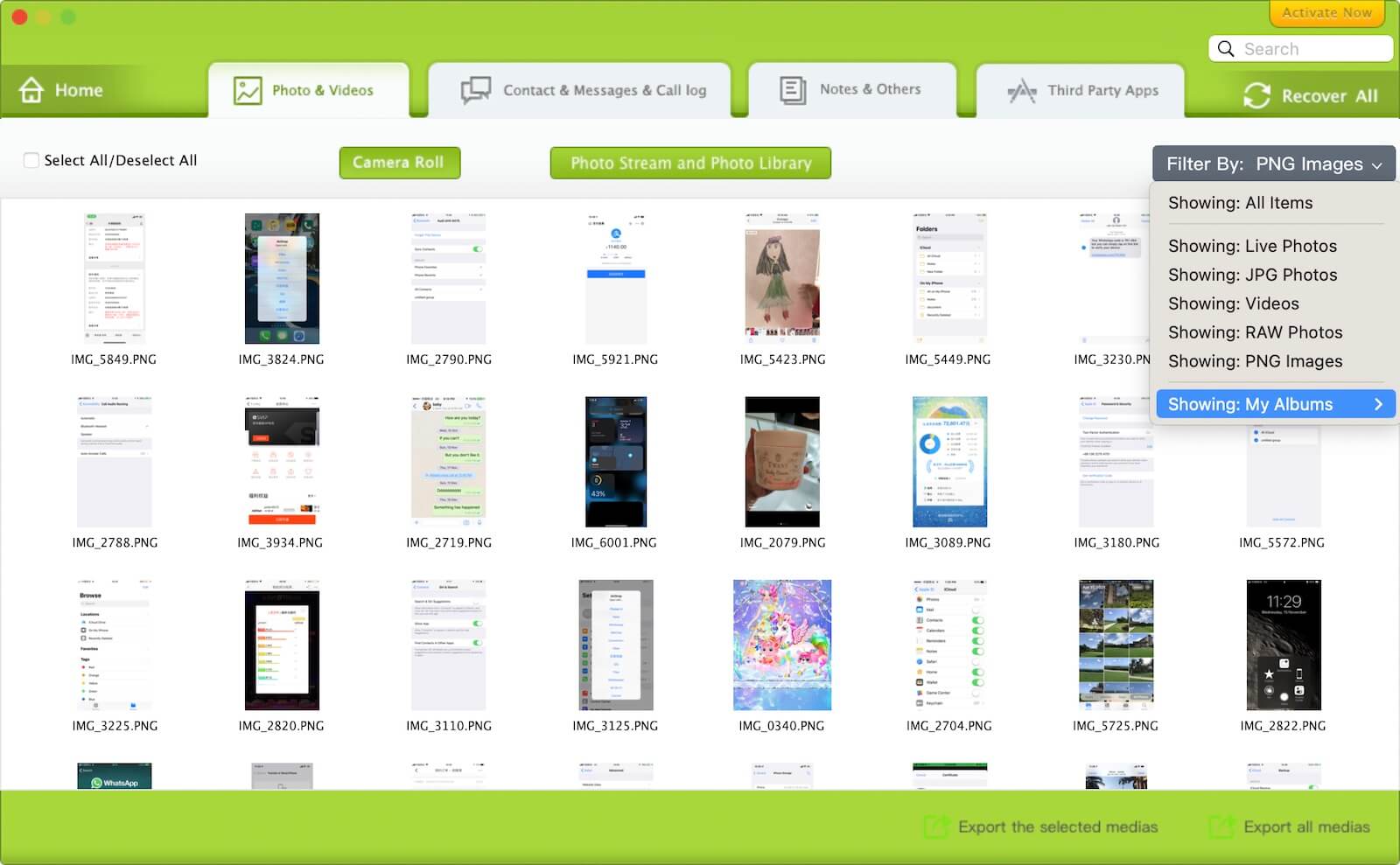
Step 4: Export Selected Photos
Click Export to save the selected photos to your computer or iPhone.
Final Thoughts
Benefits of selectively restoring some photos from an iPhone backup:
• Compatible with old and new iOS backups
• Avoids iPhone storage issues during restore
• Prevents overwriting your current iPhone data
• Saves time compared to restoring the entire backup
Don't let a full system restore put your current data at risk. Whether you are dealing with a lost phone or an accidental deletion, using a dedicated iPhone recovery tool is the fastest and safest way to get your memories back.

About Fireebok Studio
Our article content is to provide solutions to solve the technical issue when we are using iPhone, macOS, WhatsApp and more. If you are interested in the content, you can subscribe to us. And We also develop some high quality applications to provide fully integrated solutions to handle more complex problems. They are free trials and you can access download center to download them at any time.


