Sometimes, photos lose important camera information—such as F-stop and Shutter Speed—after being edited in Photoshop or other photo editing applications. Have you ever noticed missing or incorrect aperture and shutter speed values in your photo metadata?
So how do you add or edit photo F-stop and Shutter Speed on Mac? And if you have hundreds of photos, is there a way to batch change F-stop and Shutter Speed on macOS?
If you’re looking for a solution, this article explains what photo F-stop and Shutter Speed mean, how they relate to exposure settings, and provides step-by-step instructions to change them on Mac.
What Are Photo F-Stop and Shutter Speed?
F-stop and Shutter Speed are core photo exposure settings. They control how much light reaches the camera sensor, but each affects the photo’s appearance in very different ways.
Photo F-Stop (Aperture)
The F-stop (for example, f/1.8, f/8, f/22) measures the aperture opening of the camera lens.
• Low F-stop (f/1.8 - f/2.8)
Creates a larger aperture, lets in more light, and produces a shallow depth of field. This is how you get a blurred background (bokeh), commonly used in portrait photography.
• High F-stop (f/11 - f/22)
Creates a smaller aperture, lets in less light, and keeps more of the scene in focus. This is ideal for landscape photography.
Shutter Speed
Shutter Speed refers to how long the camera sensor is exposed to light.
• Fast Shutter Speed (1/1000, 1/4000 sec)
Freezes fast-moving subjects, such as sports or wildlife.
• Slow Shutter Speed (1/15 sec, 30 seconds)
Creates motion blur to show movement over time, often used for night photography or light trails.
Relationship Between F-Stop, Shutter Speed, ExposureTime, and FNumber
In photo metadata, F-stop and Shutter Speed are typically stored using the FNumber and ExposureTime tags. If you are using a photo metadata editor to fix your files, you need to look for these fields:
• FNumber controls the aperture (F-stop)
• ExposureTime controls the shutter speed
Their mathematical relationships are:
• ShutterSpeedValue = log₂(1 / ExposureTime)
• ApertureValue = log₂(FNumber × FNumber)
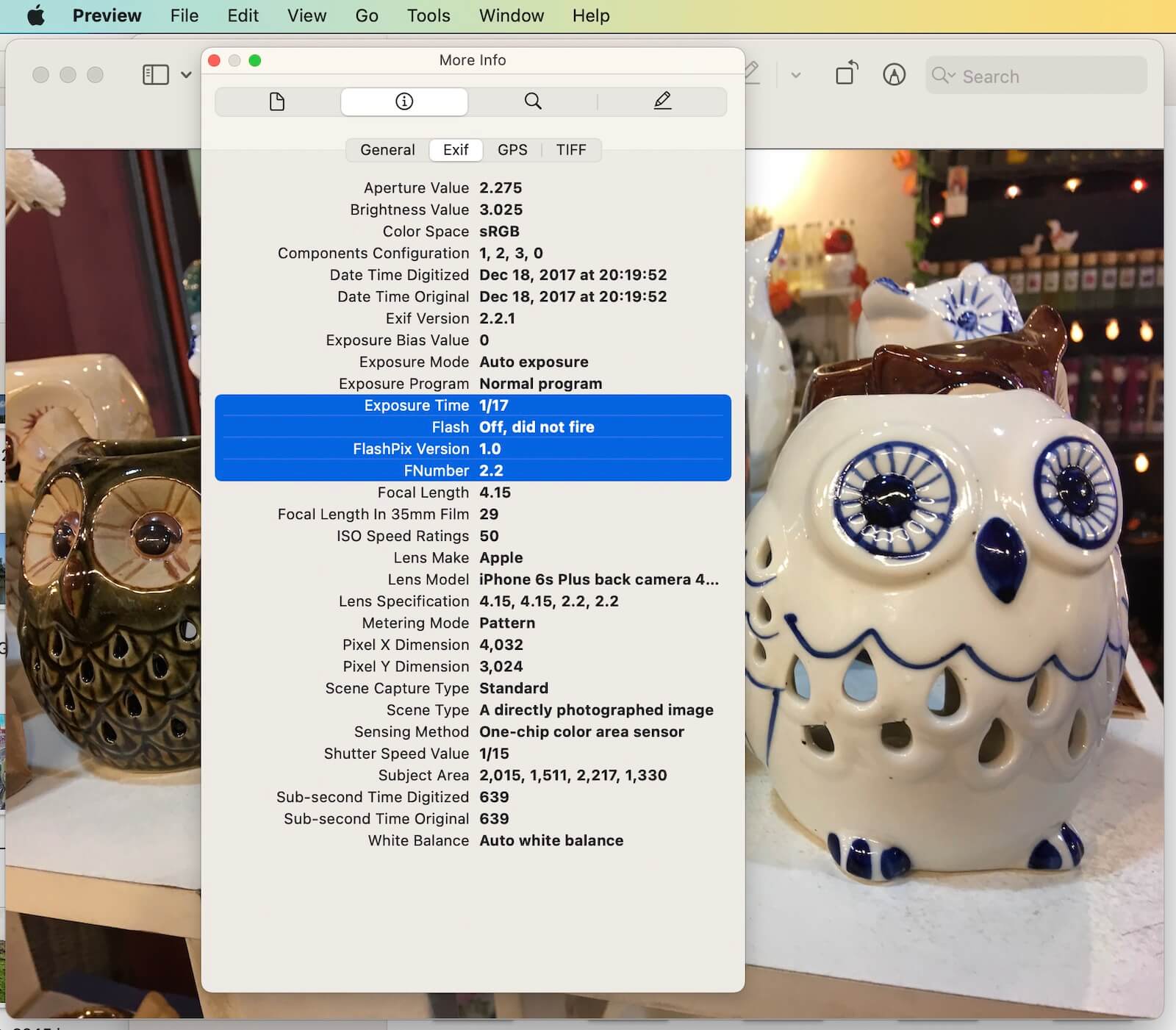
That’s why editing FNumber and ExposureTime directly in metadata allows you to control the displayed F-stop and Shutter Speed values. Open the photo in Preview, click Tools in the menu bar, then select Show Inspector to check the FNumber and ExposureTime values.
How to Change Photo F-Stop and Shutter Speed on Mac
To edit metadata efficiently—especially for hundreds of photos at once—we recommend using Photo Exifer, a professional metadata manager for macOS.
Photo Exifer allows you to edit almost all EXIF metadata tags, including F-stop (FNumber) and Shutter Speed (ExposureTime), for both local photos and Photos library images.
Steps to Edit F-Stop and Shutter Speed Using Photo Exifer
1. Download & Install: Launch Photo Exifer on your Mac.
2. Import Photos: import your photos into Photo Exifer, select the photos you want to edit (supports batch selection).
3. Edit EXIF Data: Click Edit EXIF Data. Modify the following fields:
• FNumber: Enter values like 8.0 (not f/8.0)
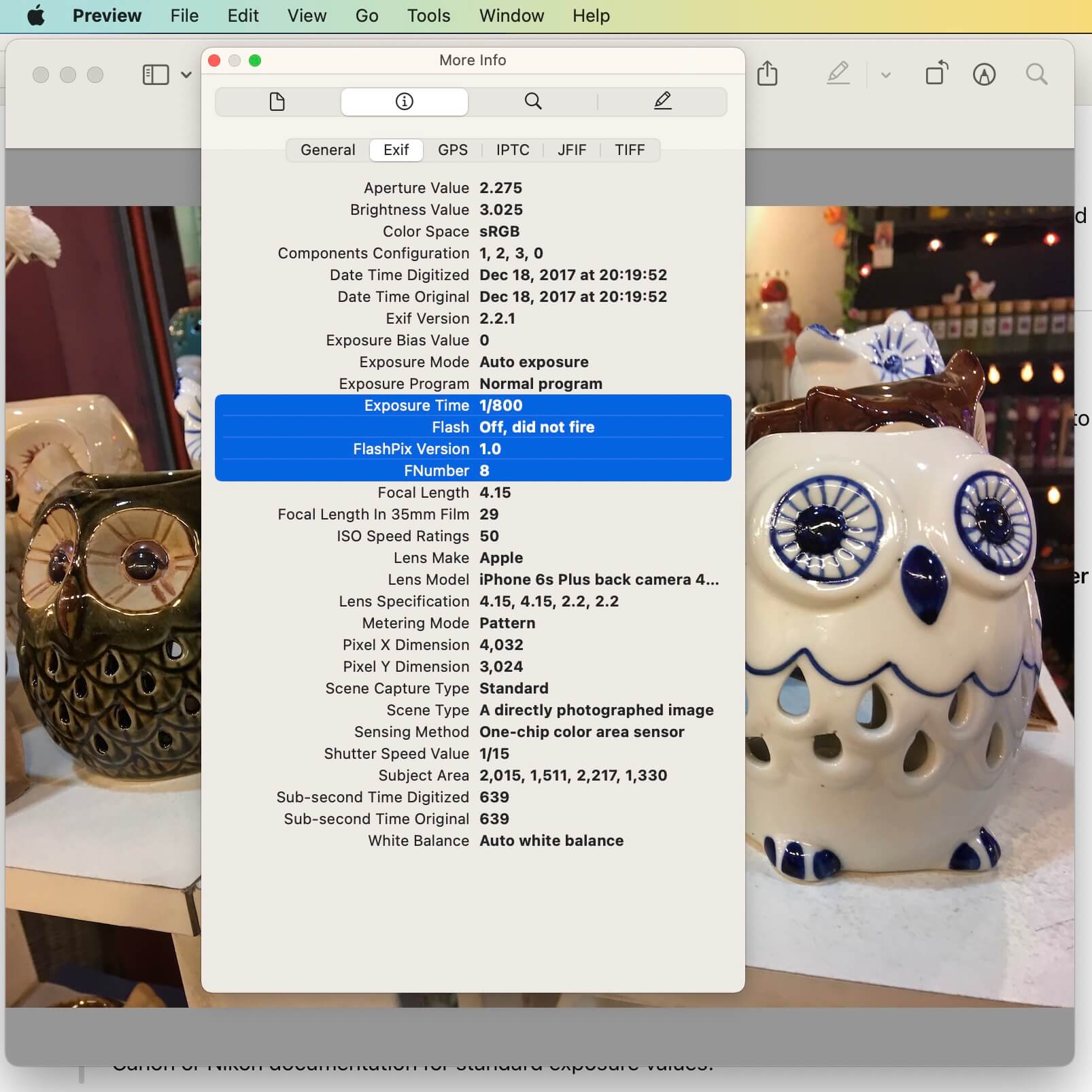
• ExposureTime: Enter values like 0.00125 (for 1/800 sec)
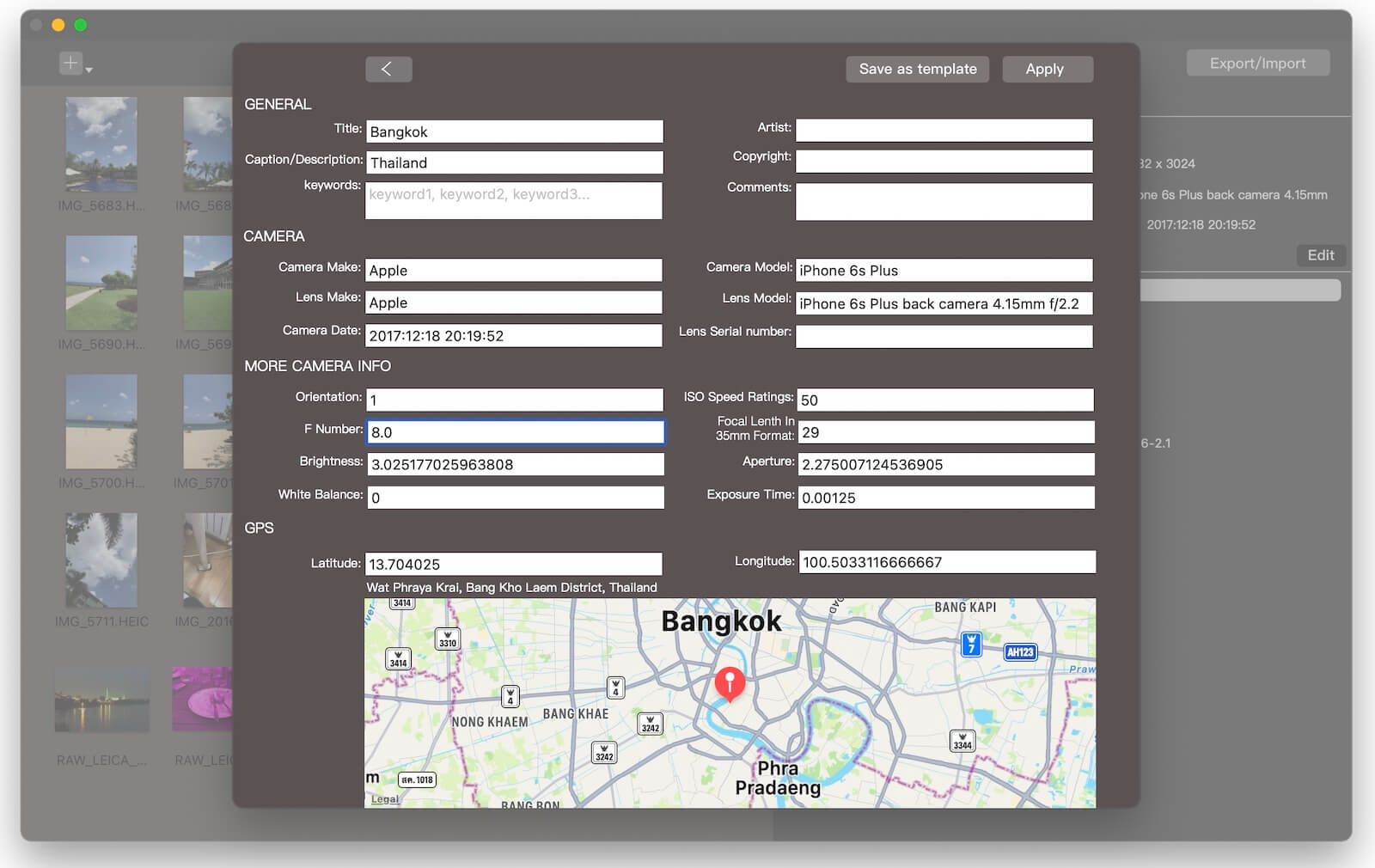
3. Apply: Click Apply to write the changes to the files.
Tip: If you’re unsure about the correct FNumber or ExposureTime values, you can refer to official Canon or Nikon documentation for standard exposure values.
Edit More Photo Metadata at the Same Time
Besides F-stop and Shutter Speed, Photo Exifer also lets you edit other photo metadata, including:
• Photo title and caption: Manually add photo description.
• Camera and lens information: Manually add lens profiles for vintage manual lenses.
• Shooting date and time: Correct the "Date Taken" if your camera clock was wrong.
• GPS location data: Add or remove coordinates.
Once you’ve made your changes, click Apply, and the updated metadata will be written to your photos instantly.
| More Related Articles | ||||
 |
1. How to merge two photo libraries on Mac? 2. How to find and remove duplicate photos from Photos? |
|||
About Fireebok Studio
Our article content is to provide solutions to solve the technical issue when we are using iPhone, macOS, WhatsApp and more. If you are interested in the content, you can subscribe to us. And We also develop some high quality applications to provide fully integrated solutions to handle more complex problems. They are free trials and you can access download center to download them at any time.
| Popular Articles & Tips You May Like | ||||
 |
 |
 |
||
| Five ways to recover lost iPhone data | How to reduce WhatsApp storage on iPhone | How to Clean up Your iOS and Boost Your Device's Performance | ||