In today's world, many users work across multiple devices with different operating systems. They often switch between browsers like Chrome and Safari on their various mobile devices and computers. If you want to sync your saved Chrome bookmarks to Safari on Mac, enabling seamless use on your other iOS and macOS devices, this guide is for you. Here, we’ll explain how to efficiently sync Chrome bookmarks—and even bookmarks from other browsers—to Safari on Mac without creating unnecessary duplicates or disorganized bookmark structures.
Why Syncing Bookmarks Can Be Challenging
Different browsers store and manage bookmarks in unique ways, making direct synchronization tricky. The traditional method involves manually exporting bookmarks as an HTML file and then importing it into another browser. However, this process often leads to:
1. Duplicate bookmarks
2. Disorganized folder structures
3. Unsorted bookmark sequences
If this manual process is repeated multiple times, the bookmarks can become entirely chaotic. To avoid such issues, you can use a bookmark management application - One Bookmark. This tool simplifies syncing and organizing bookmarks across browsers, ensuring everything stays tidy and accessible.
1. Sync Chrome Bookmarks to Safari Using One Bookmark
Follow these steps to sync Chrome bookmarks to Safari on your Mac:
Step 1: Install and Configure One Bookmark
1. Download and install One Bookmark on your Mac.
2. Go to System Settings -> Privacy & Security -> Full Disk Access, and add One Bookmark to the list to get the permission of Safari bookmark.
Step 2: Manage Bookmarks with One Bookmark
1. Open One Bookmark and select "Safari" and "Safari" sidebar, it will will display bookmarks from Chrome, Safari.
2. Click BookMarks Sync sidebar, select a synchronization strategy and enable Safari and Microsoft Edge synchronization, then click "Sync All Now".
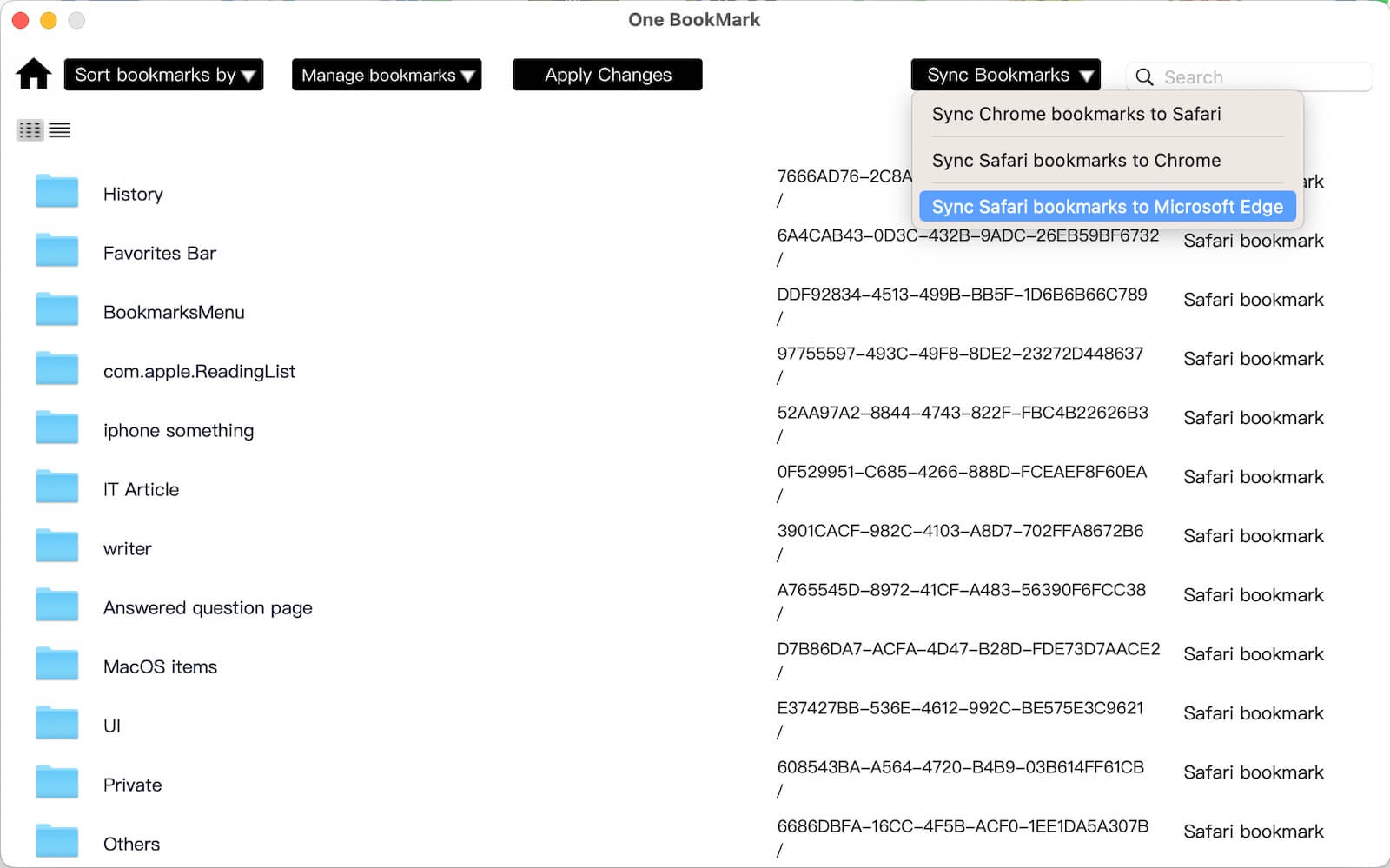
Step 3: Remove Duplicate Bookmarks
1. Click the Duplicates sidebar to scan and find duplicate bookmarks.
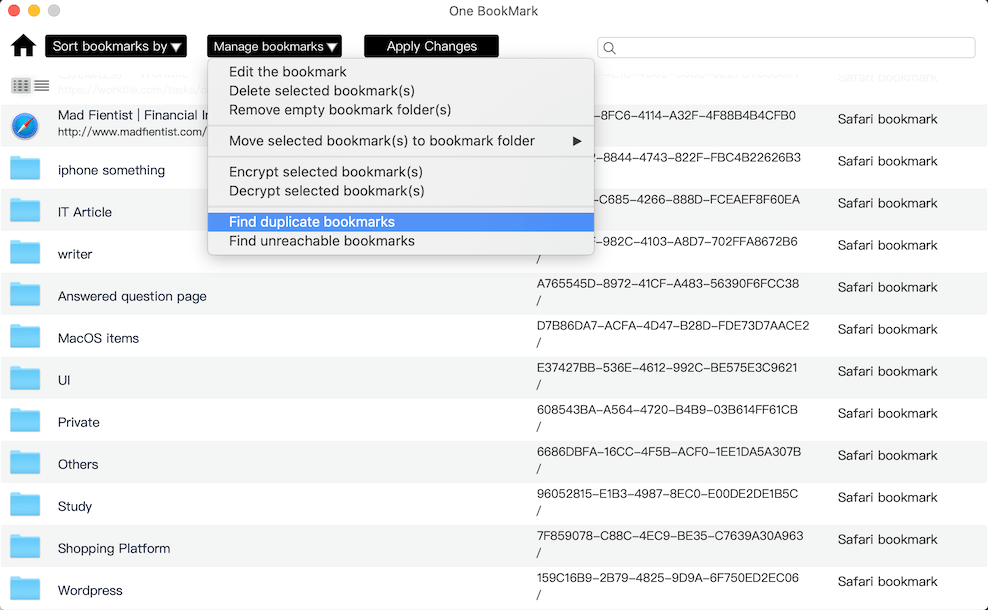
2. Review the duplicates found, and click Delete Selected button to delete duplicates.
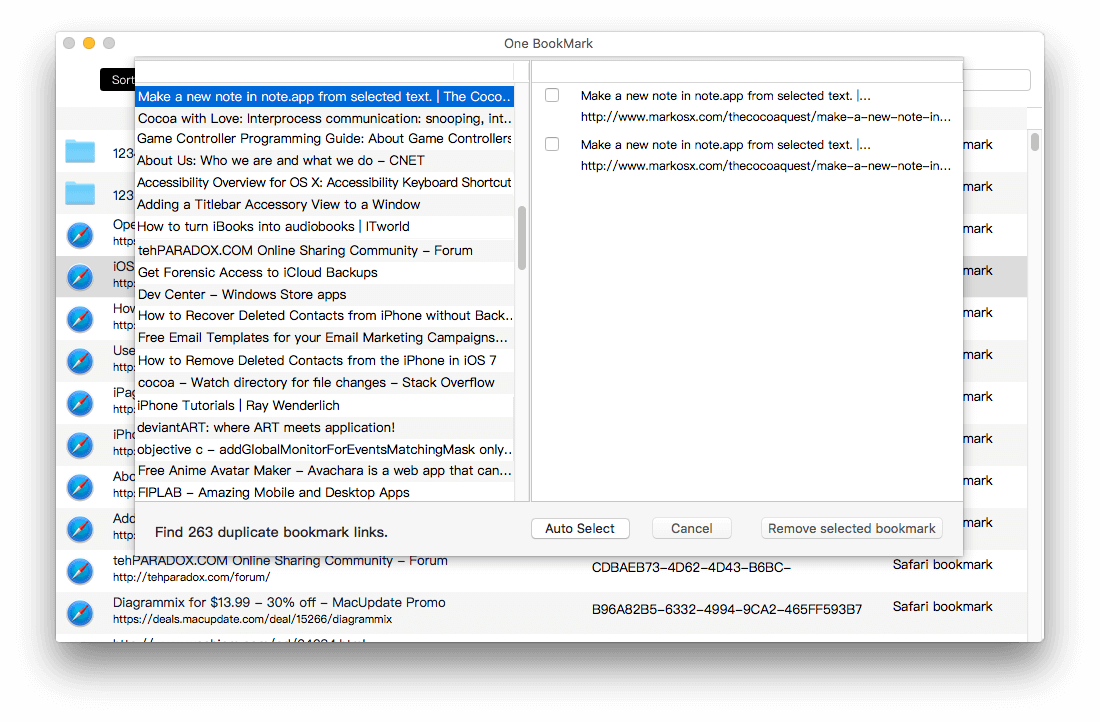
Step 4: Sort Bookmarks
1. Use the Sort Bookmarks By button to organize bookmarks and bookmark folders by host, name, or bookmark type.
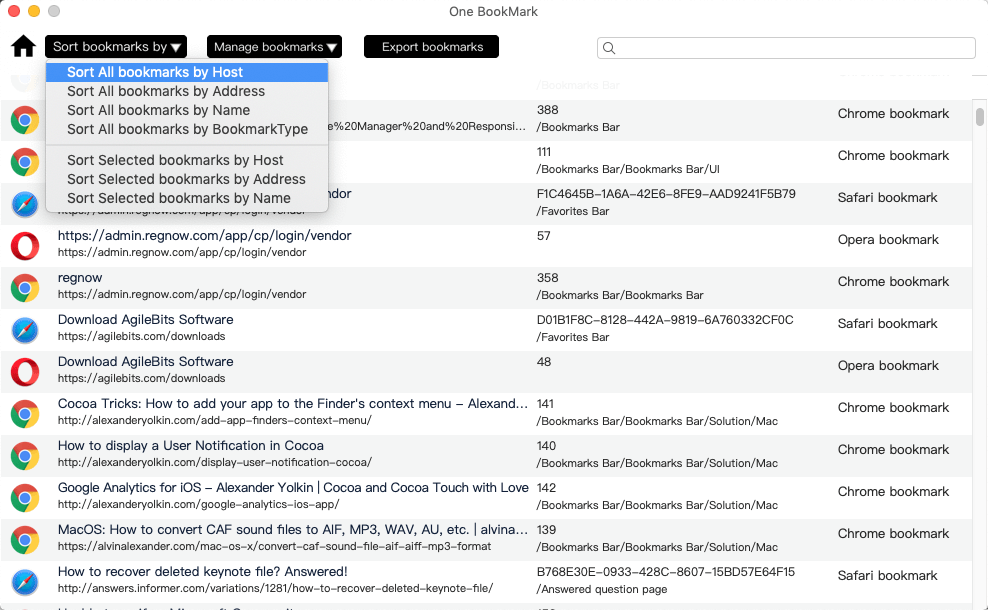
2. Import New Bookmarks into Safari
If you have old bookmark html file or other browser bookmark to import into Safari.
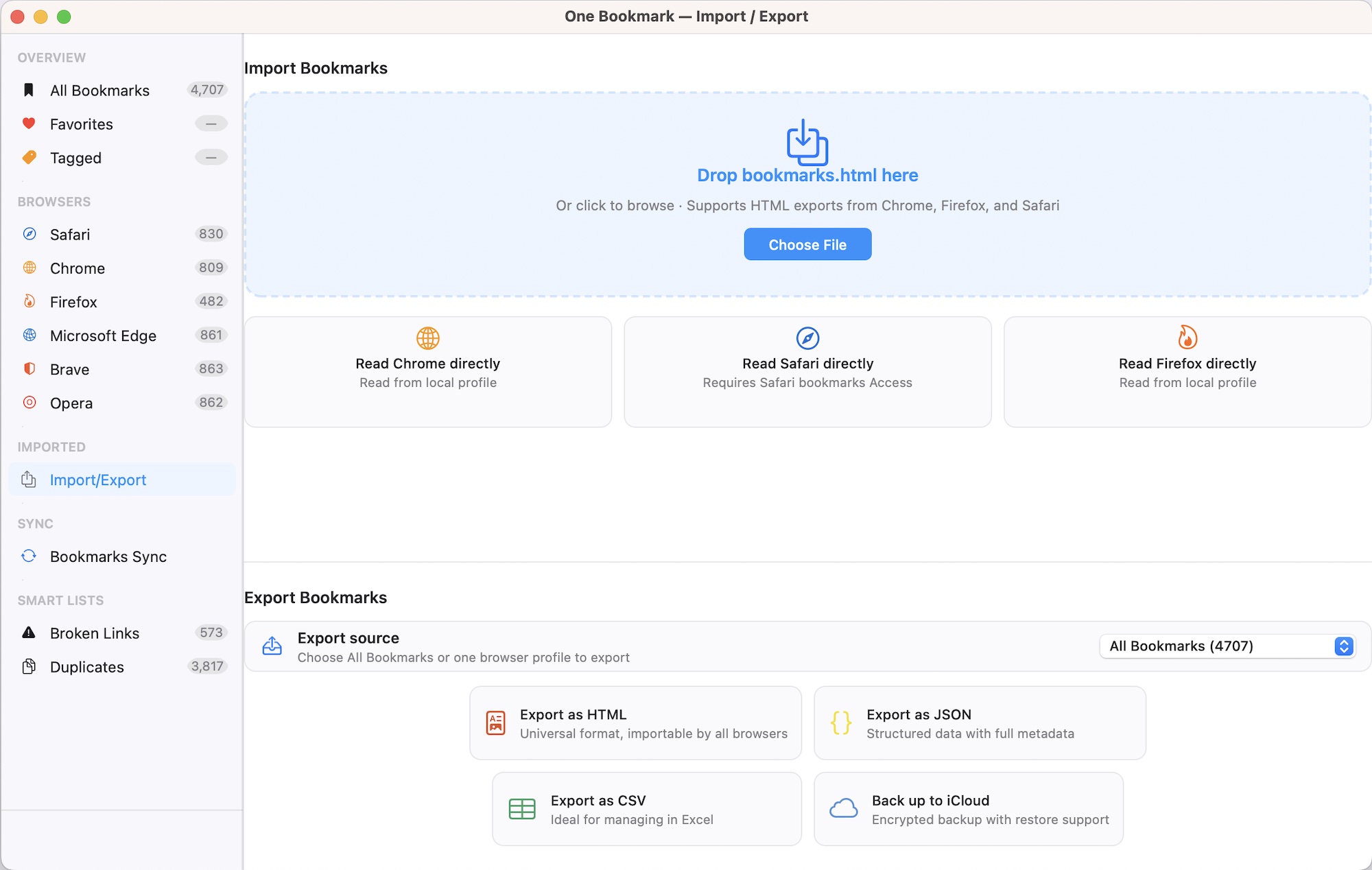
Click Import/Export sidebar, click Choose File button to select your imported html file to import into Safari.
Conclusion
Syncing bookmarks between Chrome and Safari doesn’t have to be a messy, time-consuming process. With tools like One Bookmark, you can efficiently manage, organize, and transfer bookmarks between browsers while avoiding duplicates and chaos. Follow the steps outlined in this guide, and enjoy a seamless browsing experience across all your devices.
| More Related Articles | ||||
 |
1. How to sync all your bookmarks on different browsers on Mac? 2. How to fix your macOS system storage is so huge |
|||
About Fireebok Studio
Our article content is to provide solutions to solve the technical issue when we are using iPhone, macOS, WhatsApp and more. If you are interested in the content, you can subscribe to us. And We also develop some high quality applications to provide fully integrated solutions to handle more complex problems. They are free trials and you can access download center to download them at any time.
| Popular Articles & Tips You May Like | ||||
 |
 |
 |
||
| Five ways to recover lost iPhone data | How to reduce WhatsApp storage on iPhone | How to Clean up Your iOS and Boost Your Device's Performance | ||