Organizing Safari bookmark folders can be a helpful way to keep your bookmarks tidy and easily accessible. Unfortunately, Safari doesn’t include a built-in "Sort" option for bookmark folders. However, manually dragging bookmarks into place can risk accidentally moving them into the wrong folders, creating additional disorganization. In this article, we'll show you how to use a third-party bookmark manager, One Bookmark, to sort Safari bookmark folders and bookmarks efficiently without exporting/importing bookmarks.
Steps to Sort Safari Bookmarks with One Bookmark
1. Download and Install One Bookmark
First, download and install One Bookmark on your Mac. After installation, add One Bookmark application to the Full Disk Access list to get the read and write permission for Safari bookmarks and other browser bookmarks.
2. Launch One Bookmark and Access Safari Bookmarks
Open One Bookmark and select Manage Safari Bookmarks. This will display all your Safari bookmarks and folders in one place, ready for sorting.
3. Sort All Safari Bookmarks and Folders
To sort all bookmarks and folders, go to Sort Bookmarks By and select one of the following options: Sort Bookmarks & Folders by URL A~Z , Sort Bookmarks & Folders by Title A~Z.
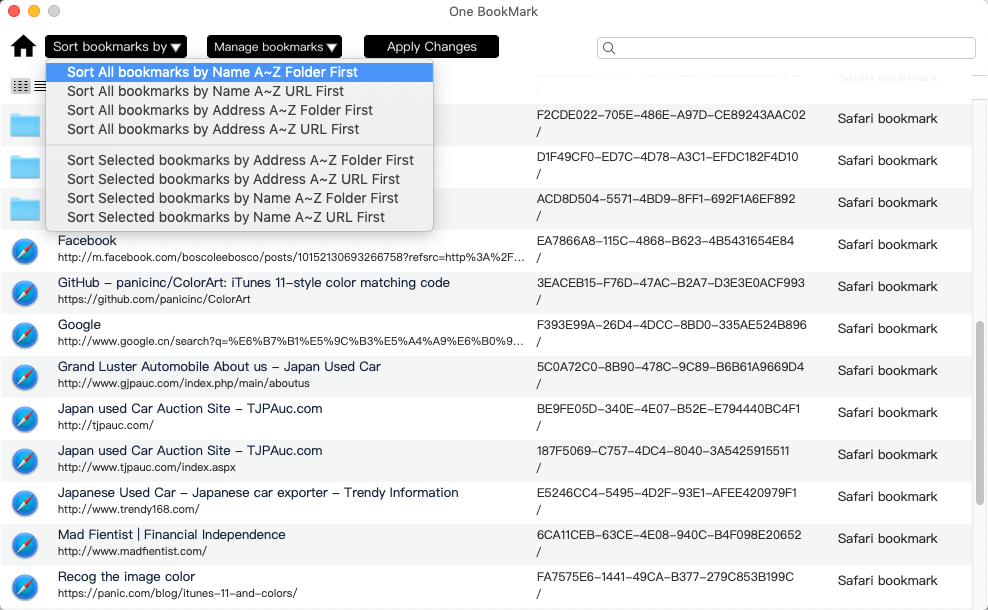
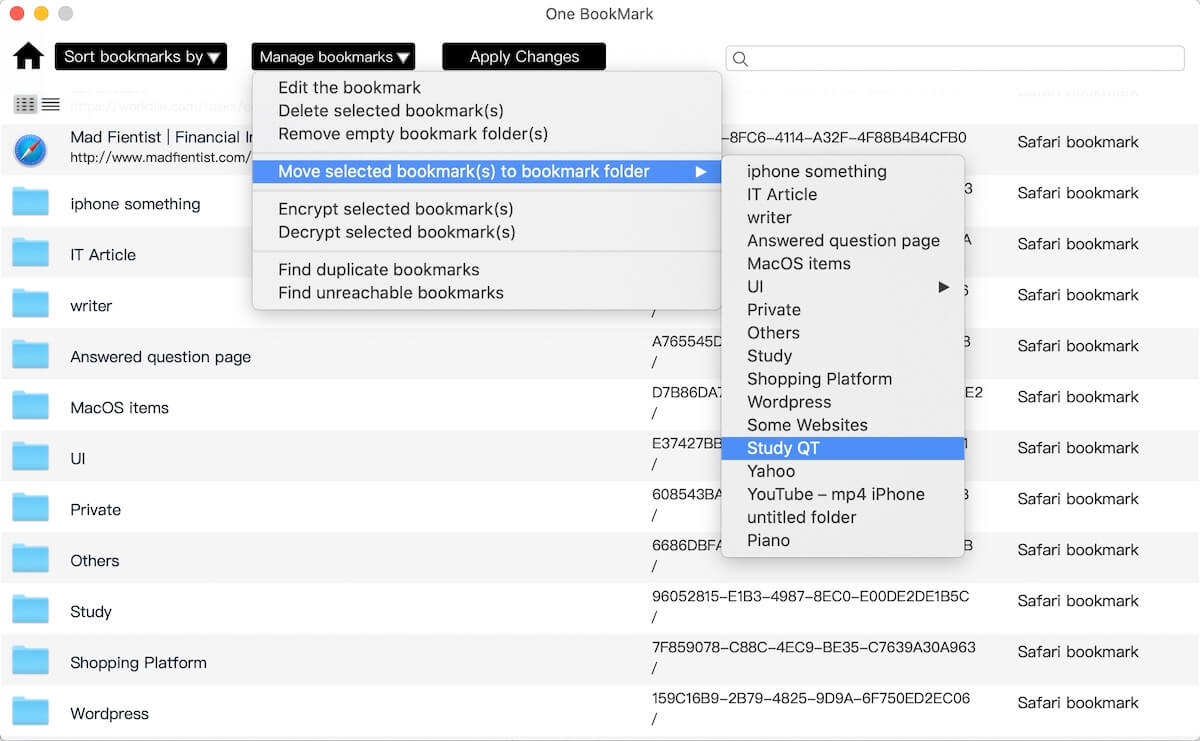
4. Move Selected Safari Bookmarks and Folders
If you need to adjust the location of your bookmarks or bookmark folders, you can easily and quickly move them to different folders using the One Bookmark -" Move" feature. Select the bookmarks or bookmark folder, click the "Move" button on the toolbar, select the target folder, and then click the "Confirm Move" button.
Additional Features of One Bookmark
In addition to sorting bookmarks and folders, One Bookmark offers several useful features:
Sync Bookmarks: Easily Sync and merge bookmarks to different browsers.
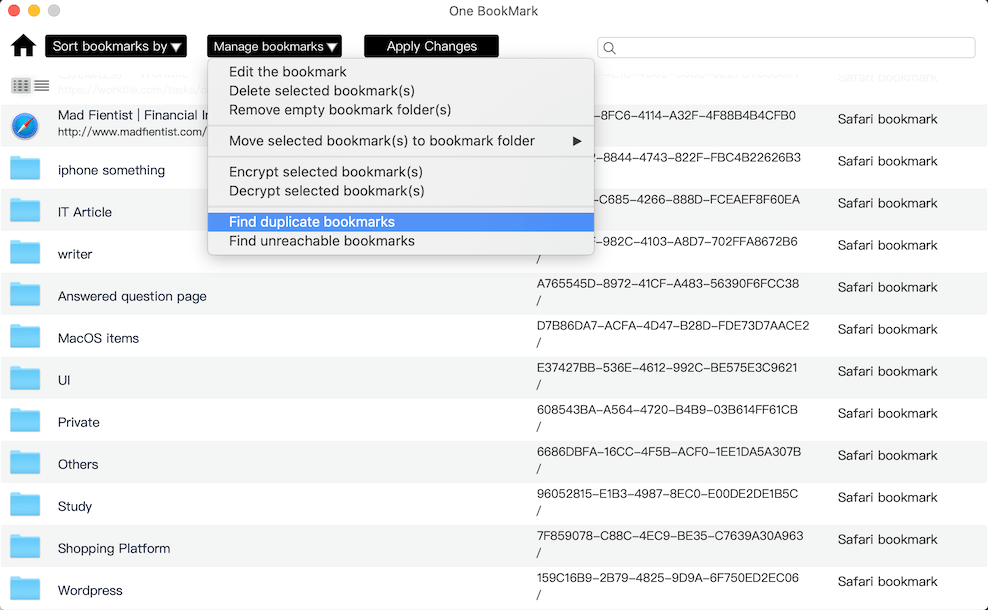
Remove Duplicates: Locate and delete duplicate or unreachable bookmarks.
Encrypt Bookmarks:: Add encryption to sensitive bookmarks.
Manage Chrome and Other Browser Bookmarks: Organize bookmarks across multiple browsers on your Mac.
| More Related Articles | ||||
 |
1. How to encrypt Safari bookmarks on Mac? 2. How to fix your macOS system storage is so huge |
|||
About Fireebok Studio
Our article content is to provide solutions to solve the technical issue when we are using iPhone, macOS, WhatsApp and more. If you are interested in the content, you can subscribe to us. And We also develop some high quality applications to provide fully integrated solutions to handle more complex problems. They are free trials and you can access download center to download them at any time.
| Popular Articles & Tips You May Like | ||||
 |
 |
 |
||
| Five ways to recover lost iPhone data | How to reduce WhatsApp storage on iPhone | How to Clean up Your iOS and Boost Your Device's Performance | ||