Which apps take up the most storage on your iPhone? For many users, WhatsApp is often one of the top apps consuming storage space. This is because WhatsApp stores all chats, photos, videos, and other media files locally on the iPhone.
Over time, your WhatsApp account may accumulate thousands of photos and videos, along with many personal and group chats that you don’t want to delete. While WhatsApp provides a way to back up data to iCloud, this method has some limitations:
• Cloud Costs: It consumes your limited iCloud storage quickly.
• Invisible Data: You cannot browse individual photos or read messages inside the backup file.
• Restoration Hassle: To see an old message, you often have to perform a full factory restore of your iPhone.
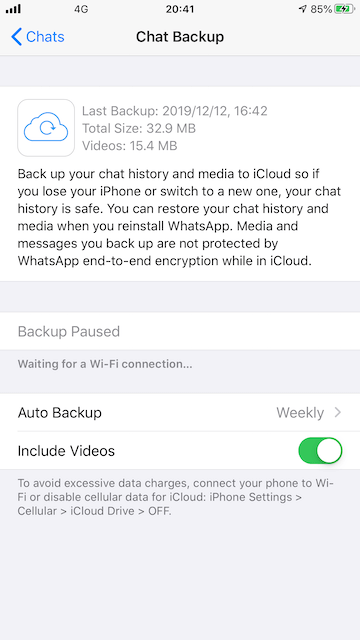
A more flexible solution is to save WhatsApp chats and attachments to an external hard drive. This allows you to connect the drive to your Mac or PC and access your WhatsApp data anytime without restoring your device.
In this article, we’ll show you how to save WhatsApp chats and attachments from an iPhone to an external hard drive.
The Best Way to Export WhatsApp Data: WhatsApp Pocket
To extract data from the encrypted iPhone system and move it to a hard drive, you need a specialized desktop tool. We recommend WhatsApp Pocket. It is a professional utility that lets you "peek" into your iPhone or its backups to extract exactly what you need. It allows you to:
• Back up and recover WhatsApp contacts
• Export WhatsApp chats
• Extract WhatsApp photos and videos
• Recover WhatsApp data from iPhone devices, iTunes backups, and iCloud backups
What you will need:
1. A Mac or Windows PC
2. A USB cable to connect your iPhone
3. An external hard drive to store the exported WhatsApp data
Steps to Save WhatsApp Chats to an External Hard Drive
1. Install WhatsApp Pocket: Download and install WhatsApp Pocket on your Mac or PC.
2. Grant Full Disk Access (Mac Only): If you are using a Mac and want to access local iPhone backups, you need to grant WhatsApp Pocket permission: Go to: System Settings → Privacy & Security → Full Disk Access. Add WhatsApp Pocket to the list so it can read iPhone backup files.
3. Connect Your iPhone: Connect your iPhone to your computer using a USB cable and launch WhatsApp Pocket. The software will detect your iPhone automatically.
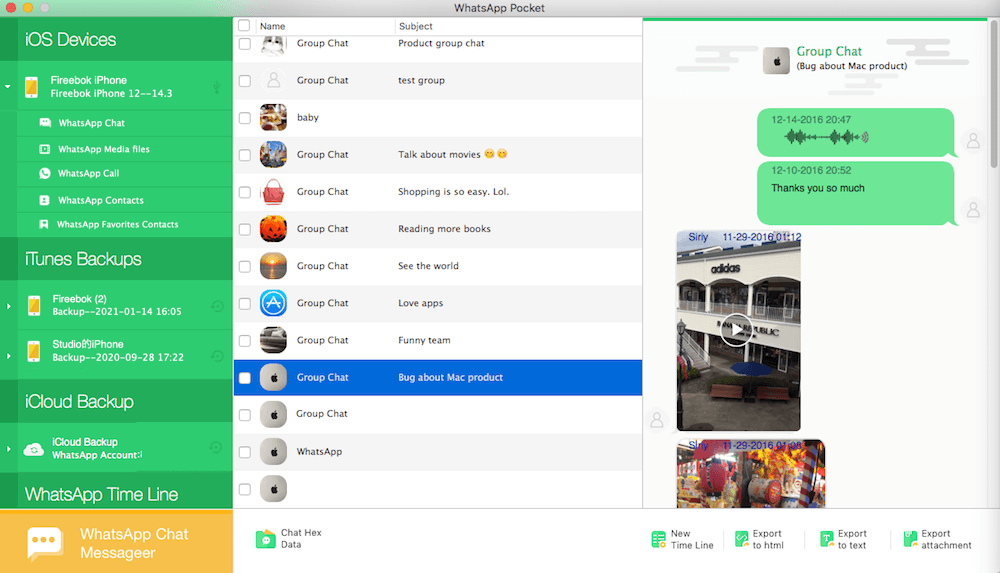
4. Scan WhatsApp Data: In WhatsApp Pocket: Select your iPhone device and expand the device icon. Click WhatsApp Chats, the program will scan and load all WhatsApp data stored on your iPhone.
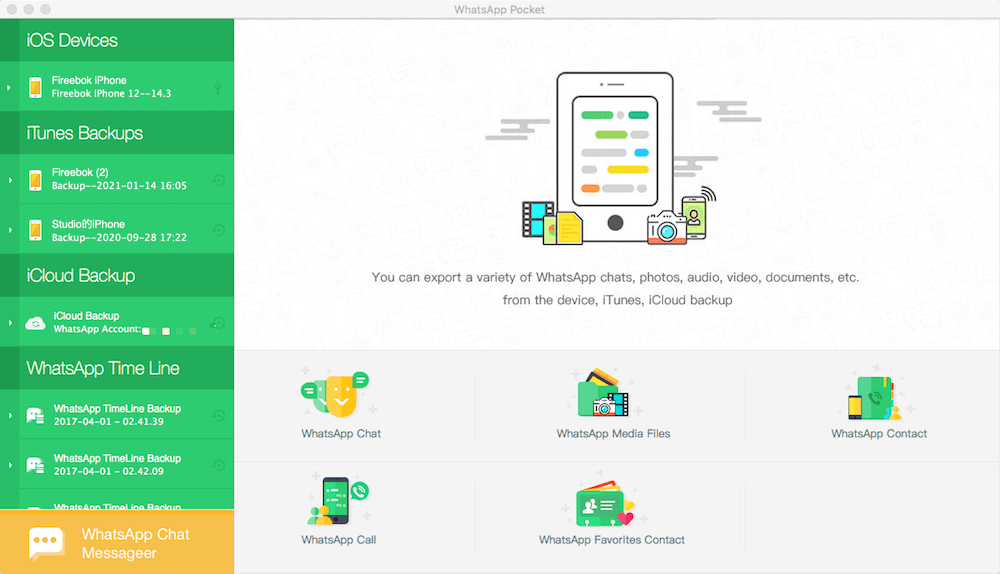
5. Export WhatsApp Chats and Media: Once the scan is finished, Click the WhatsApp Chats tab to view messages. Click the Contacts tab to view WhatsApp contacts. Select the chats, photos, or videos you want to export. Save them directly to your external hard drive.
Why Save WhatsApp Data to an External Hard Drive?
Compared with iCloud backups, saving WhatsApp data to an external drive provides several advantages:
1. Easy Access: You can view WhatsApp chats, photos, and videos anytime on your computer without restoring your iPhone.
2. Multiple Backups: iCloud typically keeps only one WhatsApp backup. When you delete data on your iPhone and back up again, the previous backup is replaced.
3. More Control Over Your Data: By saving WhatsApp backups to an external hard drive, you can store multiple versions of backups and restore the one you need later.
Final Thoughts
Don't let your iPhone storage hit its limit because of years of group chat media. By moving your data to an external hard drive, you can preserve your important memories in a format that is easy to read and share. Using a dedicated tool like WhatsApp Pocket ensures your migration is safe, organized, and complete.

About Fireebok Studio
Our article content is to provide solutions to solve the technical issue when we are using iPhone, macOS, WhatsApp and more. If you are interested in the content, you can subscribe to us. And We also develop some high quality applications to provide fully integrated solutions to handle more complex problems. They are free trials and you can access download center to download them at any time.


