Sometimes iCloud storage is not enough to back up all iPhone data. As a result, many iPhone users choose to back up their iPhone, including WhatsApp data, to a local Mac instead of iCloud.
However, a common problem occurs: after restoring an iPhone from a local Mac backup and reinstalling WhatsApp, all WhatsApp chat history is missing. Even deleting and reinstalling WhatsApp again does not solve the issue.
In addition, some users only want to restore WhatsApp data from a local Mac backup, rather than restoring the entire iPhone backup.
In this guide, we’ll explain why this happens and show you how to restore WhatsApp data from a local Mac backup safely and effectively.
Why Does This WhatsApp Restore Issue Happen?
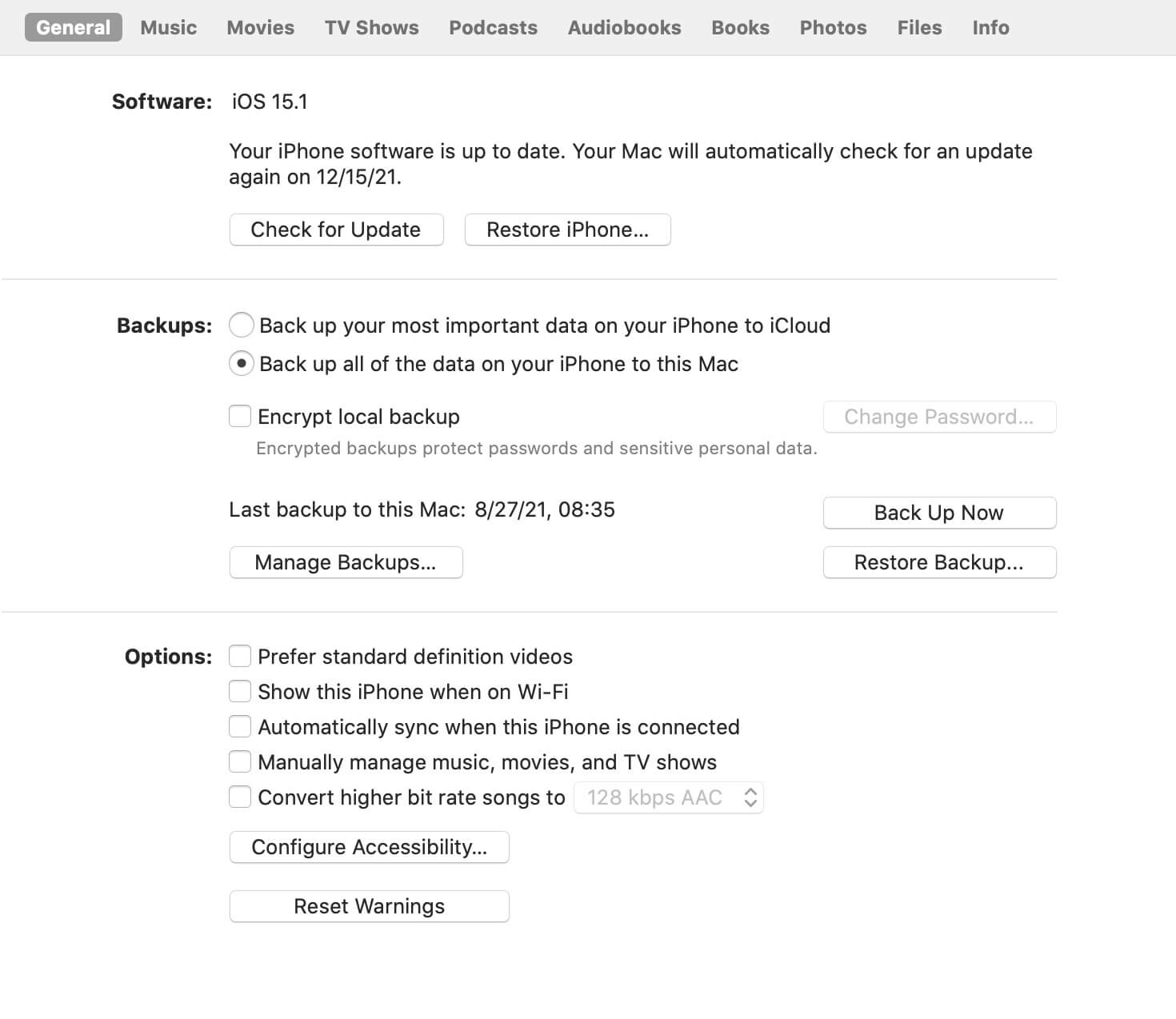
When backing up an iPhone on macOS using Finder or iTunes, you’ll see two backup options:
1. Back up your most important data on your iPhone to iCloud
2. Back up all of the data on your iPhone to this Mac
If you want WhatsApp data to be included in a local Mac backup, you must select Option 2. Choosing the iCloud option will not create a complete local backup, which may result in missing WhatsApp data during restore.
Another Common Reason
In some cases, even when restoring the full iPhone backup, the restore process may fail to properly reload WhatsApp chat messages. This can cause: WhatsApp conversations to appear, but all chat messages inside the conversations are empty.
Why Reinstalling WhatsApp Does Not Work
WhatsApp includes an option to back up data only to iCloud within its settings. When you reinstall WhatsApp:
• You are only prompted to restore from an iCloud backup
• There is no option to restore WhatsApp data from a local Mac backup
This is why reinstalling WhatsApp repeatedly does not restore your chat history from a Mac backup.
Can You Restore Only WhatsApp Data from a Local Mac Backup?
Unfortunately, when restoring an iPhone backup using Finder or iTunes, Apple does not allow you to choose specific data types (such as WhatsApp only). The restore process always applies the entire backup.
To restore only WhatsApp data from a local Mac backup, you’ll need a third-party WhatsApp recovery tool- WhatsApp Pocket.
How to Restore WhatsApp Data from a Local Mac Backup (Recommended Solution)
WhatsApp Pocket is a professional WhatsApp data backup and restore tool that supports: iPhone device backups, Local Mac (iTunes/Finder) backups, iCloud backups.
It allows you to view, export, and restore WhatsApp data selectively, including: WhatsApp chat history, WhatsApp contacts, WhatsApp photos, videos, and attachments.
1. Download and install WhatsApp Pocket on your Mac.
2. Go to System Settings / System Preferences → Privacy & Security → Full Disk Access, Add WhatsApp Pocket to the Full Disk Access list (This is required to read your local iPhone backups.)
3. Launch WhatsApp Pocket, Open the iTunes Backup tab, Locate and expand your local iPhone backup
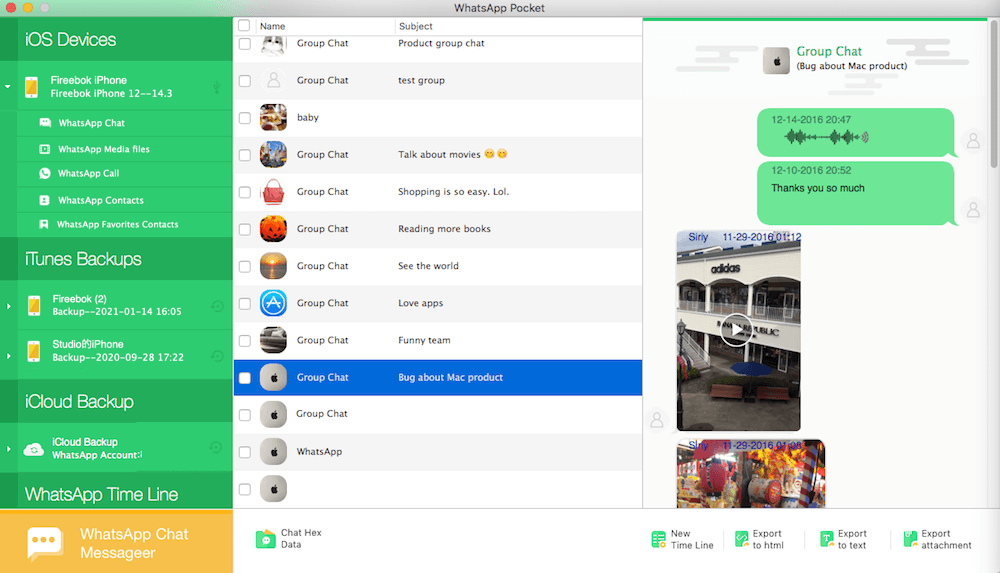
4. Click WhatsApp Chat to load WhatsApp data, Select the WhatsApp conversations you want to: View and Export. You can also browse and export WhatsApp contacts and media files separately without restoring the entire iPhone backup.
Final Thoughts
Restoring WhatsApp data from a local Mac backup can be confusing because:
• WhatsApp only restores from iCloud during reinstallation
• Finder and iTunes do not support selective data restoration
Using a dedicated WhatsApp recovery tool like WhatsApp Pocket is the most reliable way to:
• Recover WhatsApp chat history
• Restore WhatsApp data without overwriting your entire iPhone
• Access WhatsApp data stored in local Mac backups

About Fireebok Studio
Our article content is to provide solutions to solve the technical issue when we are using iPhone, macOS, WhatsApp and more. If you are interested in the content, you can subscribe to us. And We also develop some high quality applications to provide fully integrated solutions to handle more complex problems. They are free trials and you can access download center to download them at any time.


