After syncing bookmarks from different iOS and Mac devices or importing new bookmarks from other browsers, Safari bookmarks may need to be rearranged. In particular, some bookmarks are misclassified into the wrong bookmarks folder. And we need to move some bookmarks from the current bookmarks folder to another bookmarks folder. However, the bookmark Management menu in Safari on iPhone, iPad, or Mac only has Copy, Open, Edit, Delete, and Sort functions, and we can't find the option to move bookmarks. How to move Safari bookmarks to another folder? Don't worry, though—this article will introduce two methods for moving Safari bookmarks.
1. Moving Safari bookmarks with Safari browser
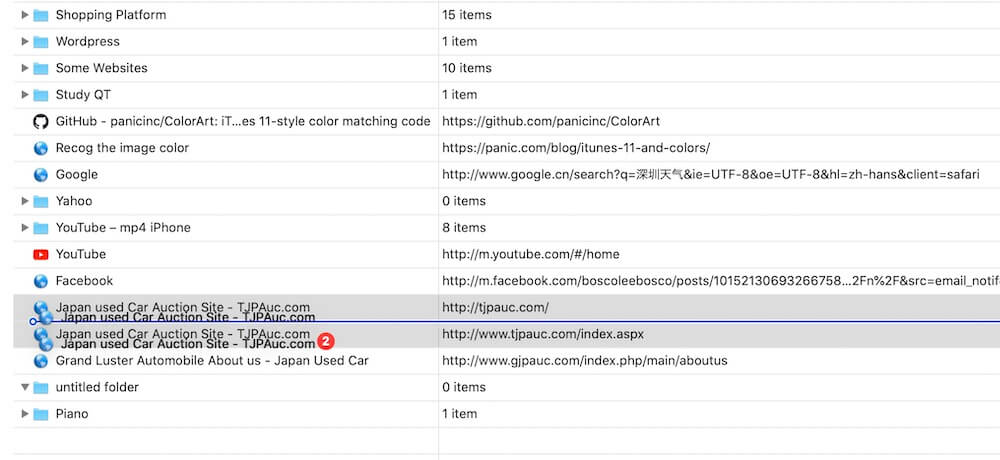
There is no way to move Safari bookmarks on iPhone and iPad, but it is possible to move Safari bookmarks on Mac using Safari browser, which appears to be a hidden bookmark management feature. Here's how you can access it: In the Safari app on your Mac, go to file menu Bookmarks -> Edit Bookmarks, select one or multiple bookmarks, and then drag them to a new folder location. And if you want to undo this bookmark move, simply press the keyboard shortcut command + Z.
2. Moving Safari bookmarks with One Bookmark
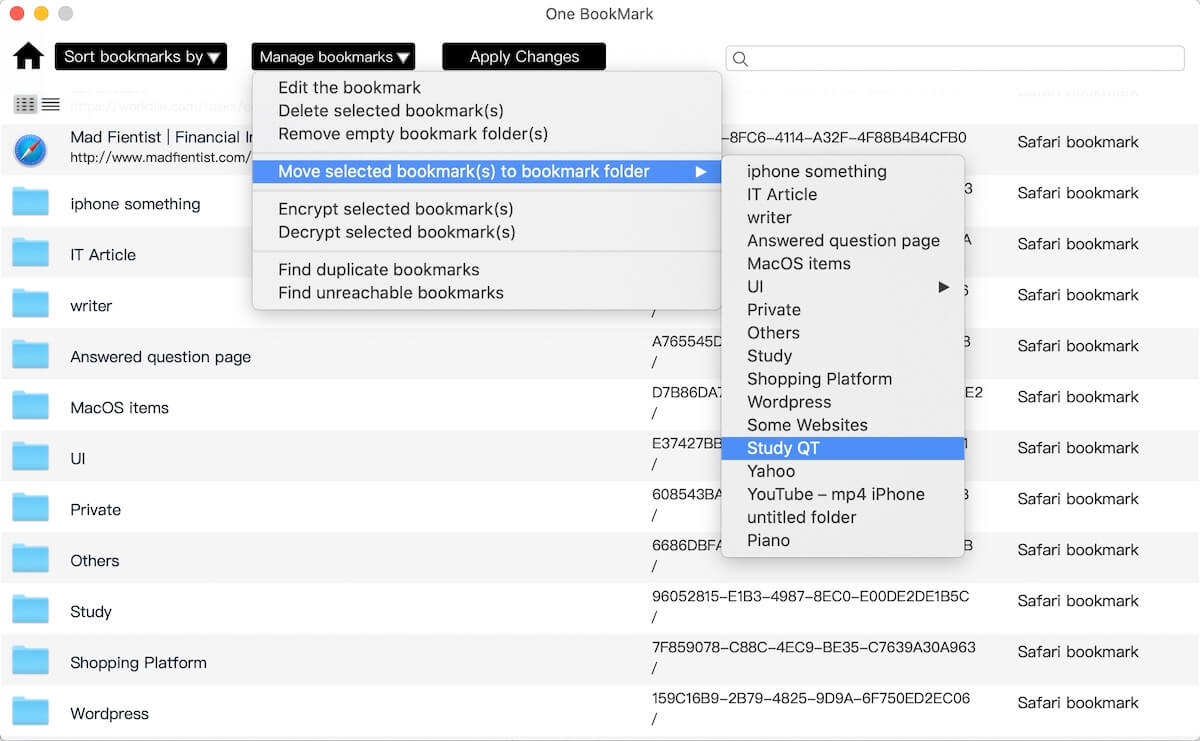
Safari only provides basic editing and bookmark management options. To perform more advanced tasks like moving bookmarks, you can use third-party applications like the One Bookmark app. This app offers powerful features for editing and managing bookmarks, including moving Safari bookmarks, sorting them, removing duplicates and invalid bookmarks, deleting empty bookmark folders, encrypting bookmarks, and more. Here's how you can move Safari bookmarks using the One Bookmark app: Download and install One Bookmark app on your Mac.
Open One Bookmarks application, select bookmarks and click the "Move" toolbar button, and choose the bookmark folder you want to move. You can choose copy(keep original) or Move(remove from source), and it also supports moving the selected bookmark to other browser bookmark folder.
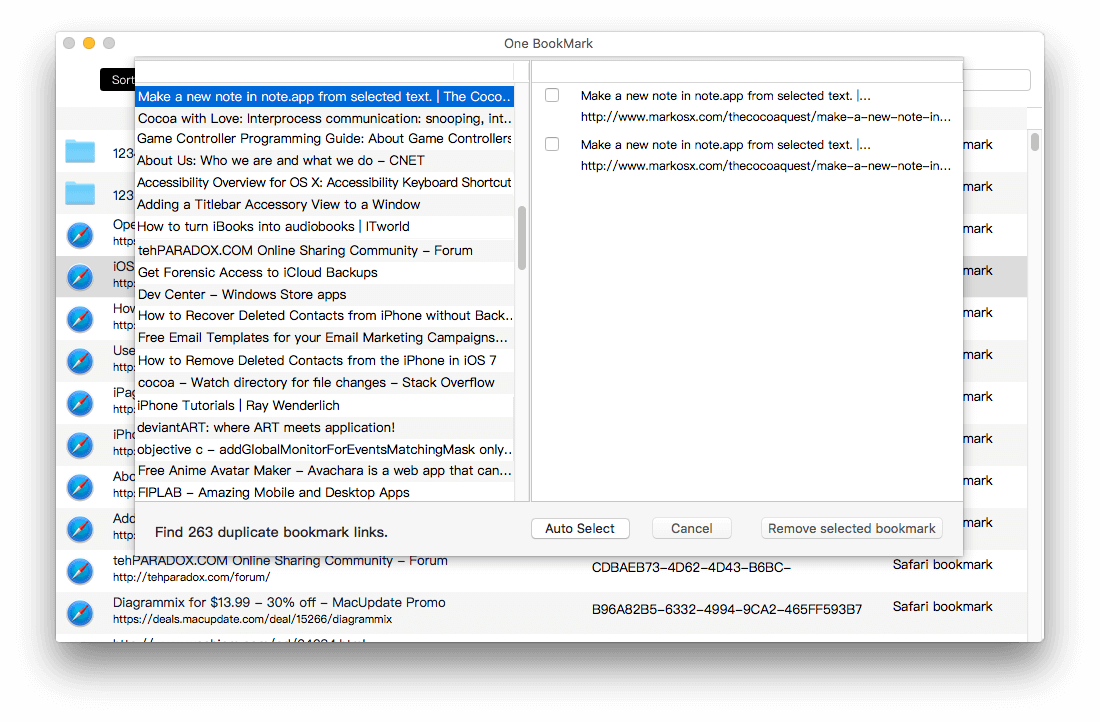
Additionally, One Bookmarks also provide other features, such as removing duplicate and invalid bookmarks. Click Duplicate bookmarks button, then you can automatically or manually select duplicate bookmarks to remove them.
| More Related Articles | ||||
 |
1. How to sync all your bookmarks on different browsers on Mac? 2. How to fix your macOS system storage is so huge |
|||
About Fireebok Studio
Our article content is to provide solutions to solve the technical issue when we are using iPhone, macOS, WhatsApp and more. If you are interested in the content, you can subscribe to us. And We also develop some high quality applications to provide fully integrated solutions to handle more complex problems. They are free trials and you can access download center to download them at any time.
| Popular Articles & Tips You May Like | ||||
 |
 |
 |
||
| Five ways to recover lost iPhone data | How to reduce WhatsApp storage on iPhone | How to Clean up Your iOS and Boost Your Device's Performance | ||