Some iPhone 16 users have reported issues with connecting their iPhones to CarPlay. This problem isn’t limited to iPhone 16 users—many others have experienced CarPlay issues after updating to iOS 18. Since CarPlay is essential for navigation, music, and hands-free control, it's frustrating when it stops working. If you're facing problems with a wired or wireless CarPlay connection, here are several effective solutions to try:
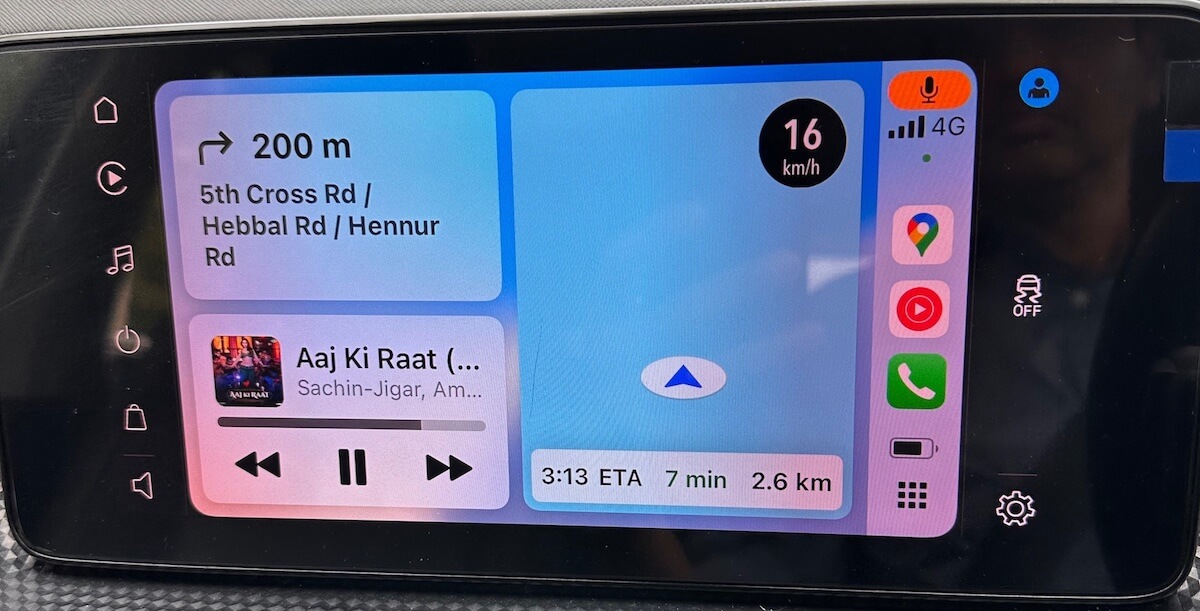
1. For Wired CarPlay Connections
If you're using a wired connection, try the following:
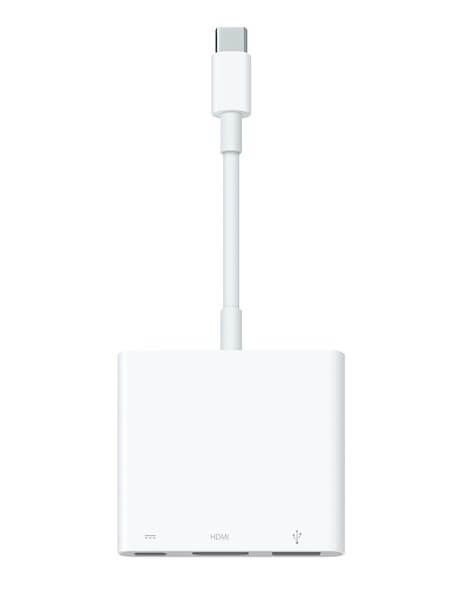
• Use a different USB cable and test a different USB port in your vehicle.
• Use a USB-C to Lightning Adapter if required by your vehicle.
• Some adapter and cable combinations may not work properly with certain infotainment systems. If your car supports only wired CarPlay, a direct connection using a compatible USB cable is recommended.
2. Restart Your iPhone and Car
A simple restart can often fix temporary system glitches:
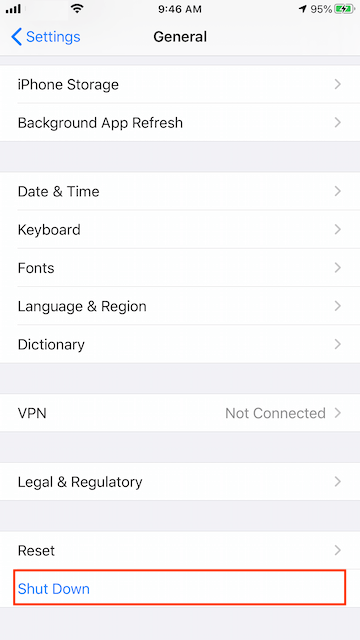
• On your iPhone: Go to Settings -> General -> Shut Down, then drag the slider to power off. Wait a few seconds and turn it back on.
• Restart your car and the CarPlay stereo system as well.
3. Check Wi-Fi and Bluetooth for Wireless CarPlay
If you're using wireless CarPlay:
• Ensure Bluetooth is turned on: Settings -> Bluetooth
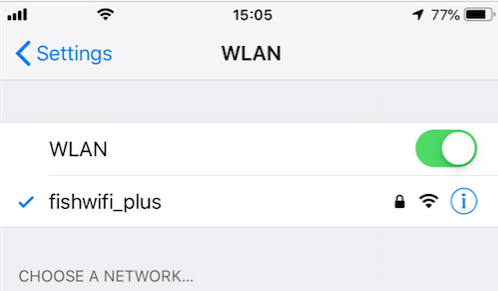
• Ensure Wi-Fi is enabled: Settings -> Wi-Fi
• Tap your CarPlay network, then ensure Auto-Join is turned on.
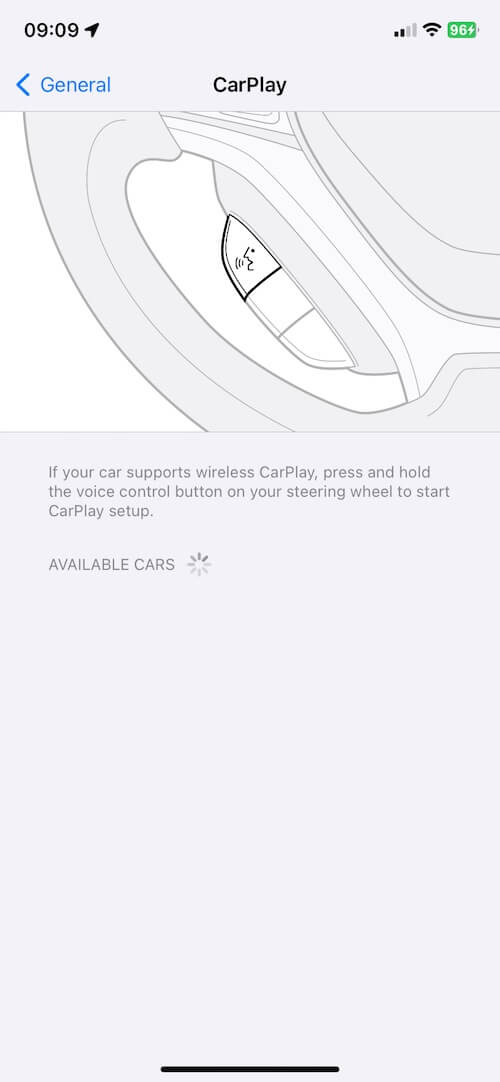
4. Re-Connect and Set Up CarPlay on iPhone
• Go to iPhone Settings -> General -> CarPlay, select your car, then tap Forget This Car.
• Ensure your car stereo is in wireless or Bluetooth mode.
• On your iPhone, re-enable Wi-Fi and Auto-Join for the CarPlay network.
• Return to iPhone Settings -> General -> CarPlay, and reconnect to your car.
5. Allow CarPlay in Content & Privacy Restrictions
If CarPlay still doesn’t work:
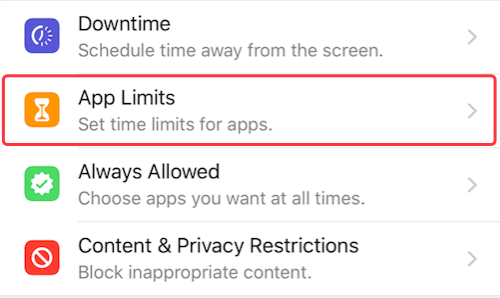
• Go to iPhone Settings -> Screen Time -> Content & Privacy Restrictions
• Tap Allowed Apps, and ensure CarPlay is enabled.
6. Update iOS or Your CarPlay Stereo
Check for software updates:
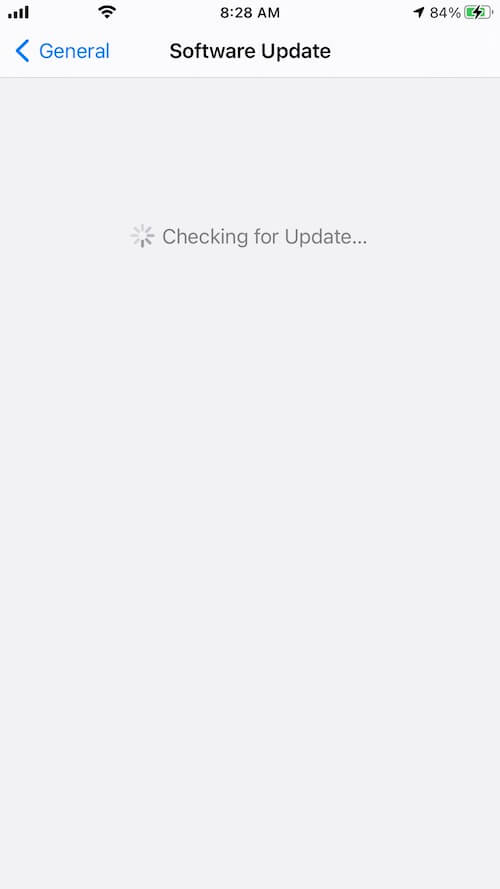
• On iPhone: Go to Settings -> General -> Software Update
• For your vehicle, check the manufacturer’s website or visit the dealership to update the infotainment system firmware.
| More Related Articles | ||||
 |
1. How to fix that app can't open on Mac? 2. How to Convert Text to MP3 on Mac? |
|||
About Fireebok Studio
Our article content is to provide solutions to solve the technical issue when we are using iPhone, macOS, WhatsApp and more. If you are interested in the content, you can subscribe to us. And We also develop some high quality applications to provide fully integrated solutions to handle more complex problems. They are free trials and you can access download center to download them at any time.
| Popular Articles & Tips You May Like | ||||
 |
 |
 |
||
| Five ways to recover lost iPhone data | How to reduce WhatsApp storage on iPhone | How to Clean up Your iOS and Boost Your Device's Performance | ||