Video files use metadata to store essential information, including video title, artwork, director, actors, producers, shooting date, copyright, description, and GPS location. Metadata is critical for organizing, searching, and managing video files, especially when you have a large media library.
However, when you download videos from websites or export them from video editors, video metadata is often missing, incorrect, or incomplete. If you are a content creator, you may also need to edit video metadata on Mac to add professional video tags, such as title, director, and copyright, to make them easier to manage.
In this guide, we’ll introduce several video metadata editor applications for Mac and show you how to batch edit video metadata on macOS efficiently.
Edit Video Metadata with Apple Photos for Mac
After importing a video file into the Photos app on Mac, you can view and edit some basic video metadata.
1. Import the video into Photos. Double-click the video to open it. Click the Info (i) button or press Command + I.
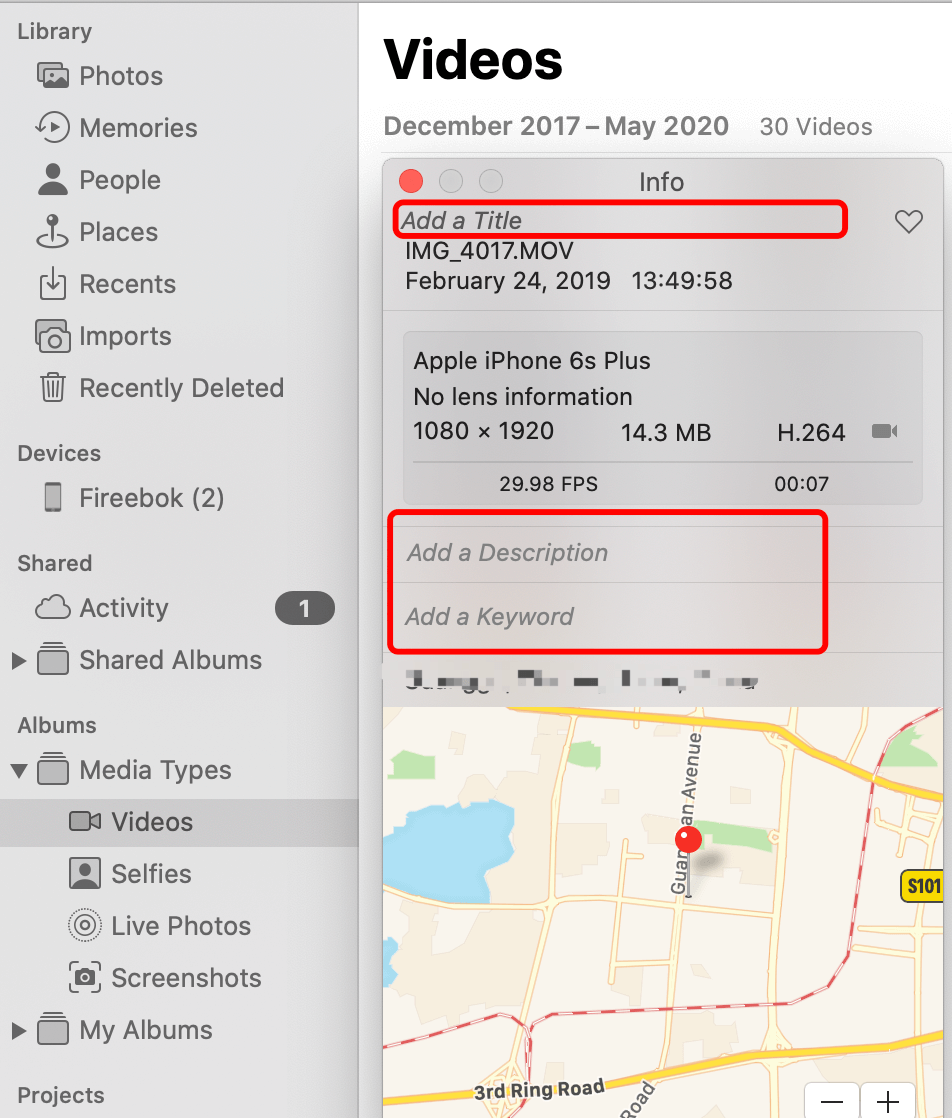
2. You can edit limited metadata fields, such as: Title, Description, Keywords, Location.
Limitations of Apple Photos
Although Photos allows you to edit video metadata visually, it has a major drawback:
• Photos stores metadata changes in its own internal database
• When you export the video, the edited metadata is not written back to the original video file
Because of this, Photos is not suitable for batch editing video metadata on Mac or for permanent metadata changes.
Batch Edit Video Metadata with Media Meta (Recommended)
For those who need to batch edit video metadata on Mac permanently, Media Meta is the professional industry standard. Unlike basic apps, it writes data directly into the file header.
Why Choose Media Meta?
Media Meta allows you to batch edit video metadata tags:
• Video creation and shooting date
• Title, artist, album, and description
• Director, actor, producer, composer
• Publisher and copyright information
• GPS metadata (latitude, longitude, altitude)
• ID3 tags and QuickTime metadata
Supported Formats: MP4, MOV, M4V, MP3, M4A, And more
How to Batch Edit with Media Meta:
1. Download and Install Media Meta for Mac
• Download Media Meta for Mac (Direct DMG) – Fastest installation.
• Get Media Meta on the App Store – Secure Apple-verified download.
2. Launch the app and import multiple video files or folders. Select one or more videos. Edit the desired video metadata fields.
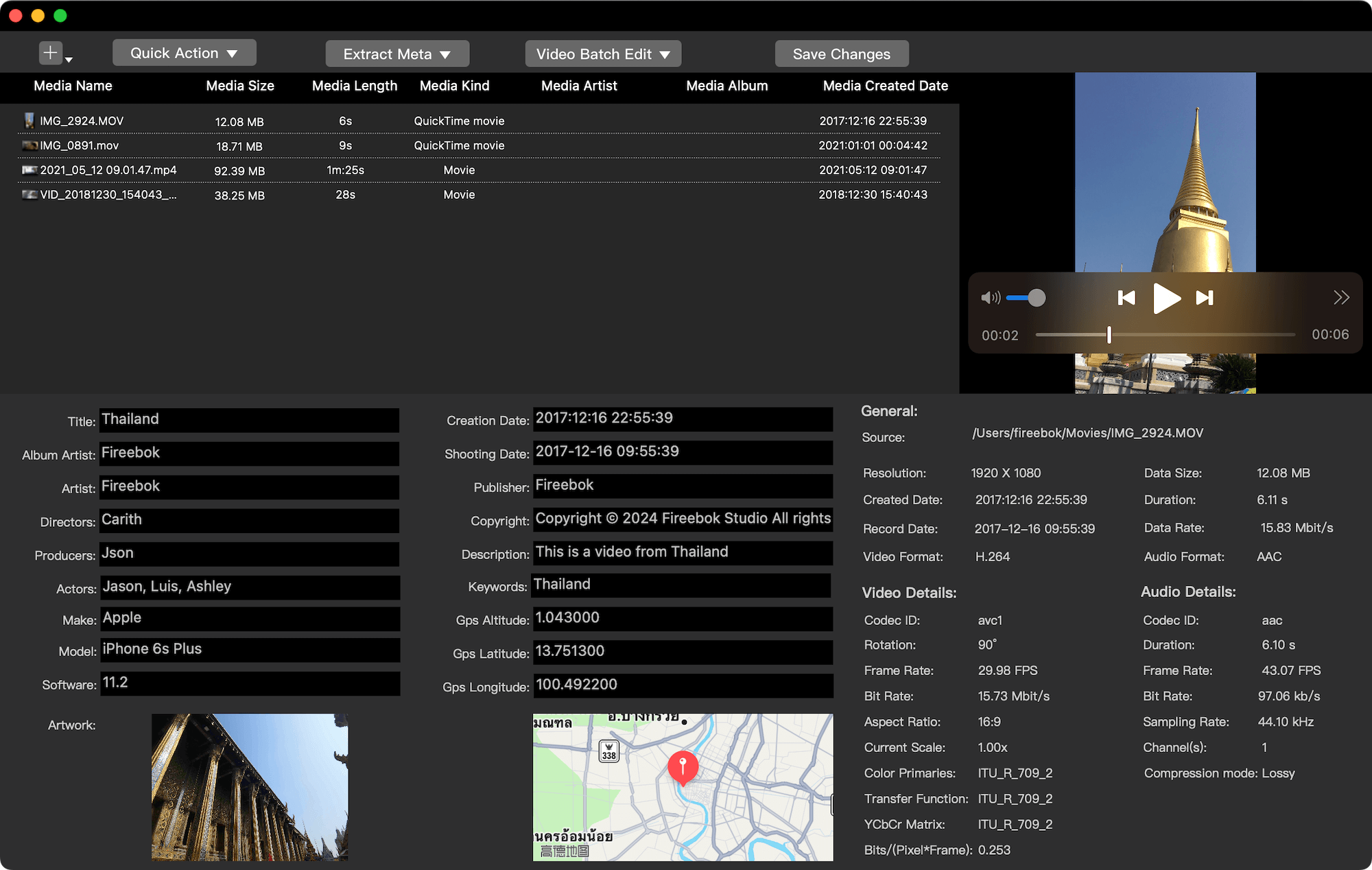
3. Click Save Changes to apply updates in batch. Media Meta writes metadata directly to the video files, making the changes permanent.
Edit MP4 Metadata with MetaX
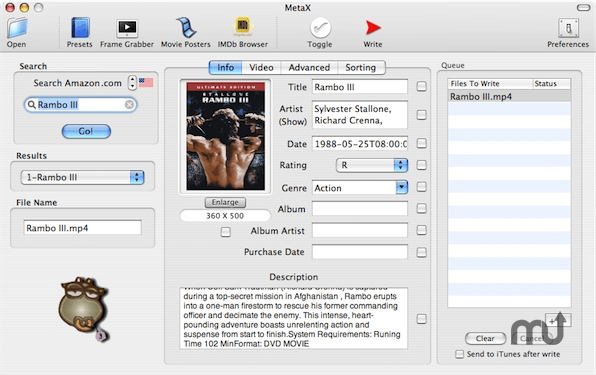
MetaX is an MP4 metadata tagger that uses Atomic Parsley to write metadata to video files.
Key Features
• Supports MP4 and related formats
• Automatically searches Amazon for metadata
• Retrieves cover art from Amazon, Yahoo, or the video file
Key Features
• Requires internet access
• Limited format support
• Development updates are infrequent
Edit Video Metadata with MetaZ
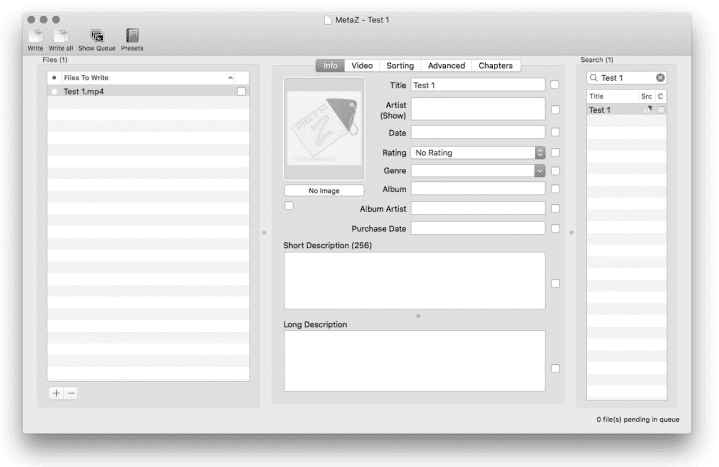
MetaZ is an MP4 metadata editor for macOS and a reimplementation of MetaX.
Highlights
• Focused on MP4 metadata editing
Limitations
• MP4-only support
• Limited batch editing features
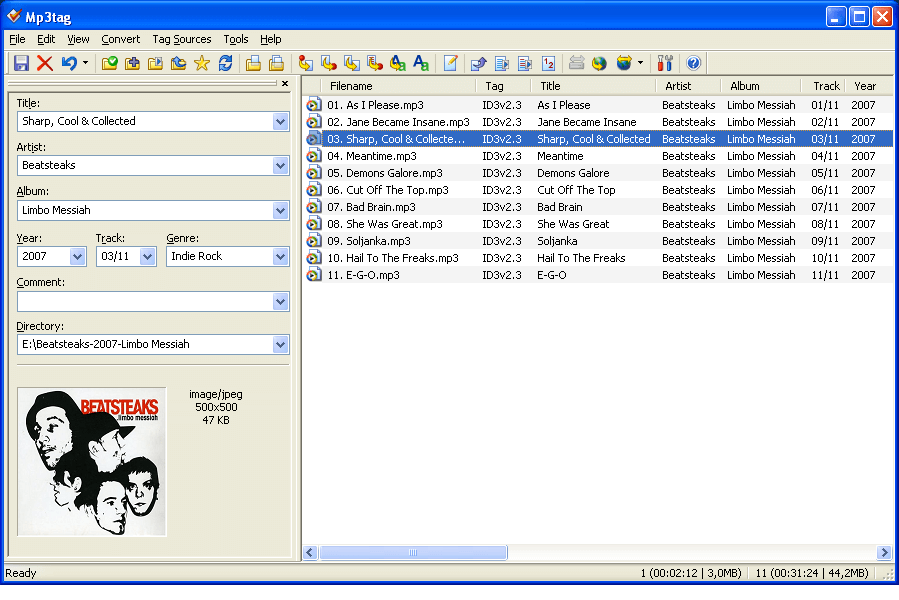
Edit Audio Metadata with Mp3tag
Mp3tag is a powerful tool for batch editing audio metadata, not video metadata.
Supported Metadata Formats
• ID3v1 / ID3v2
• iTunes MP4
• WMA, Vorbis Comments, APE
While excellent for music files, Mp3tag is not designed for video metadata editing.
Final Thoughts
If you need to batch edit video metadata on Mac, Apple Photos is useful for basic viewing, but it does not write metadata back to video files. Tools like MetaX and MetaZ work for MP4 files but are limited in scope. They aren't enough for power users or those who need to change video creation dates on Mac permanently.
For the most complete and reliable solution, Media Meta stands out as the best video metadata editor for macOS, offering batch editing, wide format support, and permanent metadata changes.

About Fireebok Studio
Our article content is to provide solutions to solve the technical issue when we are using iPhone, macOS, WhatsApp and more. If you are interested in the content, you can subscribe to us. And We also develop some high quality applications to provide fully integrated solutions to handle more complex problems. They are free trials and you can access download center to download them at any time.
| Popular Articles & Tips You May Like | ||||
 |
 |
 |
||
| Five ways to recover lost iPhone data | How to reduce WhatsApp storage on iPhone | How to Clean up Your iOS and Boost Your Device's Performance | ||